


CS2 and FACEIT high ping needs two immediate checks: is the whole server affected, or only one player? If most players show high ping or loss, capture the scoreboard and use FACEIT's match support. If only your connection is unstable, stop queueing, test Ethernet, close background traffic, record the server and time, and compare the route before changing settings.

Figure 1. Competitive shooter network panel showing ping and packet-loss evidence
Diagnose CS2 and FACEIT high ping with match evidence
Ping is round-trip time, jitter is its variation, and packet loss is missing traffic. FPS and frame time describe local rendering. A player can have high FPS and poor networking, or low FPS on an excellent route. Use the in-game telemetry and scoreboard to avoid confusing the two.
FACEIT distinguishes a server-wide incident from a single-player problem. Note match ID, time, server, affected players, ISP, connection type, and diagnostics requested by support. A scoreboard clip is more useful than “the server lagged.” Do not disrupt a live match.
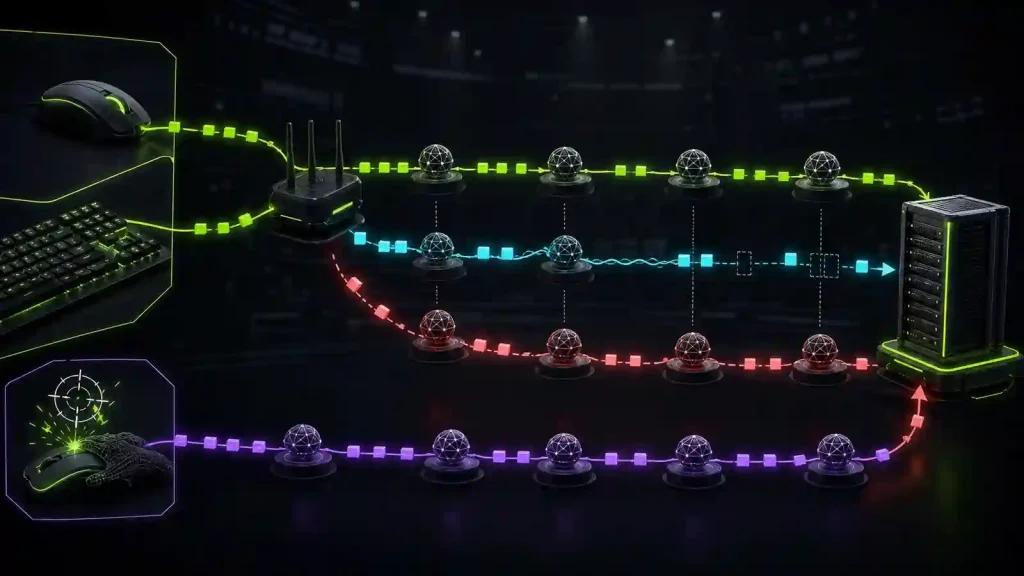
Figure 2. FACEIT diagnosis comparing one affected player with the full server
Test before the next queue
Use Ethernet and pause Steam downloads, cloud sync, streaming, and updates. Restart the router once if needed, then keep the setup unchanged. Select the same FACEIT server preference and run more than one test.
If only Wi-Fi fails, fix interference or signal. If every destination is poor, inspect the local network and ISP. If one server repeatedly shows a bad path while local tests remain stable, save traceroute and latency evidence.

Figure 3. CS2 wired route test documented before a competitive queue
Pre-queue checklist
- Confirm Steam, CS2, and FACEIT are available and updated.
- Use Ethernet and stop downloads or uploads that compete with the match.
- Record the selected server, match ID, time, ISP, ping, jitter, and loss.
- Compare your result with the scoreboard to identify one-player or server-wide impact.
- Save the diagnostics FACEIT requests before opening a ticket.
- Apply this expanded CS2 troubleshooting workflow and test alternate routing only between matches.
When route optimization can help
It may help one player whose stable connection reaches a supported server through an inefficient ISP path. It cannot repair FACEIT, Steam, Wi-Fi, low FPS, or poor server selection. Geography and congestion prevent fixed-ping promises.
Frequently asked questions
Why does everyone on the scoreboard have high ping?
That pattern is stronger evidence of a server or shared-platform issue. Capture it and use match support rather than changing only your PC.
Is packet loss the same as low FPS?
No. Loss removes network data; low FPS means the device is producing fewer frames. Their symptoms can overlap, but the metrics and fixes differ.
Should I run traceroute during the match?
Follow FACEIT's requested diagnostic process and avoid actions that disrupt play. Collect detailed tests before or after the match when practical.
Create a baseline outside ranked play, test NoPing through alternating runs to the same supported server, and keep it only if the result is repeatedly better. Preserve the original evidence for support.
Read more:
- How to Fix Ping Spikes in CS2 [Complete Guide]
- High Latency in CS2: How to Fix It
- How to Reduce Lag in CS2