


If you're searching for the best PC settings for Warzone, optimizing your configuration is crucial to achieve smooth gameplay, higher frames per second (FPS), and minimal lag.
Whether you're a casual player or aiming for the top ranks, fine-tuning your system can make a significant difference.
Let's explore how to adjust your settings for the ultimate Call of Duty: Warzone experience.
Also read these posts about Warzone!
- How to Get Better at Warzone: 12 Best Tips
- How to Fix Lag in Warzone?
- What is The Best Mouse Sensitivity for Warzone?
What are the PC Requirements for Warzone?
Before tweaking settings, it's essential to know if your PC meets the game's requirements. Here's a breakdown:
Minimum Specifications
- OS: Windows 10 64-bit
- CPU: Intel Core i3-6100 / AMD Ryzen 3 1200
- RAM: 8 GB
- GPU: NVIDIA GeForce GTX 960 / AMD Radeon RX 470
- VRAM: 2 GB
Recommended Specifications:
- OS: Windows 10/11 64-bit
- CPU: Intel Core i5-6600K / AMD Ryzen 5 1400
- RAM: 12 GB
- GPU: NVIDIA GeForce GTX 1060 / AMD Radeon RX 580
- VRAM: 4 GB
Ultra Specifications:
- OS: Windows 10/11 64-bit
- CPU: Intel Core i9-9900K / AMD Ryzen 9 3900X
- RAM: 16 GB
- GPU: NVIDIA GeForce RTX 3080 / AMD Radeon RX 6800 XT
- VRAM: 10 GB
Ensuring your system aligns with these specs is the first step toward optimal performance.
What are the Best PC Settings for Warzone?
Adjusting in-game settings can significantly impact performance. Let's delve into the optimal configurations for both low-end and high-end PCs.
For Low-End PC
If your system struggles with Warzone, these settings can help stabilize FPS without sacrificing too much visual quality:
- Display Settings:
- Display Mode: Fullscreen Exclusive
- Display Resolution: 1920x1080 (or your monitor’s native resolution)
- Screen Refresh Rate: Match your monitor's refresh rate
- Aspect Ratio: Automatic
- NVIDIA Reflex Low Latency: On + Boost
- V-Sync (Gameplay & Menus): Off
- Custom Framerate Limit: Set to your monitor's refresh rate (e.g., 144 Hz)
- Brightness: 55
- High Dynamic Range (HDR): Off

Source: Dexerto
- Quality Settings:
- Quality Presets: Custom
- Render Resolution: 100
- Upscaling / Sharpening: FidelityFX CAS
- Texture Resolution: Low
- Particle Resolution: Very Low
- Bullet Impacts: On
- Shader Quality: Medium
- Shadow Quality: Low
- Screen Space Shadows: Off
- Ambient Occlusion: Off
- Volumetric Quality: Low
- Water Quality: Off
- Field of View (FOV): 100
- World & Weapon Motion Blur: Off
- Film Grain: 0.00
These settings are designed to reduce the load on your GPU and CPU, resulting in smoother gameplay with fewer stutters and lag spikes.
Disabling features like Depth of Field and Motion Blur will also help you maintain a clear visual field, critical in fast-paced combat situations.
For High-End PC
If you're running Warzone on a powerful gaming rig, you can afford to push the settings higher to take full advantage of the game’s stunning graphics:
- Display Settings:
- Display Mode: Fullscreen Exclusive
- Display Resolution: 2560x1440 (or your monitor’s native resolution)
- Screen Refresh Rate: Match your monitor's refresh rate
- Aspect Ratio: Automatic
- NVIDIA Reflex Low Latency: On + Boost
- V-Sync (Gameplay & Menus): Off
- Custom Framerate Limit: Set to your monitor's refresh rate (e.g., 144 Hz)
- Brightness: 55
- High Dynamic Range (HDR): Off

Source: Charlie Intel
- Quality Settings:
- Quality Presets: Custom
- Render Resolution: 100
- Upscaling / Sharpening: FidelityFX CAS
- Texture Resolution: Normal
- Particle Resolution: Low/Normal
- Bullet Impacts: On
- Shader Quality: Medium
- Shadow Quality: Normal
- Screen Space Shadows: Off
- Ambient Occlusion: Off
- Volumetric Quality: Low
- Water Quality: Off
- Field of View (FOV): 110
- World & Weapon Motion Blur: Off
- Film Grain: 0.00
These settings offer a good mix of high performance and excellent visual quality. They are ideal for high-end PCs that can handle the additional load, ensuring you can enjoy Warzone in all its graphical glory without compromising on frame rates.
How Can You Get Higher FPS in Warzone?
Beyond in-game settings, several system-level adjustments can further enhance your FPS and get you closer to getting the best PC settings for Warzone:
- Update Graphics Drivers: Ensure you have the latest drivers from NVIDIA or AMD, as they often include performance optimizations for new games.
- Enable Game Mode in Windows: This feature prioritizes your system resources for gaming applications.
- Disable Background Applications: Close unnecessary programs running in the background to free up CPU and memory resources.
- Adjust Power Settings: Set your PC to 'High Performance' mode in the power settings to ensure maximum performance.
- Optimize Storage: Ensure Warzone is installed on an SSD for faster load times and smoother texture streaming.
- Clean Temporary Files: Regularly delete temporary files and perform disk cleanup to free up space and improve performance.
- Overclocking: If you're familiar with overclocking, safely increasing the clock speeds of your CPU and GPU can lead to performance gains.
- Adjust In-Game Settings: Lower settings like texture resolution, shadow quality, and disable unnecessary effects to boost FPS.
- Use NoPing's Boost FPS Feature: If you're already using NoPing to reduce latency and stabilize your ping (which is awesome for online games), you should definitely take advantage of the Boost FPS feature.
How it helps:
- Closes unnecessary background services
- Frees up RAM and CPU resources
- Optimizes network routes to reduce data congestion (which indirectly helps FPS in online matches)
How to use the Boost FPS feature:
- Sign-up through the website and download NoPing (you can test it for free).
- When you open the software, click on "Boost FPS" in the left side menu.
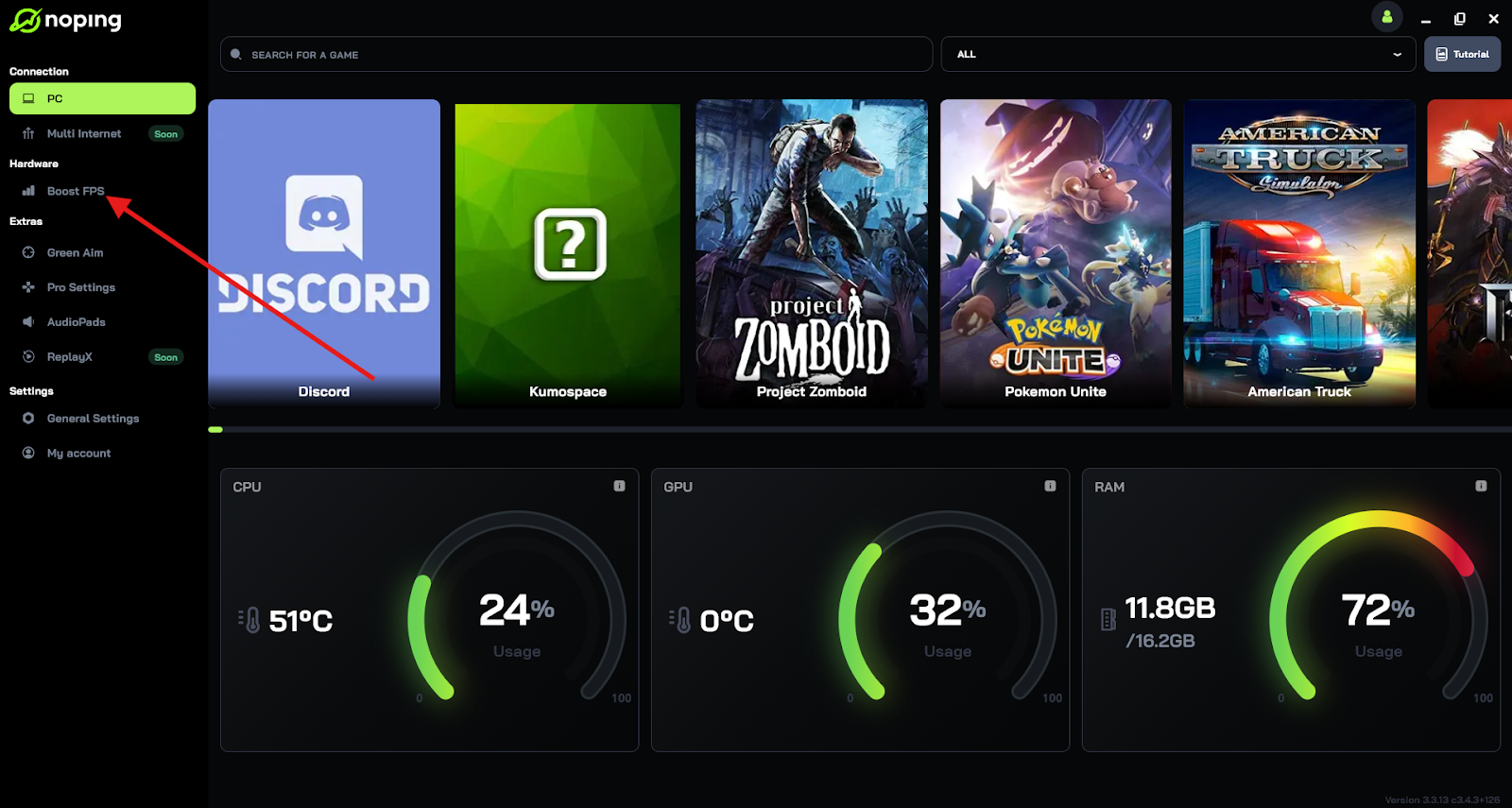
- On the next screen, you'll see a range of options to customize the feature (there are over 50 settings). You can enable or disable everything and choose between Windows default or user settings. You can also filter the options using the bar on the right.

And that's it! Boost FPS is now activated. Just launch your game and enjoy high FPS!
Implementing these steps can lead to a noticeable improvement in FPS, resulting in a smoother and more responsive gaming experience.
How to Update Your Graphics Card?
Keeping your graphics card drivers up to date is one of the most effective ways to maintain peak performance in Warzone. Updated drivers often come with optimizations for new game releases, bug fixes, and performance enhancements. Here’s how you can do it:
For NVIDIA Users (GeForce Graphics Cards)
- Open GeForce Experience – If you don’t have it installed, download it from the official NVIDIA website.
- Go to the "Drivers" Tab – Once the application is open, navigate to the "Drivers" section at the top.
- Check for Updates – Click the "Check for Updates" button to see if a new driver is available.
- Download and Install – If an update is available, click "Download" and then "Express Installation" for an easy update.
- Restart Your PC – After installation, restart your PC to apply the changes.
For AMD Users (Radeon Graphics Cards)
- Open AMD Radeon Software – If you don’t have it installed, download it from the AMD website.
- Go to "Updates" – In the software, navigate to the "Updates" tab under "Settings."
- Check for Updates – Click "Check for Updates" to see if a new driver version is available.
- Download and Install – If an update is available, click "Download" and follow the on-screen instructions.
- Restart Your PC – Reboot your system to ensure the driver is fully integrated.
Manual Installation (If Needed)
If you prefer not to use software like GeForce Experience or AMD Radeon Software, you can manually download and install the latest drivers:
- Visit the official NVIDIA or AMD website.
- Find your GPU model in the Drivers section.
- Download the latest version.
- Install it following the on-screen prompts.
- Restart your computer to apply the changes.
Updating your GPU drivers can provide better stability, reduce crashes, and sometimes even offer FPS boosts in Warzone.
Competitive Play Settings Explained
Competitive Warzone players rely on every frame, pixel, and millisecond. The right settings not only ensure smoother performance but also create a tactical advantage through better visibility, responsiveness, and focus. Here’s a breakdown of the critical settings and how they affect competitive gameplay.
Field of View (FOV)
- What it is: FOV determines how much of the game world is visible on-screen horizontally.
- Why it matters: A higher FOV allows you to see more of your surroundings, making it easier to spot enemies on your flanks.
- Competitive recommendation: Set between 105–115 for most players on 16:9 monitors. Going beyond 115 can introduce fisheye distortion, making targets harder to aim at.
- Pro tip: Combine high FOV with consistent sensitivity to maintain muscle memory.
NVIDIA Reflex / AMD Anti-Lag
- What it is: These technologies reduce the delay between your mouse input and the action appearing on screen (input latency).
- Why it matters: Lower system latency can make the difference in gunfights. Even a 5–10 ms advantage improves reaction time and aim tracking.
- Competitive recommendation: Enable NVIDIA Reflex: ON + BOOST in supported systems. For AMD GPUs, turn on Anti-Lag via Radeon Software.
Motion Blur, Film Grain, Depth of Field
- What they are: Visual enhancements designed for cinematic realism.
- Why they hurt gameplay: They obscure clarity in fast-motion situations and add latency.
- Competitive recommendation: Disable all of these. Clarity and response time are more important than visual flair.
Shadow and Particle Settings
- What they do: Add realism through shadows, sun rays, and environmental effects.
- Impact on gameplay: These can hide enemies in shaded areas or during effects-heavy sequences (e.g., explosions).
- Competitive recommendation: Set to Low or Off to avoid performance hits and improve visual clarity.
Brightness and Contrast Adjustments
- Why it matters: Many Warzone interiors and foliage areas are dark. Brightness tweaks help expose enemies.
- Competitive tip: Use NVIDIA Freestyle filters or AMD Custom Color settings to increase contrast and saturation for easier enemy spotting.
Troubleshooting Common Performance Issues
Warzone is a resource-intensive game that can run into various issues — even with optimal settings. Diagnosing and fixing these issues ensures a stable, smooth experience. Here’s how to identify and resolve the most common problems.
Sudden FPS Drops or Microstutters
- Symptoms: The game stutters or freezes temporarily during firefights or open-world transitions.
- Common causes:
- High background CPU or RAM usage
- Windows background services (Xbox Game Bar, recording, etc.)
- Disk paging (especially on HDDs)
- Fixes:
- Use Task Manager to close background apps
- Switch Windows Power Plan to “High Performance”
- Move the game to an SSD
Crashes and Freezes
- Symptoms: The game closes unexpectedly or locks up mid-match.
- Causes:
- GPU driver conflicts or outdated versions
- Incompatible overclocks
- Damaged game files
- Fixes:
- Update or roll back GPU drivers
- Use Battle.net > Scan and Repair
- Disable third-party software overlays (Discord, Steam, RivaTuner)
Dev Error Codes (e.g., 6036, 5573, 6068)
- Meaning: These refer to specific engine or resource loading errors.
- Common fixes:
- Set all textures to “Normal” or “Low”
- Delete and regenerate config files
- Reduce render resolution
- Turn off ray tracing and hardware acceleration in third-party software
Thermal Throttling & High Temps
- What it is: CPU or GPU reduces performance to avoid overheating.
- Fixes:
- Clean dust from your case and fans
- Reapply thermal paste (advanced users)
- Use MSI Afterburner to monitor and adjust fan curves
Seasonal Updates & Patch Notes Impact
Every new Warzone season brings changes — new maps, lighting engines, weapon tuning, bug fixes, and sometimes even new game engines. These shifts can render previously optimal settings obsolete.
Graphical and Engine Updates
- Past patches have introduced:
- New lighting systems that affect contrast and visibility
- Updates to DLSS and FidelityFX for supported GPUs
- Adjustments in texture streaming systems affecting memory usage
Audio Changes
- Footstep, explosion, and directional audio systems are often tweaked.
- Players may need to recalibrate volume sliders and headsets to maintain spatial awareness.
Performance Optimization in Patches
- Some seasons introduce game-wide FPS boosts.
- Others may accidentally introduce bugs that affect certain settings or hardware (e.g., VRAM leaks).
Best Practices Post-Patch
- Re-test your settings after each update.
- Benchmark FPS before and after seasonal updates using tools like CapFrameX or built-in FPS counters.
- Follow communities like r/CODWarzone, Digital Foundry, or tech YouTubers who benchmark settings after patches.
Glossary: What Each Setting Means
Understanding what each setting does empowers players to make informed choices that balance performance and visual clarity. Below is a detailed glossary of critical Warzone graphics settings.
Render Resolution
- Definition: Percentage of your display resolution the game renders at before scaling to fit your monitor.
- Impact: Higher = better visuals but lower FPS. Lowering to 90–95% gives massive performance boosts with little visible difference.
Texture Resolution
- Definition: Controls the quality and detail of all surfaces (weapons, buildings, terrain).
- Impact: High textures use more VRAM. Medium is a great balance for most systems.
Anti-Aliasing
- Definition: Smooths jagged edges on 3D objects.
- Impact: Improves image quality but consumes performance. SMAA T2X offers a good trade-off.
DLSS (Deep Learning Super Sampling) / FSR (FidelityFX Super Resolution)
- Definition: AI-powered upscaling technologies from NVIDIA and AMD.
- Impact: Lets you run high resolutions (1440p, 4K) with much higher FPS. Use “Performance” mode for best results on mid-range hardware.
V-Sync
- Definition: Syncs frame output with monitor refresh rate to prevent tearing.
- Impact: Causes input delay. Disable if using a G-Sync or FreeSync monitor.
NVIDIA Reflex
- Definition: Reduces total system latency, especially helpful in shooters.
- Impact: On + Boost is recommended for competitive players.
Motion Blur (World/Weapon)
- Definition: Adds blur to movement and camera transitions.
- Impact: Reduces clarity. Turn both off for sharper visuals.
Field of View (FOV)
- Definition: Horizontal view angle.
- Impact: Higher FOV improves awareness but can distort visuals. Competitive players prefer 110–115.
FAQ – Best PC Settings for Warzone
Q: Does my monitor’s refresh rate affect Warzone performance?
A: Yes. A higher refresh rate (e.g., 144Hz or 240Hz) allows smoother visuals and faster response times, which can give you an edge in Warzone. Make sure your PC settings and hardware support your monitor’s refresh rate.
Q: Should I use Fullscreen or Windowed mode for Warzone?
A: Fullscreen mode usually offers better performance and lower input lag compared to Windowed or Borderless Windowed modes. For competitive play, fullscreen is recommended.
Q: How important is GPU driver updating for Warzone?
A: Keeping your graphics card drivers up to date is essential. Driver updates often include optimizations and bug fixes that can improve Warzone stability and performance.
Q: Can background applications affect my Warzone gameplay?
A: Yes. Running multiple heavy programs (like streaming software or browsers) simultaneously can reduce available system resources and increase input lag. Closing unnecessary apps before playing helps maintain optimal performance.
Q: Is overclocking my CPU or GPU beneficial for Warzone?
A: Overclocking can boost performance but also increases heat and power consumption. Only attempt it if you understand the risks and have adequate cooling solutions.
Q: What’s the ideal in-game sensitivity to complement optimized PC settings?
A: Sensitivity is highly personal. However, after optimizing your settings for performance, experimenting with lower sensitivity values can improve aiming precision in Warzone.
Optimizing your Warzone settings is crucial if you want to get the best performance possible. Whether you’re playing on a budget PC or a high-end gaming rig, adjusting your in-game settings, updating your graphics drivers, and fine-tuning your system can make a huge difference.
To get the best FPS and ping to play Warzone, try NoPing! Test it for free for 7 days!