

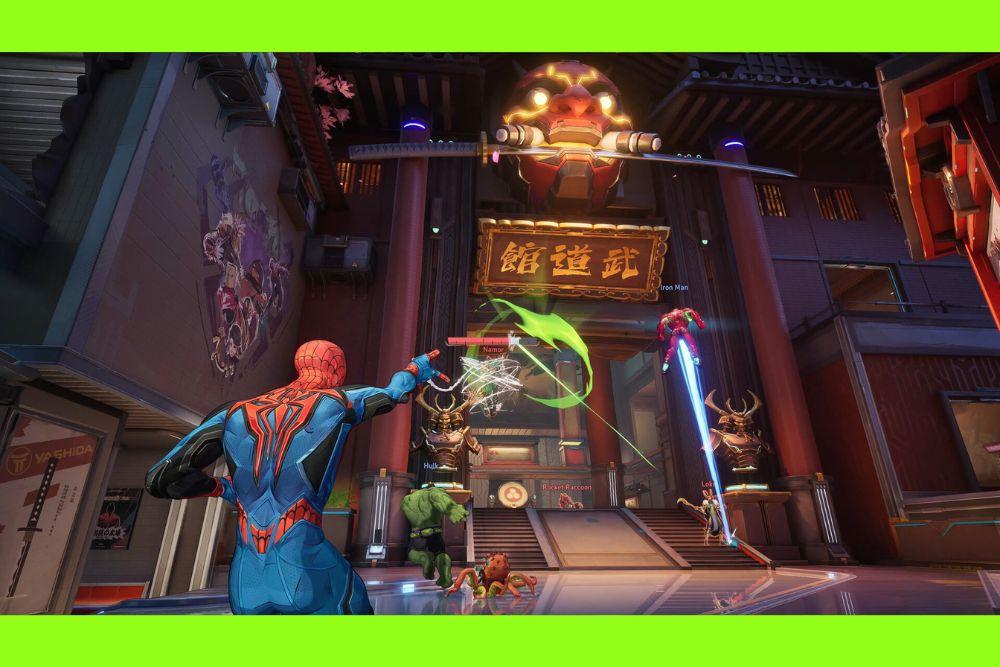
Network errors in Marvel Rivals can turn a fun match into a frustrating wait at the loading screen or, worse, a sudden disconnect in the middle of a fight.
Whether it’s a cryptic error code, a freeze at 0%, or the dreaded “Server Connection Failed” message, these issues aren’t rare, and they’re not always caused by your internet being “bad.”
In this guide, we’ll go through every common network error, explain what causes them, and show you practical, tested fixes so you can get back to playing without worrying about the next disconnect.
What Are All Network Errors in Marvel Rivals?
Marvel Rivals doesn’t have a single error message — players commonly see a handful of recurring network-related errors and behaviors:
- “Server Connection Failed” or inability to reach matchmaking.
- Specific error codes such as Error Code 4, 10, 211, 220 and the like (each vendor or community writeup uses slightly different numbering, but these codes are repeatedly reported by players).
- Loading freeze at 0% followed by a disconnection (often called “0% network error”).
- Random mid-match disconnections, packet loss spikes, or the game “turning off” the internet on a PC (reports from forums).

Source: Reddit
These behaviors can come from either your side (home network, firewall, OS, drivers) or from the server/platform side (maintenance, regional server issues, or routing problems between your ISP and the game servers). Community threads and troubleshooting guides repeatedly show this split.
How to Fix Each One of Them?
Below I’ll map common error names/codes to practical fixes. I’ll keep the technical steps clear and ordered roughly from simplest to more technical.
Quick checklist (try these first): restart game and device, restart your router, check official server status/maintenance, temporarily test with firewall/antivirus off. These basics resolve a surprising number of cases.
- Server Connection Failed / matchmaking unavailable
- First, check official channels or news for server downtime or new updates — sometimes the game is under maintenance and you’ll see server-wide errors. If the servers are down, nothing on your end will help until the developer brings them back.
- If servers are up, fully close the game, restart your platform (PC/console/mobile) and your router/modem. A fresh network handshake often fixes transient routing problems.

Source: DownDetector
- Error codes (4, 10, 211, 220, etc.)
- Error code 4 is commonly reported as an authentication/server connection failure — try restarting the client and the platform; if persistent, check your account session (log out/in).
- Error code 10 often points to network location/platform routing or more generic connectivity; changing DNS to a reputable public DNS (like 1.1.1.1 or 8.8.8.8) can help in some cases.
- Error 211 and others have guided steps: restart Steam or the launcher, ensure the client is up to date, and check firewall rules.
- 0% loading freeze / disconnect after queue
- This frequently links to packet loss or aggressive firewall/antivirus rules. Temporarily disable third-party firewall/antivirus and test. If that resolves it, add the game to firewall exceptions rather than leaving protection off. Also verify file locations in firewall rules if you moved the game drive (a common Windows issue).
- This frequently links to packet loss or aggressive firewall/antivirus rules. Temporarily disable third-party firewall/antivirus and test. If that resolves it, add the game to firewall exceptions rather than leaving protection off. Also verify file locations in firewall rules if you moved the game drive (a common Windows issue).
- Random mid-match disconnects, internet “turns off” while playing
- Packet loss spikes may be caused by your ISP, Wi-Fi interference, or poor routing to the game servers. Switch to a wired Ethernet connection if you’re on Wi-Fi. If you already use Ethernet, try a different cable or port, and test on another device to isolate the problem. Community posts mention sometimes needing a full PC reboot to restore the NIC after a drop. That often signals driver or OS network stack problems.
- Packet loss spikes may be caused by your ISP, Wi-Fi interference, or poor routing to the game servers. Switch to a wired Ethernet connection if you’re on Wi-Fi. If you already use Ethernet, try a different cable or port, and test on another device to isolate the problem. Community posts mention sometimes needing a full PC reboot to restore the NIC after a drop. That often signals driver or OS network stack problems.
- Firewall / antivirus blocking / game moved to another drive
- If you moved the game folder, Windows firewall app rules might still point to the old path. Update inbound/outbound rule application paths or delete and recreate the rules for Marvel Rivals, then restart.
- If you moved the game folder, Windows firewall app rules might still point to the old path. Update inbound/outbound rule application paths or delete and recreate the rules for Marvel Rivals, then restart.
- When nothing else works: routing issues between your ISP and the game
- If you experience stable internet elsewhere but Marvel Rivals specifically shows routing problems (high ping spikes or frequent disconnects), the issue can be the route your traffic takes to the game servers. In those situations, routing optimization tools like NoPing have helped many players. They re-route traffic through more stable nodes and can reduce packet loss. I’ll recommend a solution below.
What Causes These Network Errors in Marvel Rivals?
Short answer: a mix of server-side problems, ISP/routing, local network setup, and client issues.
- Server maintenance and server instability. When a new season or patch drops, servers often go into maintenance causing “server connection failed” messages. Follow official channels for planned downtime.
- Routing problems between your ISP and game servers. Sometimes your ISP’s path to the game is congested or takes a suboptimal route; that results in spikes or disconnects only in that game.
- Local firewall/antivirus or OS network problems. Incorrect firewall app rules, aggressive antivirus, or even moving the game folder can break connections.
- Wi-Fi interference and hardware faults. Weak Wi-Fi, bad cables, or faulty network hardware create packet loss and disconnects.
How to Get The Best Connection to Play Marvel Rivals?
If you want a single, practical step that has helped many players when the problem is routing between their ISP and Marvel Rivals servers, consider using NoPing.
NoPing is a game-focused traffic optimizer that creates alternative routes for game traffic, often reducing latency spikes and packet loss compared to your default ISP path.
Here’s how to use NoPing to fix network errors in Marvel Rivals:
- Sign-up through the website and download NoPing (you can try it for free)
- Open NoPing and search for Marvel Rivals inside the software

- Once you find Marvel Rivals, click on it. Choose your server on the next screen and click on “Optimize Game”.

- And that’s it, you can start playing Marvel Rivals with optimized ping!
You can test different servers within NoPing to see which gives you the lowest latency.
FAQ - Network Errors in Marvel Rivals
Q: Will changing DNS always fix error codes?
A: No, changing DNS can improve name resolution speed but it doesn’t change routing or packet loss. It’s a cheap and safe test, but not a cure for routing or server-side problems.
Q: How do I report a persistent error to the devs?
A: Take screenshots, note timestamps, include platform and region, and submit through the game’s official support portal or community support channels. Include a traceroute or ping log if the support team asks for it — that helps them see routing problems.
Q: Are there known regional server outages I can check?
A: Check the developer’s official Twitter/X, status page (if available), or major news coverage when big updates or downtime happen. Third-party news outlets often live-cover major season launches and associated downtime.
Q: My ISP says there’s no problem. What then?
A: Ask for an advanced traceroute from you to the game server IP during the problem, and compare to a normal trace. If you can’t gather that yourself, support may ask you to run diagnostics. An optimizer like NoPing can be a practical workaround if the carrier route is the root cause.
Network errors in Marvel Rivals can be annoying, but most of them have clear solutions once you know where to look.
From quick restarts and firewall adjustments to checking for server maintenance and improving your routing with NoPing, you have plenty of options to get back into the game.
So download NoPing now and play Marvel Rivals without worrying about network issues! Start your free trial!