

Few things are as frustrating as sitting down for a marathon session of Blox Fruits or Doors only to be met with a vague, grey box stating that an unknown error occurred.
It provides no codes, no specific directions, and no hints as to what went wrong. It just tells you to try again, which usually results in the same frustrating loop.
This error is one of the most common issues players face in 2026, largely because it acts as a catch-all for various connectivity and software conflicts.
We know that when a game like Roblox fails to communicate with its servers, it often gives up and throws this generic message your way.
Whether you are on a high-end PC or a mobile device, this guide breaks down exactly how to bypass the wall and get back into your favorite experiences.
What exactly is the “An unknown error occurred” message in Roblox?
It is a generic response from the Roblox client when it cannot identify the specific reason for a connection or execution failure.
Essentially, the software knows something is wrong, but it does not have a specific error code like 277 or 268 to assign to the problem.
This happens when the communication between your device and the Roblox servers is interrupted or when local files become corrupted to the point where the client loses its place.
Because it is so broad, the fix is rarely a single button press. It often involves a process of elimination, starting from the most likely culprit (the servers) and moving down to your specific network settings.
Statistics show that over 60 percent of these errors are related to temporary network timeouts rather than permanent hardware failures.
Is the Roblox server down right now?
Checking the server status should always be your first move. If the Roblox infrastructure is having a bad day, no amount of troubleshooting on your end will fix the problem.
Roblox manages millions of concurrent users across thousands of shards, and sometimes those shards break.
You can verify the current state of the platform by visiting the official Roblox Status page or checking third-party aggregators like Downdetector.
If you see a massive spike in reports or the official page shows "Partial Service Disruption" for the "User" or "Game Play" categories, you simply have to wait. The developers are likely already working on a patch.
Could my internet connection be the culprit?
Yes, your internet stability is the most frequent cause of this specific error. High speed does not always mean a stable connection.
You might have a 1Gbps fiber line, but if you are experiencing packet loss or high jitter, the Roblox client will struggle to maintain a handshake with the server.
When the server misses too many packets from your device, it drops the connection, leading to the unknown error.
A quick way to test this is to switch from Wi-Fi to a wired Ethernet connection. Wi-Fi is prone to interference from household appliances and physical barriers.
If the error disappears when you plug in a cable, you know your wireless signal was the weak link.
Using NoPing can significantly stabilize the route your data takes, reducing the chances of these "unknown" drops by finding a more direct path to the game servers.
Here’s how to use NoPing to fix lag in Roblox:
- Sign-up through the website and download NoPing (you can try it for free)
- Open NoPing and search for Roblox inside the software
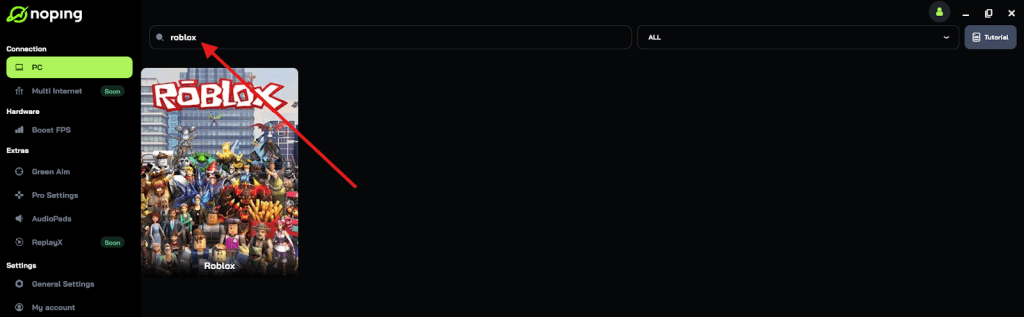
- Once you find Roblox, click on it and, on the next screen, select “Choose automatic” or “Choose manual” and click “Continue”. We recommend choosing automatic, as NoPing’s technology analyzes all routes on a global scale and automatically selects the best option for you.
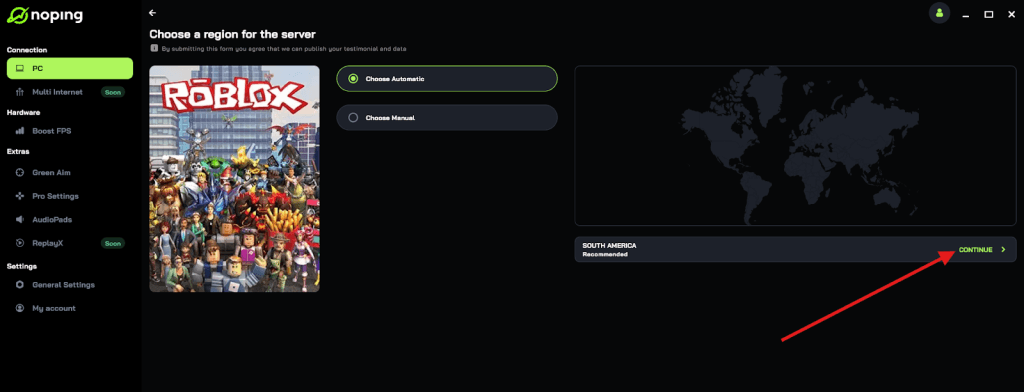
- On the next screen, click on “Optimize Game”.
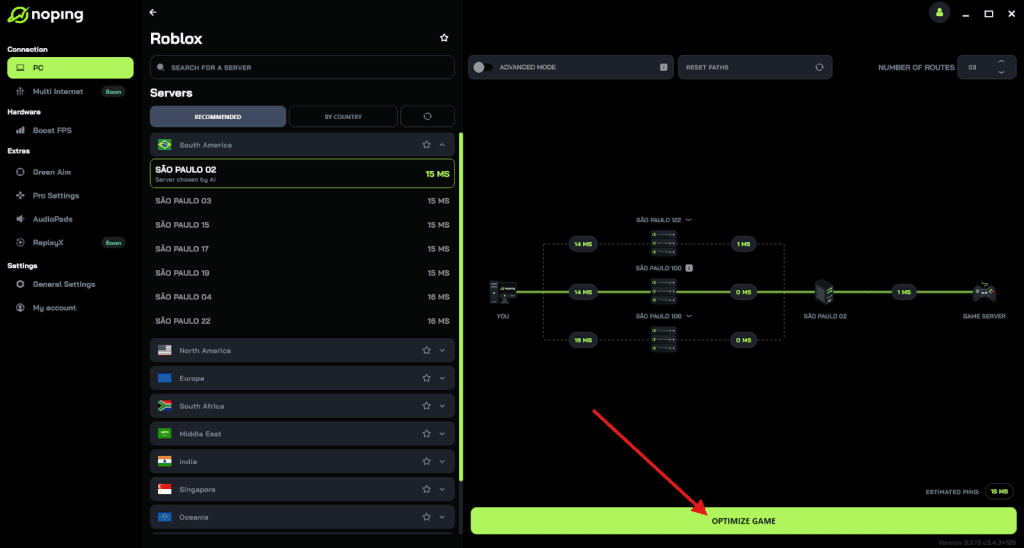
- And that’s it, you can start playing Roblox with optimized ping!
You can test different servers within NoPing to see which gives you the lowest latency.
How do I clear the Roblox cache on my PC?
Clearing the cache is the digital equivalent of giving the game a fresh start. Over time, Roblox stores temporary files, textures, and scripts on your hard drive to speed up loading times.
If one of these files becomes corrupted during an update or a sudden shutdown, the game might crash and show an unknown error because it cannot read the corrupted data.
To clear your cache on Windows, follow these steps:
- Press the Windows Key + R to open the Run box.
- Type %localappdata%\Roblox and hit Enter.
- Locate the folder named Downloads and open it.
- Delete everything inside this folder.
- Go back to the main Roblox folder and find the Versions folder.
- Delete the content within Versions as well (don't worry, the game will redownload the necessary files automatically when you launch it).
- Empty your Recycle Bin and restart the Roblox client.
This process forces the game to fetch the latest, clean versions of all assets, which often clears up any "unknown" conflicts residing in your local storage.
Can browser extensions interfere with Roblox?
Absolutely, browser extensions are a common hidden cause of errors when launching Roblox from a web browser.
Extensions like AdBlock, uBlock Origin, or even Roblox-specific tools like BTRoblox and Roblox+ can sometimes block scripts that are essential for the game to initialize correctly.
If you are seeing the error while clicking "Play" on the website, try the following:
- Disable all extensions and refresh the page.
- Try launching the game in an Incognito or Private window.
- Clear your browser's cookies and site data for the Roblox domain.
If the game works in Incognito mode, one of your extensions is definitely the problem. You can then re-enable them one by one to see which one triggers the error.
How do I fix the unknown error on mobile devices?
Mobile players on iOS and Android are not immune to this issue. On mobile, the error is usually tied to a poor handshake between the mobile app and the device's RAM or a weak cellular signal.
If you are playing on a 4G or 5G connection, even a slight dip in signal can trigger the "Please try again" message.
To fix this on mobile, try these steps:
- Force Close: Swipe up to close the Roblox app completely.
- Clear App Cache (Android): Go to Settings > Apps > Roblox > Storage and tap Clear Cache.
- Offload App (iOS): Go to Settings > General > iPhone Storage > Roblox and tap Offload App. This keeps your data but refreshes the app binaries.
- Toggle Airplane Mode: Turn Airplane mode on for 10 seconds and then off to refresh your network connection.
- Reinstall: If all else fails, delete the app and redownload it from the App Store or Google Play Store.
Is my Windows Firewall blocking the game?
Sometimes, the Windows Defender Firewall or a third-party antivirus decides that Roblox is a security threat.
This usually happens after a major Windows update or a Roblox version change. If the firewall blocks the game's outgoing ports, you will get an error message because the client cannot talk to the internet.
To ensure Roblox has the right permissions:
- Open the Start Menu and type Allow an app through Windows Firewall.
- Click Change Settings.
- Look for "Roblox" in the list.
- Ensure both the Private and Public checkboxes are ticked.
- If Roblox isn't there, click Allow another app and navigate to your Roblox installation folder to add the executable file.
This ensures that the "Unknown Error" isn't just your computer protecting you from a game it doesn't recognize.
Does resetting the internet protocol help?
If your network settings have become "tangled," resetting your internet protocol (TCP/IP) can flush out the bad configurations that cause connectivity errors.
This is a slightly more advanced step but is very effective for persistent errors.
- Open the Start Menu, search for cmd, right-click it, and select Run as Administrator.
- Type netsh winsock reset and press Enter.
- Type netsh int ip reset and press Enter.
- Type ipconfig /flushdns and press Enter.
- Restart your computer.
Flushing the DNS (Domain Name System) cache removes old records of server addresses. If Roblox recently changed their server IP addresses and your computer is still trying to reach the old ones, this fix will solve the problem instantly.
When should I contact Roblox support?
If you have tried clearing the cache, fixing your firewall, using NoPing for a stable connection, and even reinstalling the game, and you still see the error, it might be an issue with your specific account. In some rare cases, an account-side bug can prevent you from joining games.
You should reach out to [link suspeito removido] if:
- The error happens on every single device you own (PC, Mobile, Console).
- The error only happens on one specific account but not on an alt account.
- You have recently made a change to your account settings or security (like 2FA) and the error started immediately after.
When you contact them, be sure to list all the steps you have already taken. This will prevent them from giving you basic advice you have already tried and will speed up the resolution of your ticket.
Summary of Fixes
| Method | Best For | Effort Level |
| Check Server Status | Global Outages | Low |
| Use NoPing | Packet Loss/Routing | Low |
| Clear Roblox Cache | Corrupted Files | Medium |
| Flush DNS/Winsock | Network Conflicts | High |
| Reinstall Roblox | Persistent Bugs | High |
Fixing the "An unknown error occurred" in Roblox is all about being methodical. Most of the time, the issue lies in how your data is moving through the web.
By optimizing your path with NoPing and keeping your local files clean, you can minimize downtime and maximize your gaming experience.
Play Roblox without lag. Download NoPing now and start your free trial!