

Dealing with Roblox error code 268 can be a real headache, especially when you are just trying to enjoy a session with your friends and suddenly get kicked with a message about unexpected client behavior.
This error is one of the most frustrating because it often feels like it comes out of nowhere, even if you are playing totally fair.
If you have been seeing this pop up on your screen, you are not alone, and fortunately, there are several ways to get back into the game.
What is Roblox error code 268?
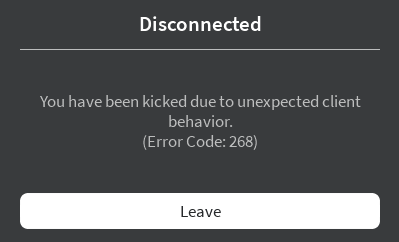
Roblox error code 268 is a disconnection message that usually states you have been kicked due to unexpected client behavior.
In simpler terms, the Roblox servers think something is wrong with your game client or how it is communicating with the server.
This could be anything from a simple glitch in your local files to the anti-cheat system flagging something on your computer as suspicious.
It does not always mean you are in trouble, but it does mean the game has decided to stop your session for security or stability reasons.
Source: Roblox
Why does this error happen?
This error happens because the Roblox anti-cheat or server-side verification detects a discrepancy between your game files and what is expected.
While many people see this after trying to use exploits, scripts, or hacks, it can also be triggered by legitimate software.
Third-party applications like FPS unlockers, custom shaders, or even an overly aggressive antivirus can cause the server to think your client has been modified.
Sometimes, it is just a matter of corrupted temporary files or a network "soft ban" caused by hopping between servers too quickly.
How can I fix Roblox error code 268 immediately?
The fastest way to fix the issue is to address the most common triggers, starting with third-party software. If you are using any executors, scripts, or game modifiers, you need to turn them off and delete them.
Even if they are not active, certain files left in your game folder can trigger the anti-cheat.
Once you have cleared out those programs, try restarting your computer.
A simple reboot can clear the temporary memory (RAM) and stop any background processes that might be interfering with Roblox.

Is my account banned?
No, seeing error code 268 usually does not mean your account is permanently banned. Most of the time, this is a temporary restriction or a technical glitch on your end.
If you were actually banned, you would typically see a different message explicitly stating the length and reason for the ban when you try to log in.
Error 268 is more of a "kick" than a "ban," though if it is caused by server hopping or suspected exploiting, it might act as a soft ban that lasts anywhere from 45 minutes to a couple of hours.
How do I clear the Roblox cache?
Clearing your cache is a vital step because corrupted temporary files are a frequent culprit for this error.
To do this on Windows, follow these steps:
- Press the Windows Key + R on your keyboard to open the Run box.
- Type %localappdata% and hit Enter.
- Locate the folder named Roblox.
- Inside that folder, find the Versions folder and the Downloads folder.
- Many users find success by simply deleting the entire Roblox folder in Local AppData, but keep in mind you will need to reinstall the game afterward.
- Additionally, open the Run box again, type %temp%, and delete any Roblox-related files you see there.
Will reinstalling the game work?
Yes, reinstalling Roblox is often the most effective solution if the error is caused by corrupted game files.
Sometimes, an update does not install correctly, or a file gets modified by another program, leading to the "unexpected behavior" flag. To do a clean install:
- Go to your Control Panel and select Uninstall a program.
- Find Roblox and uninstall it.
- Go back to the %localappdata% folder and ensure the Roblox folder is gone.
- Download a fresh installer from the official [link suspeito removido].
- Run the installer and try joining a game.
Can network issues cause this error?
Network instability is a major factor that people often overlook when troubleshooting error 268.
If your connection to the Roblox servers is inconsistent, the server might interpret the "laggy" data packets as an attempt to manipulate the game. This is especially common if you are server hopping.
A quick fix for network-related issues is to flush your DNS. Open the Command Prompt as an administrator and type ipconfig /flushdns, then press Enter.
This clears your computer's internet "address book" and forces it to find a fresh, clean path to the servers.
How does NoPing help with Roblox errors?
NoPing is a service designed to optimize your route to Roblox’s servers. Sometimes, the normal path your internet provider uses isn’t the fastest.
NoPing reroutes your data through a better, more direct path.
Here’s how to use NoPing to fix lag in Roblox:
- Sign-up through the website and download NoPing (you can try it for free)
- Open NoPing and search for Roblox inside the software
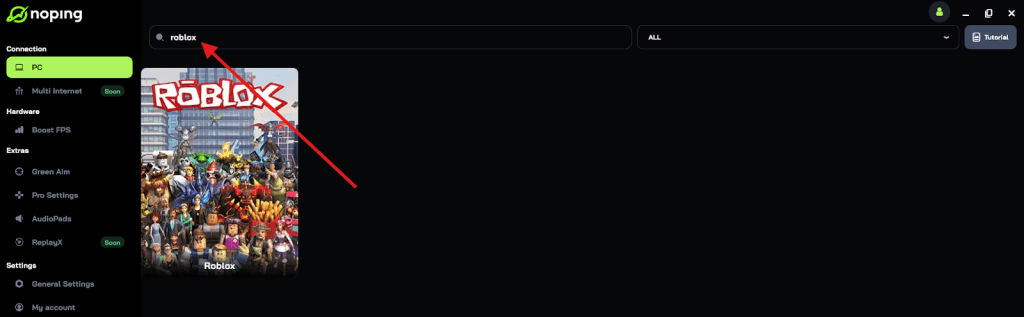
- Once you find Roblox, click on it and, on the next screen, select “Choose automatic” or “Choose manual” and click “Continue”. We recommend choosing automatic, as NoPing’s technology analyzes all routes on a global scale and automatically selects the best option for you.
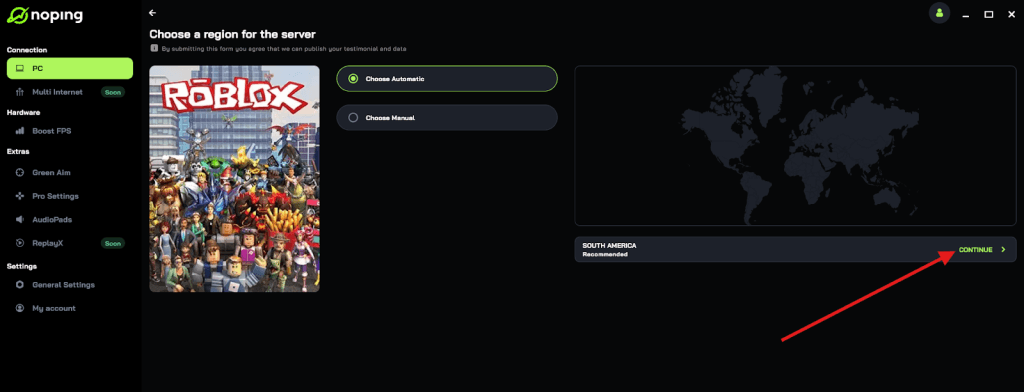
- On the next screen, click on “Optimize Game”.
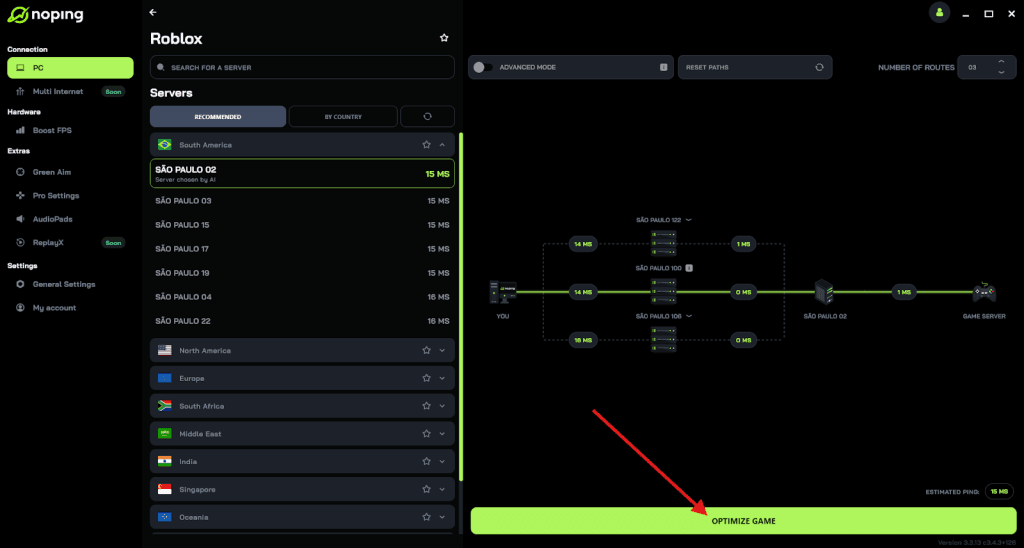
- And that’s it, you can start playing Roblox with optimized ping!
You can test different servers within NoPing to see which gives you the lowest latency.
What if nothing else works?
If you have tried everything and the error persists, you might simply need to wait. As mentioned earlier, this error can act as a temporary shadow ban if the system thinks you were exploiting or hopping servers too fast.
Usually, waiting 1 to 2 hours without trying to log in will reset the status of your IP on their servers. Use this time to ensure your Windows is updated and that no weird browser extensions are running in the background.
Play Roblox without lag. Download NoPing now and start your free trial!