


Black Ops 6 error code 0xc0000005 can derail a session fast: one moment you’re in the lobby, the next the game crashes to desktop with that cryptic code.
It’s one of those Windows “access violation” errors that show up in many different apps and games, and Call of Duty players have been seeing it with various frequency since launch.
This guide walks through what that code means, the usual causes specific to Black Ops 6, and a practical step-by-step fix list you can follow to get back to playing.
What is The Black Ops 6 Error Code 0xc0000005?
0xc0000005 is a Windows status code that signals an access violation. Essentially, the application tried to read or write memory it wasn’t allowed to.
In games this usually appears as a crash to desktop with a small popup or simply the process terminating.
Because the error is a general “access violation,” it’s not unique to Call of Duty; it’s the same underlying Windows error reported by many programs when something goes wrong at the memory or DLL level.
Microsoft documentation and community answers explain that causes range from corrupted binaries or DLLs to protection mechanisms like DEP (Data Execution Prevention) blocking an action.

Source: Reddit
What Causes The Black Ops 6 Error Code 0xc0000005?
There’s no single cause; instead you have a set of usual suspects that commonly trigger this error in modern PC games:
- corrupted or missing game files or config files (game tries to load bad data).
- interference from overlays, third-party injectors or tools (Discord/Steam/GeForce Experience overlays, MSI Afterburner/Rivatuner, etc.).
- outdated or buggy GPU drivers that cause GPU-side crashes and memory access violations.
- Windows security features like DEP that detect suspicious memory execution and block the process.
- bad RAM, unstable overclocks, or XMP/voltage settings that make the game hit unstable memory behavior. Community threads for Black Ops and other games report users testing RAM and XMP as troubleshooting steps.
Because the error is generic, players often see it intermittently. Sometimes the game runs fine for hours, other times it crashes within minutes.
Step-by-step Guide to Fix Black Ops 6 Error Code 0xc0000005
Below is a practical, ordered checklist. Work top-to-bottom and test the game after each major change so you know what fixed it (or what didn’t). I’ll keep this as a single numbered list so it’s easy to follow.
1. Restart and run as admin
Fully restart Windows (don’t just sign out). Right-click the game launcher (Steam/Activision/Battle.net) and choose “Run as administrator,” then launch Black Ops 6. Some file-access or permission issues are resolved this way.
2. Scan and repair game files
Use the launcher’s repair or verify option (Steam: Verify integrity of game files; Battle.net: Scan and Repair). Corrupted or missing files are a common cause.
3. Clear game/user caches and config (Players or saved settings folder)
Back up then delete the game’s Player or config folder in Documents (or where the game stores local profiles). Several users reported success by removing problematic local user folders and letting the game recreate them. After deleting, relaunch so the game makes fresh settings.
4. Update GPU drivers and Windows
Install the latest drivers from NVIDIA/AMD and ensure Windows updates are applied. Driver mismatches and old drivers frequently cause crashes with modern engines. Reboot after driver install.
5. Disable overlays and third-party injectors
Temporarily disable overlays (Discord, Steam overlay, GeForce Experience, Xbox Game Bar) and any frame counters or injectors (MSI Afterburner, Reshade, ENB, etc.). If the crash stops, re-enable items one at a time to find the culprit.
6. Disable overclocks and XMP / run memory tests
If you have CPU or GPU overclocks, revert to stock settings. Disable XMP in BIOS and test. Run MemTest86 or Windows Memory Diagnostic to check RAM health if crashes persist. Unstable memory can cause access violations.
7. Check Windows security features (DEP) and antivirus exceptions
Try temporarily adding the game executable to the Data Execution Prevention exception list or, for testing only, temporarily disabling DEP for the application (be careful; re-enable afterwards if it didn’t help).
Also add the game folder to your antivirus and Windows Defender exclusions. Some AVs falsely quarantine or block game DLLs. Microsoft docs note DEP as a possible cause for access violations.
8. Do a clean boot
Perform a clean boot to start Windows with minimal drivers and startup programs to identify if a background process is interfering. If the crash stops under clean boot, re-enable services in small batches to locate the offender. Microsoft recommends this approach for diagnosing app crashes caused by third-party services.
9. Check Event Viewer / crash logs
Open Windows Event Viewer (Windows Logs → Application) immediately after a crash to see Faulting Module or exception code details. Some players have used the logged module name (a specific DLL or driver) to identify the exact trigger. This doesn’t always give a fix but provides diagnostic clues.
10. Reinstall the game and/or launcher
If nothing else works, uninstall the game (and launcher cache if needed), reboot, and do a fresh install. Back up save files if necessary.
11. Contact support with logs
If the issue persists, collect logs (game crash logs, Event Viewer entries, DxDiag) and open a ticket with Activision/Raven/your platform support. Provide timestamps and the exact error text. If multiple users report the same crash pattern, developer-side fixes or hotfixes may be released.

How to Increase Your Performance in Black Ops 6?
If your goal is both to reduce crashes related to network instability and improve in-game performance, NoPing is the best choice.
NoPing optimizes the route your game traffic takes through the internet to the game servers, which can reduce packet loss, lower average latency and jitter, and make online gameplay smoother.
Smoother network performance can indirectly reduce stress on certain in-game systems (fewer reconnects, less rubberbanding) and improve your overall experience.
Here’s how to use NoPing to increase your performance in Call of Duty:
- Sign-up through the website and download NoPing (you can try it for free)
- Open NoPing and search for Call of Duty inside the software
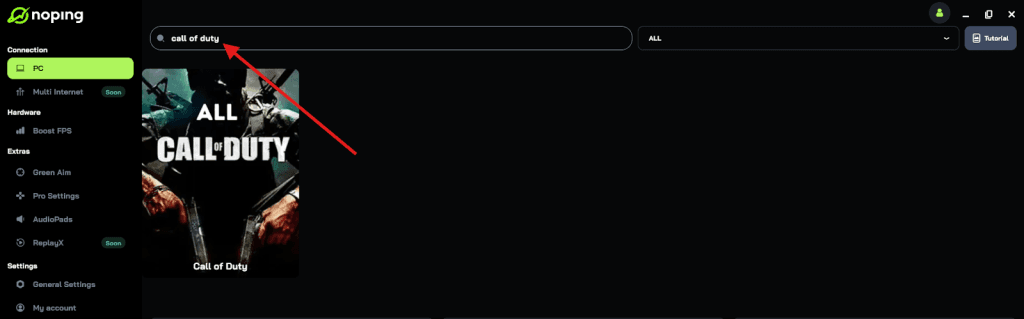
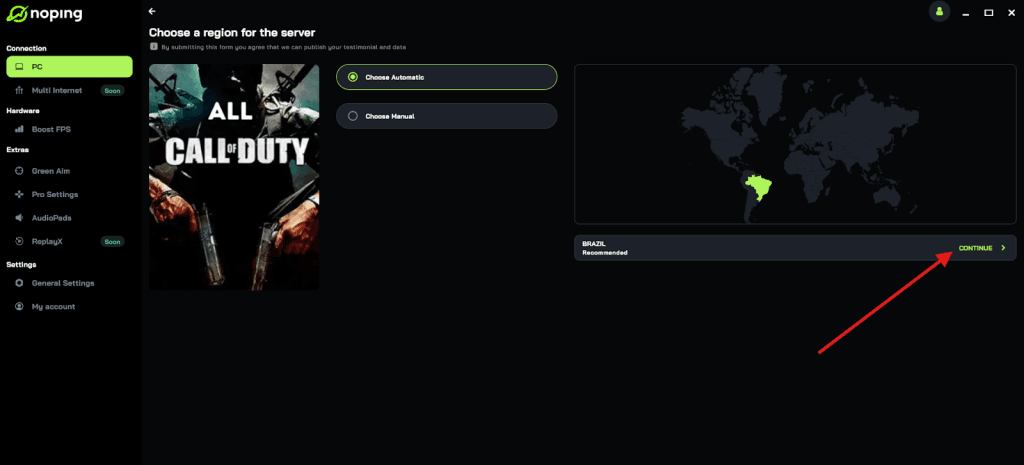
- Once you find Call of Duty, click on it and, on the next screen, select “Choose automatic” or “Choose manual” and click “Continue”. We recommend choosing automatic, as NoPing’s technology analyzes all routes on a global scale and automatically selects the best option for you.
- On the next screen, click on “Optimize Game”.
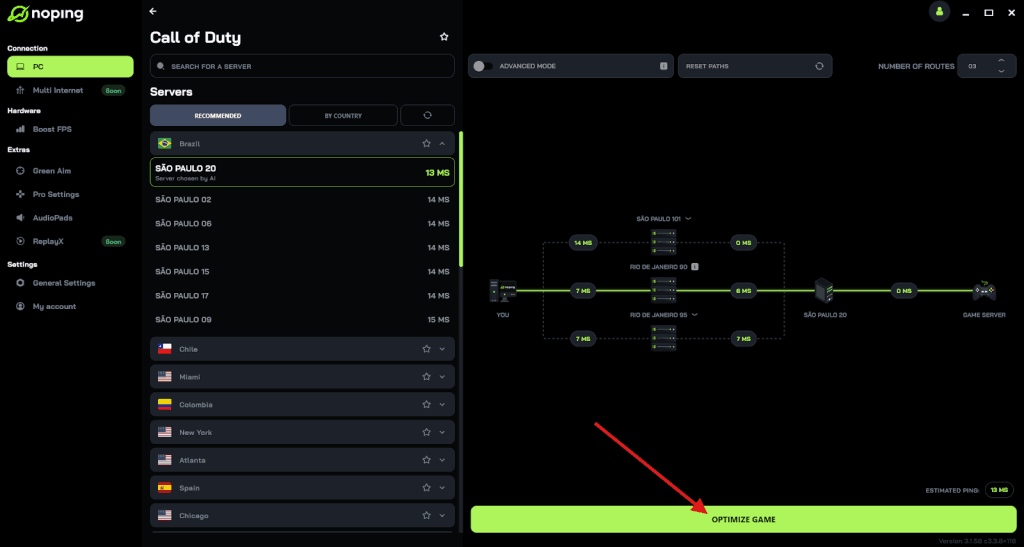
- And that’s it, you can start playing CoD with optimized ping!
You can test different servers within NoPing to see which gives you the lowest latency.
FAQ - Black Ops 6 Error Code 0xc0000005
Q: Will disabling DEP permanently harm my PC?
A: Disabling DEP system-wide is not recommended. DEP protects against a class of exploits. If toggling DEP helps you identify the crash cause, re-enable it and instead add only the game executable to the DEP exception list for troubleshooting. If a game truly needs DEP off, check developer guidance first.
Q: Could a controller or USB peripheral cause 0xc0000005?
A: Yes. Faulty USB drivers or devices can cause behavior that leads to crashes. Try unplugging extra peripherals (controllers, capture cards, headsets) and test. If the crash stops, add devices back one at a time.
Q: Is there a specific Windows update that causes this error?
A: No single Windows update is universally to blame. Sometimes driver models or updates expose latent compatibility issues. Always keep Windows and drivers updated, but if a new Windows update coincides with the start of crashes, roll back that update temporarily while you investigate.
Q: Are there in-game settings known to trigger the crash?
A: Players have reported certain graphics settings interacting badly with drivers or overlays (for example, ray tracing or high VRAM usage on borderline GPUs). Try lowering graphics settings and disable experimental features; test stability before returning to high settings.
Q: How do I collect useful logs for support?
A: Run dxdiag (save all info), take a screenshot of the crash text, save Windows Event Viewer error entries (Application log), and include timestamps and what you tried before the crash. This data helps developers spot patterns.
0xc0000005 is annoying because it’s broad: it points to an access violation but doesn’t name the exact cause.
The good news is that most players fix it with methodical steps: verify game files, update drivers and Windows, remove overlays and third-party injectors, test RAM and overclocks, and clear local game caches.
And to always have the best connection to play Black Ops 6 without lag, use NoPing! Download now and start your free trial!