

DirectX error in Warzone is one of those abrupt, rage-inducing crashes that throw you back to desktop mid-match with an ugly message like “DirectX encountered an unrecoverable error.”
In this article we’ll walk you through what that error really means, what commonly causes it, and, most importantly, a tried-and-tested checklist of fixes you can run through right now. Let’s go.
What is the DirectX error in Warzone?
“DirectX error” is a generic name for crashes where the game’s graphics pipeline (DirectX APIs) fails to initialize or execute correctly.
In practice this usually means the game and your GPU/driver aren’t communicating properly. That can be because of corrupted DirectX components, bad GPU drivers, corrupted shader/cache files, VRAM issues, hardware instability (overclocks), or OS-level problems.

Source: Reddit
In Call of Duty titles the error often appears as “DirectX encountered an unrecoverable error” and can be accompanied by codes like 0x887A0005, which point toward Direct3D/driver communication failures. Microsoft and community threads show these errors are common and typically tied to drivers, DirectX runtime, or corrupted game data.
How to Fix DirectX Error in Warzone?
Below is a compact, ordered checklist — run items top to bottom until the crash stops. We kept this as a single checklist so you can follow a clear path without getting lost.
1. Restart and check basics
Restart Windows and your router. Simple, but sometimes necessary. Make sure your GPU is seated and cables (power/display) are solid if you’re on desktop.
2. Update Windows
Run Windows Update and install any pending updates (some DirectX components are delivered via Windows Update).
3. Update or roll back GPU drivers
First try updating to the latest drivers from NVIDIA/AMD/Intel.
If the problem started after a new driver, try a clean uninstall with Display Driver Uninstaller (DDU) in Safe Mode and then install a stable older driver: many Warzone threads report driver regressions cause DirectX crashes.
4. Verify/repair game files
Use Battle.net/Steam/Xbox App to verify the integrity of game files or repair the installation. Corrupted shader or game files can cause DirectX failures.
5. Force DirectX 11 (or try DX12 toggles)
Open your launcher’s Game Settings and add the launch option to force DX11 (for many players, switching from DX12 to DX11 stabilized Warzone). If you’re already on DX11, you can try DX12 the other way around, but DX11 is often more stable for many setups.
6. Clear shader cache and temporary game folders
Delete the shader cache or shader-related folders in the game directory (or remove the s_cache / shader files Warzone creates). This forces the game to rebuild shaders on next run and often fixes corrupted shader crashes. Community posts repeatedly advise removing shader folder contents when facing DirectX crashes.
7. Reinstall DirectX runtime
Run the DirectX End-User Runtime Web Installer from Microsoft (or use the dxdiag tool to check your DirectX version). Don’t download random DLLs from sketchy sites.
8. Disable background overlays and recording apps
Turn off Discord overlay, NVIDIA ShadowPlay / GeForce Experience overlay, Xbox Game Bar, RivaTuner/Afterburner OSD, and any third-party recording/streaming overlays — they’re common culprits.
9. Remove overclocks / undervolting
If your GPU or CPU is overclocked/undervolted, revert to stock clocks. Warzone and other CoD titles are sensitive to OC/UV instability. Community troubleshooting commonly resolves crashes by removing OC/UV.
10. Lower VRAM-heavy settings
Lower texture quality, reduce render resolution or VRAM scale. If you’re hitting your GPU’s VRAM limit, the DirectX layer can fail. Some users report setting VRAM scale to 50% or lowering textures helps.
11. Clean reinstall (drivers / game / worst-case Windows)
If nothing else works: completely uninstall GPU drivers with DDU and reinstall; if still crashing, reinstall Warzone; only as last resort consider a Windows clean installation. Many forum threads show users did a clean OS reinstall when all software fixes failed.
If you want the TL;DR: update Windows, do a clean GPU driver install (DDU), force DX11, clear shader cache, and disable overlays. Those five moves fix the majority of DirectX errors reported by the community.

What Causes DirectX Error in Warzone?
Short version: driver/runtime/game data/VRAM/overclock instability. Here are the usual suspects:
- Outdated, buggy, or corrupted GPU drivers — the top cause. New drivers occasionally introduce regressions that break a specific game.
- Corrupted DirectX components or missing DLLs — sometimes a DirectX runtime reinstall helps.
- Bad shader cache or corrupted game files — Warzone compiles and caches shaders; if that cache is corrupted you can get crashes.
- VRAM overload — too-high texture settings or memory leaks can blow past VRAM and cause driver/DirectX failures.
- Third-party overlays / recording tools / background apps — these hook into the rendering pipeline and can destabilize the game.
- Hardware instability — bad OC, overheating, or rare hardware faults.
How to Play Warzone Without Lag?
If your core problem is lag, packet loss, or high ping, NoPing can help reduce latency and stabilize routing to game servers.
NoPing uses multi-route/AI routing and many dedicated nodes to pick faster routes between you and the game server, which can reduce ping spikes and packet loss.
Here’s how to use NoPing to fix lag in all Call of Duty games:
- Sign-up through the website and download NoPing (you can try it for free)
- Open NoPing and search for Call of Duty inside the software

- Once you find Call of Duty, click on it and, on the next screen, select “Choose automatic” or “Choose manual” and click “Continue”. We recommend choosing automatic, as NoPing’s technology analyzes all routes on a global scale and automatically selects the best option for you.

- On the next screen, click on “Optimize Game”.
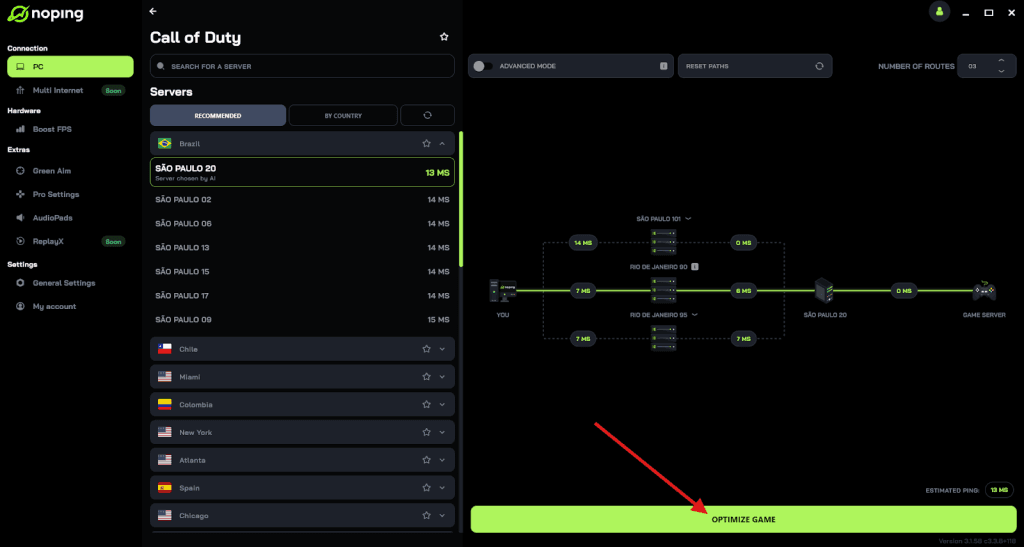
- And that’s it, you can start playing CoD with optimized ping!
You can test different servers within NoPing to see which gives you the lowest latency.
FAQ - DirectX Error in Warzone
Q: I see error code 0x887A0005. What does that mean?
A: It’s a Direct3D/driver failure code indicating a device removal or driver-level communication fault. It usually points to driver bugs, VRAM problems, or GPU instability — follow the driver + shader cache + OC steps above.
Q: Is it safe to delete shader cache folders? Will it slow the game?
A: Yes, it’s safe. Deleting shader cache forces the game to rebuild shaders on next run; the first startup may be longer and you may see stuttering until shaders compile, but it often fixes corrupted-shader crashes.
Q: Should I prefer DX11 or DX12 for Warzone?
A: Many players find DX11 more stable on a wide range of hardware; DX12 can offer performance gains but is also more susceptible to driver issues in some setups. If you crash frequently, try forcing DX11 first.
Q: My laptop keeps crashing with DirectX errors when on battery. Help?
A: Switch to the high-performance power plan when gaming and make sure GPU drivers and power settings are set to allow full performance. Some laptops reduce GPU clocks on battery, which can trigger instability in certain titles. Also check thermal throttling.
Dealing with a DirectX error in Warzone can be frustrating, especially when it kicks you out of matches without warning.
But the root causes are usually limited to a few predictable culprits: outdated or unstable GPU drivers, corrupted shader cache, DirectX runtime issues, or background apps interfering with the rendering pipeline.
And to always have the best connection to play Warzone, use NoPing! Download now and start your free trial!