

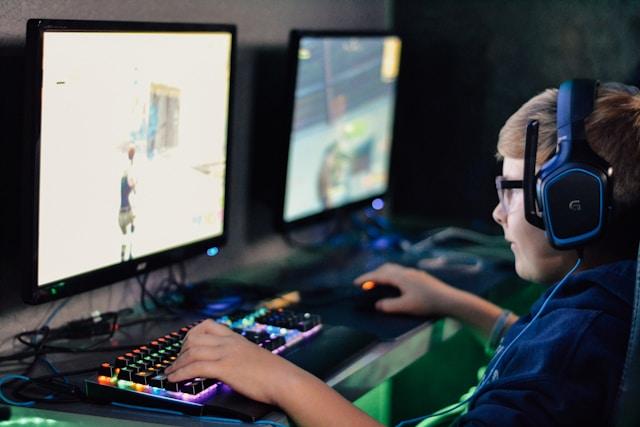
Fortnite FPS drops can be one of the most frustrating issues for gamers who are trying to get that Victory Royale.
In this guide, we’ll walk you through everything you need to know about FPS drops in Fortnite, what they are, why they happen, and how to fix them.
What is an FPS Drop?
FPS stands for "frames per second," which measures how many images your system displays every second. A higher number means smoother gameplay, while a lower number often results in choppy visuals and laggy reactions.
An FPS drop happens when that number suddenly dips, sometimes just for a moment, other times more consistently.
This is especially noticeable in fast-paced games like Fortnite, where timing, precision, and fast reactions are everything.
A sudden drop from 144 FPS to 30 can throw off your aim, delay your builds, or cause stuttering that ruins the entire experience.
11 Ways to Fix Fortnite FPS Drops
Update Your Graphics Drivers
This might sound basic, but outdated GPU drivers are one of the most common causes of FPS drops. Head over to NVIDIA or AMD’s website, download the latest version for your graphics card, and install it. Simple but surprisingly effective.
Lower Your In-Game Graphics Settings
Go into Fortnite’s settings and reduce options like shadows, post-processing, anti-aliasing, and effects. Set them to “Low” or “Off.”
Keep textures on “Medium” if you want a bit of visual quality, but your priority here is stable performance.
Set Fortnite to Performance Mode
Epic Games introduced "Performance Mode" for Fortnite, which dramatically reduces visual complexity to improve FPS, especially helpful on lower-end machines. You can find this under “Rendering Mode” in the game’s video settings.

Source: Fortnite
Close Background Programs
Apps like Chrome, Discord, Spotify, and even system updaters can eat up CPU and RAM. Before playing, use Task Manager (Ctrl+Shift+Esc on Windows) to close any unnecessary background apps.
Disable Game Bar and Game DVR
Windows 10 and 11 come with Xbox Game Bar and DVR features that can interfere with game performance. Go to Windows Settings > Gaming > Xbox Game Bar, and turn it off. Then disable background recording under the “Captures” tab.
Limit Background Processes
You can reduce unnecessary startup apps and background tasks with MSConfig. Press Win+R, type msconfig, go to the "Startup" tab, and disable any programs that don’t need to run in the background. Just don’t touch anything system-critical.

Source: Wikipedia
Adjust Windows Power Settings
Set your PC’s power plan to “High Performance” to make sure it’s prioritizing speed over energy efficiency. Go to Control Panel > Hardware and Sound > Power Options to change it.
Clean Your PC (Physically and Digitally)
Dust buildup can cause your system to overheat and throttle performance. Physically clean your fans and components if needed. Digitally, clear out junk files and uninstall software you don’t use to free up resources.
Enable Full-Screen Mode
Fortnite tends to run better in full-screen mode compared to borderless windowed or windowed. It gives the game direct access to your graphics hardware for better performance.
Set Fortnite’s Priority in Task Manager
You can give Fortnite a higher priority in Windows to allocate more system resources to it. Open Task Manager while the game is running, go to the “Details” tab, right-click the Fortnite process, and set priority to “High.”

Source: Driver Easy
Update Windows
Sometimes FPS issues are tied to bugs or outdated system components that get patched in later updates. Make sure your OS is current by checking for updates under Settings > Windows Update.
What Causes Fortnite FPS Drops?
There are a few reasons you might experience FPS drops in Fortnite:
- Hardware Limitations: If your PC doesn’t meet Fortnite’s recommended specs, it’ll struggle to maintain stable FPS.
- Thermal Throttling: When your CPU or GPU gets too hot, it slows down to avoid damage, which causes FPS drops.
- Memory Leaks: Sometimes, games or drivers don't release memory properly, causing performance to degrade over time.
- Background Apps: Applications running in the background eat up resources needed for gaming.
- Unstable Internet Connection: While not a direct cause of FPS drops, lag caused by high ping or packet loss can feel similar to FPS issues.
- Driver Conflicts: Outdated or corrupt drivers can interfere with how your hardware communicates with the game.
- Software Bloat: Over time, systems accumulate junk—unused apps, temporary files, or leftover settings—that can slow things down.
Sometimes, it’s a combination of these factors that leads to those annoying frame dips.
How Can My Mouse’s Polling Rate Affect My Frame Rate?
This one surprises a lot of people.
Your mouse’s polling rate is how often it reports its position to your PC, measured in Hz. A polling rate of 1000Hz means your mouse sends data 1000 times per second. Sounds great, right?
Well, not always.
If you’re using a high polling rate (like 1000Hz) and your CPU is already struggling, it could actually contribute to FPS drops. That’s because processing constant mouse input adds to your system’s workload, especially if you're on a lower-end machine.
If you suspect your mouse might be part of the problem, try reducing the polling rate to 500Hz and see if your FPS stabilizes. Many gaming mice allow you to adjust this via their software.

Source: MChose
How to Boost Your FPS in Fortnite?
Here’s where things get even easier.
NoPing is best known for helping reduce ping and improve network performance for online games, but it also includes a Boost FPS feature designed specifically for gamers who want better frame rates without diving deep into system settings.
So, how does it work?
1. It optimizes system services: NoPing temporarily disables unnecessary Windows services and processes that may be running in the background.
2. It adjusts network and system settings: It tweaks values in your system registry to reduce latency and improve performance—stuff that would normally require manual tweaking (and a lot of trial and error).
3. It works in real time: NoPing actively monitors your system while you game, meaning it can make small real-time adjustments to ensure the smoothest experience possible.
How to use the Boost FPS feature:
- Sign-up through the website and download NoPing (you can test it for free).
- When you open the software, click on "Boost FPS" in the left side menu.

- On the next screen, you'll see a range of options to customize the feature (there are over 50 settings). You can enable or disable everything and choose between Windows default or user settings. You can also filter the options using the bar on the right.

And that's it! Boost FPS is now activated. Just launch your game and enjoy high FPS!
Dealing with Fortnite FPS drops isn’t fun, but with the right approach, it’s almost always fixable. Whether it’s a simple graphics setting tweak or using a tool like NoPing to take care of the heavy lifting, there’s no reason to let choppy gameplay ruin your fun.
So download NoPing now and play Fortnite without lag and with enhanced FPS! Test it for free!