

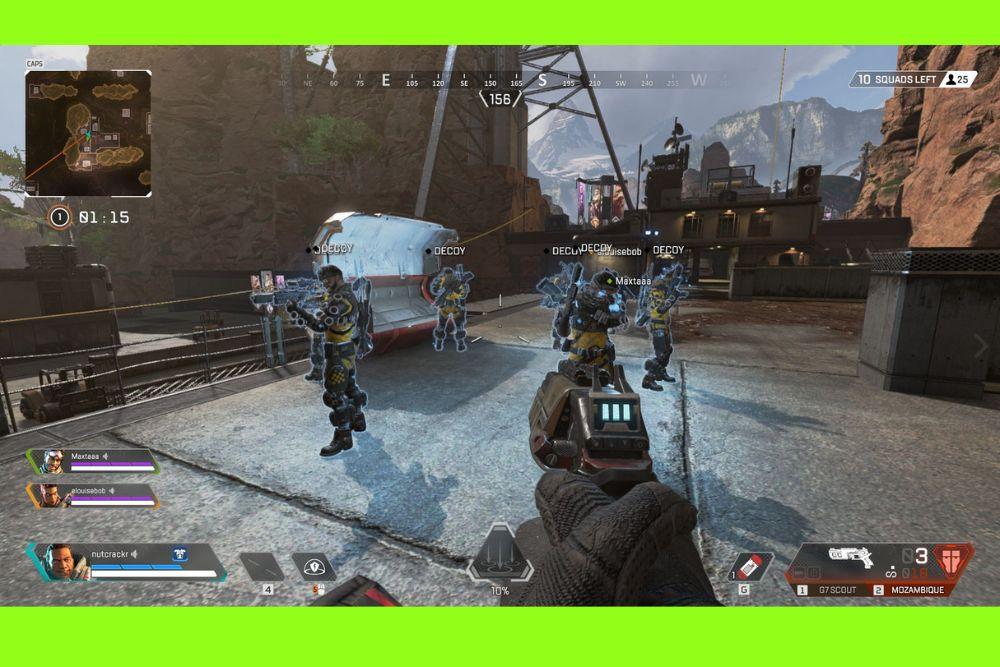
Lag in Apex Legends is one of the fastest ways to ruin a match.
It can turn clean shots into misses, make your movement feel delayed, and leave you wondering if the problem is your aim or your connection.
The tricky part is that “lag” isn’t always caused by the same thing. Sometimes it’s your internet, sometimes it’s your PC, and sometimes it’s the game servers themselves.
In this guide, we’ll go through the main causes of lag, practical steps to reduce it, system requirements you should know, and a quick FAQ to cover extra questions.
What Causes Lag in Apex Legends?
Network issues
High ping, packet loss in Apex Legends, and poor routing are the classic culprits. If your packets take a long or unreliable route to the game servers, you’ll see delays and teleporting.
Household factors like many devices on the same Wi-Fi, someone streaming or torrenting, or a weak wireless signal also create problems.
Hardware limitations
Low CPU/GPU power, not enough RAM, outdated drivers, or an overloaded storage drive can cause low FPS and stuttering.
In some cases the CPU is the limiter (high frame times), in others the GPU (low frame rates).
Software and settings
Background applications hogging bandwidth or CPU, OS power settings, Windows updates, antivirus scans, wrong in-game settings (like adaptive resolution or vsync interactions), or driver issues can all reduce performance or increase input lag in Apex Legends.
15 Ways to Fix Lag in Apex Legends
1. Switch to a wired Ethernet connection
Wi-Fi is convenient but much more prone to interference and packet loss. Use a Cat5e/Cat6 cable from your PC to the router when possible; it often dramatically reduces ping and packet loss.
2. Close bandwidth-heavy apps and other devices
Streaming, downloads, cloud backups, or other people gaming on the same network will increase ping and cause packet loss. Pause those tasks while you play.
3. Restart your router and modem
A simple reboot clears routing glitches and memory leaks in home networking hardware. If your ISP-provided router is old, consider replacing it.
4. Choose the right server and check your ping in-game
Apex Legends lets you see ping per data center on the legend select screen. Pick the data center with lowest ping; region mismatch (playing on a distant server) causes high base ping.
5. Update network drivers and GPU drivers
Old drivers cause inefficiencies and bugs. Update your network adapter and GPU drivers to the latest stable versions from the manufacturer (Intel/AMD/NVIDIA).
6. Use NoPing
NoPing is a service designed to optimize your route to Apex Legends’ servers. Sometimes, the normal path your internet provider uses isn’t the fastest. NoPing reroutes your data through a better, more direct path.
Here’s how to use NoPing to fix lag in Apex Legends:
- Sign-up through the website and download NoPing (you can try it for free)
- Open NoPing and search for Apex Legends inside the software
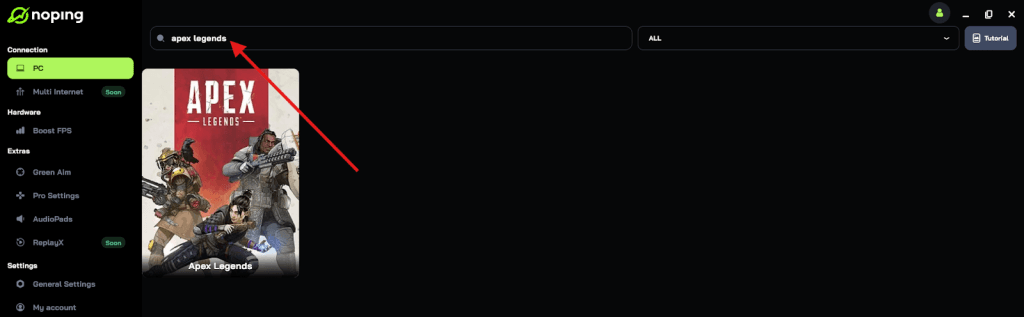
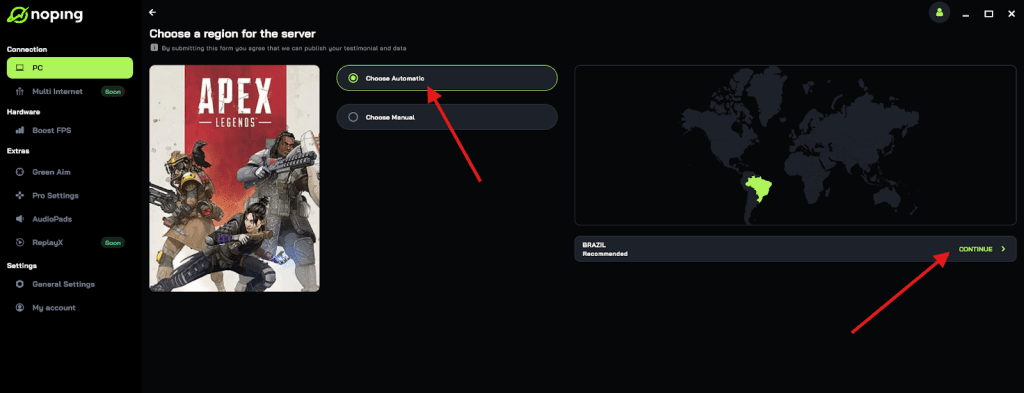
- Once you find Apex Legends, click on it and, on the next screen, select “Choose automatic” or “Choose manual” and click “Continue”. We recommend choosing automatic, as NoPing’s technology analyzes all routes on a global scale and automatically selects the best option for you.
- On the next screen, click on “Optimize Game”.
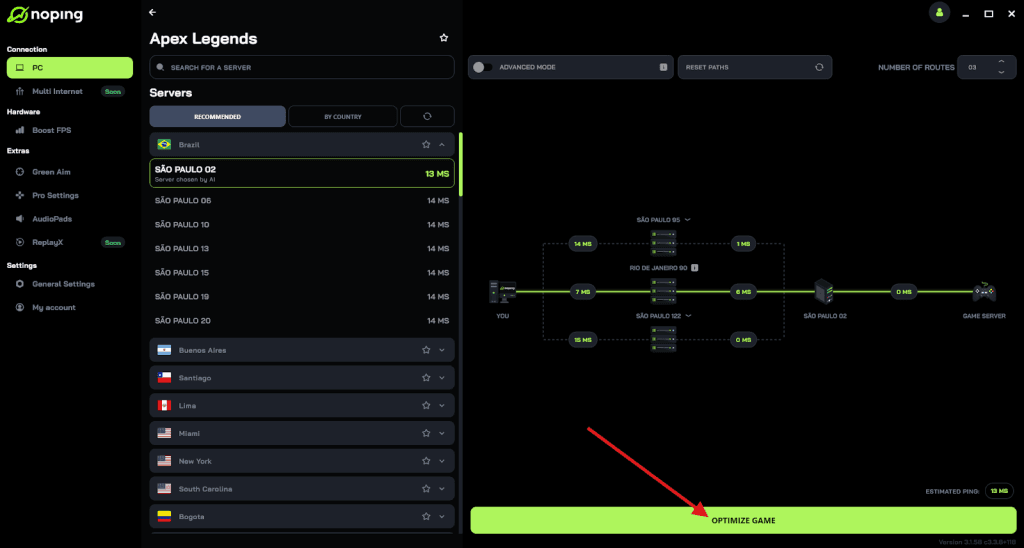
- And that’s it, you can start playing Apex Legends with optimized ping!
You can test different servers within NoPing to see which gives you the lowest latency.
7. Set Apex to Fullscreen and match native resolution
Fullscreen mode gives the game direct control of the display and often reduces input lag compared with borderless/windowed modes. Use your monitor’s native resolution or test lower resolutions if you need higher FPS.
8. Lower demanding video settings that hurt CPU or GPU
Set textures, shadows, and ambient occlusion lower if your GPU is struggling; reduce view distance and model detail if your CPU is the bottleneck. Adaptive Resolution can increase FPS but sometimes adds input lag; test with it on and off.
9. Limit background processes and set power plan to High Performance
Close browsers, Discord overlays, streaming software, and throttle or pause large downloads. On Windows, set the power plan to High Performance and disable CPU throttling features while gaming.
10. Check for packet loss using ping/tracert tools
Open a command prompt and run ping and tracert to the game server IPs (or to a stable host like 8.8.8.8). If you see packet loss or large spikes on hops, the issue could be ISP routing or a problematic hop: contact your ISP.
11. Whitelist Apex and Origin/Steam/Epic in your firewall/antivirus
Sometimes security software inspects or throttles game traffic. Temporarily disable or whitelist to test whether the firewall is part of the problem.
12. Defrag or use an SSD
If your game is installed on an old, slow HDD it may cause hitching during streaming of assets. An SSD reduces load times and in-match stutters.
13. Tune in-game FOV and advanced settings
Lowering FOV slightly can raise FPS; disabling excess postprocessing and motion blur reduces GPU load. Test small changes and measure FPS and perceived input responsiveness.
14. Consider ISP upgrades or alternative routes
If repeated routing problems appear in tracert and your ISP can’t fix it, switching to a different ISP or using a gaming VPN/routing service can be the only fix. Services like NoPing are specifically aimed at this (still test first).
15. Check EA/Respawn service status and recent patches
Sometimes server-side issues or new patches introduce lag. Check EA Help and official channels. If many players report the same issue, the problem could be on the provider side.

Apex Legends Minimum and Recommended System Requirements
Minimum (to run the game):
- OS: 64-bit Windows 10
- CPU: Intel Core i3-6300 / AMD FX-4350 (or equivalent)
- RAM: 6 GB
- GPU: NVIDIA GeForce GTX 950 / AMD Radeon HD 7790 (or similar)
- Storage: ~75 GB available
Recommended (for smoother 60 fps):
- OS: 64-bit Windows 10
- CPU: Intel i5-3570K or equivalent / modern Ryzen 5
- RAM: 8 GB
- GPU: NVIDIA GeForce GTX 970 / AMD Radeon R9 290 (8GB VRAM preferred)
- Storage: SSD recommended, 75+ GB free
FAQ - Lag in Apex Legends
How do I tell if my lag is network or graphics related?
Network lag shows as high ping numbers, rubber-banding, and bullets that “miss” on your screen but register server-side. Graphic lag is low FPS, stuttering, or frame-time spikes while ping stays low. Use in-game ping overlay and an FPS counter simultaneously to separate them.
Is 100 ms ping playable in Apex Legends?
You can play at 100 ms, but you’ll notice a delay vs players at 20–40 ms. For competitive play, aim under 50 ms when possible. Above ~150 ms you’ll be at a consistent disadvantage.
Does higher FPS reduce network lag?
Higher FPS reduces rendering/input lag (the time between your input and what’s displayed) but does not change your network round-trip time (ping). However, better FPS often improves your ability to aim and react, which feels like “less lag.”
Are overlays (Discord, Nvidia ShadowPlay) a problem?
Overlays can increase CPU usage or add minor input latency. If troubleshooting, disable overlays temporarily to test.
Lag in Apex Legends isn’t always easy to pin down, but it usually comes down to either your connection, your hardware, or your game settings.
And to always play Apex Legends without worrying about lag, use NoPing! Download now and start your free trial!