

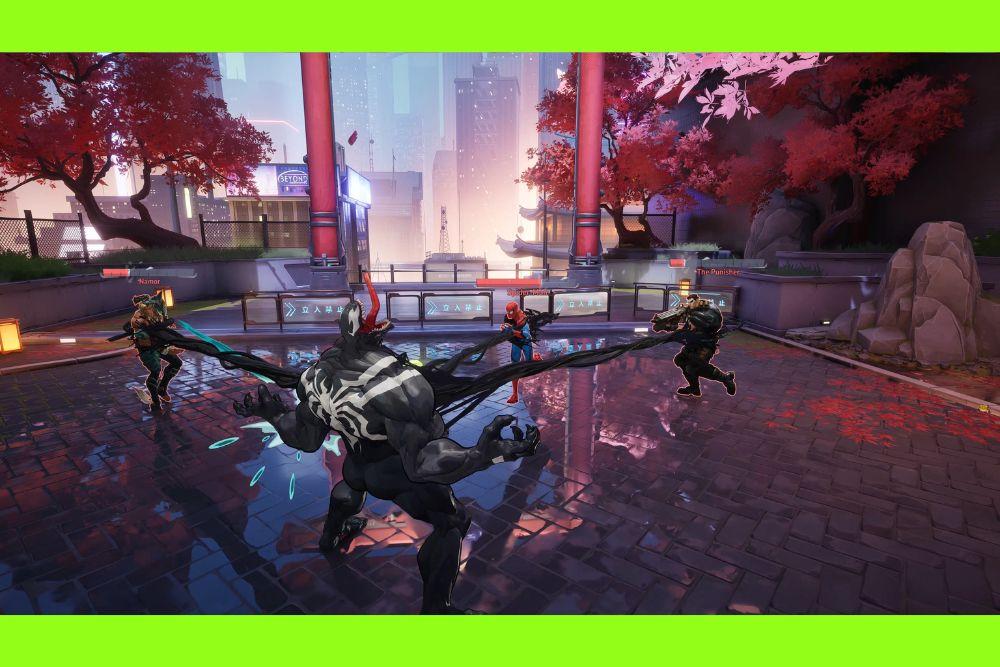
Nothing kills a clutch team-fight faster than a hiccuping frame-time graph. If you’re dealing with stuttering in Marvel Rivals, you’re not alone, and the good news is there are several practical fixes you can try right now.
Below I’ll walk you through why stutters happen in modern PC games, how they tend to show up specifically in Rivals, and a battle-tested checklist you can follow.
I’ll also give you in-game and Windows settings that smooth frame pacing without turning the game into a blurry mess, plus a short FAQ with extra tips pulled from reliable sources.
What Causes Stuttering in Marvel Rivals?
“Stutter” is any sudden hitch that breaks smooth motion. In shooters like Rivals, it’s usually one (or more) of these culprits:
Shader compilation and streaming
When the game compiles or loads shaders while you play, you can see micro-stalls even if your average FPS looks fine.
This is a well-known cause of hitches in many DirectX 12 titles. Microsoft is even rolling out a new “Advanced Shader Delivery” approach to reduce these stalls in the future, which tells you how common this is on PC.
CPU spikes and background interference
Overlays, screen recorders, RGB software, and browser tabs can slam a CPU thread right when a new effect/hero spawns, causing uneven frame-times.
I/O bottlenecks
Slow or nearly-full drives can choke on asset streaming.
Driver/feature interactions
Low-latency features, upscalers, HAGS, and per-app security settings (like Windows Control Flow Guard) sometimes interact badly on certain rigs and game builds. Community reports for Rivals include stutters tied to Windows Exploit Protection (CFG) and, for some users, NVIDIA Reflex settings.
Under-spec hardware or thermals
If you’re below (or right on) the minimum spec, or your GPU/CPU is throttling, you’ll feel it as uneven pacing. Check that you meet or exceed the current PC specs.
15 Ways to Fix Stuttering in Marvel Rivals
1. Verify you meet the current specs
As of mid-2025, multiple outlets list minimums around Windows 10 64-bit, an i5-6600K / Ryzen 5 1600X, 16 GB RAM, and a GTX 1060 / RX 580 class GPU, with ~70 GB storage. If you’re below this, stutters are expected. Free up disk space and move the game to an SSD if possible.
2. Update your GPU driver cleanly
Install the latest NVIDIA/AMD/Intel graphics driver using a clean install option. Drivers regularly include shader, latency, and DX12 fixes that cut stutter.
3. Toggle NVIDIA Reflex. Don’t assume
Marvel Rivals supports NVIDIA Reflex to reduce system latency, and NVIDIA reports big gains when it’s enabled. That said, some players have seen better smoothness with Reflex off on their particular setups. Test On, On + Boost, and Off; pick the one that gives the flattest frame-time line on your system.
4. Cap your FPS just under your monitor’s refresh
A well-chosen cap (e.g., 141 for 144 Hz; 117 for 120 Hz) can stabilize frame-times by easing CPU/GPU spikes. Avoid too-tight caps that cause oscillation.
5. Prefer exclusive fullscreen and avoid borderless when testing
Exclusive fullscreen often yields steadier frame pacing, particularly on multi-monitor or variable-refresh setups.
6. Try V-Sync off + VRR (G-SYNC/FreeSync) or Low Latency mode
If you have a variable refresh monitor, turn off in-game V-Sync and let VRR handle it. Without VRR, consider Fast V-Sync (NVIDIA) or a modest cap below refresh to cut tearing without introducing heavy input lag.
7. Use the right upscaler for your GPU, and test alternatives
Rivals supports modern upscalers (DLSS/FSR; XeSS availability has changed across updates according to player reports). On NVIDIA, start with DLSS Quality or Balanced; on AMD, try FSR 2/3 Quality; on Intel Arc, test XeSS if available in your current build. If one looks or feels worse, try another or native with TAAU.
8. Lower the heaviest hitters first
Effects, shadows, volumetrics, and view distance often cause the biggest spikes. Reduce those before textures. Keep textures high if you have enough VRAM; texture drops help less with stutter than with pure FPS.
9. Clear or rebuild shader caches after major updates
Driver/game updates sometimes invalidate caches. Use your GPU control panel or delete the game’s cache folder so Rivals can rebuild a clean set. Shader compilation is a top stutter source in modern engines.
10. Turn off overlays and background apps
Disable Discord/Steam/NVIDIA overlays, game capture, browser video, RGB managers, and “helper” tools. These can preempt a CPU thread at the worst time.
11. Experiment with HAGS (Hardware-Accelerated GPU Scheduling)
Some users report smoother results with HAGS off for this game; others see the reverse. Flip it and reboot, then keep whatever produces steadier frame-times on your machine.
12. Disable Windows Exploit Protection (CFG) per-app for the game
Several players fixed heavy stutters by turning off Control Flow Guard for the Rivals executable via Windows Security → App & browser control → Exploit protection → Program settings. Only change it for this game, and note you can revert at any time.
13. Ensure the game is on a fast SSD with >15% free space
Asset streaming stalls increase on slow or 95%-full drives. Move the game to an NVMe SSD if you can.
14. Use NoPing
Packet loss and high jitter can feel like “stutter” during intense fights even when your FPS is high.
NoPing can reduce latency variation by finding more stable paths to the game servers. It also has a Boost FPS feature that increases your FPS up to 60%, fixing those FPS stuttering issues!
Here’s how to use NoPing to fix stuttering in Marvel Rivals:
- Sign-up through the website and download NoPing (you can try it for free)
- Open NoPing and search for Marvel Rivals inside the software

- Once you find Marvel Rivals, click on it. Choose your server on the next screen and click on “Optimize Game”.

- And that’s it, you can start playing Marvel Rivals with optimized ping!
You can test different servers within NoPing to see which gives you the lowest latency.
15. Thermal and power sanity check
Make sure your GPU/CPU aren’t throttling: clean dust filters, set a sensible fan curve, and use a High Performance/Ultimate power plan. If you undervolt/overclock, test stock settings to rule out instability-induced hitches.

In-Game Settings to Avoid FPS Stuttering
Start from Rivals’ current optimized preset and then fine-tune.
Many guides confirm Rivals includes optimization helpers and modern options; use them as a baseline and then measure.
Upscaling & AA
Use DLSS (NVIDIA) or FSR (AMD) on Quality first; check for shimmering and ghosting. If you’re on Intel Arc, try XeSS if present in your current build. If an update removed a given upscaler temporarily (community reports say XeSS disappeared in some builds), choose the best available option and revisit after patches.
Reflex
Test On, On + Boost, and Off. NVIDIA’s own materials show Reflex support for Marvel Rivals, but some users find it interacts oddly with their FPS cap or CPU usage. Pick what feels smoothest in a bot match.
Frame cap
Set an in-game limit slightly below your monitor’s refresh to keep headroom and reduce spikes.
V-Sync
With a variable-refresh display, turn V-Sync off and let G-SYNC/FreeSync handle sync. Without VRR, try Fast V-Sync (NVIDIA) or use a gentle cap to reduce tearing.
Heavy settings to trim first
Effects, volumetrics/fog, shadows, and post-processing (like motion blur or depth of field). These reduce big millisecond spikes more than a small texture or anisotropic tweak.
Texture streaming budget
Keep textures appropriate to VRAM. If your VRAM bar is redlining, drop texture quality one step, not to boost average FPS, but to prevent streaming hitches.

Source: Skycoach
Windows Settings to Improve Performance
- Game Mode:
Toggle it On, but if you still see erratic frame-times, try Off—some rigs behave better that way. - HAGS:
Flip the Hardware-Accelerated GPU Scheduling switch and reboot. Keep the setting that gives smoother frame-times on your system. - Exploit Protection (CFG) per-app:
If you’re fighting heavy stutters, add a program override for the game’s EXE and turn off Control Flow Guard just for Marvel Rivals. Community reports suggest this helps on some PCs. - Power plan & background tasks:
Use High Performance/Ultimate, disable idle tasks (OneDrive indexing, Windows updates) while gaming, and kill overlays/recorders to keep CPU threads free. - Drivers & OS updates:
Update GPU drivers and keep Windows current, especially on DX12 titles where driver-level fixes can reduce shader-related stutters. - Storage health:
Keep your game on a healthy SSD with plenty of free space and make sure nothing is hammering the disk in the background.
FAQ - Stuttering in Marvel Rivals
What are the official-ish minimum PC specs for Marvel Rivals?
Multiple reputable sources list Windows 10 64-bit, Intel i5-6600K / Ryzen 5 1600X, 16 GB RAM, and GTX 1060 / RX 580 class graphics, with ~70 GB storage. If you’re borderline on RAM or storage, prioritize those upgrades first for smoother frame-times.
Does Marvel Rivals support NVIDIA Reflex and DLSS?
Yes, NVIDIA explicitly highlights Reflex support in Marvel Rivals, and has promoted DLSS for the game as well. In practice, try Reflex both on and off, and pick the smoothest result for your rig.
Is there an in-game benchmark to test settings quickly?
Community notes indicate newer seasons added an in-game benchmark tool so you can compare runs and dial in settings faster, handy when you’re making one change at a time to hunt stutters.
Why do some people say disabling Reflex or HAGS helps?
Low-latency features reduce input lag, but they also change how the CPU/GPU are scheduled. Depending on your FPS cap, CPU headroom, and drivers, that interaction can create or remove frame-time spikes. That’s why testing both ways is worth it.
What about Intel XeSS? Does Marvel Rivals still have it?
Players have reported that XeSS availability changed across updates (some posts mention it being removed in certain builds). If you don’t see it, use DLSS on NVIDIA or FSR on AMD until a future update changes the options again.
Is “stutter” always graphics-related?
Not necessarily. Network jitter/packet loss can feel like visual stutter (teleporting, rubberbanding) even when FPS is stable. That’s where network-side fixes, like a route optimizer (e.g., NoPing), using Ethernet, or changing servers, make a difference.
Can Microsoft’s new shader tech help with stuttering someday?
Microsoft is pushing Advanced Shader Delivery, which aims to curb shader-compilation stutters on PC by shipping precompiled shaders. It’s early days, but it shows the industry is tackling this root cause head-on.
Follow those steps methodically and you should see your frame-time graph flatten out so your squad-wipes are limited only by reaction time, not hitching.
And to always play Marvel Rivals without stuttering, use NoPing! Download now and start your free trial!