

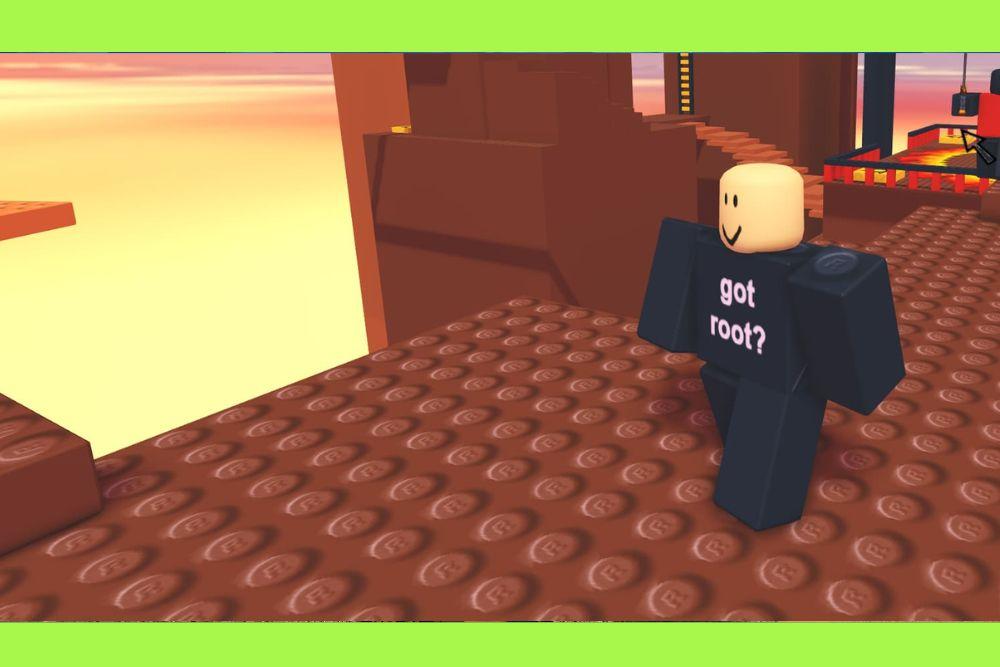
Getting the classic Roblox body is one of the most popular ways to customize your avatar if you want that nostalgic, blocky aesthetic that defined the early years of the platform.
Whether you are a veteran player missing the old days or a newcomer who prefers the clean, geometric look over the more realistic "Rthro" models, reverting to the original shape is simpler than it looks.
This guide will walk you through every step to achieve that iconic look while explaining why it remains a staple in the community.
Why is the classic Roblox body still so popular?
The classic Roblox body remains a fan favorite because it represents the fundamental identity of the game and offers a distinct competitive advantage in several genres.
While Roblox has introduced highly detailed humanoids and layered clothing, many players find the original blocky shapes more charming and easier to customize.
From a technical standpoint, the classic R6 rig (which uses six points of articulation) is often preferred in "Obbies" (obstacle courses) because the hitboxes are predictable and the movement is snappy.
Beyond just the feel of the game, there is a massive cultural movement within Roblox centered around "old school" aesthetics.
Games like RetroStudio have millions of visits because players crave the simplicity of the 2006 to 2012 era.
For many, the blocky body is a blank canvas that works perfectly with classic 2D shirts and pants, which can sometimes look stretched or distorted on newer, more complex character models.
How do you revert to the blocky look on a PC?
To get the classic Roblox body on a computer, you need to unequip any character "bundles" or "packages" you currently have active in the Avatar Editor.
Many new accounts start with a pre-set bundle like the "Roblox Boy" or "Roblox Girl," which adds rounded limbs and a more defined torso.
To go back to basics, you must strip these away to reveal the underlying grid-based structure.
Follow these specific steps to reset your look:
- Log into your account on the Roblox website.
- Navigate to the Avatar tab on the left-hand sidebar.
- Click on the Head & Body category in the top menu.
- Select Torso from the dropdown list. If you see a checkmark on a specific item (like "Man Torso"), click it to unequip it. Your torso will immediately return to a blocky square.
- Repeat this process for Left Arms, Right Arms, Left Legs, and Right Legs.
- Ensure that under the Build section, your body type slider is set to 0% to maintain the widest, most traditional proportions.
Once all specific limb packages are removed, your character will default to the standard 1.0 blocky shape. This is the foundation for any classic outfit.
How do you change your avatar to classic on mobile?
Getting the classic Roblox body on a mobile device involves using the Roblox app, which has a slightly different layout than the desktop site but follows the same logic of unequipping items.
Since the mobile interface is condensed, you have to navigate through a few sub-menus to find the specific body parts that are altering your shape.
Here is the mobile workflow:
- Open the Roblox app and tap your avatar icon at the bottom center of the screen.
- Tap on Customize.
- Go to the Head & Body section.
- Scroll through the horizontal menu to find Torsos, Right Arms, Left Arms, Right Legs, and Left Legs.
- Tap on any selected (checked) item to unequip it. You will see your avatar preview update in real time to the blocky version.
- Switch to the Build tab within the same menu and ensure the Body Type and Size sliders are moved all the way to the left for that authentic "OG" feel.
The mobile app sometimes defaults to the R15 setting, so even if you look blocky, your character might still have fifteen joints.
If you want the true classic experience, you may need to check the animation settings as well.
What is the difference between R6 and R15?
The difference between R6 and R15 lies in the number of joints and how the character moves during gameplay.
R6 stands for six parts, meaning your character consists of a head, torso, two arms, and two legs.
This version has limited rotation and no elbow or knee joints, creating that stiff, charming movement style from the early 2000s.
R15, on the other hand, consists of fifteen parts, allowing for much more fluid movement, bending elbows, and complex animations.
Most players seeking the classic Roblox body also prefer the R6 setting because it simplifies the character's physics. In many competitive games, R6 is the standard because it ensures everyone has the same jump height and collision box.
You can toggle between these modes at the bottom of the Build section in the Avatar Editor. Note that some modern accessories and layered clothing items require R15 to display correctly, so if your character looks broken after switching to R6, you might need to remove newer 3D items.
Where can you find classic skin tones?
The classic skin tones are found in the Advanced section of the Head & Body menu under the Skin Tone tab.
Unlike the basic palette offered to new users, the advanced menu allows you to color each body part individually.
This is essential for creating the "Noob" look (yellow head and arms, blue torso, and green legs) or other retro styles that were common before shirts and pants items were widely used.
To access these colors:
- Go to Avatar Editor.
- Select Head & Body and then Skin Tone.
- Scroll to the bottom of the color list and click Advanced.
- Select specific parts (e.g., Left Arm) and choose the exact shade you want.
This level of customization is a hallmark of the classic era, where players used different limb colors to simulate clothing or team uniforms.
The advanced palette includes the "Bright Yellow" and "Bright Blue" shades that are synonymous with early Roblox history.
Can you use layered clothing with a blocky body?
You can use layered clothing with a blocky body, but the results vary depending on the specific item and whether you are using the R15 version of the blocky look.
Layered clothing was designed to wrap around the "mesh" of a character. When applied to a perfectly rectangular classic body, the clothing often stretches or assumes a slightly rounded shape to fit the corners.
If you want to maintain the sharp edges of the classic Roblox body, it is usually better to stick with classic shirts and pants (the 2D clothing textures).
These wrap perfectly around the blocks without any distortion. If you do choose to use layered clothing, make sure you are in R15 mode, as R6 does not support the 3D clothing technology and will simply not display the items or default them to a static appearance.
How do you find classic faces and accessories?
To complete the look, you should look for classic faces like "Check It," "Chill," or the standard "Smile" in the Marketplace.
Most of these are available for free or for a very low amount of Robux. In the Marketplace, you can use filters to find items created by Roblox that have been around for over a decade.
Steps to find retro items:
- Go to the Marketplace (formerly Catalog).
- Filter by Creator and type in Roblox.
- Sort by Recently Updated or go to the Classic sections.
- Search for keywords like "Classic," "2007," or "Old School."
Many of the original hats, such as the "Baseball Cap" or the "Blue Hair," are still available and perfectly complement the blocky torso and limbs.
Is the classic body better for competitive play?
The classic body is often considered better for competitive play because of the predictability of the R6 rig.
In "Sword Fighting" or "Obby" games, knowing exactly where your arm or leg ends is crucial. Rthro and other scaled models can have "invisible" hitboxes where the visual model is thinner than the actual area that can be hit by a weapon or a laser.
With the 1.0 blocky body, the visual model and the physical hitbox are almost perfectly aligned.
This transparency allows players to perform precise jumps and maneuvers that are much harder to time with a character that has swaying limbs and realistic proportions.
It is the reason why the "Pro" community in Roblox still heavily favors the blocky aesthetic.
How do you save your classic look as a preset?
Once you have perfected your classic configuration, you should save it as an "Outfit" so you can switch back to it instantly.
Roblox allows you to save dozens of different presets, which is helpful if you want to switch between a modern Rthro look for social games and a classic blocky look for competitive play.
To save your outfit:
- Go to the Avatar Editor.
- Click on the Characters tab and select Creations.
- Click Create New Outfit.
- Name it something like "Classic 1.0" or "Old School."
This saves your body scaling, skin tones, and unequipped packages, ensuring you never have to manually remove the "Man" or "Boy" limbs ever again.
Play Roblox without lag. Download NoPing now and start your free trial!