

If you want to optimize your gaming PC for competitive FPS, you’re already thinking like a serious player.
In shooters, your system’s performance can literally decide who pulls the trigger first.
While skill and strategy are essential, your hardware and software setup often determine how smoothly those skills translate in-game.
In this guide, we’ll go through everything you need to fine-tune your system for top-tier performance, from hardware and cooling to network stability and mindset.
Whether you’re climbing ranks in Valorant, grinding in CS2, or competing in Apex Legends, these tips will help your PC work as hard as you do.
Steps to Optimize Gaming PC for Competitive FPS
1. Prioritize Performance Over Power Saving
Windows' default power settings often lean towards energy efficiency, which isn't ideal for gaming.
To ensure your CPU and GPU run at full throttle, switch to a high-performance power plan.
How to do it:
- Open the Control Panel.
- Navigate to Power Options.
- Select High Performance or Ultimate Performance.
- Click on Change plan settings and then Change advanced power settings.
- Adjust settings like Processor power management to 100% and PCI Express to maximum performance.
2. Tweak In-Game Settings for Optimal FPS
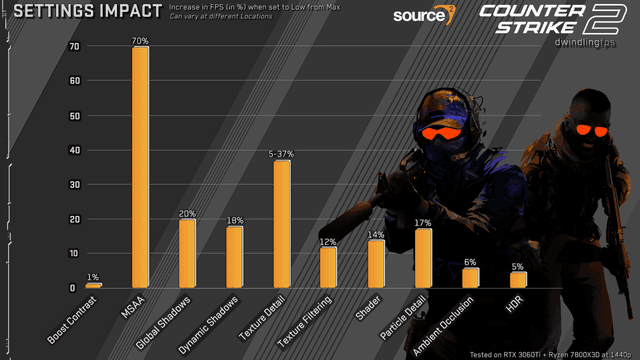
While high-quality visuals are appealing, they can hinder performance in competitive shooters.
Adjusting certain settings can boost your FPS without sacrificing too much visual fidelity.
Recommended adjustments:
- Resolution: Match your monitor's native resolution. Lowering it can improve FPS but may reduce visual clarity.
- Texture Quality: Set to medium or low if you have less than 6GB VRAM.
- Shadows: Lower or disable; they consume significant resources.
- Anti-Aliasing: Use FXAA or TAA for a balance between quality and performance.
- Post-Processing Effects: Disable motion blur and reduce ambient occlusion.
These tweaks can lead to smoother gameplay, especially on mid-tier systems.
Source: Reddit
3. Maintain Your Hardware
Regular maintenance ensures your hardware operates efficiently.
Tips:
- Clean Your PC: Dust buildup can cause overheating. Use compressed air to clean vents and components.
- Reapply Thermal Paste: Over time, thermal paste degrades, leading to higher temperatures. Reapplying it can improve cooling.
- Monitor Temperatures: Use software like HWMonitor to keep an eye on CPU and GPU temperatures.
Keeping your system clean and cool prevents thermal throttling, ensuring consistent performance.

4. Optimize Network Settings
A stable and fast internet connection is vital for online gaming.
Steps to enhance network performance:
- Use a Wired Connection: Ethernet connections are more stable and have lower latency than Wi-Fi.
- Close Background Applications: Programs like Discord can consume bandwidth. Close unnecessary applications to free up resources.
- Update Network Drivers: Ensure your network adapter drivers are up to date for optimal performance.
These steps can reduce lag and improve your gaming experience.
5. Utilize Game Optimization Tools
Several tools can automate the optimization process, saving you time and effort.
Popular options:
- Hone: Offers one-click optimizations, including background process management and game-specific tweaks.
- Razer Cortex: Provides game boosting features, such as shutting down unnecessary processes and defragmenting game files.
These tools can help you achieve better performance without manual adjustments.
6. Update Drivers Regularly
Outdated drivers can cause performance issues and crashes.
What to update:
- Graphics Drivers: Always use the latest drivers from NVIDIA or AMD to ensure compatibility with new games and features.
- Motherboard Chipset Drivers: These can affect system stability and performance.
- Network Adapter Drivers: Ensure your internet connection is optimized.
Regular updates keep your system running smoothly and can provide performance improvements.
7. Adjust Monitor Settings
Your monitor plays a crucial role in your gaming experience.
Adjustments to consider:
- Refresh Rate: Set your monitor to its highest refresh rate (e.g., 144Hz or 240Hz) for smoother visuals.
- G-Sync/FreeSync: Enable these features to reduce screen tearing and stuttering.
- Overdrive: Adjust overdrive settings to minimize motion blur.
These settings can enhance visual clarity and responsiveness.
8. Overclocking (Advanced Users)
Overclocking can provide a performance boost but comes with risks.
Considerations:
- CPU Overclocking: Increase clock speeds cautiously and monitor temperatures.
- GPU Overclocking: Use tools like MSI Afterburner to adjust GPU settings.
- Stability Testing: Use software like Prime95 or Unigine Heaven to test system stability.
Overclocking can yield performance gains but should be done carefully to avoid hardware damage.
9. Enable Game Mode in Windows
Windows 10 and 11 offer a Game Mode that prioritizes gaming performance.
How to enable:
- Go to Settings > Gaming > Game Mode.
- Toggle Game Mode to On.
This feature optimizes system resources for gaming, reducing background activity.
10. Optimize Storage
Game loading times can be affected by your storage device.
Recommendations:
- Use an SSD: Install games on an SSD for faster load times.
- Enable TRIM: Ensure TRIM is enabled to maintain SSD performance.
- Free Up Space: Keep at least 10% of your SSD's capacity free for optimal performance.
These steps can reduce loading times and improve overall system responsiveness.
Hardware and Performance Enhancements
When you’re trying to optimize your gaming PC for competitive FPS, hardware plays a massive role.
Even small changes can improve your frame times and overall consistency. Here’s what to pay attention to.
1. Choose the right GPU for your target refresh rate
In fast-paced shooters, your GPU determines how consistently you can hit high frame rates.
If you play on a 144Hz or 240Hz monitor, your graphics card needs to maintain that same number of FPS for the smoothest gameplay possible. You don’t need the latest flagship GPU, but you do need one that’s balanced with your CPU.
A good rule of thumb:
- For 1080p 144Hz, cards like the RTX 4060 or RX 7600 are great.
- For 1440p 144Hz or higher, consider the RTX 4070 Ti or RX 7900 XT.
Always pair your GPU with a processor that won’t bottleneck it, meaning your CPU can keep up with the number of frames the GPU is pushing.
2. RAM speed and configuration matter
RAM may not seem like a big deal for gaming, but competitive FPS titles rely on low latency.
Using dual-channel RAM (two sticks) is always better than a single one. It effectively doubles your data transfer speed.
Also, enabling XMP or DOCP in the BIOS makes your RAM run at its advertised speed instead of the slower default.
For best results:
- Aim for 16GB or 32GB of RAM.
- Use speeds of 3200MHz or higher if your motherboard supports it.
3. Keep your cooling system efficient
A hot CPU or GPU will throttle itself to prevent damage, lowering your FPS. Make sure your case has good airflow: one or two fans bringing air in, and one pushing it out.
Reapply thermal paste every couple of years if you notice temperatures climbing, and regularly clean out dust filters.
Liquid cooling can help with stability, but even a well-optimized air setup is enough if maintained properly. Cool components mean smoother and more consistent performance.
4. Use a high-refresh-rate monitor with low latency
If your monitor is capped at 60Hz, your reaction time is limited by the screen.
Upgrading to a 144Hz, 165Hz, or 240Hz display drastically improves responsiveness and clarity. The difference is night and day, especially when tracking fast-moving targets.
Check your monitor settings in Windows or your GPU control panel to ensure you’re actually running at the highest refresh rate available.
Network and Competitive Edge
Having high FPS doesn’t matter if your connection lags behind. Competitive shooters rely heavily on low latency and stable connections.
Network optimization is just as important as hardware tuning.
1. Use a wired connection whenever possible
Wi-Fi can fluctuate depending on interference and distance from the router.
An Ethernet cable guarantees a stable, low-latency connection, which can lower your ping and eliminate packet loss.
If running a cable isn’t possible, consider a powerline adapter or a Wi-Fi 6 router with quality-of-service (QoS) features for gaming.
2. Set up your router for performance
Most modern routers have gaming-oriented settings you can adjust:
- Enable QoS (Quality of Service) and prioritize your gaming device.
- Use port forwarding for games that require it.
- Choose a 5GHz Wi-Fi band over 2.4GHz for lower interference.
- Update your router’s firmware regularly.
These small adjustments help keep your ping consistent and reduce spikes that could ruin your matches.
3. Reduce background network usage
Even if you have fast internet, background programs can eat up bandwidth.
Close or pause downloads, cloud sync tools, and streaming services while gaming. If others in your household use the same network, scheduling updates or downloads for off-hours can help maintain smooth gameplay during competitive matches.
4. Understand your latency metrics
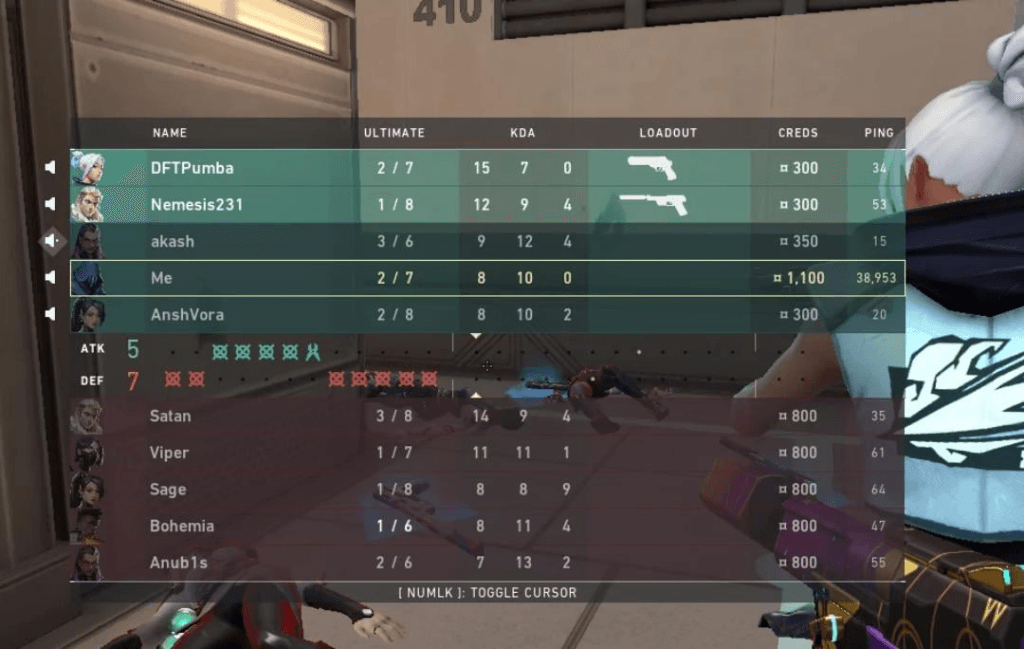
Ping isn’t the only metric that matters. Keep an eye on:
- Ping: Total round-trip time between you and the game server.
- Jitter: How consistent that ping is.
- Packet loss: When data doesn’t reach the server at all.
Most competitive games let you see these stats in real time. Stable numbers are more important than having the absolute lowest ping.
Players’ ping on Valorant. Source: Reddit
5. Use NoPing
NoPing is a service designed to optimize your route to games’ servers. Sometimes, the normal path your internet provider uses isn’t the fastest.
NoPing reroutes your data through a better, more direct path.
Here’s how to use NoPing to improve your connection in online games:
- Sign-up through the website and download NoPing (you can test it for free).
- Open NoPing and search for your game inside the software
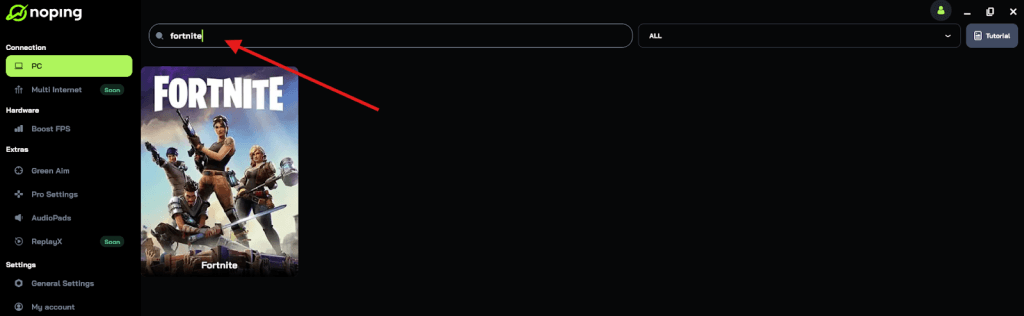
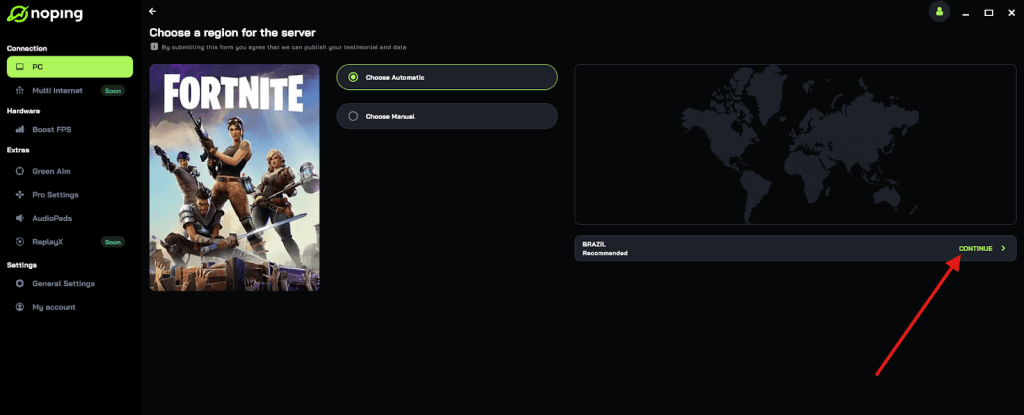
- Once you find it, click on it and, on the next screen, select “Choose automatic” or “Choose manual” and click “Continue”. We recommend choosing automatic, as NoPing’s technology analyzes all routes on a global scale and automatically selects the best option for you.
- On the next screen, click on “Optimize Game”.
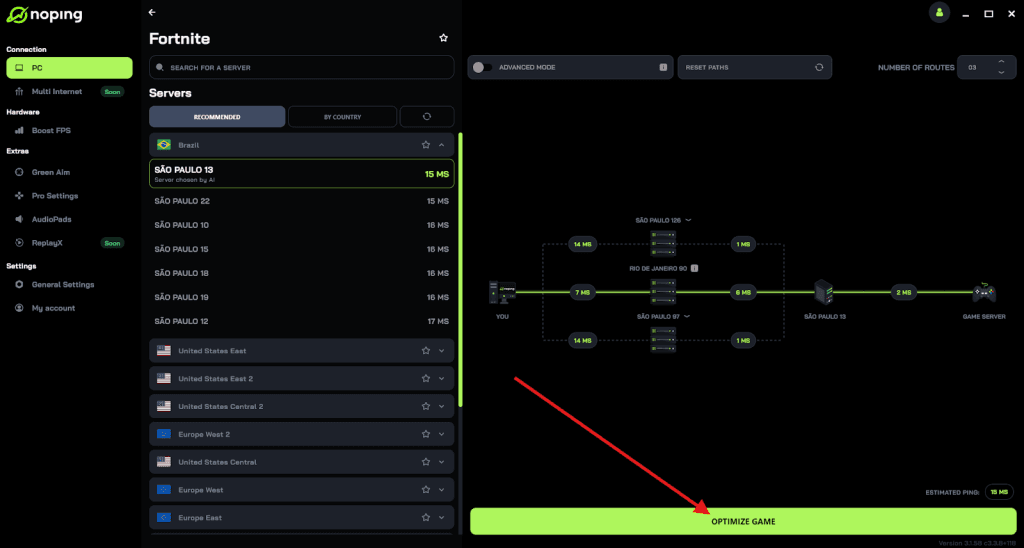
- And that’s it, you can start playing with optimized ping!
You can test different servers within NoPing to see which gives you the lowest latency.
Competitive Mindset and Maintenance
A high-performance PC won’t help much if you don’t take care of it — or yourself. Competitive gaming is about consistency, and that includes both your system and your mindset.
1. Maintain your PC regularly
Treat your PC like any other piece of performance equipment. Over time, software clutter, dust buildup, and driver conflicts can slow it down.
A good routine might include:
- Cleaning your case and fans every 2–3 months.
- Uninstalling unused software.
- Running virus scans or malware checks occasionally.
- Updating your GPU, chipset, and network drivers.
These habits keep your rig stable and ready to perform every time you boot up.
2. Benchmark and monitor performance
Use benchmarking tools like 3DMark, CapFrameX, or in-game performance overlays to track your FPS, temperatures, and frame times.
This helps you notice small issues, like a new driver update lowering performance, before they become major problems.
Consistency is key: you want steady frame pacing, not just high frame rates.
3. Optimize your physical setup
A comfortable, ergonomic setup makes a huge difference during long sessions.
Adjust your chair and monitor height so your eyes are level with the top of the screen.
Keep your mouse and keyboard on a stable surface with enough space to move freely. Proper posture and lighting can improve reaction time and reduce fatigue.
4. Train like an athlete
Competitive shooters demand precision, focus, and mental endurance.
Building habits like warm-up routines, aim training, and regular breaks can enhance both your mechanics and decision-making.
Keep your setup consistent so your muscle memory develops properly.
High-end hardware gives you the tools. but discipline turns them into results.
Optimizing your gaming PC for competitive FPS games involves a combination of hardware maintenance, software adjustments, and network optimizations.

By following the steps outlined above, you can enhance your gaming experience, reduce lag, and gain a competitive edge. Remember, consistency is key: regular maintenance and updates ensure your system remains in top condition.
And to always have the best connection to play competitive titles online, use NoPing! Download now and start your free trial!