

Learning how to shift lock on Roblox is a fundamental step for any player who wants to improve their movement and precision in the game.
If you have ever watched a pro player navigating a difficult "Obby" (obstacle course) or dominating a PvP arena, you probably noticed their camera stays fixed behind their character, moving perfectly with the mouse.
That is the magic of Shift Lock. While the default camera allows you to look around freely without moving your avatar, this feature binds the two together, creating a third-person shooter perspective that is essential for competitive play.
How do you enable shift lock on Roblox in the settings?
You must enable the feature within the specific game’s menu before you can use the shortcut key.
Even if the platform supports it, it is turned off by default in many sessions. To turn it on, follow these steps:
- Press the Esc key on your keyboard while inside a Roblox game.
- Navigate to the Settings tab at the top of the menu.
- Look for the first option labeled Shift Lock Switch.
- Toggle the setting to On.
Once this is done, you can resume your game and press the Left Shift key to toggle the lock on and off.
You will know it is working when your cursor changes from a standard pointer to a small circle or crosshair in the middle of the screen.

Source: Roblox
What is shift lock on Roblox and how does it work?
It is a camera toggle feature that locks your cursor to the center of the screen and forces your character to face the same direction as the camera.
In standard Roblox gameplay, your mouse cursor is free to click on UI elements or rotate the view without rotating the character model until you start moving.
When Shift Lock is active, every slight movement of your mouse translates to your character turning. This allows for much tighter maneuvers, especially in games that require precise jumping or fast-paced combat.

Why is this feature essential for competitive gaming?
Precision is the main reason why players rely on this mechanic. In obstacle courses like Tower of Hell, a single misstep can send you back to the beginning.
With Shift Lock, you can align your character perfectly with thin platforms or perform "wall hops" with much higher consistency.
In combat-heavy games, it allows you to circle around opponents while keeping your attacks aimed directly at them.
It removes the clunkiness of trying to manage both the camera and the direction of movement separately.
Also read: How to Get Verified on Roblox: Complete Guide
Can you use shift lock on mobile or consoles?
The official Shift Lock feature is primarily designed for the PC version of Roblox. On mobile devices (iOS and Android), there is no native "Shift" key to trigger the mechanism.
However, many developers include a custom GUI button in their games that mimics this behavior for mobile players.
On consoles like Xbox or PlayStation, the game usually relies on the right thumbstick for camera control, and while some games implement a "lock" mechanic, it is not the standard Shift Lock found on the desktop client.
Why isn't shift lock working in some games?
It usually comes down to the developer's settings or your hardware configuration. If you have followed the steps above and the feature still won't activate, consider these possibilities:
- Developer Restrictions: Some creators disable Shift Lock to maintain a specific difficulty level or atmospheric feel. If the setting says "Set by Developer," you cannot turn it on.
- Camera Mode: Ensure your camera mode is set to "Follow" or "Classic." Some custom camera scripts can interfere with the lock.
- Keyboard Layout: If you use a non-standard layout, the "Left Shift" key might not be recognized correctly by the Roblox engine.
How does latency and ping affect camera responsiveness?
A high ping can make your camera feel sluggish, even when Shift Lock is active.
Since Roblox is a cloud-based platform, every movement command and camera adjustment needs to be synced with the server.
If your connection is unstable, you might experience "input lag," where your character turns a split second after you move your mouse.
This delay can be fatal in fast games. Using NoPing can help stabilize your route to the game servers, reducing jitter and ensuring that your Shift Lock movements are as snappy as possible.
Here’s how to use NoPing to fix lag in Roblox:
- Sign-up through the website and download NoPing (you can try it for free)
- Open NoPing and search for Roblox inside the software
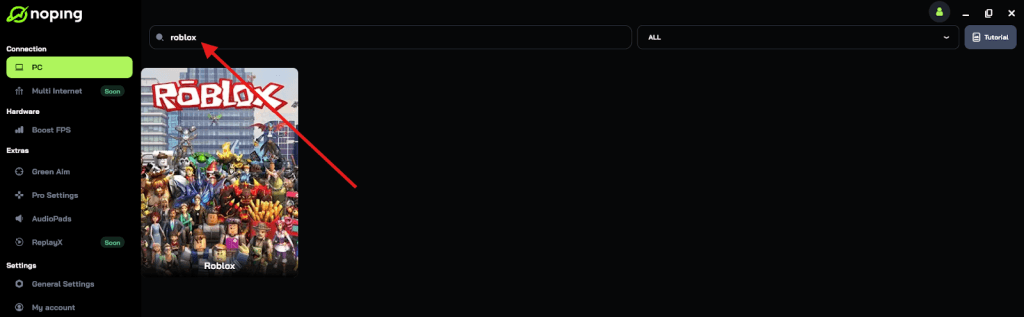
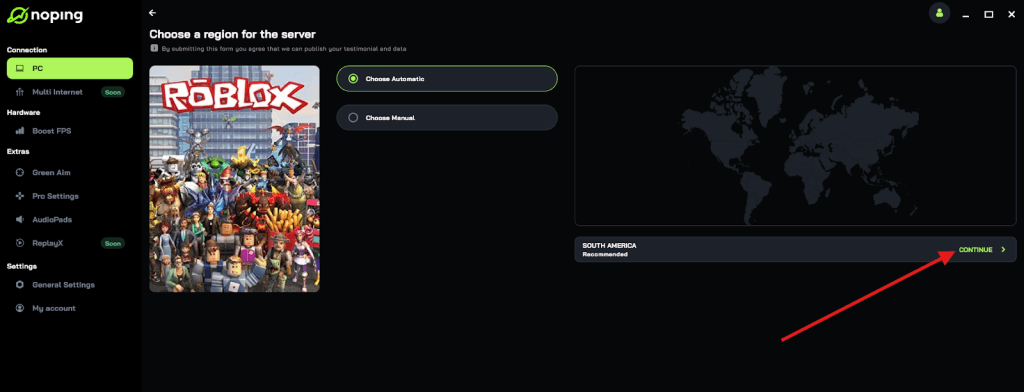
- Once you find Roblox, click on it and, on the next screen, select “Choose automatic” or “Choose manual” and click “Continue”. We recommend choosing automatic, as NoPing’s technology analyzes all routes on a global scale and automatically selects the best option for you.
- On the next screen, click on “Optimize Game”.
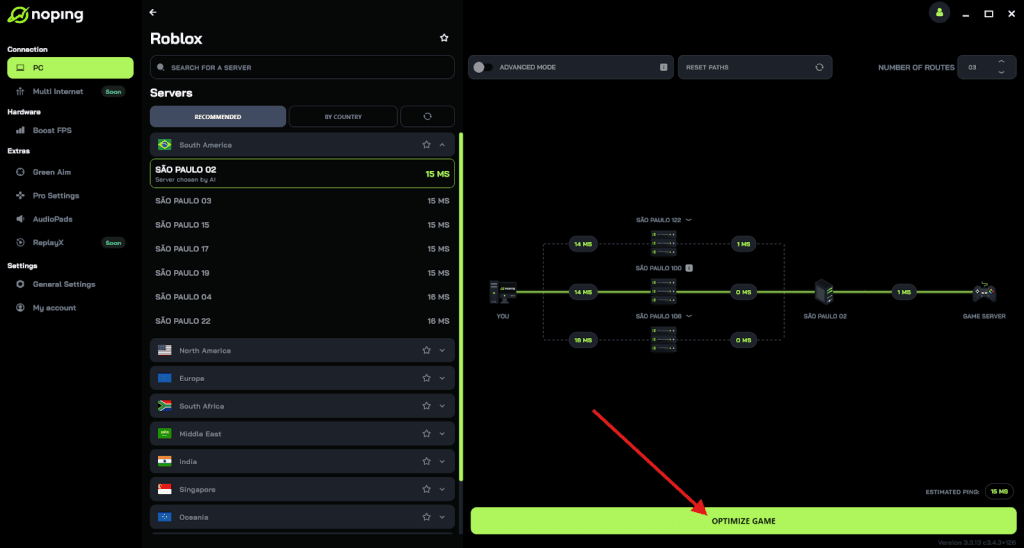
- And that’s it, you can start playing Roblox with optimized ping!
You can test different servers within NoPing to see which gives you the lowest latency.
What are the best games to practice this mechanic?
The best way to master the camera lock is through trial and error in high-stakes environments. You should try these genres:
- Obbies: Games like Tower of Hell or Difficulty Chart Obbies are perfect for learning how to align jumps.
- Sword Fighting: Classic combat games allow you to practice "strafing" around enemies.
- First-Person Shooters: While many FPS games lock the camera by default, some hybrid games benefit from toggling it manually.
Play Roblox without lag! Download NoPing now and start your free trial!