

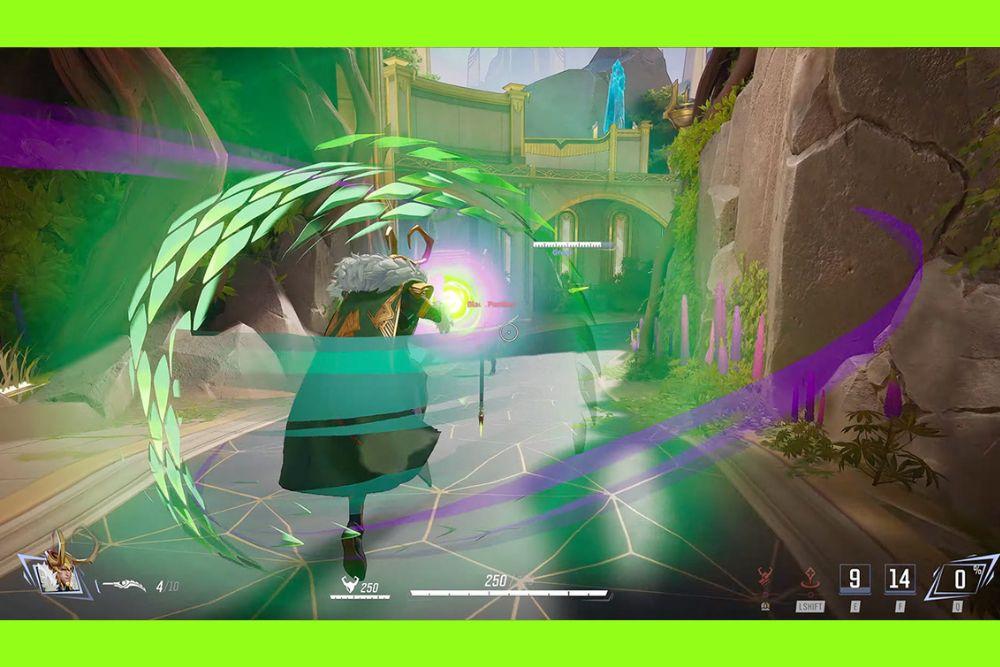
If you’ve just jumped into the action and want to get the most out of your matches, dialing in the Marvel Rivals best settings is one of the first things you should do.
Since this is a competitive hero shooter with fast-paced team fights and lots of visual effects on screen, the wrong settings can mean dropped frames, distracting audio, or even input delays that cost you the game.
In this guide, we’ll go over the best performance tweaks, the cleanest visual setups for strong PCs, audio adjustments that actually help you hear what matters, and even a few Windows-side optimizations to make your experience as smooth as possible.
Marvel Rivals Best Settings for Performance and FPS
Getting a smooth, responsive frame rate matters in this fast-paced hero shooter.
In-Game Display Settings
Start by going into the Display tab and making a few simple changes that immediately help performance:
- Display Mode: Fullscreen (this reduces input lag compared to borderless or windowed).
- Monitor & Resolution: Set these to your main screen and match your monitor’s native resolution.
- V-Sync: Off (prevents input delay).
- Frame Rate Limit: You can set it to match your monitor’s refresh rate (for example, 144 if you have a 144Hz screen), or keep it unlimited if your hardware can handle it.
- Brightness: Around 50 is balanced, but adjust to preference.
- Show FPS & Network Stats: On (so you can track performance).
- Frame Generation: Off, unless you’re on a high-end card and want to test it.
- Low Latency Mode: Enable if you’re using an NVIDIA GPU.
These tweaks alone already cut down on stutters and input lag.

Graphics Settings for Higher FPS
Now, head into the Graphics tab and switch the overall Graphics Quality to Custom. Then set:
- Global Illumination: SSGI Low (or Off if you want maximum FPS).
- Reflections: Screen Space (lower quality, but less demanding).
- Model Detail, Post-Processing, Texture, Effects, Foliage: Low.
- Shadows: Medium or Low: shadows eat performance, so keep them modest.
This setup keeps the action clear and maximizes speed. On mid-range systems, you should be able to reach well over 100 FPS at 1080p.
Marvel Rivals Best Settings for Visuals (High-End PC)
If you’ve got a beefy GPU and want something that looks crisp while still keeping things smooth, go with the PCGamesN approach:
- Graphics Quality: Custom
- Global Illumination: Lumen GI High Quality
- Reflection Quality: Screen Space Reflections
- Model Detail, Post-Processing, Shadow, Texture, Effects, Foliage: High
- V-Sync: On
- NVIDIA Reflex: On
- Anti-Aliasing and Super Resolution: On
- Super Resolution Sharpening: 80
This gives you the best lighting and reflections your system can handle while minimizing clutter and maintaining a crisp, clean look.
With a powerful GPU like an RTX 4070, you can still get 100+ FPS comfortably at 1080p even with some visual flair. It’s a sweet compromise between eye candy and competitive responsiveness.

Marvel Rivals Best Settings for Audio
Sound in Marvel Rivals doesn’t affect FPS, but it’s key for hearing footsteps, directional cues, and making split-second decisions. Here’s what expert guides recommend:
- Master Volume: 70
- Sound Effects: 100
- Lobby Ambiance: 100
- Music Volume: 80 (push this down if it distracts you)
- Lobby Music: 80
- In-Game Voice Volume: 100
- Output Device: whichever you’re using
- Playback Mode: match your setup
- 3D Enhancement: On, especially important if you use headphones (just don’t double up with Windows spatial audio).
Others suggest using headphones and setting Master Volume to around 80, and lowering in-game voice a bit (around 50) to avoid clutter.
Bottom line: max out SFX, keep music moderate, prioritize clarity, and definitely keep 3D spatial audio on.
Windows Settings to Enhance Marvel Rivals
We already touched on some, but here’s the Windows settings recap:
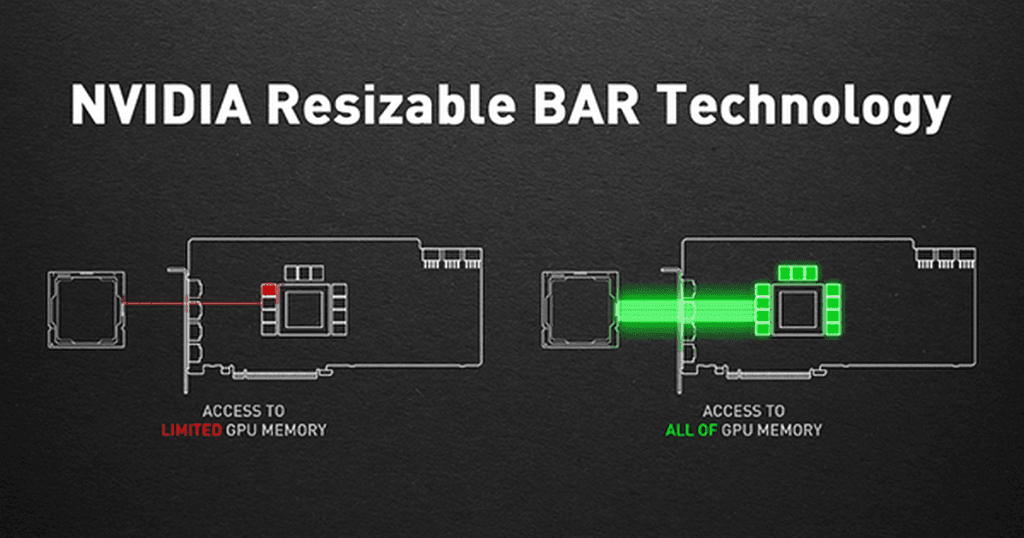
- Resizable BAR (ReBAR): enables CPU-GPU memory access boost.
- Hardware-Accelerated GPU Scheduling: reduces driver latency but may vary by system.
- Windows Game Mode: can help stabilize performance.
One Steam user recommends enabling Hardware-Accelerated GPU Scheduling. It helped stabilize framerate consistently, though they personally had Frame Generation and Low Latency turned off for less lag.
How to Monitor Performance in Marvel Rivals?
Want to keep an eye on FPS, frame times, or stats while in-game? Here’s how:
- If you have an NVIDIA GPU, use GeForce Experience overlay (ALT + R) to bring up performance monitoring.
- AMD users can enable the Radeon overlay with CTRL + SHIFT + O.
This way you can check real-time FPS, frame dips, and keep things tuned nicely.
How to Boost FPS in Marvel Rivals?
Even with the right in-game and Windows tweaks, sometimes you want an extra push to squeeze out those extra frames. That’s where NoPing helps. It has a Boost FPS feature designed to lighten the load on your system while you play.
What it does is pretty straightforward: NoPing shuts down unnecessary background processes and optimizes how your system allocates resources to Marvel Rivals.
The result is less competition for CPU and GPU power, which can translate into more consistent frame rates during matches.
How to use the Boost FPS feature:
- Sign-up through the website and download NoPing (you can test it for free).
- When you open the software, click on "Boost FPS" in the left side menu.
- On the next screen, you'll see a range of options to customize the feature (there are over 50 settings). You can enable or disable everything and choose between Windows default or user settings. You can also filter the options using the bar on the right.
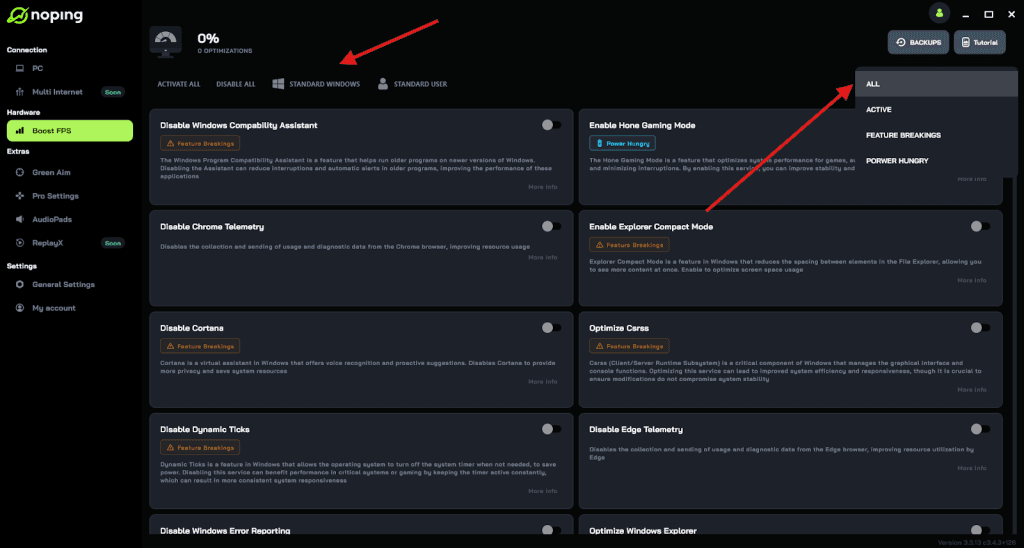
And that's it! Boost FPS is now activated. Just launch your game and enjoy high FPS!
FAQ - Marvel Rivals Best Settings
Q: When did Marvel Rivals launch and on what platforms?
A: It released on December 6, 2024, for Windows, PS5, and Xbox Series X|S.
Q: What engine does the game run on?
A: Unreal Engine 5.
Q: Is crossplay supported?
A: Yes, Marvel Rivals supports crossplay in casual modes across platforms. It’s also free-to-play and doesn’t lock heroes behind paywalls.
Q: Can you customize crosshairs per hero?
A: Yep. Go to HUD settings, use “Save Reticle,” and you can import codes (PC only) or tweak default shapes. PC players can import creator-shared codes, especially handy for precision heroes like Hela or Blade.
Q: How do you disable “easy swing” or “automatic swing”?
A: In Practice Range, open settings under input > combat for either Spider-Man or Venom and disable the autoswing option. You can also enable “hold to swing” for more control.
Finding the Marvel Rivals best settings is really about balance. You don’t need to max everything out to enjoy the game, and you don’t have to tank visuals just to get smooth performance.
By dialing in the right display and graphics settings, tweaking your audio for clarity, and making a few smart changes in Windows, you can create an experience that feels fast, responsive, and tailored to your setup.
And to always play Marvel Rivals with improved FPS and reduced ping, use NoPing! Download now and start your free trial!