

War Thunder is one of the most popular free-to-play multiplayer combat games, blending air, ground, and naval battles into a massive online war experience. Players across the world dive into epic tank battles, dogfights, and naval skirmishes.
However, like any large-scale online game, War Thunder can run into technical problems. One of the most frustrating issues players face is when the game refuses to launch on Steam.
If you’ve clicked the Play button only to see nothing happen, or worse, a crash immediately after launching, you’re not alone. Fortunately, there are several proven solutions that can help you get War Thunder running again. This guide will walk you step by step through the most effective fixes for War Thunder not launching on Steam.
Common Reasons Why War Thunder Won’t Launch
Before jumping into fixes, it helps to understand what could be causing the issue. War Thunder may not launch due to:
- Corrupted or missing game files on Steam.
- Outdated graphics drivers that are incompatible with the latest version of the game.
- Software conflicts with third-party applications such as antivirus programs, overlays, or recording software.
- Insufficient permissions preventing Steam or War Thunder from accessing required system files.
- Outdated DirectX or Visual C++ Redistributables, which are critical for game performance.
- Cache or configuration issues within Steam or War Thunder.
By identifying these potential culprits, you can apply targeted fixes rather than guessing randomly.

Source: Reddit
Step 1: Restart Your PC and Steam
It may sound simple, but many launch issues are temporary glitches. Restarting your PC clears out memory, background processes, and updates services that may interfere with Steam.
- Close Steam completely (make sure it’s not running in the system tray).
- Restart your computer.
- Open Steam again and try launching War Thunder.
If this quick step doesn’t work, continue with the more detailed solutions below.
Step 2: Verify Game Files on Steam
One of the most common reasons for War Thunder not launching is corrupted or missing files. Steam has a built-in feature to check and repair these.
- Open Steam and go to your Library.
- Right-click on War Thunder and select Properties.
- Go to the Installed Files tab.
- Click Verify integrity of game files.
Steam will scan all War Thunder files and replace any that are missing or broken. This process can take a few minutes depending on your system speed.
Step 3: Update Your Graphics Drivers
Outdated or corrupted GPU drivers often prevent games from launching. Since War Thunder is graphically demanding, having the latest drivers is essential.
After downloading the latest drivers, install them and restart your PC. Then try launching War Thunder again.
Step 4: Run War Thunder and Steam as Administrator
Sometimes, Steam or War Thunder needs elevated permissions to access certain system files.
- Close Steam completely.
- Right-click on the Steam shortcut on your desktop.
- Select Properties > Compatibility.
- Check Run this program as administrator.
- Do the same for War Thunder’s executable file, which is usually located in:
C:\Program Files (x86)\Steam\steamapps\common\War Thunder
Launch Steam, then War Thunder.
Running both with admin privileges can resolve many launch issues.
Step 5: Disable Background Applications
Some background apps can conflict with War Thunder, preventing it from launching. Common culprits include:
- Discord overlay
- NVIDIA GeForce Experience overlay
- MSI Afterburner
- Razer Synapse
- Overclocking software
- Antivirus real-time protection
Try disabling these temporarily to see if the game launches. If you find a specific program is causing the conflict, configure it to ignore War Thunder or disable it only when playing.
Step 6: Clear Steam Download Cache
A corrupted Steam cache can cause launch problems. Here’s how to clear it:
- Open Steam.
- Go to Steam > Settings.
- Select Downloads.
- Click Clear Download Cache.
After this, Steam will restart. Log back in and try launching War Thunder again.
Step 7: Update Windows and Install Dependencies
War Thunder relies on several Windows components, including DirectX and Microsoft Visual C++ Redistributables. If these are outdated, the game may fail to start.
- Open Windows Update and install all pending updates.
- Reinstall DirectX by visiting Microsoft’s official page.
- Download and install the latest Visual C++ Redistributables from Microsoft.
Updating these components ensures that your PC has the necessary files for War Thunder to run.
Step 8: Adjust In-Game Configuration Files
Sometimes, War Thunder fails to launch due to incompatible graphics or resolution settings stored in its configuration files. You can reset these by deleting or renaming the config file.
Navigate to:
C:\Users\[Your Username]\AppData\Local\WarThunder
Look for the config.blk file. Rename it to something like config_backup.blk.
When you launch War Thunder again, the game will generate a new default configuration file, which often fixes launch issues.
Step 9: Disable Steam Overlay
The Steam overlay can cause problems with certain games, including War Thunder. To disable it:
- Go to your Steam Library.
- Right-click War Thunder and choose Properties.
- Uncheck Enable the Steam Overlay while in-game.
Try launching War Thunder again after this adjustment.
Step 10: Reinstall War Thunder
If none of the above methods work, the nuclear option is to reinstall the game.
- Open Steam Library.
- Right-click War Thunder and select Uninstall.
- Restart your PC.
- Reinstall War Thunder from Steam.
Although this takes time, it ensures a fresh installation without any corrupted files.
Step 11: Check for Server Issues
Sometimes, the issue isn’t on your end. War Thunder servers occasionally go down for maintenance or updates, which may prevent the game from launching properly.
You can check:
- The official War Thunder Twitter account.
- The War Thunder forums.
- Community hubs on Reddit or Discord.
If servers are down, you may simply need to wait until they are back online.
Step 12: Contact Gaijin Support
If you’ve tried everything and War Thunder still won’t launch, the last step is to reach out to Gaijin’s support team. Provide details about your system, error messages, and what fixes you’ve attempted.
The support team can guide you through more advanced troubleshooting steps or identify whether your issue is tied to a specific patch.

Additional Tips to Improve Game Stability
Even after fixing launch problems, you might want to ensure War Thunder runs smoothly. Here are some extra tips:
- Keep your drivers and Windows updates current.
- Avoid running too many programs in the background.
- Use a wired internet connection instead of Wi-Fi for better stability.
- Regularly verify your game files after updates.
- Consider optimizing your PC for gaming by disabling unnecessary startup apps.
How to Play War Thunder Without Lag?
NoPing is a service designed to optimize your route to games’ servers. Sometimes, the normal path your internet provider uses isn’t the fastest. NoPing reroutes your data through a better, more direct path.
Here’s how to use NoPing to fix lag in War Thunder:
- Sign-up through the website and download NoPing (you can test it for free).
- Open NoPing and search for your game inside the software
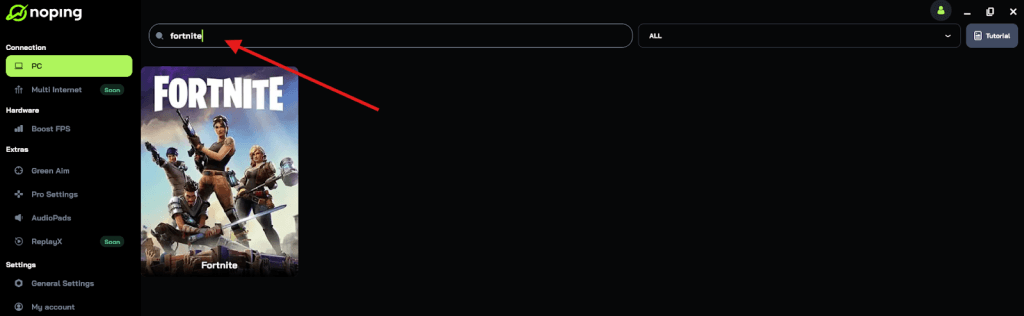
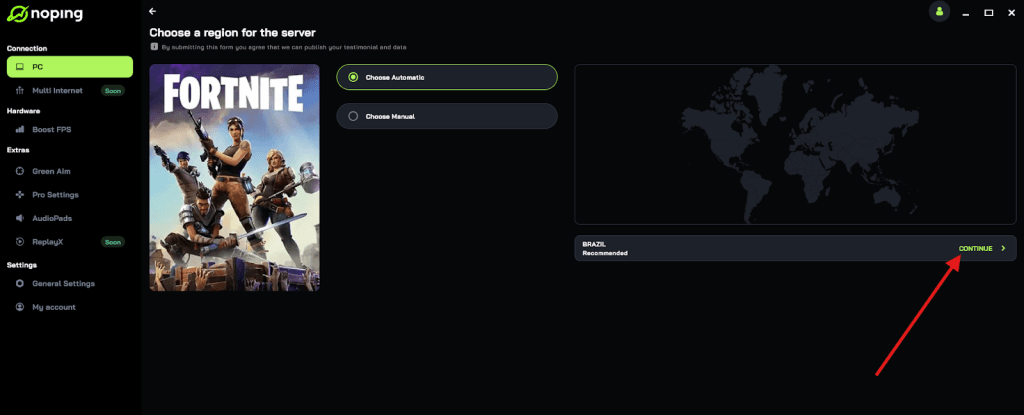
- Once you find it, click on it and, on the next screen, select “Choose automatic” or “Choose manual” and click “Continue”. We recommend choosing automatic, as NoPing’s technology analyzes all routes on a global scale and automatically selects the best option for you.
- On the next screen, click on “Optimize Game”.
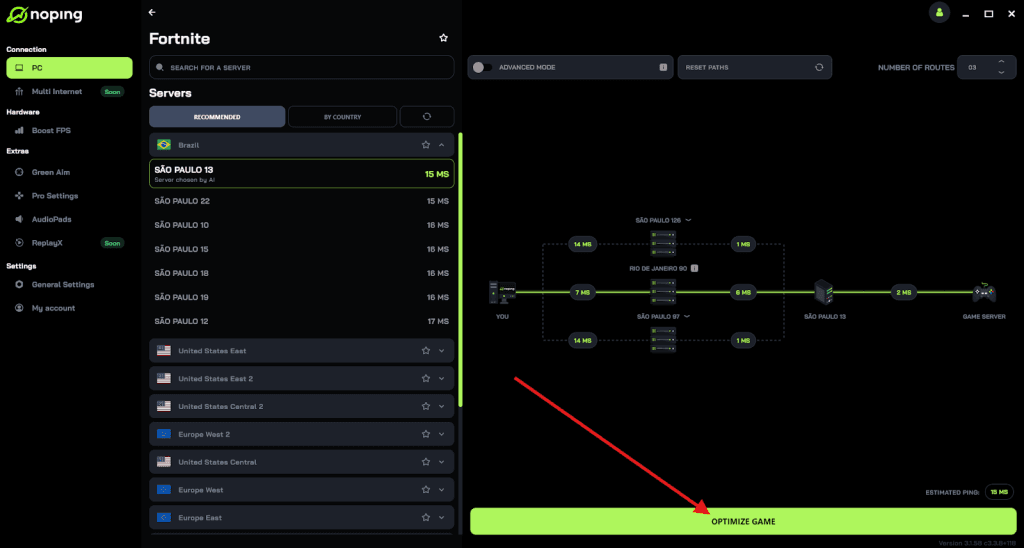
- And that’s it, you can start playing with optimized ping!
You can test different servers within NoPing to see which gives you the lowest latency.
Having War Thunder not launching on Steam can be incredibly frustrating, especially when you’re eager to jump into battle. Fortunately, most launch issues can be fixed by verifying files, updating drivers, clearing cache, or adjusting permissions.
If all else fails, a clean reinstall or contacting Gaijin’s support should resolve the problem. With these solutions, you should be back in the skies, seas, or on the battlefield in no time.
And to always play War Thunder without lag, use NoPing! Download now and start your free trial!