


If you want to boost FPS in Wuthering Waves, optimizing your settings is essential for a smoother and more responsive gameplay experience.
While the game currently caps FPS at 60, there are ways to tweak the system and unlock 120 FPS for an even better performance.
In this guide, we’ll break down the steps to help you get the most out of your hardware.
10 Ways to Boost FPS in Wuthering Waves
Improving your FPS isn't just about tweaking in-game settings; it involves a holistic approach to ensure your system and game run harmoniously. Here's a detailed guide to help you achieve that:
1. Update Your Graphics Drivers
Outdated drivers can be a major bottleneck. Manufacturers regularly release updates to enhance performance and fix bugs.
Steps:
- Identify Your Graphics Card: Press Win + R, type dxdiag, and hit Enter. Navigate to the Display tab to see your graphics card details.

Source: Answers.Microsoft
- Visit the Manufacturer's Website: Go to NVIDIA, AMD, or Intel's official site.
- Download and Install the Latest Drivers: Ensure you select the correct model and OS version.
2. Adjust In-Game Settings
Tweaking Wuthering Waves' graphics settings can lead to noticeable FPS improvements.
Steps:
- Launch Wuthering Waves and Log In.
- Access Settings: Click on the gear icon or press Esc and select Settings.
- Navigate to Graphic Settings.

Source: Destructoid
- Lower Resource-Intensive Options: Reduce settings like Shadows, Anti-Aliasing, and Texture Quality.
- Set Frame Rate Limit: Choose a frame rate that matches your monitor's refresh rate.
- Disable VSync: This can reduce input lag and potentially increase FPS.
3. Optimize System Performance
Ensuring your PC is running optimally can have a direct impact on game performance.
Steps:
- Close Unnecessary Background Applications: Use Task Manager (Ctrl + Shift + Esc) to end tasks that consume significant resources.

Source: MS.Codes
- Enable Game Mode (Windows 10/11): Press Win + G, open Settings, and ensure Game Mode is turned on.
- Adjust Power Settings: Set your power plan to High Performance.
- Clean Temporary Files: Use Disk Cleanup to remove unnecessary files that might slow down your system.
4. Update the Game
Developers often release patches to optimize performance.
Steps:
- Check for Updates: Open your game launcher and look for any available updates.
- Install Updates Promptly: Keeping the game updated ensures you benefit from the latest optimizations.
5. Adjust Graphics Card Settings
Tweaking your GPU settings can provide additional performance gains.
For NVIDIA Users:
- Open NVIDIA Control Panel: Right-click on the desktop and select it.
- Manage 3D Settings: Navigate to Program Settings and add Wuthering Waves.
- Adjust Settings: Set Power Management Mode to Prefer Maximum Performance and Texture Filtering to Performance.
For AMD Users:
- Open AMD Radeon Settings.
- Navigate to Gaming > Wuthering Waves.
- Adjust Settings: Set Texture Filtering Quality to Performance and enable Radeon Chill.
6. Use NoPing's Boost FPS feature
If you're already using NoPing to reduce latency and stabilize your ping (which is awesome for online games), you should definitely take advantage of the Boost FPS feature.
How it helps:
- Closes unnecessary background services
- Frees up RAM and CPU resources
- Optimizes network routes to reduce data congestion (which indirectly helps FPS in online matches)
How to use the Boost FPS feature:
- Sign-up through the website and download NoPing (you can test it for free).
- When you open the software, click on "Boost FPS" in the left side menu.
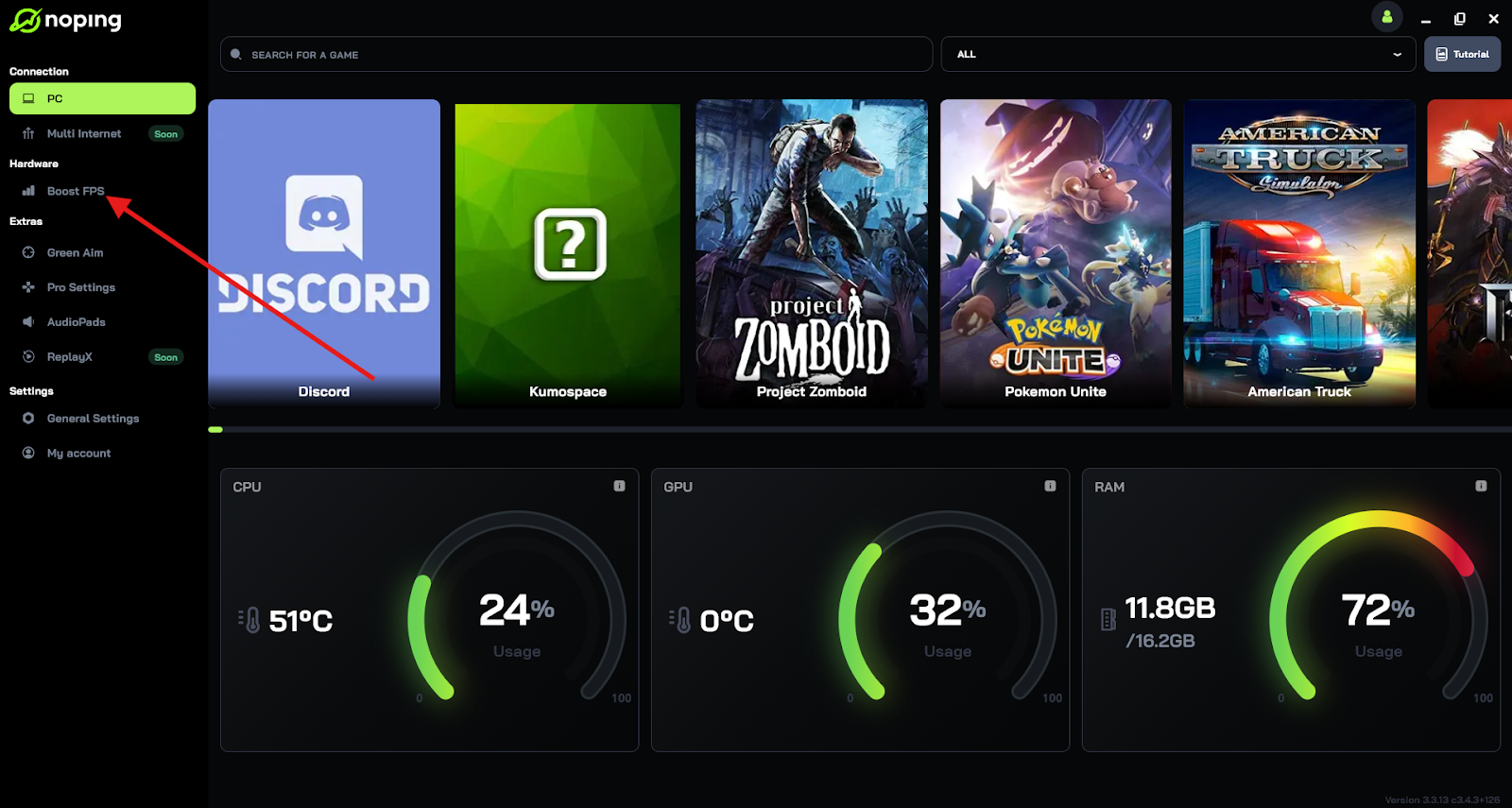
- On the next screen, you'll see a range of options to customize the feature (there are over 50 settings). You can enable or disable everything and choose between Windows default or user settings. You can also filter the options using the bar on the right.

And that's it! Boost FPS is now activated. Just launch your game and enjoy high FPS!
7. Disable Game Mode (or Enable It, Depending on Your System)
While Windows Game Mode is designed to optimize performance, results vary by system. If it's already enabled and you’re having FPS issues, try disabling it — and vice versa. You can find it under Settings > Gaming > Game Mode.
8. Switch to High-Performance Power Plan
Laptops or desktops may throttle performance to save power. To unlock full capability:
- Go to Control Panel > Power Options
- Select “High Performance” or create a custom power plan prioritizing performance.
9. Clean Your System From Malware and Bloatware
Malware, adware, or unnecessary pre-installed software can consume system resources and cause performance drops. Running a full antivirus scan and using cleanup tools like CCleaner can help optimize system health and improve FPS.
10. Consider Upgrading to an SSD
If you’re running Wuthering Waves from an older mechanical hard drive (HDD), loading times and streaming textures may suffer, leading to FPS dips. Installing the game on a faster solid-state drive (SSD) improves load speeds and can reduce stuttering caused by asset streaming.
How to Unlock 120 FPS in Wuthering Waves?
Unlocking 120 FPS in Wuthering Waves can significantly enhance your gaming experience by providing smoother visuals and more responsive gameplay. Here's a concise guide to help you achieve this:
Step 1: Obtain SQLite Browser
Begin by downloading the DB Browser for SQLite. Opt for the "DB Browser for SQLite - .zip (no installer) for 64-bit Windows" version for convenience.
Step 2: Access the Game's Database
- Extract the downloaded ZIP file and run the "DB Browser for SQLite.exe".
- Navigate to your game's directory, typically found at Wuthering Waves Game\Client\Saved\LocalStorage.
- Open the LocalStorage.db file within the SQLite Browser.
Step 3: Modify FPS Settings
- In SQLite Browser, select the "Browse Data" tab.
- Locate the FPS setting entry.
- Change its value from 60 to 120.
- Click "Apply" to save the changes.
Step 4: Adjust In-Game Settings
Launch Wuthering Waves and disable VSync both in the game's settings and within your GPU's control panel to ensure the FPS change takes effect.
Important Considerations:
- Database Access Issues: If you encounter a "read-only database" error, ensure the game is closed before making changes. Running SQLite Browser as an administrator may also resolve this issue.
- Settings Reset: Be aware that altering in-game settings might revert the FPS limit back to 60. If this occurs, repeat the modification process.
120 FPS Requirements for Wuthering Waves
Not all systems can handle 120 FPS. Wuthering Waves has specified certain hardware that supports this feature.
Supported NVIDIA Graphics Cards:
- RTX 30 Series: 3060, 3060 Ti, 3070, 3070 Ti, 3080, 3080 Ti, 3090, 3090 Ti
- RTX 40 Series: 4050, 4060, 4060 Ti, 4070, 4070 SUPER, 4070 Ti, 4070 Ti SUPER, 4080, 4080 SUPER, 4090 D, 4090
Supported AMD Graphics Cards:
- RX 6000 Series: 6750 GRE, 6700 XT, 6750 XT, 6800, 6800 XT, 6900 XT, 6950 XT
- RX 7000 Series: 7600, 7600 XT, 7700XT, 7800 XT, 7900 GRE, 7900 XT, 7900 XTX
Supported Intel Desktop CPUs:
- i5 Series: 12600KF, 12600K, 13400T, 13400F, 13400, 13490F, 13500T, 13500, 13600T, 13600, 13600KF, 13600K, 14400T, 14400F, 14400, 14490F, 14500, 14600T, 14600, 14600KF, 14600K
- i7 Series: 6900K, 7820X, 9800X, 10700KF, 10700K, 11700KF, 11700K, 12700T, 12700F, 12700, 12700KF, 12700K, 13700T, 13700F, 13700, 13700KF, 13700K, 13790F, 14790F, 14700T, 14700F, 14700, 14700KF, 14700K
- i9 Series: 7900X, 9820X, 9900X, 9920X, 9940X, 9900KF, 9900K, 9900KS, 10850K, 10900KF, 10900K, 10900X, 10920X, 10940X, 11900KF, 11900K, 12900T, 12900F, 12900, 12900KF, 12900K, 12900KS, 13900T, 13900F, 13900, 13900KF, 13900K, 13900KS, 14900T, 14900F, 14900, 14900KF, 14900K, 14900KS
Supported AMD Desktop CPUs:
- Ryzen 5 Series: 7600, 7600X, 7600GT
- Ryzen 7 Series: 7700, 7700X, 7800X3D
- Ryzen 9 Series: 7900, 7900X, 7900X3D, 7950X, 7950X3D
Note: Laptops with the corresponding GPUs will also support 120 FPS in Wuthering Waves.
The History Behind the 120 FPS Option in Wuthering Waves
Wuthering Waves initially featured a 120 FPS option during its beta phase, giving players an ultra-smooth gameplay experience. However, this feature was removed in the full release due to reported glitches occurring at that frame rate on PC.
This information came directly from the developers via a message in the game's official Discord server, leaving many fans disappointed.
The silver lining is that the developers also mentioned in the same message that they plan to bring back this feature in a future update, though no exact timeline has been given.
What Causes Low FPS in Wuthering Waves?
Experiencing low FPS in Wuthering Waves can be frustrating, especially during intense battles or while exploring the vast open world. To effectively fix the issue, it’s important to first understand the potential causes. Here are the most common ones:
1. High Graphics Settings
If you’re playing with ultra or high settings on a device that can’t handle them, your hardware may struggle to keep up. This leads to stutters, slowdowns, and inconsistent performance — especially during combat or in densely populated areas.
2. Insufficient RAM or GPU Power
Wuthering Waves is visually rich and resource-intensive. Systems with limited RAM (8GB or less) or older graphics cards may simply not meet the performance demands. In these cases, upgrading hardware or optimizing other parts of the system becomes necessary.
3. Thermal Throttling
When your CPU or GPU overheats, the system reduces performance to prevent damage — a process known as thermal throttling. This results in sudden FPS drops after playing for a while. Using a cooling pad (for laptops) or cleaning internal fans (for desktops) can help reduce heat buildup.
4. Background Applications
Apps running in the background — like browsers, chat tools, or updaters — can eat into RAM and CPU usage. This leaves fewer resources for the game, leading to frame drops and reduced responsiveness.
5. System Bottlenecks
Sometimes, your GPU might be powerful enough, but your CPU or storage drive (especially if it's not an SSD) is slowing down overall performance. Game load times and scene transitions can suffer as a result.
6. Driver or Software Conflicts
Outdated drivers, antivirus software, or even recent OS updates can interfere with game performance. Ensuring everything is updated and configured properly is key to preventing conflicts that cause FPS loss.
By identifying which of these issues applies to your setup, you’ll be better equipped to fix them — and get back to enjoying Wuthering Waves at the frame rate it deserves.
Why is it Important to Boost FPS in Wuthering Waves?
Improving FPS in Wuthering Waves isn't just about smoother graphics—it directly affects gameplay performance and responsiveness. Here’s why boosting FPS matters:
1. Better Combat Responsiveness
- Higher FPS reduces input lag, meaning your character reacts more quickly to your commands.
- This is crucial in action-heavy fights where split-second reactions determine victory or defeat.
2. Smoother Visuals and Reduced Stuttering
- A low frame rate can cause stuttering, making movement feel choppy.
- Boosting FPS ensures seamless animations, making exploration and combat more immersive.
3. Competitive Edge
- In PvP or time-sensitive challenges, higher FPS allows you to react faster than opponents with lower frame rates.
4. Reduced Motion Sickness
- Some players experience discomfort with low FPS due to jerky motion.
- Smoother frame rates provide a more natural visual flow, reducing discomfort.
5. Future-Proofing Your Setup
- Optimizing your game now means your system is ready for future updates that may demand more resources.
Boosting FPS in Wuthering Waves can dramatically improve your gameplay, making battles more responsive and exploration smoother.
Whether you’re tweaking settings, upgrading hardware, or unlocking the 120 FPS mode, every improvement contributes to a better experience. If your system supports it, enabling 120 FPS is a game-changer, providing unparalleled fluidity and responsiveness.
You can easily boost your FPS up to 60% in Wuthering Waves using NoPing! Download it now and test it for free for 7 days!

