

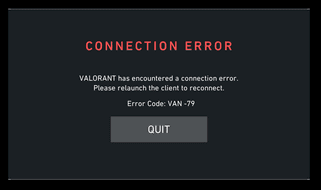
Running into the Valorant error code Van 79 can be incredibly frustrating when you are ready to climb the ranks.
This specific error is primarily a connection issue, but it is often tied to how your computer communicates with Riot Vanguard, the game's anti-cheat system.
When this happens, the game client basically loses its handshake with the servers, kicking you out or preventing you from logging in entirely.
What is Valorant error code Van 79?
It is a connection error that indicates a failure in the communication between your game client and the Riot servers.
While it might look like a simple internet glitch, it is usually triggered by the Vanguard service failing to initialize correctly or being blocked by local system settings.
Unlike some other errors that point to server-wide outages, Van 79 is often something you can fix on your end by tweaking a few service settings or refreshing your network configuration.
Why does this error keep appearing?
The most common cause is the vgc service being stopped or set to manual. Riot Vanguard relies on a background service called vgc to verify that your system is secure.
If this service fails to start when you launch the game, Valorant will trigger the Van 79 code. Other reasons include:
- Corrupted Vanguard installation files.
- Firewall or antivirus software blocking the game connection.
- Outdated network drivers or Windows updates.
- Unstable internet routes causing packet loss.
How to fix the vgc service issue?
The most effective way to solve this is by ensuring the vgc service is running automatically. Follow these steps:
- Press the Windows Key + R on your keyboard.
- Type services.msc and hit Enter.
- Scroll down until you find the vgc service.
- Right-click on it and select Properties.
- Change the Startup type to Automatic.
- If the service status is Stopped, click Start.
- Click Apply and then OK.
- Restart your computer to make sure the changes take effect.
Should I reinstall Riot Vanguard?
Yes, if the service fix does not work, a clean reinstall of the anti-cheat is the next logical step. Sometimes the files get corrupted during an update, and a fresh start is the only way to clear the bug.
- Close the Riot Client and Valorant completely.
- Go to your Windows Settings and then to Apps or Add or Remove Programs.
- Search for Riot Vanguard and click Uninstall.
- Once it is removed, open the Riot Client.
- It will notify you that Vanguard is missing and will offer an Update button.
- Click Update to reinstall Vanguard.
- Restart your PC immediately after the installation finishes.
Also read: How to Dance in Roblox: Easy Guide
Can network settings trigger Van 79?
Absolutely, because a clogged DNS cache or an unstable IP configuration can prevent Vanguard from reaching the Riot servers.
You can refresh your entire network stack using the Command Prompt.
- Type cmd in your Windows search bar.
- Right-click Command Prompt and select Run as Administrator.
- Type the following commands one by one, pressing Enter after each:
- ipconfig /flushdns
- ipconfig /registerdns
- ipconfig /release
- ipconfig /renew
- netsh winsock reset
- Restart your PC and try launching the game.
Is your Firewall blocking Valorant?
It is very common for Windows Defender or third-party antivirus programs to flag Vanguard as a threat. You need to add exceptions for both the game and the anti-cheat.
- Open the Start menu and type Windows Security.
- Go to Firewall & network protection.
- Click on Allow an app through firewall.
- Click Change settings.
- Look for Valorant and Riot Vanguard in the list and ensure both Private and Public boxes are checked.
- If they are not there, click Allow another app and browse to your Riot Games folder to add the executables manually.
How does NoPing help with Van 79?
If the error is caused by poor routing or high latency that drops the connection between you and Riot, a connection optimizer is the best solution.
NoPing works by finding the shortest and most stable path between your PC and the game servers. By bypassing congested internet routes, it reduces the chances of the game client losing sync with Vanguard.
This not only fixes errors like Van 79 but also significantly lowers your ping and eliminates packet loss.
Here’s how to use NoPing to fix lag in Valorant:
- Sign-up through the website and download NoPing (you can try it for free)
- Open NoPing and search for Valorant inside the software
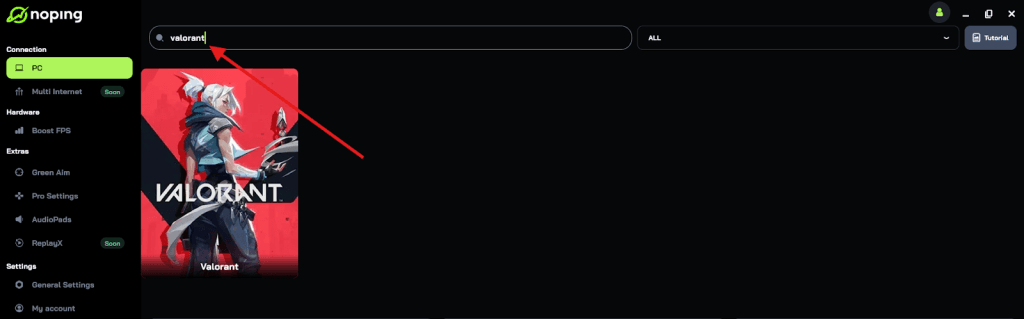
- Once you find Valorant, click on it and, on the next screen, select “Choose automatic” or “Choose manual” and click “Continue”. We recommend choosing automatic, as NoPing’s technology analyzes all routes on a global scale and automatically selects the best option for you.
- On the next screen, click on “Optimize Game”.
- And that’s it, you can start playing Valorant with optimized ping!
You can test different servers within NoPing to see which gives you the lowest latency.
Is it a server-side problem?
Sometimes, no matter what you do, the error persists because Riot is having issues. Before you start dismantling your software, check the official status.
You can see live updates on the Riot Games Service Status page or check DownDetector to see if other players in your region are reporting the same thing.
Summary of fixes
- Set the vgc service to Automatic and start it.
- Reinstall Riot Vanguard through the Riot Client.
- Flush your DNS and reset your network stack via CMD.
- Add exceptions to your Firewall for both Valorant and Vanguard.
- Use a connection optimizer like NoPing to stabilize your route.
- Update your network drivers and Windows to the latest version.
Play Valorant without lag. Download NoPing now and start your free trial!