

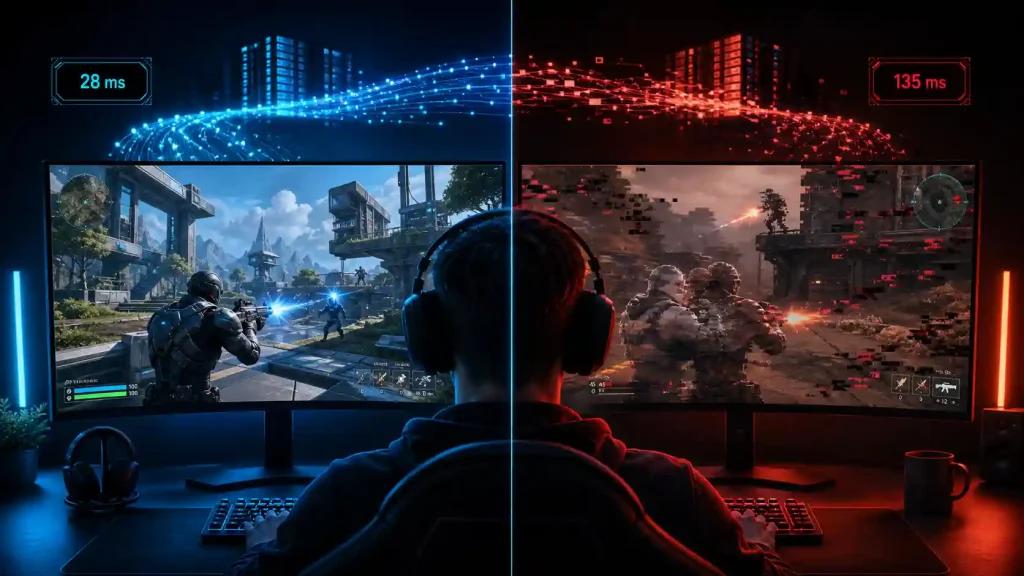
Many Fortnite players focus only on the ping number shown in-game, but that value alone doesn't explain every performance issue. Fast edits, building, close-range shotgun fights, and rapid camera movement expose timing problems that are often unrelated to raw latency.
It's important to separate each metric:
- Ping measures the delay between your PC and Epic's matchmaking server.
- Jitter measures how much that delay changes from packet to packet.
- Packet loss means updates never arrive, forcing prediction corrections.
- FPS and frame time describe how smoothly your own PC renders the game.
A stable 25 ms connection with severe frame-time spikes may feel worse than a steady 45 ms connection running at consistent frame pacing.
Likewise, if your ping remains stable while building feels delayed or camera movement stutters, investigate rendering performance before blaming the network.
Choose the Right Matchmaking Region
Fortnite automatically selects a matchmaking region, but "Auto" is not always the lowest-latency option.
Compare the available regions shown inside Fortnite and select the closest stable region rather than assuming Auto is always correct.
For most US players:
- Northeast and Midwest generally perform best on NA Central or NA East, depending on location.
- Southeast often benefits from NA East.
- West Coast players usually obtain lower latency through western infrastructure.
Do not force a distant region simply because one previous match happened to perform well. Temporary server conditions change throughout the day.
Always compare multiple matches before deciding.
Build a Reliable Baseline Before Changing Anything
Before installing optimization software or changing routes, establish a consistent baseline.
First:
- Check Epic's official Fortnite server status.
- Use Ethernet whenever possible.
- Pause cloud backups, game downloads and large uploads.
- Record your selected matchmaking region.
- Play multiple matches in the same playlist under similar conditions.
Observe where the problem starts.
- Lobby only?
- During the Battle Bus?
- While dropping?
- During heavy build fights?
- Only late game?
Patterns often identify the actual bottleneck much faster than changing settings randomly.
If every device in your home becomes slow simultaneously, the issue is probably your local network or ISP rather than Fortnite itself.
If Fortnite is the only affected application while Epic reports an active incident, waiting may be the correct solution.
Reduce Local Jitter Before Blaming the ISP
Wireless interference remains one of the biggest causes of inconsistent Fortnite performance.
For testing:
- Prefer Ethernet.
- If using Wi-Fi, stay close to the router.
- Avoid Wi-Fi repeaters during diagnosis.
- Use the least congested wireless band available.
- Pause uploads from cloud storage, streaming software or other household devices.
- Update router firmware and network drivers only through the manufacturer's official releases.
Avoid registry tweaks, unofficial "gaming optimizers," or disabling Windows security components simply because an online guide recommends them.
These modifications frequently complicate troubleshooting without improving network stability.
How to Evaluate Route Optimization Fairly
Route optimization is most effective when the default ISP path is introducing unnecessary latency variation, congestion or poor peering.
The comparison should always be controlled.
Keep the following identical:
- Matchmaking region
- Playlist
- Time of day
- Device
- Internet connection
- Number of matches played
Evaluate:
- Average ping
- Jitter
- Packet loss
- Match-to-match consistency
Avoid judging performance from a single screenshot or one unusually good game.
No route optimization service can compensate for:
- Epic server outages
- Poor Wi-Fi conditions
- CPU bottlenecks
- GPU limitations
- Severe frame-time spikes

Fortnite Troubleshooting Checklist
Before changing ISPs or assuming Epic's servers are responsible, verify each layer individually.
| Symptom | Most likely cause |
|---|---|
| Stable ping but choppy camera movement | FPS or frame-time instability |
| Rubberbanding | Packet loss or high jitter |
| Delayed edits with fluctuating latency | ISP congestion or unstable routing |
| Hitching only during heavy fights | CPU or GPU bottleneck |
| Whole house slows simultaneously | Local network saturation or ISP issue |
| Only Fortnite affected during reported maintenance | Epic service issue |
Following this order prevents unnecessary changes and helps isolate the real source of inconsistent gameplay.
Honest Recommendation Before Trying a Gaming VPN
Gaming VPNs and route optimization tools work best when the ISP's default route is inefficient.
Before testing any service:
- Use the closest stable Fortnite matchmaking region.
- Test over Ethernet whenever possible.
- Stop competing uploads and background traffic.
- Compare several matches under the same conditions.
If your ping remains stable while edits, building or camera movement still feel inconsistent, investigate FPS, frame time, CPU usage and graphics settings before changing your network.
If route instability remains after local troubleshooting, compare NoPing using the same matchmaking region, queue, hardware and time window. Continue using the route only if measurements consistently show lower jitter, reduced packet loss or more stable latency across multiple matches.
This approach produces a much more reliable conclusion than relying on a single low-ping screenshot or isolated match result.