

If you have been playing Battlefield 6 and feel like your aim is off, the problem might not be your reflexes. Sensitivity settings in this game are unusually deep and split across several categories.
The good news is you can tune them to match your mouse, controller, and play style.
This guide walks you step by step through the menus, explains what each slider does, and gives practical tips to find a setup that feels right.
Basic step-by-step: change sensitivity fast in Battlefield 6
- From the main menu click the settings cog icon.
- Choose either Mouse & Keyboard or Controller depending on what you play with.
- Open the On Foot or Infantry section for basic look sensitivity.
- Adjust the Infantry Mouse Aim Sensitivity or Controller Infantry Sensitivity slider.
- If you use scopes, open Zoom Aim Sensitivity and adjust the multipliers for each zoom level you care about.
- Save settings and hop into a practice match or firing range to test.
Those are the core steps. The exact names and slider ranges can change in patches, but the menu flow is the same: settings cog, device, on foot, zoom.
Source: games.gg
What each option actually does
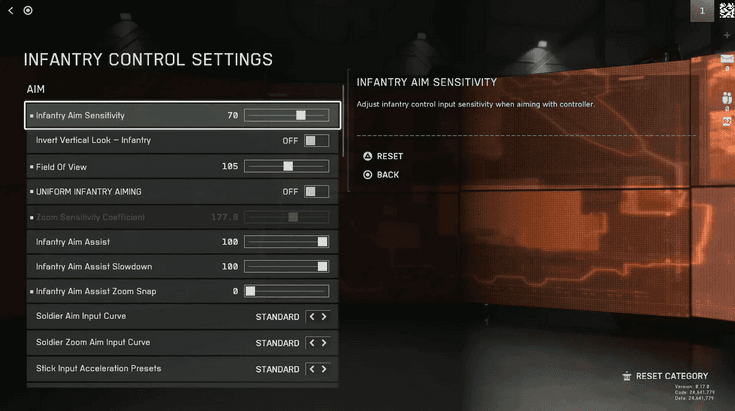
- Infantry Mouse Aim Sensitivity: This is your base look sensitivity when on foot. Lower values give finer control. Higher values turn the camera faster.
- Vehicle Mouse/Controller Aim Sensitivity: Controls aiming while in vehicles. Vehicles often need lower sensitivity for smoother tracking.
- Zoom Aim Sensitivity multipliers: These are multipliers applied when you aim down sights with scopes. They let you use a higher base sensitivity while keeping ADS precise.
- Zoom sensitivity smoothing and uniform aiming options: These features change how the game interpolates raw input during ADS and can make ADS feel inconsistent or smoother depending on their values.
The game exposes many per-zoom multipliers so you can configure 1.5x, 3x, 4x, and higher zooms independently. That is helpful if you swap between short and long range weapons often.
Also read: How to Fix Battlefield 6 “Interception” Error (This Software Cannot Be Used At The Same Time)
Recommended starting numbers for Battlefield 6
There is no single perfect sensitivity. Here are safe starting points you can tweak from:
- Mouse vertical/horizontal: start low and increase. If you play at 800 DPI, try a low in-game sensitivity and fine tune.
- Controller infantry sensitivity: try 30 to 40 as a baseline then move up or down in steps of 2 to 4.
- Vehicle sensitivity: start lower than infantry. Around 15 to 25 for controllers often feels stable.
- Zoom multiplier: start at 100 for close-range scopes then reduce for high magnification if ADS feels too fast.
These are starting points only. Your muscle memory, DPI, and play style determine the final numbers.
Why sensitivity matters in Battlefield 6
Sensitivity controls how much your camera or crosshair moves for a given input. Too low and you will undershoot targets.
Too high and you will spin past them. In Battlefield 6, sensitivity interacts with extra layers like zoom multipliers and various smoothing or aim harmonization options.
That means a single slider change can behave differently depending on whether you are hip firing, aiming down sights, or driving a vehicle.
Because of that, it is worth spending 10 to 30 minutes tuning things instead of leaving defaults.
Key facts about Battlefield 6 sensitivity
- The game separates infantry, vehicle, and zoom sensitivities so each situation can feel consistent.
- There are additional per-zoom-level multipliers and smoothing options that affect ADS feel.
- Some community tweaks exist that change sensitivity behavior by toggling specific options.
I will show you the exact places to change the values and how to test them in a simple, predictable routine. If you want to jump straight into the settings menu, skip to the next section.
Practical tuning routine (10 to 15 minutes)
- Reset to a neutral baseline. If you have been changing things wildly, start around 30 to 40 on a 0 to 100 scale for controller, or a low-to-medium number for mouse.
- Turn off aim assist or aim smoothing for a clean feel while you test. This depends on whether you want raw input or assisted aim.
- Practice hip fire: stand in the firing range and track a moving bot. Adjust base sensitivity in small steps until you can follow targets smoothly.
- Test ADS with a commonly used scope. Adjust the zoom multiplier for that scope so transition between hip and ADS feels natural.
- Try vehicles and fine tune vehicle sensitivity separately.
- If you use multiple mice or different DPI settings, repeat the process after adjusting DPI. The game’s sensitivity multiplies with your mouse DPI.
Keep changes small. A tweak of 2 to 5 points can feel huge.
Advanced: the community tweaks and what they change
Because Battlefield 6 exposes many aiming helpers, a popular tweak has been circulating that makes ADS sensitivity more consistent.
The gist is to change or disable certain smoothing and uniform-aim settings and then set the Zoom Sensitivity Coefficient to zero.
Players report ADS feeling closer to raw mouse input after that change. If you want to try it, do so carefully and save your original settings so you can revert.
Also, some community guides have dug into the config values that the game stores. The in-game slider maps to a small decimal stored in the config file.
For people who like precise replication across installs, there is a simple conversion: each increment in the game UI corresponds to a fixed decimal increase under the hood.
That can be handy if you want to copy exact decimals between machines. Use these methods only if you are comfortable editing game files.
Controller specifics
Controller sensitivity works similarly but has some controller-only bells and whistles:
- Stick sensitivity value with separate horizontal and vertical feel in some menus.
- Deadzone options for sticks to avoid drift.
- Aim assist strength and mode can be tuned in the same settings area.
If you feel sluggishness with a controller, increasing the infantry sensitivity is the obvious first step.
Common problems and fixes
Problem: ADS jumps or feels inconsistent after changing sensitivity
Fix: Toggle any smoothing options and test again. If you applied the community tweak, try reverting single options to see which one caused the change.
Problem: My mouse sensitivity settings from Battlefield 2042 do not match in Battlefield 6
Fix: The game changed how it stores or scales sensitivity. Check config decimals or multiply previous values as recommended by conversion guides to get the same feel.
Problem: The settings menu feels clunky and hard to navigate
Fix: This has been a frequent complaint from players. Developers have acknowledged that the settings UI can be confusing, and patches aim to improve discoverability.
If you cannot find a slider, check both Mouse & Keyboard and Controller sections as well as nested submenus.
Test maps and tools
Use a low-pressure environment to test settings:
- Firing range or practice mode
- Bot matches or empty servers
- Sensitivity testing targets such as moving bots and distance strafing
Take notes on each change. If something works, write it down. That way you can always roll back when a future patch alters the behavior.
Changing sensitivity in Battlefield 6 is straightforward once you know where the sliders live. The core workflow is settings cog, choose device, open infantry or vehicles, and adjust base sensitivity and zoom multipliers.
If you want a cleaner ADS feel, try the community tweak that modifies the Zoom Sensitivity Coefficient and smoothing options. Always test changes in a controlled environment and keep a record of values you like.
And to always have the best connection to play Battlefield 6, use NoPing! Download now and start your free trial!