

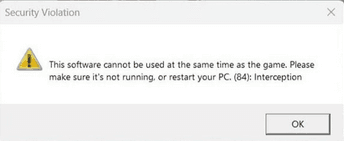
Battlefield 6 “Interpection” error popped up for a lot of players after launch and it can stop the game from starting with the message: "This software cannot be used at the same time as the game. Please make sure it is not running, or restart your PC: Interception".
If you see this error when trying to launch Battlefield 6, the game is telling you that its anti-cheat detected a background driver or program that conflicts with the anti-cheat system.
That software may be a legitimate accessibility tool, a driver for virtual controllers, a mouse/keyboard low-level driver like Interception, or other utilities that hook input or emulate devices.
I put together a practical, step by step guide that explains what the error means, why it happens, and how to fix it without guessing or inventing things.
What is the Battlefield 6 “Interception” Error?
The Interception error message specifically indicates the anti-cheat has detected a driver or process named or related to Interception.
Interception is an input interception API / driver used by some tools to capture and modify keyboard and mouse input. It is an old but widely reused project found on GitHub. Because it installs a driver at a low system level, modern anti-cheat systems often flag it as a potential conflict and block the game until the driver is removed.
Two clarifications before we proceed
- Interception the project is not inherently malicious. It exists for legitimate use cases like accessibility tools. But anti-cheat cannot reliably distinguish benign from malicious use of a low-level hook, so it blocks it.
- The error text can appear for other software too. The anti-cheat message sometimes shows other names such as Daemon Tools, Virtual Controller services, AutoHotKey, or networking/proxy apps. Treat "Interception" as the specific example but also be prepared to check other drivers and utilities.
How to Fix Battlefield 6 “Interception Error”
Below are progressively more involved steps. Try them in order and test launching the game after each one. Back up anything important and be careful with driver or system-level changes.
1) Restart and check Task Manager
Simple but useful. Fully restart Windows. Open Task Manager and look for suspicious apps like virtual controller services, Daemon Tools, VPN/proxy clients, AutoHotKey, or anything with the word Interception.
If you spot one, try ending the process and launch the game again. Some apps must be fully closed from their tray icon or via end task.
2) Uninstall or disable known problem apps
Common culprits reported by players include:
- Daemon Tools and other virtual drive/controller software.
- Virtual controller drivers or software that emulate gamepads.
- AutoHotKey scripts or apps that hook input.
- Proxy/overlay tools and some VPN clients. If you have any of these installed, uninstall or disable them temporarily, reboot, and try BF6 again. Several guides and community threads point to these apps as triggers.
3) Remove the Interception driver (if present)
If the error explicitly references Interception and you have reason to believe that driver is installed, uninstalling the driver often fixes the problem. The Interception project provides a command line installer that can remove the driver. Steps used successfully by many users are:
Download the Interception release archive from the official GitHub repository.
Extract the zip and open the folder command line installer.
Open an elevated Command Prompt (Run as administrator).
Change directory to the command line installer folder, for example:
cd "%USERPROFILE%\Downloads\Interception\command line installer"
Run the uninstall command: install-interception.exe /uninstall
Reboot and try launching Battlefield 6.
Important safety notes: the Interception driver hooks keyboards and mice. Some users reported that uninstalling or reinstalling incorrectly can temporarily break input devices until a reboot.
Follow instructions carefully and only run the uninstall if you downloaded the official release.
4) Reinstall or repair the EA Javelin anti-cheat (or whatever anti-cheat BF6 uses)
If the conflict persists, repairing the game’s anti-cheat client might help. Battlefield 6 uses a kernel-level anti-cheat component that must be correctly installed and signed. To repair:
- Open Steam or EA App (where you installed BF6).
- Locate the game, choose Repair or Verify files.
- Follow prompts to repair the anti-cheat component.
5) Check driver certificates and signed drivers
In some reports, the anti-cheat blocked drivers due to a certificate that the anti-cheat treats as forbidden.
If you or tools installed a signed driver with an uncommon certificate, that signature might be the reason. Removing the specific driver as above is the correct path
If you are comfortable with Windows driver management, check Device Manager for unknown devices and uninstall drivers that match the time you started seeing the error.
6) Disable overlays and security software temporarily
Overlays such as Discord, Xbox Game Bar, or third-party overlays can sometimes interfere with anti-cheat. Try disabling overlays and test.
Also, temporarily disabling third-party antivirus or endpoint protection (if safe to do) can help diagnose whether they are interfering. Do not leave security software disabled; this is for testing only.
7) Ensure Secure Boot and system requirements are met
Some players reported that Secure Boot and other platform security settings must be enabled to run BF6 anti-cheat correctly. If you changed UEFI/BIOS settings, double-check Secure Boot is enabled as some anti-cheat drivers depend on platform security.
8) Reinstall the offending tool only if you need it
If a legitimate accessibility tool or macro utility depends on Interception and you need it, check whether there is an updated or signed version compatible with the anti-cheat.
If not, you may need to choose between running Battlefield 6 and using that tool until the developer provides a compatible version.
9) When nothing works: collect logs and contact support
If you tried everything and the game still refuses to start, collect crash logs and submit them to EA support or the anti-cheat vendor.
Include exact error text, your Windows version, list of installed utilities, and any steps you tried.

What Causes Battlefield 6 “Interception Error”?
Short version: low-level input drivers or programs that hook or emulate keyboards, mice, or controllers. More specifically:
- Interception driver installed by third-party tools.
- Virtual drive or virtual controller software such as Daemon Tools or other device emulators.
- Macro tools, script engines, AutoHotKey, or controller mapping apps that interact with input at kernel level.
- VPNs, proxies, or network layer tools that the anti-cheat flags as interfering with secure services in some setups.
Anti-cheat systems operate with a conservative policy: any unsigned or uncommon kernel driver that could be used to automate input or spoof devices is treated as a potential cheat. That is why a benign driver like Interception gets flagged.
The anti-cheat enforces this as a protection for fair play, but it also means legitimate tools can be blocked until they adapt.
Also read: The Battlefield 6 and Valorant Anti-Cheat Conflict Explained (and How to Solve)
Other Battlefield 6 Errors
While you are troubleshooting Interception, you might encounter related security violation errors or other messages. Common ones include:
- Secure boot not enabled errors.
- Errors mentioning specific apps such as Daemon Tools, Virtual Controller, AutoHotKey, or Proxy/Proxying clients.
- Generic "Security Violation" with numeric codes. For those, check official support logs and follow EA or the anti-cheat vendor guidance.
FAQ - Battlefield 6 “Interception” Error
Q: Will uninstalling Interception break my keyboard or mouse?
A: If done correctly and you reboot, no. However, because Interception operates at the driver level, some users reported temporary loss of input until a restart.
Always run the uninstall from the official installer and reboot. If you are unsure, create a system restore point before proceeding.
Q: Where do I get the official Interception files?
A: From the project's GitHub page. Use releases from the official oblitum/Interception repository. Do not download random executables from unknown sites.
Q: My game shows a different name than Interception. What now?
A: The anti-cheat will show the name of the driver or process it detected. Search for that exact name in Task Manager, Services, Device Manager and installed programs.
The same troubleshooting flow applies: close, uninstall, or remove the driver and reboot.
Q: Is there a permanent fix from EA or the anti-cheat vendor?
A: Anti-cheat vendors and game publishers sometimes update policies and driver allowlists, but low-level drivers remain risky.
The safer long-term fix is for the tool developers to ship signed, compatible drivers or for users to avoid installing kernel-level input hooks while playing online games.
Q: I rely on an accessibility tool that uses Interception. What can I do?
A: Contact the tool developer and the anti-cheat vendor with details so they can work toward a signed, compatible solution. In the short term, you may need a second machine or a dedicated environment for the tool, or use the tool only when not playing games that require the anti-cheat.
Play Battlefield 6 without lag using NoPing! Download now and start your free trial!