


If you’re preparing your PC for Battlefield 6, Secure Boot for Battlefield 6 is a crucial feature you need to have enabled.
It ensures that the game’s anti-cheat system, Javelin, can run properly and helps prevent unauthorized software from interfering with your gameplay.
In this guide, we’ll explain what Secure Boot is, why it’s required, how to enable it, check its status, and troubleshoot common errors so you can jump into the action smoothly.
What Is Secure Boot for Battlefield 6?
Secure Boot is a security standard developed to ensure that a device boots using only software that is trusted by the Original Equipment Manufacturer (OEM).
When enabled, it helps protect against rootkits and other low-level malware by verifying the digital signatures of bootloaders and operating system files before they are executed.
For Battlefield 6, Secure Boot works in tandem with EA's Javelin anti-cheat system to prevent cheating software from loading during the boot process.
This is particularly important for detecting and blocking kernel-level cheats, memory manipulation tools, and other forms of cheating that can compromise the game's integrity.
How to Enable Secure Boot for Battlefield 6
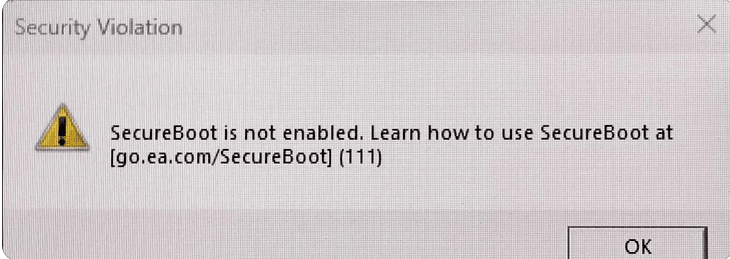
Enabling Secure Boot for Battlefield 6 is a crucial step if you want to avoid the "Secure Boot not enabled" error and ensure Javelin, EA’s anti-cheat system, works properly.
While it might sound a bit technical, it’s manageable as long as you follow the steps carefully. Here’s a detailed guide.
Step 1: Restart Your PC and Enter BIOS/UEFI
The first step is to access your PC’s BIOS or UEFI firmware, where Secure Boot is configured.
- Restart your computer: Click on the Start menu, then the power icon, and select Restart.
- Press the BIOS access key: As your system starts, repeatedly press the key that opens your BIOS/UEFI settings. Common keys include:
- DEL
- F2
- F10
- ESC
The exact key depends on your motherboard manufacturer. If you’re unsure, check your motherboard’s manual or the manufacturer’s website.
Step 2: Navigate to Secure Boot Settings
Once inside the BIOS/UEFI, the next step is to locate the Secure Boot option.
- Use the arrow keys or mouse (depending on your BIOS interface) to find the Boot, Security, or Authentication tab.
- The Secure Boot setting may be under a submenu like Secure Boot Configuration. Different manufacturers may have slightly different menus, so take your time exploring if it’s not immediately visible.
Step 3: Enable Secure Boot
Once you find the Secure Boot option:
- Select it and change the value to Enabled.
- If you see an option for OS Type, make sure it’s set to Windows UEFI Mode rather than Other OS. This ensures compatibility with Battlefield 6 and Windows 10/11 security features.
Step 4: Check and Configure Secure Boot Keys
Some BIOS versions require you to manage Secure Boot keys:
- Look for an option like Install Default Keys or Restore Factory Keys.
- Select this option if Secure Boot cannot be enabled immediately, as it ensures the system has the necessary keys to verify trusted software during boot.
Step 5: Save Changes and Exit
After enabling Secure Boot:
- Press the key to Save Changes and Exit, often F10.
- Confirm any prompts to save settings. Your PC will restart with Secure Boot enabled.
Step 6: Verify Secure Boot
Once back in Windows:
- Press Win + R, type msinfo32, and press Enter.
- In the System Information window, check the Secure Boot State. It should read On.
- If it still says Off, return to BIOS/UEFI and double-check the settings, making sure your system drive uses the GPT partition style and your TPM is enabled.

Common Issues When Enabling Secure Boot
- Option greyed out: Some motherboards require UEFI mode for Secure Boot to be enabled. If your system drive uses MBR instead of GPT, you may need to convert it using Windows tools.
- TPM not detected: Secure Boot often works alongside TPM 2.0. Ensure TPM is enabled in the BIOS/UEFI under Trusted Computing or Security.
- OS Type mismatch: If the BIOS shows Secure Boot as enabled but Battlefield 6 still complains, double-check that Windows UEFI Mode is selected instead of Other OS.
Also read: How to Fix Battlefield 6 Error Code 1:85008S
Extra Tips
- Keep your BIOS updated: Manufacturers sometimes release updates that improve Secure Boot support. Check your motherboard’s website regularly.
- Backup important data: If you need to convert your system drive from MBR to GPT, backup your files first to avoid data loss.
- Take screenshots: If you’re unsure, take photos of your BIOS settings before changing them. This way, you can revert if needed.
By following these steps, you can ensure that Secure Boot is properly enabled for Battlefield 6, letting you play the game without encountering the anti-cheat errors related to Javelin.
How to Check If Secure Boot Is Enabled for Battlefield 6
After enabling Secure Boot in your BIOS/UEFI, it’s crucial to make sure it’s actually active.
Battlefield 6 relies on Secure Boot for EA’s Javelin anti-cheat system, so if it’s not properly enabled, you may encounter errors when launching the game.
Here’s a detailed guide to checking and troubleshooting Secure Boot.
Step 1: Use Windows System Information
- Press Win + R on your keyboard to open the Run dialog box.
- Type msinfo32 and press Enter. This opens the System Information window.
- In the left-hand menu, select System Summary.
- Look for the entry called Secure Boot State.
- If it says On, Secure Boot is enabled and ready for Battlefield 6.
- If it says Off, your system is not currently using Secure Boot, and you will need to revisit your BIOS settings.
Step 2: Use Windows PowerShell
You can also verify Secure Boot using Windows PowerShell:
- Press Win + X and select Windows PowerShell (Admin) or Terminal (Admin).
- Type Confirm-SecureBootUEFI and press Enter.
- The output will indicate:
- True: Secure Boot is enabled.
- False: Secure Boot is disabled.
- NotSupported: Your system does not support Secure Boot.
This is a quick way to double-check Secure Boot status without restarting your PC.
Step 3: Check in BIOS/UEFI
If Windows reports Secure Boot as off, you should check your BIOS directly:
- Restart your computer and enter the BIOS/UEFI using your motherboard’s access key (commonly DEL, F2, ESC, or F10).
- Navigate to the Boot, Security, or Authentication tab.
- Confirm that Secure Boot is set to Enabled.
- If BIOS shows Secure Boot as enabled but Windows still reports it as off, you may need to restore factory keys or ensure the OS type is set to Windows UEFI Mode.
Step 4: Common Issues When Secure Boot Appears Disabled
- System drive uses MBR instead of GPT: Secure Boot requires GPT partitions. If your drive uses MBR, you may need to convert it using Windows’ MBR2GPT tool.
- TPM not enabled: Some systems require TPM 2.0 to work correctly with Secure Boot. Check BIOS under Security or Trusted Computing and enable it if necessary.
- Legacy boot mode: Secure Boot only works in UEFI mode. If your BIOS is set to Legacy/CSM boot, switch to UEFI mode.
- Outdated BIOS: Older BIOS versions may not support Secure Boot correctly. Check your motherboard manufacturer’s website for updates.
Requirements to Enable Secure Boot for Battlefield 6
To successfully enable Secure Boot and play Battlefield 6, ensure your system meets the following requirements:
- UEFI Firmware: Your motherboard must support UEFI (Unified Extensible Firmware Interface).
- GPT Partition Style: Your system drive should use the GPT (GUID Partition Table) format. If it's using MBR (Master Boot Record), you'll need to convert it to GPT. This can be done using the built-in MBR2GPT tool in Windows.
- TPM 2.0: Trusted Platform Module (TPM) version 2.0 must be enabled. This is a hardware-based security feature that enhances the integrity of your system.
- Windows 10 or 11: Ensure you're running a supported version of Windows. Both Windows 10 and 11 support Secure Boot, but older versions may not.
Do You Need TPM 2.0 for Battlefield 6?
Yes, TPM 2.0 is a requirement for Battlefield 6. EA has stated that both Secure Boot and TPM 2.0 must be enabled to launch the game.
To enable TPM 2.0:
- Enter BIOS/UEFI: Restart your PC and press the BIOS access key during boot.
- Locate TPM Settings: Navigate to the "Security," "Advanced," or "Trusted Computing" tab.
- Enable TPM: Look for an option labeled "TPM Device," "AMD fTPM," or "Intel PTT." Set it to "Enabled."
- Save and Exit: Save your changes and exit the BIOS/UEFI settings.
Also read: 12 Ways to Fix Latency Issues in Your Network
How to Increase Your Performance in Battlefield 6?
If you want smoother gameplay and lower latency in Battlefield 6, using NoPing is a simple and effective solution.
NoPing optimizes your internet connection, reduces ping, jitter, and packet loss, and ensures a more stable experience, especially in competitive multiplayer matches.
By routing your game traffic through the fastest servers, NoPing helps you stay responsive, avoid lag spikes, and focus on your gameplay without interruptions.
Here’s how to use NoPing to fix network issues in Battlefield 6:
- Sign-up through the website and download NoPing (you can try it for free)
- Open NoPing and search for Battlefield 6 inside the software
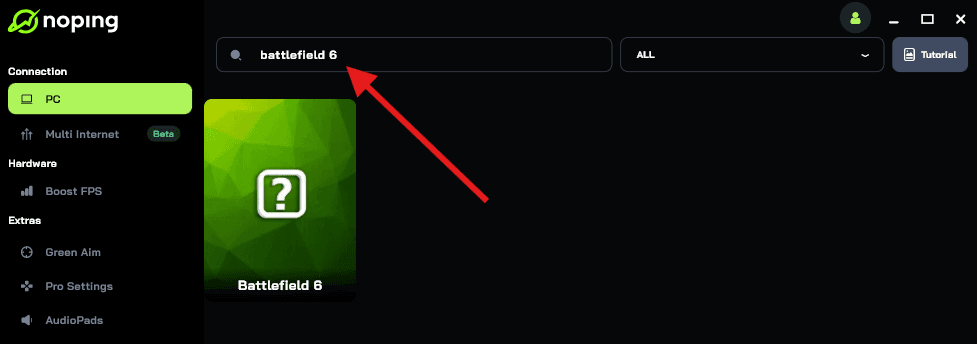
- Once you find Battlefield 6, click on it. Choose your server on the next screen and click on “Optimize Game”.
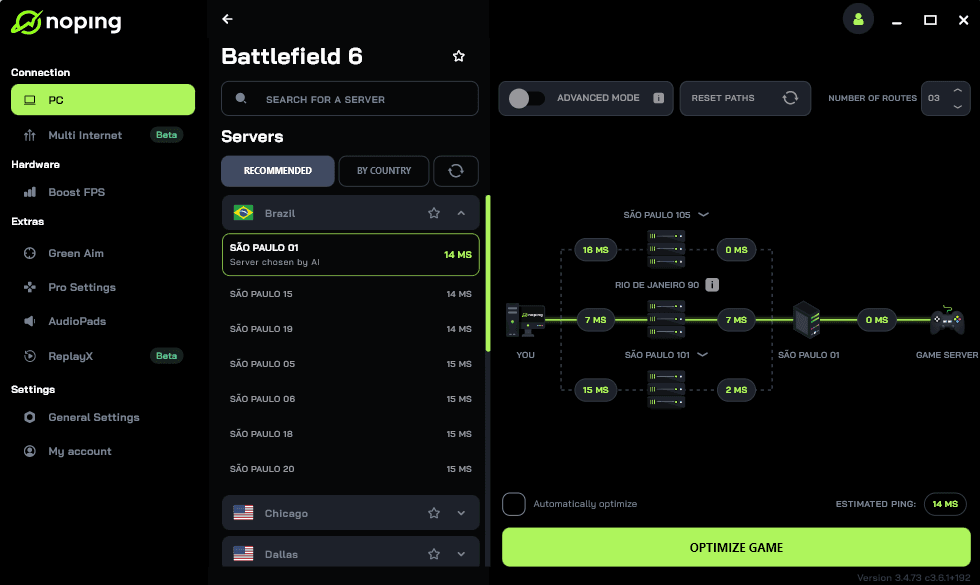
- And that’s it, you can start playing Battlefield 6 with optimized ping!
You can test different servers within NoPing to see which gives you the lowest latency.
FAQ - Secure Boot for Battlefield 6
Q: What if I can't find the Secure Boot option in my BIOS?
A: Not all motherboards have Secure Boot settings. If you can't find it, check your motherboard's manual or the manufacturer's website for guidance.
Q: Will enabling Secure Boot affect my system's performance?
A: No, Secure Boot operates during the boot process and doesn't impact system performance during normal operation.
Q: Can I play Battlefield 6 without Secure Boot?
A: No, Secure Boot is a mandatory requirement for launching the game. Without it, you'll encounter the "Secure Boot not enabled" error.
Q: What if my system doesn't support Secure Boot or TPM 2.0?
A: If your hardware doesn't support these features, you won't be able to play Battlefield 6 on that system. Consider upgrading your hardware to meet the game's requirements.
Q: Is Secure Boot required for other games?
A: While Secure Boot is becoming more common, not all games require it. However, other titles, like Call of Duty: Black Ops 7, are also implementing similar security measures.
Play Battlefield 6 without worrying about lag and connection issues! Download NoPing now and start your free trial!