

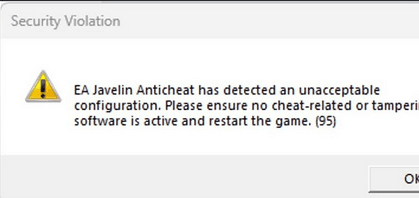
Launching Battlefield 6 and getting kicked out before the main menu is a pretty fast way to ruin the mood. Many players are reporting a Battlefield 6 AntiCheat error during startup, usually tied to EA Javelin refusing to load or flagging something in the system.
The message can show up with different codes, but the core problem is usually the same: the security service will not activate.
The good news is that most causes are software conflicts, missing files, or system settings that can be fixed at home.
This guide explains what the error means, what triggers it, and every reliable fix confirmed by players and official support sources.
What is the Battlefield 6 AntiCheat error?
In short, the error is any failure produced when EA’s Javelin anti-cheat subsystem cannot start, detects a conflicting program, or decides the system configuration is unsafe for a kernel-level anti-cheat.
The game will either not launch or will immediately close and show an EA Javelin / EA anticheat pop-up with codes or messages such as “EA Javelin anticheat encountered an error. Please restart the game” or specific error numbers.
EA Javelin is the company’s kernel-level anti-cheat used across recent EA titles, and it has requirements at the OS and driver level that must be met for the game to run. Official EA support documents list typical failure modes and the basic remedies.
How to Fix Battlefield 6 AntiCheat error?
Below are progressive steps: start with the quick, low-risk fixes and move toward the deeper ones only if needed. Try one fix at a time and test the game between steps.
Quick checks (try these first)
- Restart your PC and the EA App.
A full reboot clears temporary driver and service issues and fixes a surprising number of anti-cheat failures. Several community threads and official guidance list restart as the first step. - Launch the game from the EA app.
Even if you bought the game on Steam or Epic, EA’s anti-cheat expects the EA app to be the launch point. Launching directly from File Explorer can trigger errors. If you normally launch from Steam, try launching via the EA app instead - Run EA app and game as administrator.
Right click the EA app and the game executable and choose Run as administrator. Some installs require elevated permissions for the anti-cheat service to register and start properly.
If quick checks do not work: reinstall and repair anti-cheat
Repair or reinstall EA Javelin (EA anticheat).
EA provides an installer for their anticheat (usually found in C:\Program Files\EA\AC or similar). Run the EAAntiCheatInstaller, choose Repair or Uninstall then reinstall. After reinstalling, restart and launch the game through the EA app. Many official troubleshooting steps point to reinstalling the anticheat as a key fix.
- Use the EA app’s game repair.
In the EA app, choose the game, click the three dots and pick Repair. That will verify game files and may trigger a correct anticheat reinstallation.

Check for software conflicts
Disable overlays and background utilities.
Overlays, crosshair apps, screen recorders, FPS counters and some third party utilities (for example crosshair overlay tools, some video plugins, or advanced frame interpolation apps) can cause false positives.
- Use clean boot to find the conflict.
Perform a clean boot: open System Configuration (msconfig), hide Microsoft services, then disable other non-EA services. Re-enable only EA Anticheat and EA background services, then reboot. If the anticheat starts, enable services one by one to isolate the conflicting software.
Drivers and system-level checks
Update graphics drivers and Windows.
Outdated GPU drivers or system updates can block kernel-level components. Update Windows to the latest build and install the latest drivers from Nvidia, AMD or Intel. The EA support docs and community posts both identify signed and up-to-date drivers as necessary.
- Check for unsigned or expired drivers.
Kernel-level anti-cheat looks for unsigned or expired drivers that could hide cheats. If you recently installed experimental or unsigned drivers, remove them and revert to the official drivers from the hardware vendor.
Secure Boot and virtualization notes
Enable Secure Boot if required.
Battlefield 6 and EA Javelin rely on Secure Boot as part of a layered approach to anti-cheat. Some published interviews and reporting confirm that Secure Boot is required or strongly recommended for Battlefield 6. If Secure Boot is turned off you may see anticheat errors. On some motherboards you may need to restore factory keys or toggle the option in the UEFI. PC Gamer explains the Secure Boot requirement and the reasons behind it.
- Virtual machines and hypervisors.
Kernel-level anti-cheat often blocks games in virtual machines or when hypervisors are active. If you use virtualization software, try disabling it temporarily.
Permissions, antivirus and firewall
Temporarily disable antivirus or whitelist the EA Javelin files.
Some anti-virus or endpoint protection suites can block the anticheat service. As a test, disable your antivirus, or better, add exceptions for the EA anticheat folder (again, test only briefly and re-enable protection after).
- Check Windows Defender Tamper Protection and driver enforcement.
Certain security features can prevent kernel components from installing. If you changed tamper protection or driver signature enforcement settings, consider reverting them.
Deeper fixes and last resorts
Reinstall the game.
If anticheat repair fails repeatedly, uninstalling and reinstalling the game cleanly (and then reinstalling the anticheat) has solved the problem for many players.
- Check event viewer and EA logs.
Windows Event Viewer and the EA anticheat log files can show precise error numbers and the path of the failing service. Use those codes when searching support pages or when contacting EA support. - Contact EA Support with logs and exact error text.
If none of the steps above work, open a ticket with EA and include the full text of the error, error code if present, and the log files from C:\Program Files\EA\AC or the game folder. That speeds up diagnosis.
Also read: Will Battlefield 6 Be on Game Pass?
What causes Battlefield 6 AntiCheat error?
There are several categories of causes. The most common ones reported by players and listed in EA’s documentation are:
- Corrupted or missing EA Javelin files.
If the anticheat install becomes corrupted, it may fail to start. Reinstalling the anticheat fixes this in many cases. - Conflicting background software.
Overlays, crosshair apps, some frame interpolators and other third-party tools can look like cheat tools and be blocked by Javelin. Community posts often point to overlay apps and background utilities as the culprits. - Disabled or incorrect Secure Boot.
Secure Boot is used to make sure the system boots only trusted, signed code. EA and journalists have said Battlefield 6 expects Secure Boot to be enabled as part of the anti-cheat strategy. If it is off or not properly configured, the anticheat may refuse to run. - Unsigned, expired or incompatible drivers.
Kernel-level anti-cheat inspects drivers. Expired or unsigned drivers can trigger a block. Updating drivers or uninstalling problematic drivers usually helps. - Tampered game files or modified system settings.
If files have been altered or the system has nonstandard tweaks, the anticheat may consider the configuration unacceptable. Reinstalling game files and anticheat is recommended. - Antivirus or endpoint software interference.
Security suites sometimes prevent kernel components from loading. Temporarily disabling or whitelisting the EA anticheat can reveal if that is the issue.
Other Battlefield 6 errors
While you are troubleshooting anticheat failures, you might also face other launch or runtime problems. Common errors include:
- Crash to desktop after intro splash.
Often caused by outdated GPU drivers, missing Visual C++ redistributables, or corrupted game files. Repair the game, update drivers and install required runtimes. - High latency, matchmaking timeouts, or server errors.
These are network or server side issues and not related to the anticheat. Check EA server status and your network. - Controller or input not recognized.
Updated controller drivers or Steam/Windows input settings often fix that.
For most non-anticheat errors, the standard steps are update drivers, verify game files, and check the EA app or Steam integrity checks.
Also read: How to Fix Aim Snapping to Left in Battlefield 6
How to play Battlefield 6 without lag?
NoPing is a service designed to optimize your route to Battlefield 6’s servers. Sometimes, the normal path your internet provider uses isn’t the fastest. NoPing reroutes your data through a better, more direct path.
Here’s how to use NoPing to fix network issues in Battlefield 6:
- Sign-up through the website and download NoPing (you can try it for free)
- Open NoPing and search for Battlefield 6 inside the software
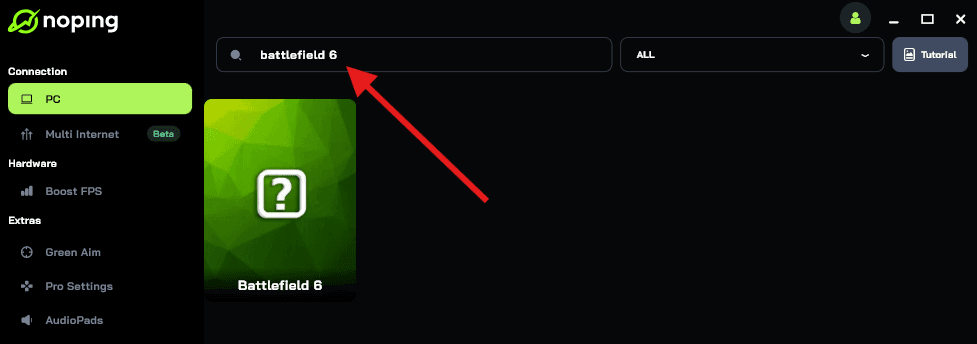
- Once you find Battlefield 6, click on it. Choose your server on the next screen and click on “Optimize Game”.

- And that’s it, you can start playing Battlefield 6 with optimized ping!
You can test different servers within NoPing to see which gives you the lowest latency.
FAQ - Battlefield 6 AntiCheat error
Q. Is EA Javelin spying on my PC or reading my files?
A. Kernel-level anti-cheat requires deep system access to detect cheats that hide in drivers or at the OS level. That does not mean it is browsing your personal files. EA and press coverage emphasize the anti-cheat’s role is detection of cheat software.
Q. Will enabling Secure Boot stop me from dual-booting Linux?
A. Secure Boot can make dual-boot setups more complex. Some users keep Secure Boot off to keep Linux or custom kernels working. That conflicts with Javelin’s security expectations. The only reliable way to run Battlefield 6 is to meet its Secure Boot and kernel anti-cheat requirements.
Q. My error shows a number like 7, 87 or 94. What do these codes mean?
A. Those codes are internal result codes. EA’s support pages and community threads map some common codes to known problems: e.g., “error 94” has appeared in reports when the anticheat update bricks multiple titles, and “error 87” has been used in launch failure reports. Use the exact error text in an EA support ticket to speed up a diagnosis.
Q. Can I play offline without the anticheat?
A. No. Battlefield 6 requires the anti-cheat subsystem for online and many single-player features. The game will not run without the anticheat engaged.
Q. Are there any safe workarounds if the game still fails after all steps?
A. If you exhausted the steps above, gather logs and open a ticket with EA. Mention what you tried, include any error codes and the anticheat logs from C:\Program Files\EA\AC. EA support can escalate to engineering if the issue is widespread. Community forums also sometimes collect temporary workarounds, but be careful: do not run untrusted executables or scripts that claim to fix anticheat issues.
Anti-cheat errors are unpleasant because they block play and often have many possible causes. Start simple: restart, run via the EA app, repair/reinstall the anticheat, and disable overlays or suspicious background apps.
If Secure Boot is off, enable it and check your BIOS settings. Update Windows and drivers. If nothing works, collect logs and contact EA with the exact error text. I cited EA’s official troubleshooting documentation and recent coverage that explains Secure Boot and why EA Javelin requires stricter platform conditions.
Good luck, and I hope one of the steps above gets you back into the match quickly.
Play Battlefield 6 without lag using NoPing! Download now and start your free trial!