

Battlefield 6 AMD driver error can stop the game from launching, cause crashes with messages like DXGI_ERROR_DEVICE_HUNG, or make the launcher complain your drivers are out of date even when they are not.
Since the game’s beta and launch windows, players with AMD GPUs and some laptop configurations have reported the game detecting the wrong driver, crashing midgame with DirectX-related errors, or refusing to run until a particular driver version is installed.
This guide walks through what that error usually means, the most reliable fixes people are using right now, what commonly causes the problem, other errors you might encounter, and a short FAQ with extra tips.
What is The Battlefield 6 AMD Driver Error?
When Battlefield 6 checks your system it sometimes reports that your AMD drivers are missing, outdated, or incompatible. That error can take several forms:
- A launcher popup saying your AMD driver is not supported or is too old.
- A game crash that logs DXGI_ERROR_DEVICE_HUNG or similar DirectX / DXGI messages.
- The game detects an unexpected or incorrect driver on laptops where the CPU/APU driver gets read instead of the discrete GPU driver.
These messages often mean one of three things: the game is seeing a driver version it does not recognize, the driver is actually unstable with this particular game build, or there is a mix-up between integrated and discrete GPU drivers on systems with hybrid graphics.
Which of those is true determines the best fix.

Source: Reddit
Guide to Fix Battlefield 6 AMD Driver Error
Below are practical steps ordered from least invasive to most.
Try them in sequence until the issue is resolved. I include the rationale for each step.
1. Install AMD’s Battlefield 6 preview driver (if available)
AMD has released preview/adrenalin drivers specifically mentioning Battlefield 6 support.
If AMD publishes a preview driver that lists Battlefield 6 in its release notes, install that first because it often contains game-specific fixes.
How to:
- Go to AMD’s official release notes / drivers page referenced in the release note.
- Download the preview package that explicitly mentions Battlefield 6.
- Install and reboot.
2. Do a full clean driver uninstall and reinstall (use DDU)
Driver remnants can confuse the game’s detection. Use Display Driver Uninstaller (DDU) to fully remove GPU drivers, then reinstall the clean AMD driver.
How to:
- Download DDU from its official source and boot Windows into Safe Mode.
- Run DDU and choose to remove AMD drivers.
- Reboot to normal mode and install the AMD driver you downloaded in step 1 or a stable version recommended by AMD. If you used the preview driver in step 1, install that now.
3. Try a rollback to a known stable driver
Sometimes the latest driver introduces instability. Players have found rolling back to an earlier driver that was stable for them fixes crashes, especially if the latest Adrenalin update caused problems.
If a rollback fixes the issue, watch for AMD or EA patches that address compatibility.
How to:
- In Windows, go to Settings > Apps > Installed updates or use AMD’s driver download page to select an older driver.
- Use DDU first if you are switching between major driver families to avoid leftover files.
4. Make sure Windows and DirectX are up to date
Battlefield 6 uses modern DirectX features. Ensure Windows Update is current and any optional updates for graphics components are installed.
Run dxdiag to check DirectX information and make sure there are no obvious issues.
5. Check for integrated / hybrid graphics confusion (laptops)
Some laptop users report the game checking an integrated GPU/APU driver instead of the discrete Radeon driver, triggering the wrong-driver error. On laptops:
- Update both the integrated graphics (APU) drivers provided by the laptop maker and the discrete GPU driver from AMD when applicable.
- Set the game to run on the high-performance GPU in Windows Settings > System > Display > Graphics settings, then add Battlefield 6 and set it to High performance.
6. Disable overclocks and undervolts
Unstable GPU clocks or aggressive undervolting can cause DXGI device hung errors.
If you are overclocking the GPU or CPU, restore stock settings and test. Many crash reports improved after users reverted to default clocking.
7. Update BIOS and chipset drivers
Some users reported the game stabilized after updating the motherboard BIOS and chipset drivers.
If other fixes fail, check your motherboard manufacturer’s site for a BIOS update and install it carefully.
8. Reset game settings and delete local config
If Battlefield 6 caches a bad setting, removing the game settings, saved profiles, or crash logs in the Battlefield documents folder can help.
Back up the folders before deleting and allow the game to recreate them when it next launches.
9. Check for anti-cheat conflicts and Secure Boot requirements
Battlefield 6 uses EA’s kernel-level anti-cheat. Conflicts with other kernel-level anti-cheat software, such as Riot Vanguard, can block the game from launching unless one of the anti-cheats is disabled or uninstalled.
Also be aware that Secure Boot requirements for the anti-cheat can affect compatibility with some platforms. If you use another kernel anti-cheat, disable or uninstall it to test.
10. If all else fails, collect logs and contact support
If none of the above resolves the issue:
- Collect crash logs and the Windows Event Viewer entries around the crash.
- Upload the logs to EA Help or the official forums and describe what you tried.
- Attach GPU model, driver versions, Windows version, BIOS version, and whether you have hybrid graphics or anti-cheat software that could interfere.

What Causes Battlefield 6 AMD Driver Error?
Here are the main root causes reported so far:
- Driver compatibility gaps: New games sometimes rely on driver changes. AMD may issue a preview driver to add compatibility while mainline drivers catch up.
- Faulty or incomplete driver installs: Leftover files or mismatched driver components confuse the game, producing detection errors. DDU fixes this.
- Hybrid GPU confusion on laptops: The game may check the CPU/APU driver rather than the discrete GPU driver. That produces a false out-of-date message.
- Anti-cheat kernel conflicts: Kernel-level anti-cheat software from different vendors can conflict, preventing the game from accessing the GPU properly.
- Instability introduced by a driver update: New Adrenalin releases have occasionally caused crashes in Battlefield titles; rolling back sometimes solves the issue.
Other Errors You Might Encounter in Battlefield 6
While dealing with AMD driver errors you may also face:
- DXGI_ERROR_DEVICE_HUNG: Often a sign of GPU or driver instability. Try rolling back, reinstalling drivers with DDU, or removing overclocks.
- Game refuses to launch due to other anti-cheat: If Valorant’s Vanguard or another kernel anti-cheat is present, Battlefield 6 may refuse to run. Uninstall or disable the conflicting anti-cheat for testing.
- Low GPU usage / CPU bottleneck: Some users reported very low GPU usage with high CPU use. That can be a settings issue, driver problem, or a sign the game is not using the discrete GPU. Check power and graphics settings.
- Game detects wrong driver on startup: Typically a sign the launcher is checking drivers before the discrete GPU is initialized. This may be fixed by AMD/EA patches; meanwhile, ensure both integrated and dedicated drivers are up to date.
How to Play Battlefield 6 With Top Performance?
NoPing is a service designed to optimize your route to Battlefield 6’s servers. Sometimes, the normal path your internet provider uses isn’t the fastest. NoPing reroutes your data through a better, more direct path.
Here’s how to use NoPing to increase your performance in Battlefield 6:
- Sign-up through the website and download NoPing (you can try it for free)
- Open NoPing and search for Battlefield 6 inside the software
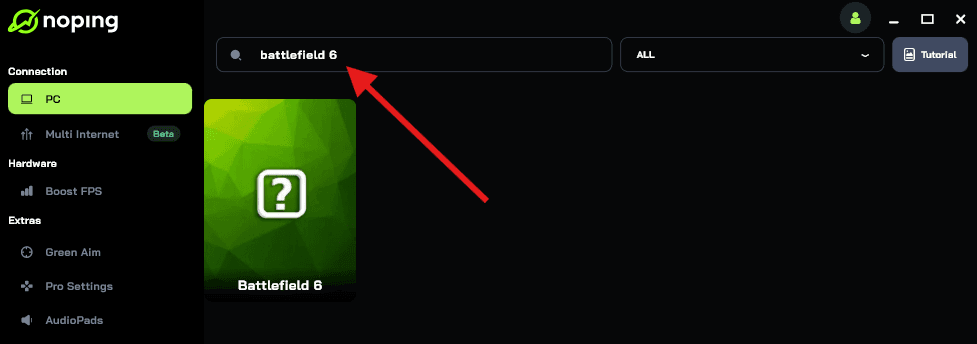
- Once you find Battlefield 6, click on it. Choose your server on the next screen and click on “Optimize Game”.
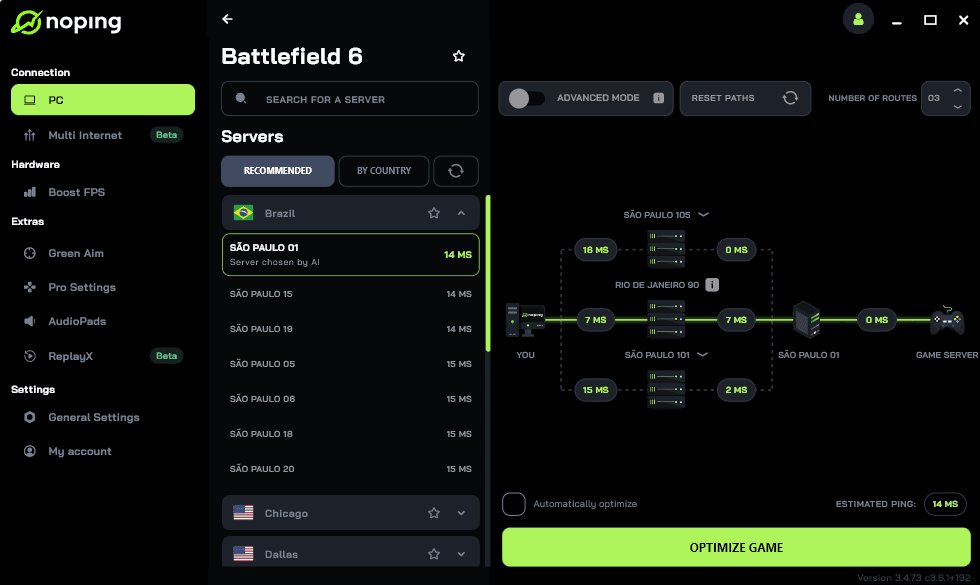
- And that’s it, you can start playing Battlefield 6 with optimized ping!
You can test different servers within NoPing to see which gives you the lowest latency.
FAQ - Battlefield 6 AMD Driver Error
Q: Is there a single driver version I should always use for Battlefield 6?
A: No single universal answer. If AMD publishes a preview driver that explicitly lists Battlefield 6 fixes, start there. If that creates other problems, try the previous stable driver that worked for your other games.
Keep an eye on AMD release notes and community reports to know which versions are currently recommended.
Q: Can I safely uninstall Riot Vanguard to fix the game?
A: Uninstalling Vanguard will let Battlefield 6 run in many reported cases, but you will not be able to play Valorant while it is uninstalled.
Make sure to fully reboot after uninstalling. If you need both games, expect to enable and disable the anti-cheats as needed, but be aware this is inconvenient and not ideal.
Q: Should I enable Secure Boot to fix anti-cheat problems?
A: Some anti-cheat systems and recent game builds require Secure Boot. Enabling Secure Boot can resolve anti-cheat compatibility in some environments but may break other setups like certain Linux configurations or older boot setups. Check EA/AMD guidance before changing Secure Boot.
Q: Are Windows Insider or beta drivers safe to use?
A: Use caution. Insider or beta Windows builds and preview GPU drivers can help if the driver explicitly targets Battlefield 6, but they can also introduce new instability.
Q: I fixed it by updating BIOS. Is that a common fix?
A: Some users report that BIOS updates resolved interactions between the CPU, chipset, and GPU that produced instability in-game. BIOS updates are a valid step but should be done carefully following the motherboard maker’s instructions.
Play Battlefield 6 with reduced ping and optimized FPS! Download NoPing now and start your free trial!