

Battlefield 6 DirectX error is one of the more common crash messages PC players have been running into since the beta and launch windows.
It shows up as DXGI errors like DXGI_ERROR_DEVICE_HUNG, DXGI_ERROR_DEVICE_REMOVED, or a generic “DirectX encountered an unrecoverable error,” and it can happen at startup, during loading, or mid-game.
Below I walk you through what that error means, a practical step-by-step repair list, what usually causes it, other related Battlefield 6 errors to watch for, and a compact FAQ with extra tips not covered in the main text.
What is The Battlefield 6 DirectX Error
A DirectX error in Battlefield 6 means something in the graphics pipeline failed. DirectX is Microsoft’s graphics API family and BF6 uses DirectX 12 features.
When the game or GPU driver hits an unexpected condition, Windows or the GPU driver may report DXGI errors such as DXGI_ERROR_DEVICE_HUNG, DXGI_ERROR_DEVICE_REMOVED, or similar messages.
These errors often point to driver instability, GPU timeouts, corrupted shader cache, or game files that conflict with your hardware or software environment.
Battlefield’s official system requirements explicitly target DirectX 12, so ensuring your stack supports DX12 is essential.

Source: Reddit
Step-by-Step Guide to Fix Battlefield 6 DirectX Error
Update your GPU drivers (clean install)
Always start here. Outdated or corrupted GPU drivers are the single most common cause of DirectX crashes. Go to Nvidia, AMD, or Intel official sites and download the latest WHQL drivers for your exact GPU model.
When possible, perform a clean driver install: use the GPU installer options for a clean install, or use DDU (Display Driver Uninstaller) in Safe Mode to remove leftovers and then install fresh drivers.
Verify game files through your launcher
If the game has corrupted or missing files the renderer can fail. Use Steam or the EA App to verify integrity / repair game files.
This is a quick check and often fixes cases where a bad shader or asset caused a DirectX failure.
Update Windows and install DirectX runtime
Make sure Windows is fully updated (Windows Update). Also install or repair the DirectX runtime from Microsoft if relevant.
Even though Battlefield 6 targets DX12, Windows updates and DirectX runtime components can affect stability. Restart after updating.
Limit your frame rate or enable V-Sync
Some players have found crashes stop after setting an in-game frame rate limit or enabling V Sync.
In Battlefield 6 settings, enable the frame rate limiter and set it to a reasonable number based on your monitor and GPU.
If you use an external control panel like Nvidia Control Panel, try enabling V Sync for the game there.
Disable DLSS Frame Generation or similar features
If your card supports DLSS frame generation or other experimental frame generation tech, disable it and test again.
Frame generation can sometimes interact badly with GPU drivers and produce DXGI errors. Community guides suggest disabling these advanced features when troubleshooting.
Clear the DirectX shader cache
Windows stores shader caches that can become corrupted. On Windows 11 go to Settings > System > Storage > Temporary Files and remove the DirectX shader cache
Toggle DirectX 12 setting in the PROFSAVE_profile (advanced user tweak)
If you can launch the game even briefly, you can edit your local settings file in Documents\Battlefield 6\settings\ (or similar) and look for options like GstRender.Dx12Enable.
Some players reported switching that value between 0 and 1 helped stabilize their setups in specific cases, but this is experimental and depends on whether your system runs DX11 compat or DX12 better.
Back up the file before editing.
Also read: Guide to Enable Secure Boot For Battlefield 6 [+ Error Fixing]
Roll back drivers for RTX 40/50 users if needed
If you have an RTX 40 or 50 series card and started seeing DXGI errors after a new driver, try rolling back to a driver version others have found stable.
Guides and user reports mention specific versions (for example some users saw better stability rolling back to driver 572.83) but check the most recent community guidance for your exact GPU. Do this only if newer drivers introduced the problem.
Turn off overlays and background apps
Disable overlays such as Nvidia GeForce Experience overlay, Discord overlay, Steam overlay, or any FPS/monitoring utilities.
Some overlays can conflict with the renderer. Also quit background apps that might hook into the game like screen recorders, overlay chat apps, or third-party monitoring tools
Ensure the game uses your dedicated GPU
If you have a laptop or integrated graphics, make sure Battlefield 6 is set to run on the dedicated GPU via the Nvidia Control Panel, AMD settings, or Windows
Graphics settings. Running on integrated GPU or the wrong GPU can cause DirectX initialization and runtime errors.
Check power and thermal stability
A GPU that overheats or is power throttled can trigger DXGI errors. Clean dust from your case, confirm adequate power supply and that GPU fans work.
Use monitoring tools to check temperatures while stressing the GPU. If you see spikes and then a crash, that points to thermal or power issues rather than a software bug.
Verify and reinstall the game
If nothing else works, uninstall and reinstall Battlefield 6. On a clean install the launcher will re-download a fresh copy of the game and shaders.
This is a heavier step, but it resolves cases where local game data is badly corrupted.
Contact EA / open a support ticket
If you tried everything and the issue persists, collect logs, GPU driver versions, Windows version, and steps to reproduce the crash, then open a support ticket with EA or post on the official Battlefield forums.
EA staff and DICE engineers monitor technical threads and sometimes provide targeted fixes or clarify when a known driver or game patch is required. Recent official threads identify driver-induced device removed/hung reasons and are updated as fixes are released.

Also read: How to Increase FPS and Boost Your Gameplay
What Causes Battlefield 6 DirectX Error?
- GPU driver crashes or incompatibilities. The most common cause. A driver bug or corrupted installation can make the GPU stop responding, leading to DXGI errors.
- Shader cache corruption. If DirectX shader cache files are corrupted, the renderer may fail when compiling or loading shaders. Clearing the shader cache often helps.
- Aggressive GPU features. Features like DLSS frame generation, experimental optimizations, or certain anti-lag settings can interact badly with some drivers. Disabling them can restore stability.
- Overclocking or thermal/power limits. Factory or user overclocks, or power delivery issues, can trigger device hangs. Returning to stock clocks and ensuring adequate cooling can rule this out.
- Corrupt game files or bad installs. Partial updates or corrupted files can produce rendering errors. Verifying or reinstalling the game can fix that.
- Windows or DirectX runtime mismatch. Missing OS updates or runtime components can cause incompatibility with the DX12 features Battlefield uses. Keep Windows updated.
Other Errors in Battlefield 6
While dealing with DirectX crashes you might also see different technical problems:
- Purchase to play / missing content errors on EA App. Launcher bugs can block access to game modes. EA has rolled out patches for such errors; restarting the app after an official patch often resolves it.
- Long loading screens or matchmaking hangs. Often solved by restarting the client or verifying files.
- Stuttering or microstutter unrelated to DirectX. These can be caused by VRAM pressure, bad streaming from HDD vs SSD, or software overlays. Upgrading to an SSD and reducing textures helps.
- Controller or input issues. Sometimes controller firmware or driver conflicts cause crashes. Try USB wired vs wireless and update controller drivers.
How to Play Battlefield 6 Without Lag?
NoPing is a service designed to optimize your route to Battlefield 6’s servers. Sometimes, the normal path your internet provider uses isn’t the fastest. NoPing reroutes your data through a better, more direct path.
Here’s how to use NoPing to fix network issues in Battlefield 6:
- Sign-up through the website and download NoPing (you can try it for free)
- Open NoPing and search for Battlefield 6 inside the software
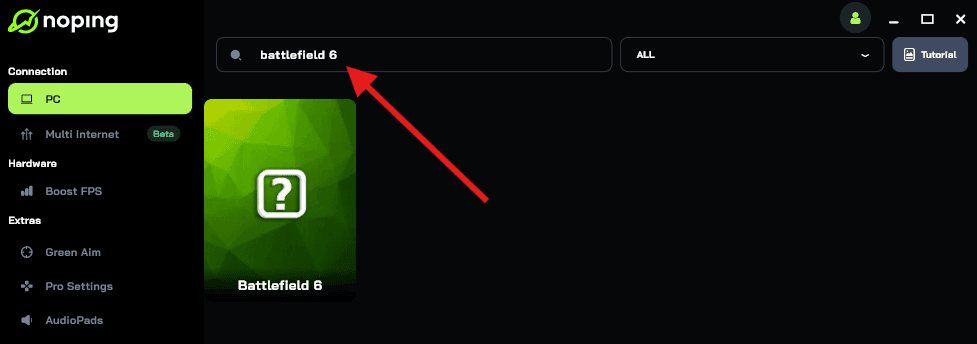
- Once you find Battlefield 6, click on it. Choose your server on the next screen and click on “Optimize Game”.
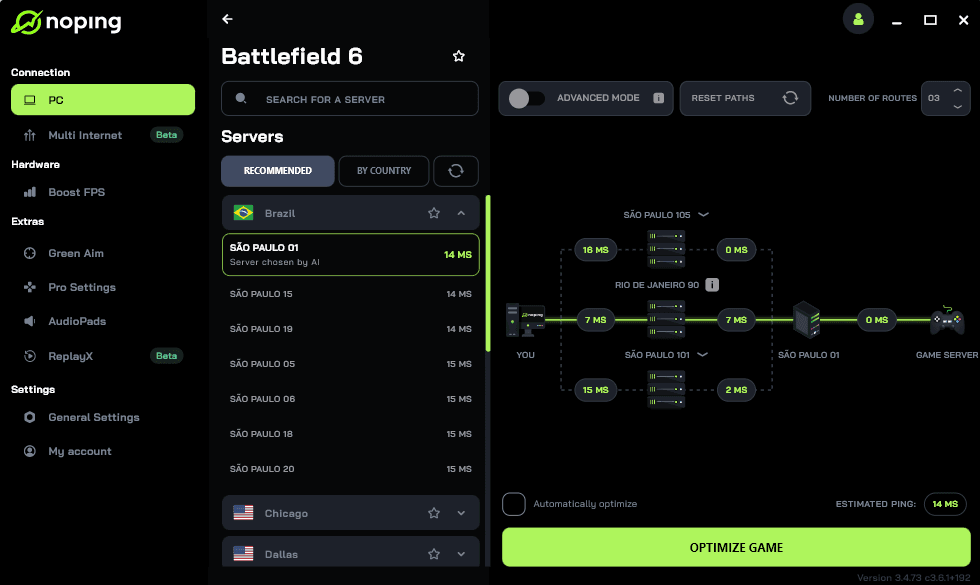
- And that’s it, you can start playing Battlefield 6 with optimized ping!
You can test different servers within NoPing to see which gives you the lowest latency.
FAQ - Battlefield 6 DirectX Error
Q: Can I switch the game to DirectX 11 to avoid the crash?
A: Battlefield 6 is built around DirectX 12 for its graphics pipeline and advanced features. There is not always a supported in-game DX11 toggle. If you find a community file toggle that forces a compatibility path, treat it as experimental and back up configs. The supported approach is updating drivers, clearing shader cache, and following the troubleshooting steps above.
Q: Do I need Windows 11 to run Battlefield 6 properly?
A: BF6 lists Windows 10 as supported for minimum requirements, but recommended setups and some features target Windows 11. Keep your OS updated and meet the system requirements for best stability.
Q: Which driver should I roll back to if recent drivers broke the game?
A: There is no single universal rollback target. For RTX 40/50 owners some community reports flagged a particular stable driver (for example older driver branches like 572.83 were sometimes recommended), but check threads specific to your GPU model and the date of your issue before rolling back. Only roll back if you suspect the latest driver introduced the crash.
Q: Is it safe to edit PROFSAVE_profile settings?
A: Editing local settings can help as a troubleshooting step, but always back up files first. Changing renderer flags may bypass engine assumptions and could cause other odd behavior. Use this only if you are comfortable editing text files and the change is reversible.
Q: My game crashes only when I play multiplayer. Is that a different problem?
A: It can be related. Multiplayer adds streaming of assets, more network load, and different rendering paths. Verify network stability, ensure overlays are off, and test single player or offline modes if available to help isolate the issue. If multiple users report multiplayer-only crashes, it may be a server/engine issue that needs a developer patch.
Play Battlefield 6 without lag right now! Download NoPing and start your free trial!