

Launching a new game and watching it do nothing is one of the most annoying PC gaming problems. Battlefield 6 wont launch on Steam is a surprisingly common complaint among players, especially right after installing or updating the game.
Sometimes the window flashes and closes, other times the launcher never starts, and in some cases the game crashes before showing a menu.
Since Battlefield 6 relies on anti-cheat services, drivers, and several background components, a small conflict in Windows can stop it from opening.
The good news is that most of these issues are fixable with a few simple steps.
Below you can follow a clear, practical guide to get the game running again.
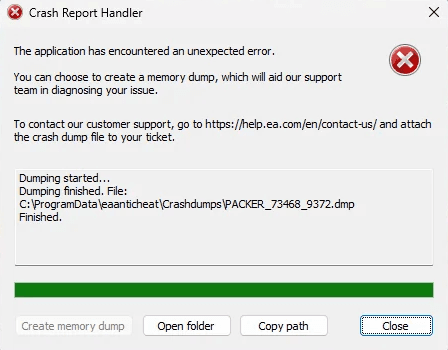
Source: Reddit
Step-by-step Guide to Fix Battlefield 6 Not Launching/Won’t Launch on Steam
Follow these steps in order. After each step, try launching the game. If it starts, you are done. If not, continue to the next step.
- Restart your PC and Steam
- Simple but effective. Restart Windows and then launch Steam again. This clears temp issues and locked files.
- Simple but effective. Restart Windows and then launch Steam again. This clears temp issues and locked files.
- Verify integrity of game files in Steam
- In Steam: Library → right-click Battlefield 6 → Properties → Installed Files → Verify integrity of game files. Let Steam check and redownload any missing or corrupt files. This is a standard first fix recommended by Steam.
- In Steam: Library → right-click Battlefield 6 → Properties → Installed Files → Verify integrity of game files. Let Steam check and redownload any missing or corrupt files. This is a standard first fix recommended by Steam.
- Repair or reinstall the anti-cheat (Javelin / EA AntiCheat)
- Battlefield 6 uses EA’s Javelin or EA AntiCheat system. If the anti-cheat installer is missing or corrupted, the game may not start. Locate the anti-cheat installer folder (often under C:\Program Files\EA\AC or in the game folder), run the installer as administrator, choose Repair, or uninstall then reinstall the anti-cheat.
- Battlefield 6 uses EA’s Javelin or EA AntiCheat system. If the anti-cheat installer is missing or corrupted, the game may not start. Locate the anti-cheat installer folder (often under C:\Program Files\EA\AC or in the game folder), run the installer as administrator, choose Repair, or uninstall then reinstall the anti-cheat.
- Run Steam and Battlefield 6 as administrator
- Right-click Steam shortcut → Properties → Compatibility → Run this program as an administrator. Also try running bf6.exe directly as admin from the game folder. Some launcher or anti-cheat operations need elevated permissions.
- Right-click Steam shortcut → Properties → Compatibility → Run this program as an administrator. Also try running bf6.exe directly as admin from the game folder. Some launcher or anti-cheat operations need elevated permissions.
- Disable overlays temporarily
- Disable Steam Overlay, Discord overlay, GeForce Experience overlay, and any recording/overlay software. Overlays can sometimes interfere with startup.
- Disable Steam Overlay, Discord overlay, GeForce Experience overlay, and any recording/overlay software. Overlays can sometimes interfere with startup.
- Update GPU drivers and Windows
- Install the latest drivers from NVIDIA or AMD and run Windows Update. Several crash reports and fixes have stemmed from outdated drivers or missing Windows updates. Driver refresh often fixes DirectX and Device Removed errors.
- Install the latest drivers from NVIDIA or AMD and run Windows Update. Several crash reports and fixes have stemmed from outdated drivers or missing Windows updates. Driver refresh often fixes DirectX and Device Removed errors.
- Install or repair DirectX and Visual C++ Redistributables
- Download Microsoft’s runtime packages or use the game’s _CommonRedist folder to reinstall DirectX and Visual C++ redistributables. Users have reported re-downloading DirectX and Visual C++ redistributables fixed instant crashes.
- Download Microsoft’s runtime packages or use the game’s _CommonRedist folder to reinstall DirectX and Visual C++ redistributables. Users have reported re-downloading DirectX and Visual C++ redistributables fixed instant crashes.
- Check Windows security settings: Exploit protection and Controlled folder access
- Go to Windows Security → App & browser control → Exploit protection settings → Program settings. Add bf6.exe and set defaults to off for problematic options if community guides recommend it. Also add the game and Steam to antivirus exclusions or allow them in Controlled folder access.
- Go to Windows Security → App & browser control → Exploit protection settings → Program settings. Add bf6.exe and set defaults to off for problematic options if community guides recommend it. Also add the game and Steam to antivirus exclusions or allow them in Controlled folder access.
- Ensure Secure Boot and TPM if required by anti-cheat
- Javelin may require Secure Boot enabled on some systems. If you have an unusual setup, check BIOS/UEFI and enable Secure Boot. Note this impacts compatibility with Steam Deck and Linux setups.
- Javelin may require Secure Boot enabled on some systems. If you have an unusual setup, check BIOS/UEFI and enable Secure Boot. Note this impacts compatibility with Steam Deck and Linux setups.
- Clear shader and cache folders
- Delete any shader cache or temporary folders used by the game if you can find them in the game directory or under %localappdata%. Some users fixed startup crashes by clearing cached data and letting the game rebuild it.
- Delete any shader cache or temporary folders used by the game if you can find them in the game directory or under %localappdata%. Some users fixed startup crashes by clearing cached data and letting the game rebuild it.
- Reinstall Battlefield 6 as a last resort
- If nothing else works, uninstall the game, reboot, and reinstall via Steam. Before reinstalling, back up save folders if you need them. If you have limited bandwidth, try moving the game folder to another drive and then using Steam to repair, sometimes that helps.
- If nothing else works, uninstall the game, reboot, and reinstall via Steam. Before reinstalling, back up save folders if you need them. If you have limited bandwidth, try moving the game folder to another drive and then using Steam to repair, sometimes that helps.
- If you use the EA App, try switching to Steam or vice versa
- There were launch-day bugs where the EA App did not recognize ownership or blocked access. PC Gamer reported EA rolling out fixes, and many affected users temporarily launched via Steam or used refunds and reinstalled. If you installed via the EA App, try the Steam client if possible.

Also read: Is Battlefield 6 Cross Platform? Let’s Find Out
What Causes This Problem?
Multiple things can stop Battlefield 6 from launching. Here are the most common causes and why they matter.
- Anti-cheat problems
- Battlefield 6’s kernel-level anti-cheat is strict. If the anti-cheat installation is corrupted, missing, or blocked by security software, the game may not start. Repairing or reinstalling the anti-cheat is a frequent fix.
- Battlefield 6’s kernel-level anti-cheat is strict. If the anti-cheat installation is corrupted, missing, or blocked by security software, the game may not start. Repairing or reinstalling the anti-cheat is a frequent fix.
- Corrupt or missing game files
- Steam file corruption or interrupted updates can remove or break essential executables. Verifying integrity often resolves this.
- Steam file corruption or interrupted updates can remove or break essential executables. Verifying integrity often resolves this.
- Driver or DirectX issues
- Outdated GPU drivers or missing DirectX components can produce immediate crashes or DirectX errors. Driver crashes can also manifest as the game closing unexpectedly.
- Outdated GPU drivers or missing DirectX components can produce immediate crashes or DirectX errors. Driver crashes can also manifest as the game closing unexpectedly.
- Windows security features
- Exploit protection, Controlled folder access, or antivirus rules may block parts of the game or anti-cheat from running. Adding explicit exceptions is sometimes required.
- Exploit protection, Controlled folder access, or antivirus rules may block parts of the game or anti-cheat from running. Adding explicit exceptions is sometimes required.
- Launcher/account validation bugs
- On launch day some players were blocked because the EA App failed to validate purchases or content. EA deployed a fix but the issue illustrates how launcher/account problems can prevent play.
- On launch day some players were blocked because the EA App failed to validate purchases or content. EA deployed a fix but the issue illustrates how launcher/account problems can prevent play.
- Hardware firmware issues
- Rarely, outdated BIOS or incompatible motherboard firmwares create instability that stops modern titles from launching.
- Rarely, outdated BIOS or incompatible motherboard firmwares create instability that stops modern titles from launching.
Other Battlefield 6 Errors and How to Fix Them
Here are related errors players commonly report and quick fixes.
- Game crashes at splash screen
- Verify files, repair anti-cheat, update drivers, reinstall DirectX. Also try deleting the Steam manifest for the game if Steam is incorrectly detecting files.
- Verify files, repair anti-cheat, update drivers, reinstall DirectX. Also try deleting the Steam manifest for the game if Steam is incorrectly detecting files.
- DirectX function or Device Removed errors
- Update GPU drivers, install latest Windows updates, check power/thermal stability, and make sure your GPU is not overclocked or unstable.
- Update GPU drivers, install latest Windows updates, check power/thermal stability, and make sure your GPU is not overclocked or unstable.
- Anti-cheat installation failing or game says anti-cheat missing
- Manually run the anti-cheat installer from C:\Program Files\EA\AC or the game folder, choose Repair or Uninstall then reinstall. Running the installer as admin helps.
- Manually run the anti-cheat installer from C:\Program Files\EA\AC or the game folder, choose Repair or Uninstall then reinstall. Running the installer as admin helps.
- Game asks to purchase or says content missing
- This was a launch-day EA App bug. If you see it, check official EA channels for fixes, restart your client after patches, or try launching via the other client if you own it on Steam.
- This was a launch-day EA App bug. If you see it, check official EA channels for fixes, restart your client after patches, or try launching via the other client if you own it on Steam.
- Steam shows game as installed but exe missing
- Verify integrity in Steam, and if that does not restore files, reinstall. Community threads show users deleting executables and then having Steam or anti-cheat fail to react until repaired manually.
Also read: Pax Armata in Battlefield 6: All You Need to Know
How to Play Battlefield 6 Without Lag?
NoPing is a service designed to optimize your route to Battlefield 6’s servers. Sometimes, the normal path your internet provider uses isn’t the fastest. NoPing reroutes your data through a better, more direct path.
Here’s how to use NoPing to fix network issues in Battlefield 6:
- Sign-up through the website and download NoPing (you can try it for free)
- Open NoPing and search for Battlefield 6 inside the software
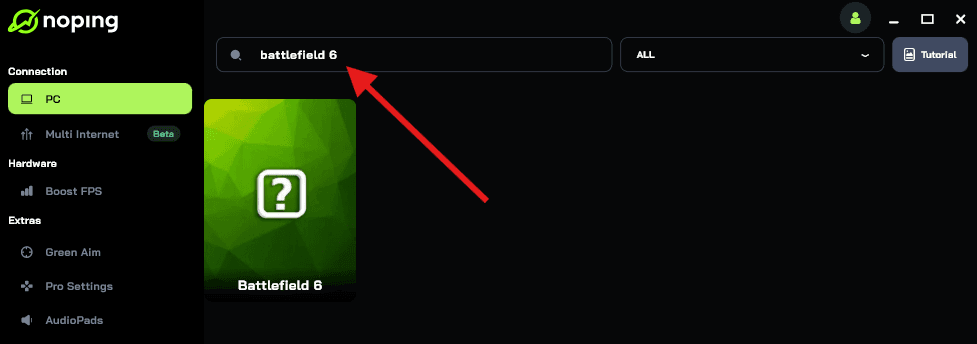
- Once you find Battlefield 6, click on it. Choose your server on the next screen and click on “Optimize Game”.
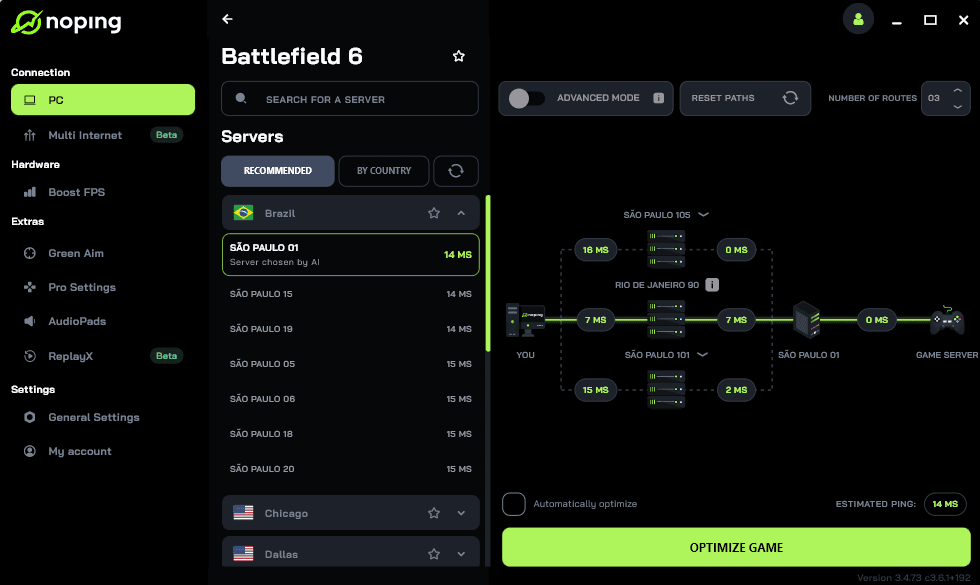
- And that’s it, you can start playing Battlefield 6 with optimized ping!
You can test different servers within NoPing to see which gives you the lowest latency.
FAQ - Battlefield 6 Won’t Launch on Steam
Q: I tried everything and the game still will not launch. What now?
A: Collect logs and open a support ticket with EA or Steam. Include your system specs, any error messages, and steps you tried. Also check EA’s and Battlefield’s official social channels for hotfixes.
Q: Will enabling Secure Boot break anything else on my PC?
A: Enabling Secure Boot changes boot security but is usually fine for modern Windows setups. It can complicate Linux dual-boot or custom unsigned drivers. Only enable it if you are comfortable with BIOS settings and understand the consequences.
Q: Can antivirus cause the problem?
A: Yes. Antivirus can block anti-cheat or game binaries. Temporarily disabling your AV or adding folder and executable exclusions often resolves the issue.
Q: Is this a common problem only at launch?
A: Launch windows often surface issues because of server load and new anti-cheat enforcement. Many problems are fixed in the days after release, but corrupted installs, driver conflicts, and local system issues can cause ongoing problems.
Q: Where can I find official updates or hotfixes?
A: Check the official Battlefield channels, EA Help pages, and the game’s Steam News. Major outlets like PC Gamer and Tom’s Hardware also cover high-impact fixes and explain required workarounds.
Play Battlefield 6 without lag using NoPing! Download now and start your free trial!