

Aim snapping to left in Battlefield 6 is something a lot of players have noticed since the game launched, and it can ruin gunfights fast.
Instead of smoothly tracking a target, the crosshair suddenly pulls left like the controller has a mind of its own.
Sometimes it happens only while aiming down sights, sometimes even while hip-firing, and sometimes it starts randomly in the middle of a match.
The good news is that players have already found several reliable settings and fixes that reduce or completely remove this problem, and in this guide you will learn how to try each one step by step.
Guide to fix aim snapping to left in Battlefield 6
Rule out hardware problems first
Try a different controller if you can. A cheap test is to plug your controller into another game or the console/PC menu and see if the right stick naturally drifts left. If it does, the controller likely has stick drift and needs cleaning, repair, or replacement.
If you're on PC and using a third party controller, test an official controller or a different USB cable, and try different USB ports. Faulty cables and ports can produce jitter or unexpected input. These quick checks separate real hardware faults from game-specific issues.
Reset in-game controller settings to default, then test
Go to Settings > Controller and use the reset or default option. If a custom tuning value (deadzone or input curve) was set accidentally, defaulting can remove that source of snapping.
Tweak deadzone settings carefully
Battlefield 6 exposes multiple deadzone types: center deadzone (radial), axial deadzone (square), and max input threshold. If these are mismatched they can create directional stick quirks.
Lower both center and axial deadzones to small values, then raise slightly if you see drift. Increasing center deadzone fixes snapping because it ignores tiny unintended inputs near the stick center. There is not one perfect number that works for everyone, but start with small values like 2 to 6 and adjust by 1 or 2 increments.
Check aim assist and zoom snap settings
Battlefield 6 ships with powerful aim assist options that include slowdown and zoom snap. If zoom snap or an aim assist setting is too aggressive it can wrest control away from your stick while aiming and result in sudden lateral pulls when the assist locks or releases.
Try turning down or temporarily disabling infantry aim assist slowdown and infantry aim assist zoom snap and see whether that removes the left snapping.
Also read: How to Fix Battlefield 6 DirectX Error? Easy Guide
Try the ADS sensitivity coefficient tweak (PC advanced)
On PC, some players reported that a sensitivity coefficient applied to ADS made the camera significantly faster while zoomed.
Setting that ADS coefficient to zero removes an extra sensitivity multiplier and smoothed transitions that felt like snapping between targets.
If you are comfortable with advanced config edits and the file is accessible, try changing the zoom sensitivity coefficient to test whether it improves snapping.
Check vehicle and other input bindings overlap
A few players discovered that input mappings for vehicles, gadgets, or scoped vehicles can conflict with infantry aiming profiles.
Make sure vehicle aim settings are not unintentionally applied to your infantry profile. Reset vehicle bindings if you have changed them and test again.
Update everything
Update the game, firmware for your controller, console system updates, and PC controller drivers. DICE/EA have pushed aim-related fixes and aim assist adjustments since launch, so keeping the game up to date is important.
Also keep your GPU and OS drivers current; while less likely to directly cause a left snap, driver bugs can create input or timing anomalies.
Try a different input method
If the problem persists and you need an immediate workaround, swap to mouse and keyboard if available. Many players use this to get past controller-specific aiming troubles while waiting for a hotfix.
Document the issue and report it
If none of the previous steps help, capture a short clip showing the snapping and file a bug report with EA Help or post it in official forums with details: platform, controller model, exact in-game settings (deadzones, aim assist sliders), and whether it happens only when scoped or in any aiming state.
What causes aim snapping to left in Battlefield 6?
There are several potential causes, sometimes acting together:
Stick drift or controller hardware problem
Physical wear on the analog stick can cause persistent bias in one direction. This is the simplest cause.
If the stick is drifting, it will show up across multiple games and system menus.
Deadzone mismatch or broken deadzone implementation
Battlefield 6 exposes multiple deadzone parameters that interact. Community testing and forum reports indicate that certain combinations can create a “dead zone shape” problem where diagonal movement is harder and small inputs register as sideways pushes.
Bug reports have flagged deadzone behaviour as inconsistent for some controllers.
Aggressive aim assist or zoom snap logic
The game’s aim assist includes sticky slowdown and zoom snap behavior. If aim assist locks onto a target and the lock logic overshoots or tries to recentre, you can see lateral snaps. DICE has publicly discussed aim assist stickiness and announced adjustments.
That confirms aim assist can be a primary contributor for many players.
Also read: How to Turn Off Adaptive Triggers in Battlefield 6?
Software-level sensitivity modifiers
On PC especially, additional sensitivity multipliers applied during ADS can change how the aim responds and can feel like snapping when the multiplier fluctuates. An ADS coefficient that, when zeroed, made ADS feel more stable.
Game bugs and profile overlaps
Conflicting input profiles, accidental binding changes, or a bug introduced in a patch can create unexpected directional inputs. When many players report similar behaviour it often points to a bug that needs a developer patch.
Controller tips for better aiming in Battlefield 6
Use a light touch on sensitivity changes
Make small changes and test for a few matches. Big jumps in sensitivity often worsen micro adjustments.
Find a stable deadzone sweet spot
If you have a new controller with no drift, low deadzones like 2 or 3 for both center and axial often feel responsive without drift. If you see drift, increase center deadzone first in small steps.
Turn off vibration during tuning
Vibration can mask minor stick drift and make micro-corrections harder. Turn it off while you settle on aim settings.
Use uniform aiming if you prefer consistency
Battlefield 6 offers aiming curve and uniform options. If you want predictable stick-to-aim response, try the uniform infantry aiming option and a conservative input curve.
Consider a control grip or third-party accessory
If your hands slip or your thumb lands inconsistently, a thumb grip or slight control surface can improve repeatability and reduce unintended inputs.
Warm up and test in target ranges
Use the shooting range or custom server to test ADS transitions, zoom snap behaviour, and how the aim reacts to aim assist on and off.
Also read: Pax Armata in Battlefield 6: All You Need to Know
How to play Battlefield 6 with the best online performance?
NoPing is a service designed to optimize your route to Battlefield 6’s servers. Sometimes, the normal path your internet provider uses isn’t the fastest. NoPing reroutes your data through a better, more direct path.
Here’s how to use NoPing to fix network issues in Battlefield 6:
- Sign-up through the website and download NoPing (you can try it for free)
- Open NoPing and search for Battlefield 6 inside the software
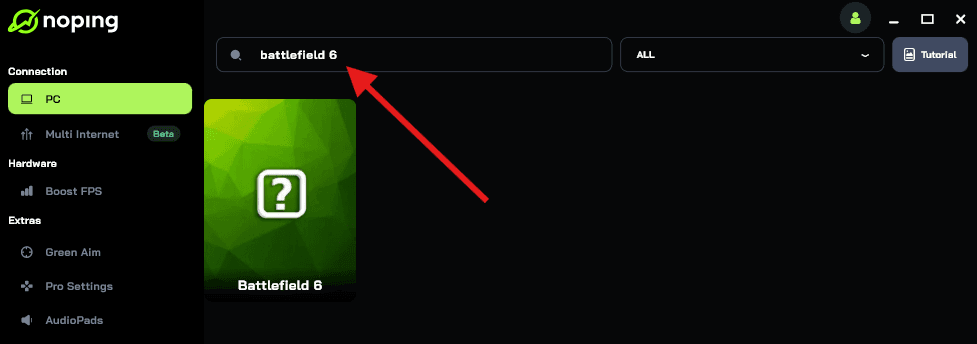
- Once you find Battlefield 6, click on it. Choose your server on the next screen and click on “Optimize Game”.
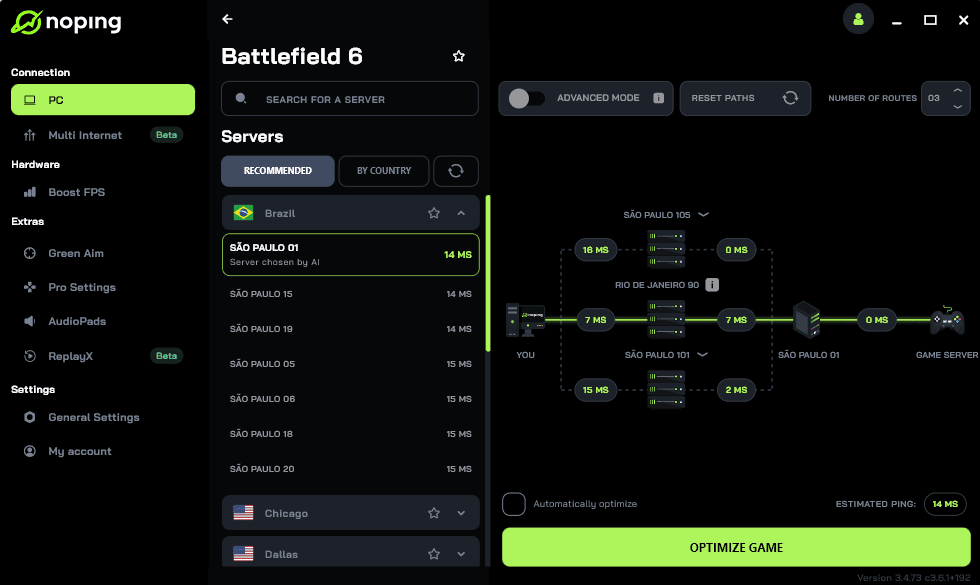
- And that’s it, you can start playing Battlefield 6 with optimized ping!
You can test different servers within NoPing to see which gives you the lowest latency.
FAQ - aim snapping to left in Battlefield 6
Q: Is this a known bug the devs will fix?
A: The developers have acknowledged aim assist stickiness and announced that aim assist tuning will be adjusted. Keep your game updated and follow official patch notes for concrete fixes.
Q: Will changing controller type help, for example switching from DualSense to Xbox controller?
A: It might. Different controller hardware has different stick tolerances and firmware. If the snapping is caused by a particular controller's drift or how the game reads that controller, switching hardware can be diagnostic and sometimes a real fix.
Q: Is aim assist the same on console and PC controller?
A: Aim assist algorithms can differ by platform and by the presence of crossplay. PC players using controllers have reported different behaviours compared to console players, and some PC users mod or change config values that are not accessible on consoles. The game teams have publicly commented on aim assist differences and adjustments.
Q: I see snapping only when scoped with certain optics. Any advice?
A: Try testing the same weapon with different scopes and check the "zoom sensitivity coefficient" if available in your settings.
Lowering zoom sensitivity or the ADS coefficient can sometimes remove the sudden lateral movements that feel like snapping. If the scope adds smoothing or snap behaviour, retune the scoped sensitivity.
Q: Could network lag cause aim snapping?
A: Network lag typically causes rubberbanding, hit registration issues, or delayed inputs, but it does not usually make the aim physically snap in a single direction.
If your crosshair itself moves independently of input, that is more likely controller or game logic related.
Aim snapping to left in Battlefield 6 is an annoying issue but there are practical steps you can take right now: verify controller health, reset and carefully retune deadzones, tweak or disable aggressive aim assist options, and try the ADS coefficient tweak if you are on PC and comfortable with advanced settings.
If all else fails, collect evidence and report the bug so developers can reproduce and patch it.
And to always have the best performance to improve your aim in Battlefield 6, use NoPing! Download now and start your free trial!