


Adaptive triggers in Battlefield 6 can feel amazing when you want immersion, but they can also slow your reaction time or tire your fingers during long multiplayer sessions.
If you want the triggers to feel light and predictable, there are a few reliable ways to turn them off depending on whether you are playing on PS5 or on PC with a DualSense controller.
Below I walk through the practical steps, explain why the setting is not always in the game, and give troubleshooting tips so you can get consistent, fast inputs.
Quick summary
- Battlefield 6 does not offer a dedicated in-game toggle for adaptive trigger intensity.
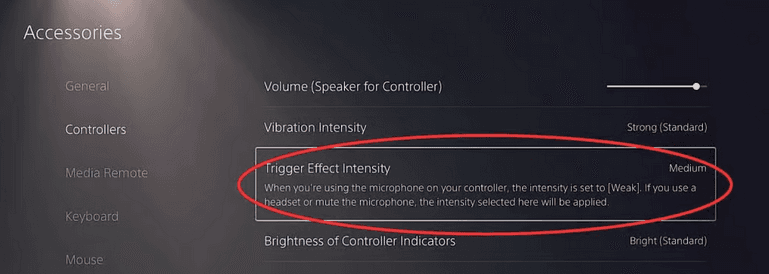
- On PS5 you must change the console system settings under Accessibility to set Trigger Effect Intensity to Off.
- On PC with a DualSense, use Steam Input or third party tools to disable trigger force and haptic effects for the game.
Why there is no simple in-game toggle
A lot of players search Battlefield 6 settings expecting a switch to disable adaptive triggers and come up empty.
During the beta and after release players and community threads confirmed there is no in-game control for adaptive trigger intensity.
That means the game relies on the controller and platform to handle DualSense trigger effects rather than exposing per-game trigger sliders inside Battlefield 6.
If you want to change how the triggers feel you have to do it at system level on PS5 or at the platform and driver level on PC.
Also read: Is Battlefield 6 Cross Platform? Let’s Find Out
How to turn off adaptive triggers in Battlefield 6 on PS5
If you play Battlefield 6 on PS5 with a DualSense, this is the cleanest path. The DualSense adaptive triggers are controlled by PS5 system settings labeled Trigger Effect Intensity.
Step by step
- From the PS5 home screen open Settings by selecting the gear icon.
- Go to Accessibility.
- Select Controllers or Accessories then Controllers depending on your console UI version.
- Scroll to Trigger Effect Intensity.
- Set Trigger Effect Intensity to Off. The options are usually Off, Weak, Medium, Strong. Choose Off to remove the resistance.
- Exit settings and relaunch Battlefield 6. The change applies system wide so your triggers will be less resistive in all games that use the DualSense effect.
Source: Dexerto
Notes and tips for PS5 players
- Changing this setting affects every game on your PS5 until you change it back. If you want adaptive triggers for single player but not competitive multiplayer you will need to toggle this when you switch play styles.
- If the change does not appear to take effect restart the console and make sure your system software is up to date. Low controller battery or outdated firmware can cause inconsistent behavior.
How to turn off adaptive triggers in Battlefield 6 on PC when using a DualSense
On PC the DualSense adaptive trigger behavior can be controlled by how the controller is configured in Steam or with third party tools. There are two common approaches.
Option A Use Steam Input configuration for Battlefield 6
- Connect your DualSense controller to PC via USB or Bluetooth.
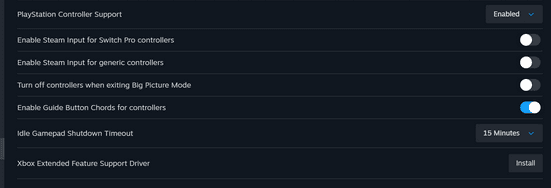
- Open Steam then go to Settings and open Controller settings. Enable PlayStation Configuration Support or PlayStation Controller Support.
- In your Steam Library right click Battlefield 6, select Properties. Under Controller pick Override for Battlefield 6 and choose Enable Steam Input.
- With Steam Input enabled, click the controller icon for Battlefield 6 in your library and select Edit Layout. Find the Triggers section and click the gear icon for Left and Right triggers. In the advanced trigger settings you can reduce or disable force feedback and haptic intensity for triggers or remap them to emulate Xbox inputs which effectively removes the adaptive resistance. Save the layout and launch the game.
Source: GameSpot
Option B Use third party tools or DS4Windows style utilities
Some players prefer to use utilities that expose DualSense features on PC. Depending on the tool you can disable trigger force or override trigger behavior.
If you go this route follow the utility developer instructions and be cautious with unsigned tools.
Notes and tips for PC players
- If you are playing without Steam or with a different launcher you may need to enable Steam Input by running the game through Steam or find equivalent settings in the platform you use.
- Some players report that tweaking Steam Input settings like switching to emulate an Xbox controller reduces adaptive trigger effects because Xbox controllers do not have adaptive triggers. Emulation can remove those DualSense specific features.

What about Xbox controllers and other platforms
Adaptive triggers are a DualSense specific feature from Sony. Xbox controllers do not have Sony style adaptive trigger motors.
If you are on Xbox Series X or S you will not have adaptive trigger resistance from the controller in the same way DualSense users do.
If you feel any resistance using a non DualSense controller it is likely vibration feedback rather than hardware trigger resistance. For DualSense users on PC or console follow the PS5 or Steam steps above.
Also read: How to Fix Battlefield 6 AMD Driver Error?
Troubleshooting common problems
If you followed the steps but still feel resistance or inconsistent behavior try these fixes.
Restart the game and system
After changing console or Steam settings restart Battlefield 6. On PC restart Steam if needed. Some settings only apply after a relaunch.
Check controller battery and firmware
Low battery can affect motor behavior. On PS5 check for controller updates and on PC make sure your controller drivers are current.
Try toggling Steam Input options
If you are on PC try switching PlayStation Configuration Support off and on and test both enabling and disabling Steam Input override for the game. Some players get better results by enabling Steam Input and then explicitly disabling trigger haptics in the controller layout editor.
Test in other games or in system menus
Change the trigger intensity in PS5 settings and test if the home menu buttons feel different. If the home menu still shows resistance then the DualSense setting is working and the issue may be Battlefield 6 reading a different input path.
Conversely if the system menus are light but the game feels heavy that indicates the game is applying trigger effects via a different API and you may need Steam Input or another override
Consider cleaning or resetting the controller
Mechanical issues or dust buildup can make a trigger feel heavy in a mechanical way. If you suspect hardware problems try a controller reset or cleaning. If the controller still feels wrong test another controller to isolate the issue.
How to play Battlefield 6 without lag?
NoPing is a service designed to optimize your route to Battlefield 6’s servers. Sometimes, the normal path your internet provider uses isn’t the fastest. NoPing reroutes your data through a better, more direct path.
Here’s how to use NoPing to fix network issues in Battlefield 6:
- Sign-up through the website and download NoPing (you can try it for free)
- Open NoPing and search for Battlefield 6 inside the software
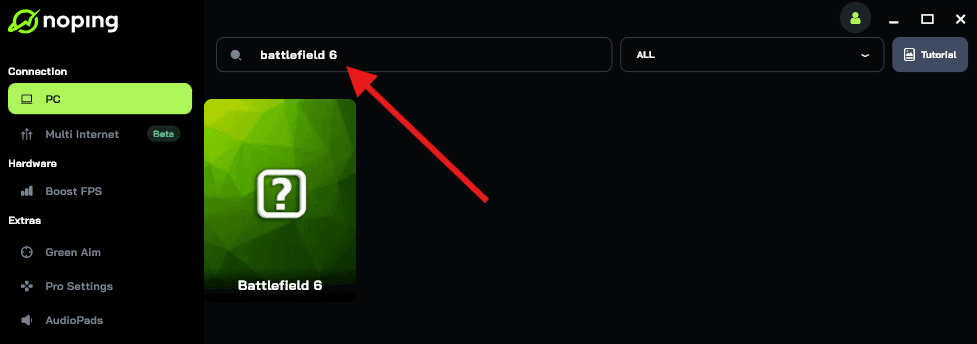
- Once you find Battlefield 6, click on it. Choose your server on the next screen and click on “Optimize Game”.
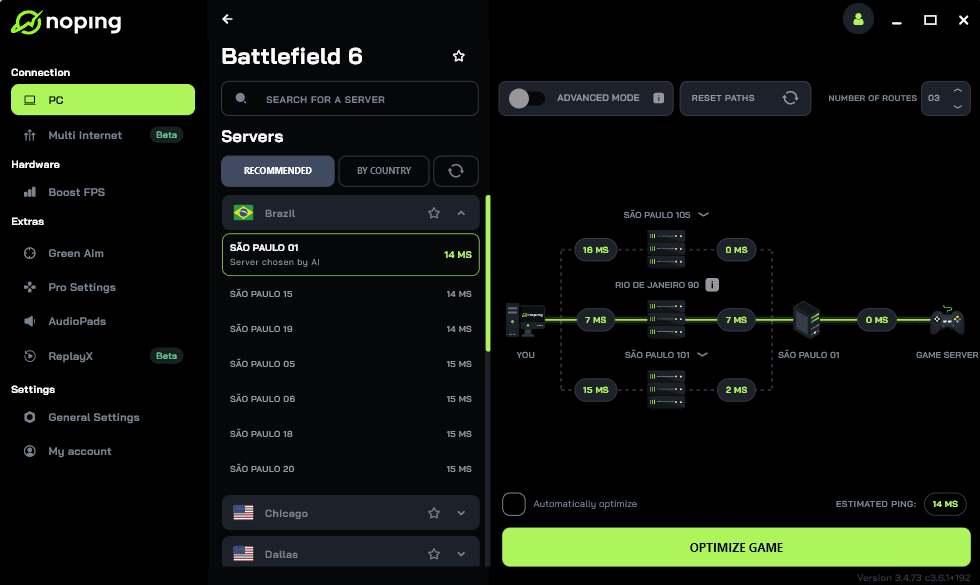
- And that’s it, you can start playing Battlefield 6 with optimized ping!
You can test different servers within NoPing to see which gives you the lowest latency.
Final notes on competitive play and feel
Many competitive players prefer lighter triggers because they want the fastest possible input. Other players like adaptive triggers for immersion.
Because Battlefield 6 does not provide an in-game master switch for trigger intensity you need to pick your platform solution. PS5 system settings let you disable triggers for every game easily.
On PC Steam Input offers the flexibility to disable or emulate inputs so you can have a light feel while keeping DualSense connected.
And to play Battlefield 6 without lag and FPS drops, use NoPing! Download now and start your free trial!