

If you ever find yourself wondering how to close the console in Battlefield 6, you are not alone.
That small command window can pop up at the worst moments and steal your aim.
In this guide I’ll walk you through the straightforward ways to close it, how to prevent it from opening accidentally, and what to do if the usual fixes do not work.
What is the console and why does it show up?
The command console is a developer-style text box that lets you type commands and see system messages.
In Battlefield 6 it is intended mainly for debugging and advanced tweaks, but players sometimes trigger it by accident while playing. On PC the console is usually toggled with a single key press.
If it opens mid-game, you can usually close it the same way. This behavior and how to turn it on or off are described in several community and guide resources.

Source: Reddit
Quick answer: the usual way to close the console in Battlefield 6
Press the tilde key (~ / `), the key usually located left of the number 1 on most keyboards.
That key toggles the console in most Battlefield titles and should both open and close it.
If that key does not work for you, try pressing it multiple times, or try Shift plus the key depending on your keyboard layout and language.
Also read: How to Fix Battlefield 6 DirectX Error? Easy Guide
Step-by-step: how to close the console (PC)
Try the tilde/backtick key (~ / `). Press it once or a couple of times until the console disappears. This is the default toggle for the console.
If nothing happens, press Escape a few times. Some players report Escape will return focus to the game UI and hide overlays.
If Escape does not work and the console still blocks input, Alt+Tab to the desktop and back again. That can reset input focus and remove the console overlay.
As a last-in-session resort, save or quit to the main menu and reload your session. Not ideal, but it clears the console if it is stuck.
Those first two lines are what fix it for most people. The key to remember is the tilde/backtick key, but keyboards differ, so read the next section if yours behaves differently.
Keyboard layouts and why the key might be different
Not every keyboard uses the same physical key for tilde/backtick. On some European layouts the console key might be a caret or accented character, or the key may be located somewhere else.
If you use a non-US layout, try the key left of 1, the key below Esc, or keys near B and the number row.
If you are unsure, try each candidate key while in a safe spot in-game to identify the toggle.
Also read: Pax Armata in Battlefield 6: All You Need to Know
How to disable or prevent the console from opening
If the console keeps opening by accident, you can prevent it from being available in two main ways.
Option A — In-game settings (if available)
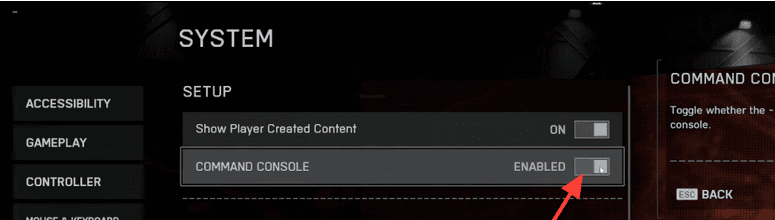
Battlefield 6 exposes an option to enable or disable the command console in the System section of Settings.
If you find that switch in your Settings menu, make sure to apply the change and fully exit the menus so the setting saves.
Turning it off in the Settings will stop the key from bringing the console up. Several guides and recent writeups mention this menu toggle.
Source: All Things How
Option B — Edit the profile save (advanced)
If the in-game toggle is missing or does not stick, some players edit the game profile save file to disable the console.
The file is located in your Documents folder under the Battlefield 6 (or Battlefield 2042 depending on install) settings folder and is called something like PROFSAVE_profile. Open it with a good text editor such as Notepad++ and search for the setting named enableconsole.
Changing its value from 1 to 0 will disable the console. Save the file and restart the game. This is an advanced fix, so back up the file before editing.
Common causes when the console will not close
If pressing the key does not close the console, here are typical reasons found in community threads and official forums:
- A different program or overlay is intercepting that key, such as Discord, Steam overlay, or GPU control panel overlays. Try disabling overlays temporarily.
- An input focus issue where the game no longer receives keyboard events. Alt+Tab or toggling fullscreen/windowed mode can help.
- The profile save setting is corrupted or the game did not save your setting change. Deleting or resetting the PROFSAVE file forces defaults and can resolve it. Always back up before deleting.
- A keyboard layout quirk is mapping the key differently. Try alternate keys near the number row.
Also read: How to Fix Battlefield 6 Error Code 1:85008S
What about consoles like PS5 and Xbox?
If you are playing on PS5 or Xbox Series X|S you are unlikely to have the developer console available in the same way PC players do.
Console versions of Battlefield are designed for controller input and do not expose a keyboard-based command console to players in normal gameplay.
If you somehow see an overlay or a trouble screen on console, use the controller to back out to the main menu, or close the game from the console dashboard and restart the app.
For most players on PlayStation and Xbox there is no tilde key toggle to worry about. If you are using an external keyboard on console and see unexpected behavior, consult platform support for keyboard mappings.
Safety note before editing files
If you edit PROFSAVE_profile or any other config file, always back it up first. Changing the wrong value or saving with the incorrect encoding can corrupt your settings.
Use Notepad++ or a comparable editor and ensure the file encoding is unchanged when saving. If you are uncomfortable editing files, prefer the in-game settings or ask a friend with experience to help.
Final tips
If the console issue is frequent and nothing fixes it, search the official EA forums or the Battlefield subreddit for keywords with your exact keyboard layout and a short description.
Other players often post layout-specific quirks or new fixes soon after a patch. If the behavior started after an update, check patch notes or EA discussions since developers sometimes change console behavior and keybinds.
How to Play Battlefield 6 Without Lag?
NoPing is a service designed to optimize your route to Battlefield 6’s servers. Sometimes, the normal path your internet provider uses isn’t the fastest. NoPing reroutes your data through a better, more direct path.
Here’s how to use NoPing to fix lag in Battlefield 6:
- Sign-up through the website and download NoPing (you can try it for free)
- Open NoPing and search for Battlefield 6 inside the software
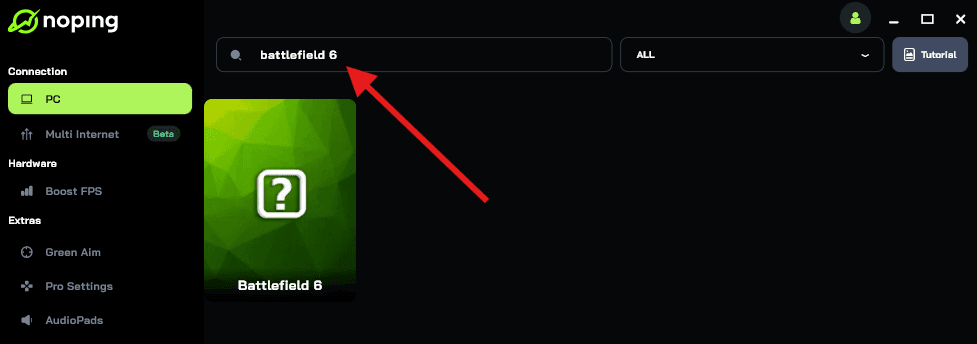
- Once you find Battlefield 6, click on it. Choose your server on the next screen and click on “Optimize Game”.

- And that’s it, you can start playing Battlefield 6 with optimized ping!
You can test different servers within NoPing to see which gives you the lowest latency.
The console in Battlefield 6 is useful for advanced tweaks but annoying when it appears unexpectedly. For most players the tilde/backtick key will both open and close the console and toggling the setting in Settings or editing the PROFSAVE_profile file will stop accidental openings.
Play Battlefield 6 with reduced ping and optimized FPS using NoPing! Download now and start your free trial!