

Apex Legends freezing your PC is maddening: one second you’re looting, the next your whole machine locks up or stutters so badly the match is over.
Freezes and hard stutters in Apex Legends can come from many places: drivers, an anti-cheat interaction, Windows background processes, overheating, or even bugs in a game update.
This guide walks you through what usually causes those freezes and, most important, a sequence of practical fixes you can try now.
What Causes Apex Legends Freezing Your PC?
Short version: there’s no single cause as multiple systems interact. Here are the usual suspects, with the most common ones first.
- Outdated or buggy GPU drivers. New driver releases sometimes introduce regressions; conversely, outdated drivers can break newer game builds. Many players report freezes tied to specific NVIDIA/AMD driver versions.
- Game updates or known bugs. After a seasonal update some users report widespread freezing; dev teams then issue hotfixes. Community threads and official posts often track these waves.
- Third-party software conflicts (overlays, recording tools, certain antivirus). Background apps can interfere with the game or the anti-cheat.
- Easy Anti-Cheat or anti-cheat priority issues. Anti-cheat interactions sometimes cause instability; EA/Respawn recommend checking anti-cheat integrity and priority.
- Thermal throttling or hardware instability. Overheating GPU/CPU, unstable overclocks or bad RAM can produce hard locks or freezes. Monitoring temps will reveal this.
- Faulty game files or corrupted installs. Missing or corrupted files can lead to mid-game freezes; repairing game files is a common early step.
Those are the big categories. Next we go step-by-step through fixes you can actually do.
12 Ways to Fix Apex Legends Freezing Your PC
I ordered these from easiest to more-involved. Try them in order and test the game after each step, that quickly tells you whether you’re done.
1. Restart your PC and router
Always the first, fastest test. Close everything before starting the game. (Quick, low cost.)
2. Repair game files (EA app/Origin/Steam)
Use the client’s “Repair” or “Verify integrity” option, it often fixes corrupted files.
3. Update Windows
Make sure Windows is fully updated; some fixes require OS patches.
4. Update or rollback GPU drivers
If the problem started after a driver update, try DDU (Display Driver Uninstaller) in Safe Mode to remove drivers and then install a stable driver version. If you’re on an older driver, update to the manufacturer’s recommended build. Community threads frequently point to particular driver versions as problematic, so check recent reports.
5. Close overlays and background apps
Disable Steam/Epic/EA overlays, Discord overlay, recording software, MSI Afterburner OSD, and other overlays. These are common conflict sources.
6. Run as administrator and set anti-cheat priority
Launch the EA app and Apex as admin. Some guides also recommend ensuring Easy Anti-Cheat is installed properly and not blocked by security software.
7. Cap your FPS / enable V-Sync or frame limit
Insanely high uncapped FPS can destabilize some setups; try capping FPS via in-game settings or using RTSS to cap to a stable number below your max.
8. Adjust graphics settings down
Temporary test: set all graphics to low and run a match. If freezing stops, raise settings gradually to find the threshold.
9. Check temperatures and test hardware
Use HWMonitor, MSI Afterburner or similar to watch CPU/GPU temps and clock behavior while playing. If temps spike or clocks drop, you may have cooling or power issues. Also run memtest/Windows Memory Diagnostic if you suspect RAM.
10. Disable overclocks / set default BIOS settings
If you’ve overclocked GPU, CPU, or RAM, set everything back to stock and test. Many freeze reports come from unstable overclocks.
11. Clean install GPU drivers with DDU
Boot to Safe Mode, use DDU to remove drivers fully, then install a clean recommended driver. This often cures weird, persistent freezes after driver updates.
12. Full reinstall of Apex + EA app
If nothing else works, uninstall Apex and the EA app, remove leftover folders (Documents/Respawn, Program Files), then reinstall. Repair Easy Anti-Cheat install after reinstall.
Those are practical steps that solve most freezing cases reported by players and recommended by EA/communities.
If you’ve tried all of them and still get hard freezes that lock the entire PC (not just the game), it may be a hardware issue (PSU, motherboard, failing GPU) or an uncommon driver/firmware interaction — in those cases the community threads and EA support often collect patterns (e.g., a particular driver + CPU combo).

How to Play Apex Legends Without Lag?
If your issue is lag (high ping, packet loss), NoPing helps reduce routing issues between your ISP and the Apex Legends servers by choosing faster routes and optimizing packets.
For connectivity-driven lag and packet loss it’s a targeted tool that many players find effective.
Here’s how to use NoPing to fix lag in Apex Legends:
- Sign-up through the website and download NoPing (you can try it for free)
- Open NoPing and search for Apex Legends inside the software
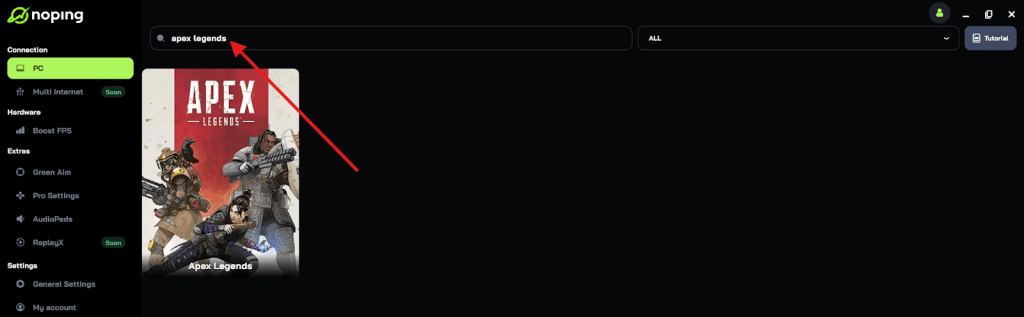
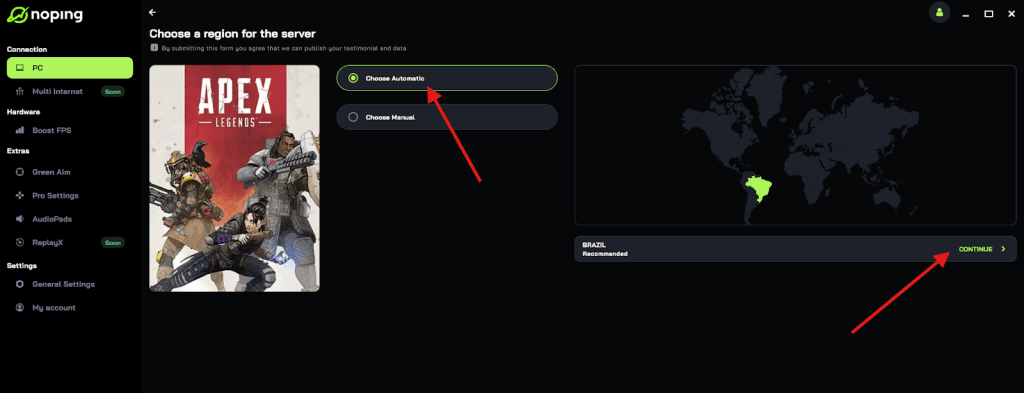
- Once you find Apex Legends, click on it and, on the next screen, select “Choose automatic” or “Choose manual” and click “Continue”. We recommend choosing automatic, as NoPing’s technology analyzes all routes on a global scale and automatically selects the best option for you.
- On the next screen, click on “Optimize Game”.
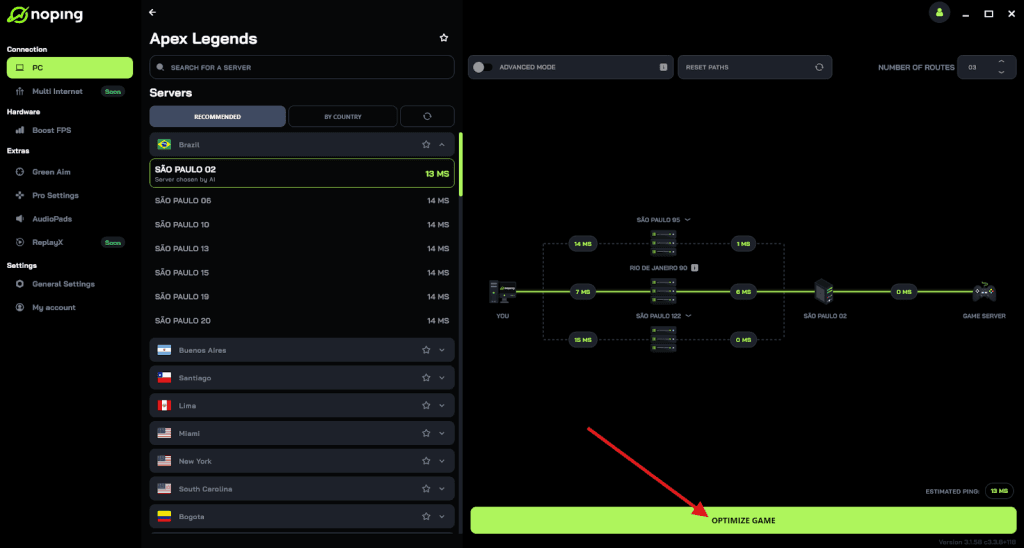
- And that’s it, you can start playing Apex Legends with optimized ping!
You can test different servers within NoPing to see which gives you the lowest latency.
FAQ - Apex Legends Freezing Your PC
Q: Should I disable Easy Anti-Cheat?
A: You can’t disable Easy Anti-Cheat without preventing the game from running; instead repair or reinstall the EAC component via the EasyAntiCheat folder in the game install or use the EA app repair options.
Q: What log files help tech support?
A: Apex and EA app produce logs in the installation and Documents folders (e.g., %localappdata%/Apex and Documents/Respawn). Include DXDiag output and Windows Event Viewer “Application” and “System” errors around the freeze time for support tickets. (DXDiag: run dxdiag and save the report; Event Viewer: filter by errors at the freeze time.)
Q: Is using older drivers safe long-term?
A: Sometimes an older “stable” driver helps, but you should watch for security and performance improvements in newer drivers. If you stick to an older one because it’s stable, keep an eye on NVIDIA/AMD driver release notes and the Apex forums for fixes that let you upgrade safely.
Q: My PC freezes across other games too. Is Apex to blame?
A: If multiple titles freeze, likely a system-level problem (drivers, temps, PSU, RAM). Follow the hardware checks above: temps, memtest, PSU voltage stability, and run games individually after a clean boot.
Q: When should I contact EA/Respawn support?
A: After you’ve collected logs (DXDiag, Event Viewer entries), tried the basic fixes (driver DDU, repair game files, test with low settings), and the crash is reproducible or widespread after an update. Include timestamps and attached logs in the support ticket; community threads can show if others are seeing the same update-related issue.
To always play Apex Legends with the best connection, use NoPing! Download now and start your free trial!