


Black Ops 6 error code 0x9 can stop your game before it even gets started. One moment you see the splash screen, the next the launcher throws 0x9 and quits.
It’s one of those annoying PC errors that’s shown up for a chunk of players (especially those using Xbox Game Pass on PC), and while it doesn’t always have a single cause, there are a set of practical steps that fix it for most people.
This guide walks you through what the error is, the likely causes, and an ordered set of troubleshooting steps you can try right now.
What is The Black Ops 6 Error Code 0x9?
Error code 0x9 is a launch/crash error that commonly appears on PC when Black Ops 6 fails to initialize properly.
Players typically see the game splash screen and then get the error before the main menu or any gameplay loads. Reports cluster around these scenarios:
- Users installing via Xbox Game Pass on PC (some reports specifically mention the Xbox app flow).
- Cases where the game or its installation folder is on a compressed drive or has compressed files/folders.
- Situations where other system-level conflicts (third-party services, outdated BIOS/firmware, anti-cheat interactions) interfere with launch.
Officially, Activision’s support pages list error codes and known issues for Black Ops 6 and keep a running “known issues” list, but they do not publish a single-page canonical cause for 0x9; instead they track related crashes and crashes/loading issues in the wider troubleshooting docs.
If you’re seeing 0x9, it’s not unique: other users have seen it under several different system setups.

Source: YouTube
How to Fix Black Ops 6 Error Code 0x9?
Below is a practical, ordered troubleshooting flow. Try each step and only move on if the error persists. I kept steps focused and platform-agnostic where possible. Where a step is platform-specific I note it.
Important: back up any game saves or config files you care about before uninstalling or moving files.
1. Simple restarts and app repair (fast wins)
- Restart your PC. Yes, really — temporary file locks and driver states can be fixed by a reboot.
- If you installed via Xbox/Game Pass: open the Xbox app, find the game, choose Manage → Files → Verify and repair (or similar). If the Xbox app shows a “Repair” or “Reset” option for gaming services, try that too.
2. Check for compressed drive/folder
Windows can compress folders or drives to save space. Call of Duty and related launchers sometimes fail when files are compressed.
Right-click the folder where Black Ops 6 is installed → Properties → Advanced → make sure Compress contents to save disk space is NOT checked. If it was checked, uncheck it and allow Windows to decompress (can take some time).
3. Run as admin and check permissions
- Right-click the game executable or launcher and choose Run as administrator.
- Ensure your Windows user has full read/write permissions to the install folder. If the game is on a secondary drive, double-check that drive’s security settings.
4. Verify / Repair via launcher, or reinstall
- Use the launcher’s verify/repair tool (Xbox app Game Pass users: Manage → Files → Verify and Repair).
- If verification fails or the launcher can’t repair, uninstall and reinstall the game to a different drive if possible (some users report reinstalling to another drive fixed it). Reinstalling the base game first before adding optional components is a sensible approach if the installer lets you.
5. Disable conflicting third-party software
Some input mappers, anti-cheat tools, or overlays have been reported to conflict with Call of Duty launches. Examples mentioned in community guides: FACEIT anticheat, ReWASD, some overlays and macros.
Temporarily uninstall or disable those tools, then try launching. If the game runs, reintroduce tools one at a time to find the culprit.
6. Gaming Services and Xbox component repair (Windows)
Open Windows Settings → Apps → Optional features or search for “Gaming Services” and use the repair/reset option.
There are also standalone repair scripts and steps published by Microsoft/Windows community to reset Xbox services: these can help the Xbox/Game Pass pipeline.
7. Update drivers, Windows and firmware
Update GPU drivers (NVIDIA or AMD), update Windows to the latest build, and check your motherboard vendor for BIOS/UEFI updates. Some users reported that flashing a newer BIOS fixed their crash: firmware can affect platform attestation and driver behavior.
Don’t flash BIOS unless you’re comfortable and follow vendor instructions.
8. Check anti-cheat / remote attestation conflicts
Activision’s Ricochet anti-cheat and Microsoft’s remote attestation checks can cause failures on systems with outdated firmware or non-standard security states.
If you see messages mentioning anticheat or attestation, check Activision support and the recent Ricochet notes; in some cases players needed a firmware update (or to address a specific third-party driver) for the attestation to pass.
9. As a last resort: fresh Windows profile or clean install
If nothing else works and the issue appears system-level, try creating a clean Windows user account and launching from there, or (more drastically) a clean Windows install.
This is extreme and usually unnecessary, but it can resolve deep conflicts.
What Are The Causes For Black Ops 6 Error Code 0x9?
From community reports and troubleshooting summaries, the recurring root causes are:
- Drive/folder compression — Windows “Compress contents to save disk space” on the drive or folder containing the game. This is one of the most frequently reported fixes.
- Corrupted or missing game files — partial downloads or failed updates; fixed by verify/repair or reinstal.
- Third-party software conflicts — input mappers, overlay software, anticheat clients from other services, remapping tools (e.g., ReWASD), and sometimes overlays. Temporarily removing these often helps.
- Platform service issues — Xbox app/Game Pass pipeline and Windows Gaming Services can get into bad states that block launches; repairing those services has helped many users.
- Firmware or driver incompatibilities — outdated BIOS, GPU driver quirks or other low-level issues; PC Gamer and other outlets have discussed Ricochet’s remote attestation and how outdated firmware can trip checks.
There may be other less common causes, including specific hardware combinations or rare software conflicts, which is why stepwise elimination is the right approach.
How to Play Black Ops 6 Without Lag?
NoPing is a service designed to optimize your route to Call of Duty’s servers. Sometimes, the normal path your internet provider uses isn’t the fastest. NoPing reroutes your data through a better, more direct path.
Here’s how to use NoPing to fix packet loss in Call of Duty:
- Sign-up through the website and download NoPing (you can try it for free)
- Open NoPing and search for Call of Duty inside the software

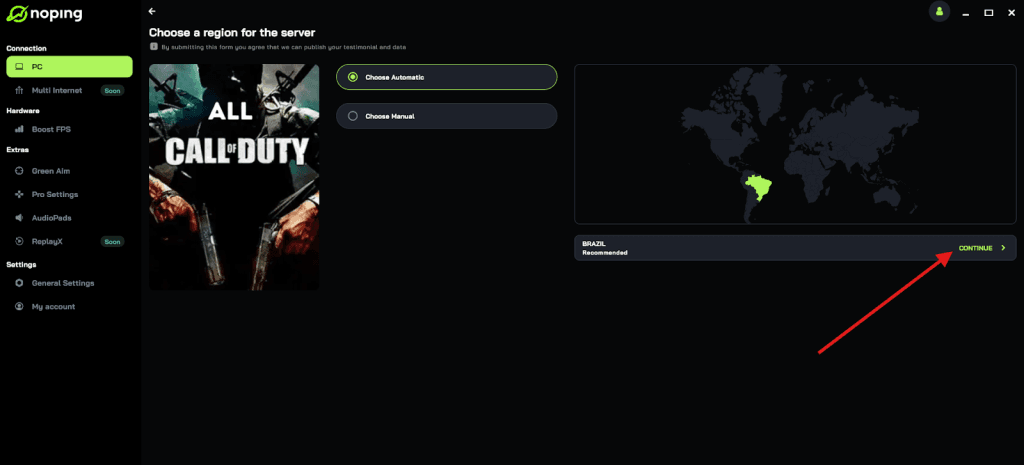
- Once you find Call of Duty, click on it and, on the next screen, select “Choose automatic” or “Choose manual” and click “Continue”. We recommend choosing automatic, as NoPing’s technology analyzes all routes on a global scale and automatically selects the best option for you.
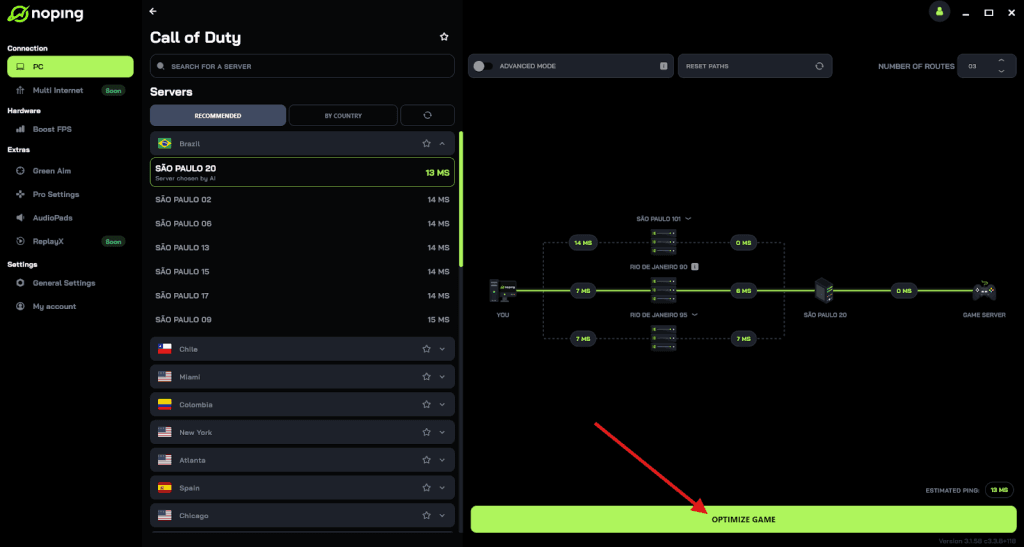
- On the next screen, click on “Optimize Game”.
- And that’s it, you can start playing CoD with optimized ping!
You can test different servers within NoPing to see which gives you the lowest latency.
FAQ - Black Ops 6 Error Code 0x9
Q. Is 0x9 a ban or account suspension?
A: No. Error code 0x9 is a launch/crash error and not the same as an account ban or suspension. If you receive any messaging explicitly about account bans or suspensions, consult your Activision account email and support. The 0x9 launch error is technical, not punitive. (If you suspect a ban, check your account email and Activision account messages.)
Q. I use Game Pass on PC; should I move the install to a different drive?
A: If the game is installed on a compressed or otherwise nonstandard drive, moving to another drive (preferably an uncompressed drive with ample free space) has helped many. If you can, try reinstalling to a different drive after uninstalling.
Q. Will deleting config files or registry keys help?
A: Deleting the game’s config files can reset settings that might block launch, but only do this if you’re comfortable losing local settings. Editing the registry is riskier and not recommended unless you know the exact key and backup your registry first. Most users fix 0x9 without registry edits.
Q. Is this related to Secure Boot or TPM?
A: For Black Ops 6 specifically, later Activision guidance for future titles mentioned hardware attestation (Secure Boot/TPM) as part of anti-cheat requirements in upcoming releases, and Ricochet uses remote attestation in some checks.
For 0x9 specifically, firmware and attestation conflicts have been reported to cause launch issues: updating BIOS/UEFI and ensuring your system firmware is current are reasonable steps if other fixes don’t work. Don’t assume 0x9 = Secure Boot requirement; investigate firmware only after easier fixes.
Q. Where should I report persistent 0x9 issues?
A: Use Activision’s official support pages and the game’s bug/issue report forms. Include: OS version, GPU model and driver version, where the game is installed, whether you use Game Pass, any third-party tools running, and logs/screenshots.
Start with the small, non-destructive steps: reboot, verify/repair via the launcher, and check for compression on the drive/folder. Most players who hit 0x9 fix it by uncompressing the install folder or using the launcher’s repair.
And to always play Black Ops 6 without lag, use NoPing! Download now and start your free trial!