


Nothing ruins a clutch moment like running into Black Ops 6 lag issues, right?
One second you’re lining up the perfect shot, the next your screen stutters or your character teleports. So annoying.
The good news? Most of these lag problems can be fixed with the right tweaks, and this guide shows you how.
Identifying Lag in Black Ops 6
First, figure out what kind of lag you have. There are three common categories:
- High ping / latency — you see delayed responses, long time to register hits, or your ping number is consistently high (e.g., 100+ ms).
- Packet loss / packet burst — packets are being dropped or arrive irregularly; symptoms include rubber-banding, teleporting players, or “ghost” hits.
- Frame-rate / stuttering (local performance) — the game drops frames, stutters, or slows down even if your ping is low; this is usually GPU/CPU/driver or disk related.
Quick checks to identify the type:
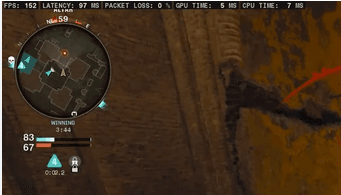
- Look at the in-game ping and packet loss display (if available).
- Run a simple speed/ping test to a nearby server.
- Watch for consistent FPS dips in menus or other titles (helps show if it’s system-wide).
- Try a wired connection vs Wi-Fi to see if behavior changes.
Source: Reddit
If the issue persists across many players at the same time, check the official server status or known-issues pages; sometimes it’s on Activision’s side.
Step-by-Step Guide to Fix Lag in Black Ops 6
Step 1. Check official system requirements and confirm your hardware
Make sure your PC meets at least the game’s minimum (and preferably recommended) specs.
If you’re under the minimum you’ll see performance problems and instability. Activision lists the official minimum and recommended PC specs on their support pages, verify CPU, RAM, GPU, and required SSD space before doing anything fancy.

Source: Activision
Step 2. Update or roll back GPU drivers
Always try the latest validated GPU drivers first, but if you started seeing problems after a driver update, roll back to the last stable version recommended by Activision. Driver regressions occasionally introduce stutter or lower FPS in specific games.
Step 3. Verify game files and update the game
Use Steam/Blizzard/your launcher to verify game files and make sure the game is fully updated. Corrupted files or a partial update can cause crashes and odd behavior. If the launcher offers a repair or scan option, run it.
Step 4. Use a wired connection and test your ISP path
Wi-Fi is convenient but less reliable. Plug in an Ethernet cable and retest. If wired improves things, the issue was likely your wireless network.
Also test with a speed/ping tool to the nearest low-latency server to check your baseline. If your ISP route to Activision servers is poor, you’ll see consistently high ping even on a fast plan.
Step 5. Restart router and modem, then isolate devices
A simple restart of modem + router can clear transient routing problems. After the restart, temporarily disconnect other heavy devices (streams, large downloads, backups). If performance improves, bandwidth contention or poor QoS might be to blame.
Step 6. Check server status and regional server selection
Before deep dives, check the official server status and known issues page: sometimes widespread lag is caused by server problems that only Activision can fix. If servers are fine, make sure your in-game region/server selection (if available) matches your geography for lower ping.
Step 7. Configure router for gaming (UPnP, ports, QoS)
Enable UPnP (or set up port forwarding) for Call of Duty to avoid NAT or connection issues. If your router supports QoS, prioritize your gaming PC/console. For persistent packet bursts, consider testing a gaming-focused router or firmware (community guides and router vendors provide step-by-step instructions).
Step 8. Reduce background network usage
Close or pause cloud backups, streaming, downloads, and other devices hogging upload bandwidth. Upload congestion is often the unseen cause of packet loss in shooters, because the uplink saturates and packets are dropped.
Step 9. Tweak in-game network settings
Black Ops 6 offers network-related settings (look for options that influence interpolation, server selection, or adaptive networking). Some settings reduce perceived lag at the cost of predictive correction; test them one-by-one.
Step 10. Lower in-game graphics if stuttering (local performance)
If the problem is frame-rate drops or microstutters, drop heavy settings: shadows, ray-tracing, crowd density, or high-resolution textures. Switch to performance mode or a lower preset and test. If your GPU is older, lowering resolution scale or disabling demanding effects will stabilize FPS.
Step 11. Ensure game is on SSD and check disk health
Large games benefit from an SSD. If you’re running the game from a slow HDD, texture streaming issues and stutters can appear. Confirm the game is installed to an SSD and that the drive has healthy read/write performance.
Step 12. Use diagnostic tools to measure packet loss and jitter
Tools like PingPlotter or simple tracert/tracepath can help identify where packet loss occurs (your network, ISP, or further upstream). If packet loss shows up outside your router, contact your ISP with the trace logs: they can see and sometimes fix routing issues.
Step 13. Consider anti-cheat and system integrity settings
Certain anti-cheat or kernel-level protection mechanisms can interact with system configurations and cause odd behavior; Activision’s troubleshooting pages list recommended OS and driver states. There have also been industry conversations about secure-boot/TPM requirements for anti-cheat in modern Call of Duty titles; keep your system updated and follow official guidance.
Step 14. Test on another account or device
If possible, test the same match type on another console/PC or with a friend’s account. If another device plays fine on the same network, you know the problem is local to your machine/account.
Step 15. Reinstall as last resort and report the bug
If nothing helps, backup your settings, do a full reinstall, and report the issue to Activision with logs. Their known-issues page tracks things under investigation, and filing a detailed bug report helps the devs triage persistent issues.
Step 16. Use NoPing
NoPing is a service designed to optimize your route to Call of Duty’s servers. Sometimes, the normal path your internet provider uses isn’t the fastest. NoPing reroutes your data through a better, more direct path.
Here’s how to use NoPing to fix lag in Call of Duty:
- Sign-up through the website and download NoPing (you can try it for free)
- Open NoPing and search for Call of Duty inside the software
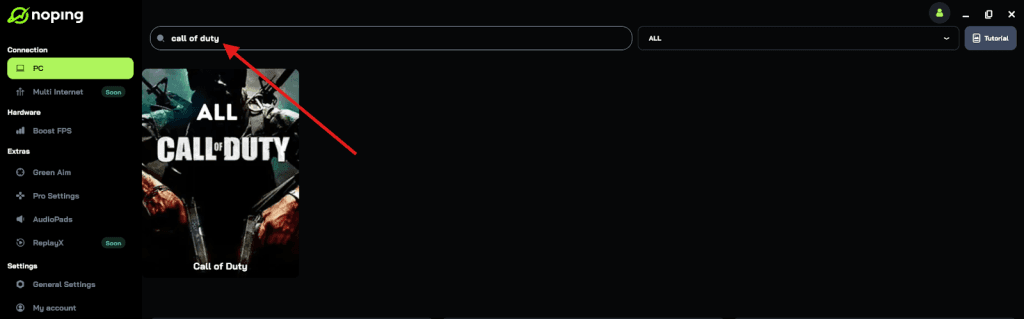
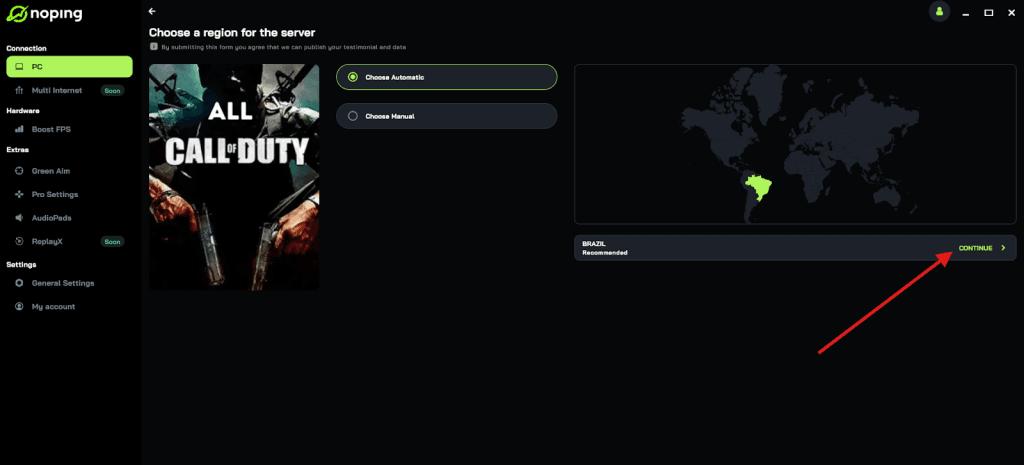
- Once you find Call of Duty, click on it and, on the next screen, select “Choose automatic” or “Choose manual” and click “Continue”. We recommend choosing automatic, as NoPing’s technology analyzes all routes on a global scale and automatically selects the best option for you.
- On the next screen, click on “Optimize Game”.
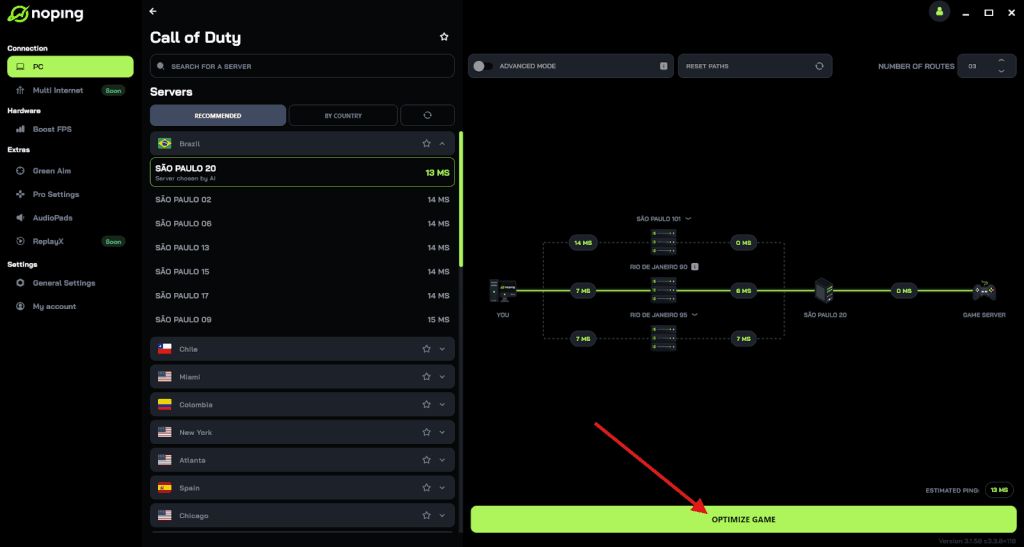
- And that’s it, you can start playing CoD with optimized ping!
You can test different servers within NoPing to see which gives you the lowest latency.
What Causes Lag in Black Ops 6?
There’s rarely a single cause. Here’s a quick breakdown of the most common culprits:
- Network path issues — poor routing between your ISP and Activision servers, peering issues, or overloaded servers cause high ping and packet loss. Checking server status and running traces helps identify these.
- Local network limitations — Wi-Fi interference, upload saturation, or poorly configured routers cause instability. A wired connection and QoS usually help.
- Hardware limits — CPU/GPU that don’t meet recommended specs cause frame drops and stuttering. Disk I/O from HDDs can also cause texture stutter.
- Drivers and software conflicts — GPU driver bugs, overlays, or background software can cause performance regressions; sometimes a rollback helps.
- Game-side bugs — occasional regressions or specific map/mode issues are tracked by Activision and fixed via patches; follow the known-issues page.

FAQ - Black Ops 6 Lag
Q. I have 20 ms ping but still feel lag. Why?
A. Low ping doesn’t guarantee smooth gameplay. If you see microstutters while ping remains low, that’s likely local (GPU/CPU/drivers or disk streaming). Check FPS, GPU usage, and whether stutters match loading events (like new map areas).
Q — What ports does Black Ops 6 use and do I need to forward them?
A. Activision’s support has platform-specific port lists; enabling UPnP is usually enough. If you have strict NAT or persistent connection problems, forwarding the Call of Duty ports for your platform can help. Check the official support page for exact port numbers for PC/console.
Q. I tried everything and still see packet bursts after a few matches; any community tips?
A. Some community threads show temporary fixes like restarting the game between matches, or using DDU and reinstalling GPU drivers cleanly. These are community workarounds while devs investigate; if you replicate the issue reliably, include logs when reporting to Activision.
Q. Are there settings that definitely harm performance that I should avoid?
A. Features like high-res ambient occlusion, ultra shadow cascades, and ray-traced effects (if available) are heavy. Also be cautious with VRR/G-Sync combos on some setups — they can help or sometimes cause frame pacing oddities depending on drivers and monitor firmware.
Q. Is switching to a console better to avoid lag?
A. Consoles can be more consistent due to fixed hardware, but network path and local ISP issues still matter. If PC troubleshooting becomes too time-consuming and you have a console with better route/performance, it can be a practical temporary option.
Wanna enjoy a Black Ops 6 session without lag? Use NoPing! Download now and start your free trial!