

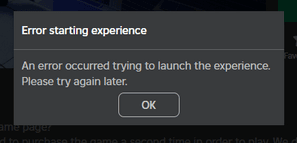
Few things are as annoying as getting hit with an error starting experience on Roblox right when you and your friends are about to jump into a new map.
It is that classic moment where the loading screen hangs just a second too long, and then a gray box pops up to tell you that something went wrong.
This error is one of the most common hurdles players face on the platform, and while it looks like a single problem, it is actually a symptom of several possible underlying issues ranging from your internet routing to corrupted local files.
What exactly is the error starting experience on Roblox?
It is a general failure message that occurs when the Roblox client cannot establish a stable handshake with the game server you are trying to join.
When you click play, your computer sends a request to the Roblox infrastructure. If that request is blocked, timed out, or corrupted along the way, the "experience" simply fails to initialize.
This can happen because of a server-side outage, but more often than not, it is related to how your local network or computer is handling the data packets.
The error often manifests in different ways. Sometimes you get a specific code like Error 279 or 524, and other times it is just a vague notification saying an "unknown error occurred." Regardless of the text, the result is the same: you are stuck in the lobby while everyone else is playing.
Is the Roblox server currently down?
The first thing you should do is check the official status of the platform, as there is no point in troubleshooting your PC if the entire game is offline.
You can do this by visiting the official Roblox Status page or checking community-driven sites like Downdetector.
- Check the "User Games" section on the status page to see if there are active incidents.
- Look for recent spikes in reports on social media or tracking sites.
- Check if the issue is specific to one experience or if it is happening across all games.
If the servers are operational, then the problem lies somewhere between your keyboard and the game's data center. This means it is time to look at your connection and software settings.
Can a bad internet connection cause this error?
Yes, network instability is the leading cause of failed handshakes between your client and the game server.
Even if your internet seems fine for watching videos or browsing social media, gaming requires a much more "tight" connection with very low packet loss.
If your data packets are getting lost or taking too long to arrive (high latency), the Roblox server will simply drop the connection attempt to prevent a "ghost" player from joining.
To see if your connection is the culprit, you should:
- Restart your modem and router to clear the temporary cache and reset your IP.
- Switch from a Wi-Fi connection to a wired Ethernet cable to eliminate signal interference.
- Run a speed test to ensure you have at least 4 to 8 Mbps of stable download speed.
- Close any background downloads, streams, or updates that might be hogging your bandwidth.
How does NoPing help fix Roblox connection errors?
NoPing works by optimizing the route your data takes from your home to the Roblox servers, bypassing congested or broken paths provided by your ISP.
Most internet service providers prioritize cost over speed when routing your data, which can lead to your packets jumping through too many "hops" before they reach the game.
This extra travel time often causes the "Error Starting Experience" because the connection times out.
By using a tool like NoPing, you can force your connection through dedicated gaming routes that are monitored for stability.
This significantly reduces jitter and packet loss, which are the primary technical reasons why a game fails to start.
Here’s how to use NoPing to fix lag in Roblox:
- Sign-up through the website and download NoPing (you can try it for free)
- Open NoPing and search for Roblox inside the software
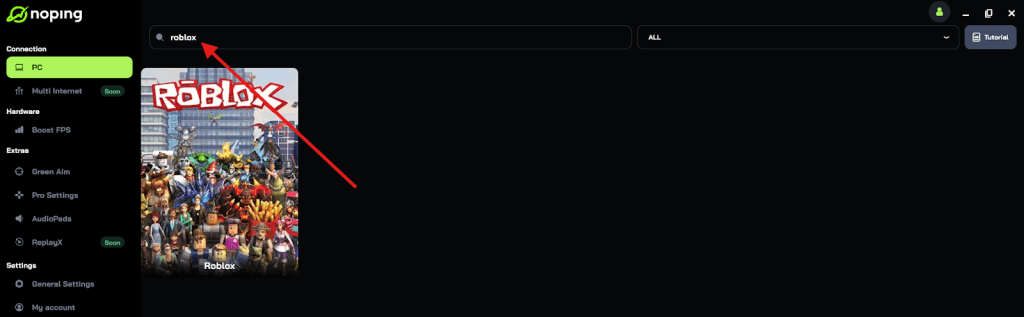
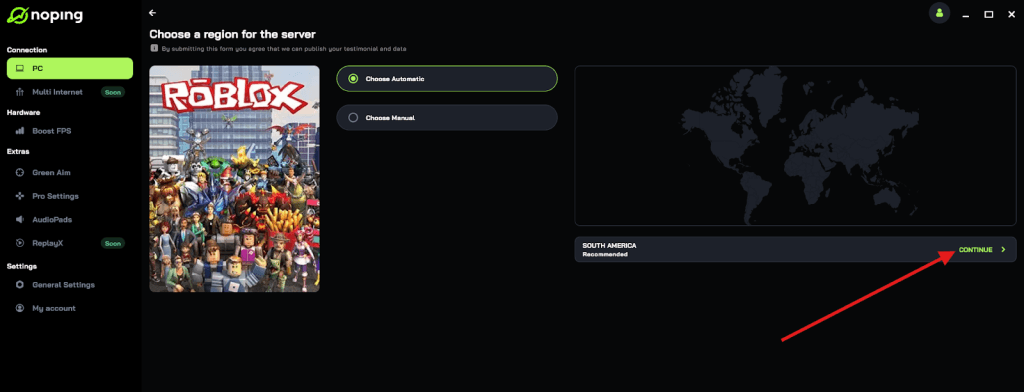
- Once you find Roblox, click on it and, on the next screen, select “Choose automatic” or “Choose manual” and click “Continue”. We recommend choosing automatic, as NoPing’s technology analyzes all routes on a global scale and automatically selects the best option for you.
- On the next screen, click on “Optimize Game”.
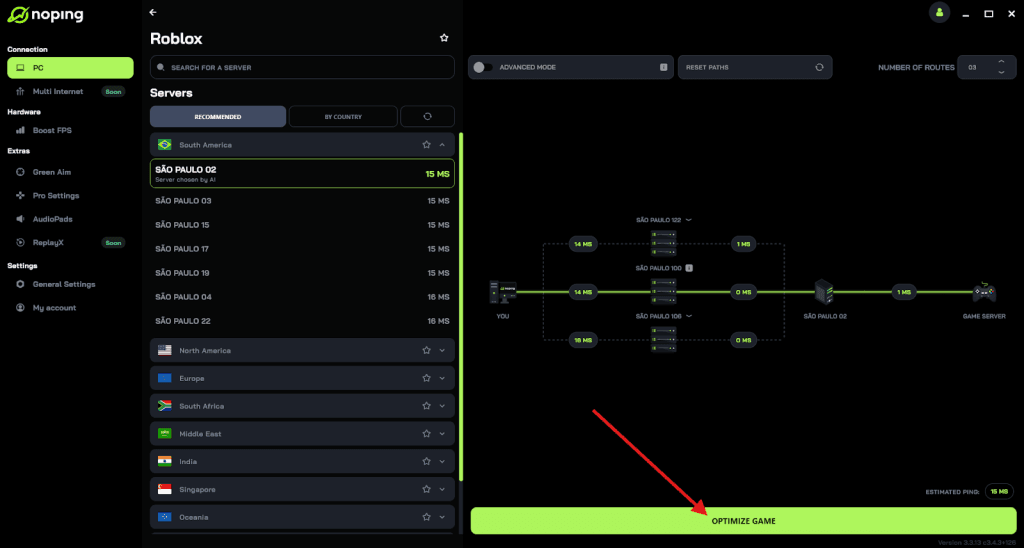
- And that’s it, you can start playing Roblox with optimized ping!
You can test different servers within NoPing to see which gives you the lowest latency.
Why is my browser preventing Roblox from starting?
Your web browser is often the "gatekeeper" for the Roblox client, and if it is holding onto old cookies or corrupted cache files, it can fail to pass the correct credentials to the game launcher.
If you are launching games from Chrome, Edge, or Firefox and getting an error, the problem might be in the browser data or the extensions you have installed.
Ad-blockers and specific Roblox "enhancement" extensions are frequent culprits. While tools like BTRoblox or Roblox+ are popular, they can sometimes interfere with the site's scripts, causing the "Play" button to trigger an error instead of a game.
- Clear your browser's cache and cookies through the settings menu.
- Disable all extensions and try launching the game again.
- Try using a different browser entirely to see if the error persists.
- Make sure your browser is updated to the latest version to ensure compatibility with Roblox's web protocols.
Does my firewall block Roblox experiences?
Your Windows Firewall or third-party antivirus software might be flagging the Roblox connection as a threat, preventing the game from "talking" to the internet.
This often happens after a Roblox update because the firewall sees the "new" executable as an unknown program and blocks its access to the UDP ports the game uses (usually ports 49152 to 65535).
To fix this, you need to manually allow Roblox through your security software:
- Open the Windows Start menu and type "Firewall & network protection."
- Select "Allow an app through firewall."
- Find "Roblox" in the list and ensure both "Private" and "Public" boxes are checked.
- If Roblox is not in the list, click "Allow another app" and navigate to the Roblox installation folder to add the executable.
Should I reinstall the Roblox app to fix this?
If all else fails, a clean reinstallation is the best way to ensure that no corrupted files or "ghost" processes are lingering in your system.
Simply uninstalling through the Control Panel is often not enough, as Roblox leaves behind temporary folders and registry keys that might contain the very corruption causing your error.
Follow these steps for a truly clean install:
- Uninstall Roblox from the "Apps & Features" menu in Windows.
- Press the Windows Key + R, type %localappdata%, and hit Enter.
- Find the "Roblox" folder and delete it entirely.
- Restart your computer to clear any stuck processes.
- Go to the [link suspeito removido] and download the latest installer by trying to join a game.
Which background programs interfere with Roblox?
Some optimization and monitoring tools are known to conflict with the Roblox engine, especially since the introduction of the Hyperion anti-cheat system.
Programs that use "overlays" or modify how your GPU handles frames can cause the game to crash immediately upon starting, which the site then reports as an "error starting experience."
The most common offenders include:
- MSI Afterburner: The monitoring tools can trigger anti-cheat flags.
- RivaTuner Statistics Server: Often causes the game to hang on the loading screen.
- Discord Overlay: Sometimes interferes with the game's input and window focus.
- Virtual Machines: Roblox does not support running inside a VM or cloud-based computer.
Close these applications through the Task Manager before launching the game to see if the situation improves.
How can I fix this error on mobile devices?
Mobile players on Android and iOS are not immune to this error, but the causes are usually related to app data bloat or outdated operating systems.
If your phone's memory is full or if the app hasn't been updated in a while, the handshake with the server will fail.
- For Android: Go to Settings > Apps > Roblox > Storage and click "Clear Cache." Do not click "Clear Data" unless you want to log in again.
- For iOS: The best way to refresh the app is to offload it. Go to Settings > General > iPhone Storage > Roblox and select "Offload App." This removes the app but keeps your data, then you can reinstall it.
- Check the Google Play Store or App Store for any pending updates.
What about Error Code 273 and multi-session issues?
Error Code 273 specifically states that a game was started from a different device, but it can also appear as a general "error starting experience" if your previous session didn't close properly.
If the Roblox servers think you are still in a game, they will block any new attempts to join a different experience to prevent account duplication.
- Log out of Roblox on all devices. You can do this through the "Security" tab in your account settings.
- Wait at least 5 minutes before trying to log in again.
- Check your "Active Sessions" to ensure no one else is using your account, which is a common reason for this conflict.
Can changing DNS settings solve the issue?
Your DNS (Domain Name System) is like a phonebook for the internet. If your ISP's DNS is slow or out of date, it might not resolve the Roblox server addresses quickly enough, leading to a connection timeout. Switching to a faster, public DNS can often bypass these "hiccups."
- Open your network settings and find your "Ethernet" or "Wi-Fi" adapter.
- Go to Properties > Internet Protocol Version 4 (TCP/IPv4) > Properties.
- Select "Use the following DNS server addresses."
- Use 8.8.8.8 (Preferred) and 8.8.4.4 (Alternate) for Google DNS.
- Alternatively, use 1.1.1.1 and 1.0.0.1 for Cloudflare DNS.
Does my graphics driver affect the experience startup?
While it sounds like a connection problem, an outdated graphics driver can cause the Roblox engine to fail during the 3D initialization phase.
If the engine cannot "talk" to your GPU correctly, it will abort the launch process, and the website will report it as a failed start.
- Identify your GPU manufacturer (NVIDIA, AMD, or Intel).
- Visit the official driver download page: NVIDIA, AMD, or Intel.
- Download and install the latest "Game Ready" driver.
- Restart your PC and try launching a Roblox experience again.
Summary of the most effective fixes
If you are in a rush and need to get back into the game, here is a quick checklist of the most successful solutions reported by the community:
- Check the server status to make sure it is not a global outage.
- Use a wired connection and a tool like NoPing to stabilize your routing.
- Clear your browser cache and disable all extensions.
- Whitelist Roblox in your Windows Firewall.
- Close background apps like MSI Afterburner or Discord Overlay.
- Perform a clean reinstallation by deleting the %localappdata% folder.
Most of these issues boil down to how your data travels across the web or how your local software manages that traffic.
By keeping your drivers updated and your connection optimized, you can spend less time looking at error boxes and more time playing.
Play Roblox without lag. Download NoPing now and start your free trial!