


If you’ve ever clicked Play and got booted with a “Failed to connect to the Game” message (Error Code 279), you’re not alone.
The message is generic and can come from several different causes: a local firewall blocking Roblox, ports being blocked on your router or ISP, browser add-ons, server-side issues, or even intermittent problems on Roblox’s infrastructure.
This guide walks you through what the error means, the usual causes, and a clear step-by-step troubleshooting workflow so you can get back into games with minimal fuss.
What is Error Code 279 in Roblox
Error Code 279 is Roblox’s “failed to connect to the game” error (sometimes shown with ID = 17).
In plain terms: your client tried to talk to a game server but the connection either never established or was dropped before the game could load.
The official Roblox Help Center describes it as a network-connection issue that can affect PCs, Macs, and mobile devices.
Community troubleshooting threads and developer forum posts expand on this by showing the problem can be caused by blocked ports, stacked firewalls (software + router), problematic browser extensions, issues with specific game instances (server offline), or even ISP-level traffic blocking.

Source: Roblox Developer Forum
Step-by-step Guide to Fix Error Code 279 in Roblox
Below is a practical, ordered checklist. Try the steps one at a time. If one fixes the issue, you can stop there.
Check Roblox status and try again
Before deep troubleshooting, see whether Roblox services are having outages (status.roblox.com or official channels).
If Roblox is down or a specific region is affected, you’ll need to wait. Then refresh and try joining again.
Restart devices and router
Reboot your computer/phone and the modem/router. A fresh network negotiation often fixes transient connection failures.
Switch networks (Wi-Fi → wired → mobile)
If possible, try a wired Ethernet connection (more stable) or a different Wi-Fi / mobile hotspot. Some users find the error disappears on a different network—this isolates whether the problem is your local network or something upstream.
Disable browser extensions / use Roblox app
If you play in a browser, disable ad-blockers and privacy extensions, or try a different browser. Alternatively use the Roblox desktop app (or reinstall it) to see if the browser is the issue.
Allow Roblox through firewall and antivirus
Temporarily disable your antivirus/firewall to test if they’re blocking Roblox. If disabling fixes it, add exceptions for Roblox (both inbound and outbound). Roblox’s help pages recommend testing with security software off and then creating safe exceptions.
Open / allow Roblox ports on router
Roblox experiences use UDP ports 49152–65535 when a game instance launches. Ensure your router/firewall allows outbound UDP in that range.
Some guides also recommend allowing typical web ports (TCP 80 and 443) which Roblox uses for different services. If you’re on a managed network (school, workplace), ask the network admin to open those ranges.
Clear Roblox cache and reinstall
Corrupt client files or cache can cause connection issues. Clear browser cache (if using browser) and uninstall/reinstall the Roblox client to ensure a clean install.
Use NoPing
NoPing improves your connection quality and can bypass whatever is blocking the connection (ISP routing, region-specific blocks, or transient blocks).
NoPing is a service designed to optimize your route to Roblox’s servers. Sometimes, the normal path your internet provider uses isn’t the fastest.
NoPing reroutes your data through a better, more direct path.
Here’s how to use NoPing to fix ping spikes in Roblox:
- Sign-up through the website and download NoPing (you can try it for free)
- Open NoPing and search for Roblox inside the software
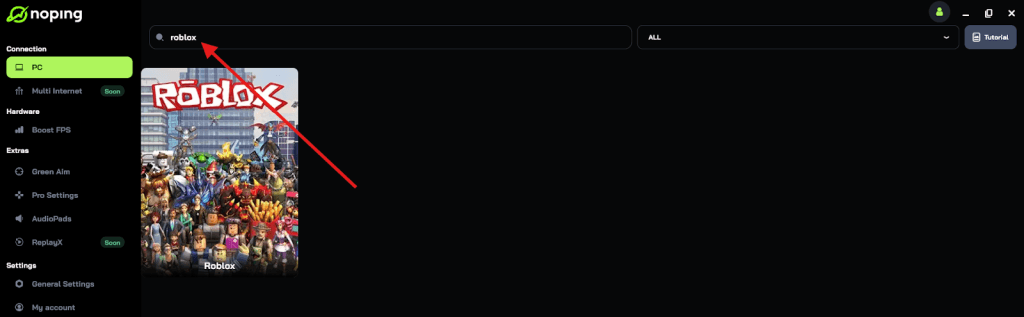
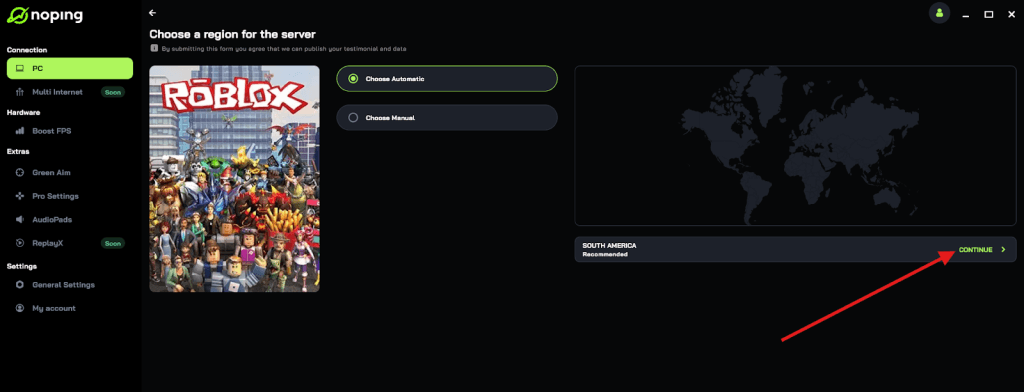
- Once you find Roblox, click on it and, on the next screen, select “Choose automatic” or “Choose manual” and click “Continue”. We recommend choosing automatic, as NoPing’s technology analyzes all routes on a global scale and automatically selects the best option for you.
- On the next screen, click on “Optimize Game”.
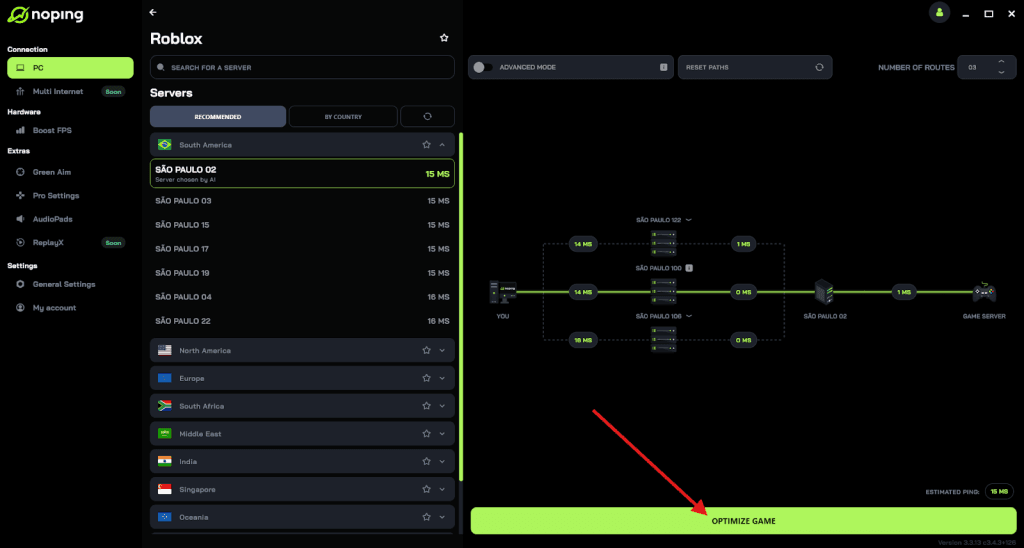
- And that’s it, you can start playing Roblox with optimized ping!
You can test different servers within NoPing to see which gives you the lowest latency.
Check for conflicting apps
Close other apps that use lots of network resources or create virtual network adapters. Also closing Roblox Studio if you’re trying to join a live game sometimes resolves conflicts.
Contact Roblox Support / provide logs
If none of the above helps, collect basic info and contact Roblox Support. Developer forum threads with specific error patterns can also be useful if you’re the game creator.
What Causes Error Code 279 in Roblox?
Here are the most common root causes seen in official docs and community reports:
- Blocked or filtered ports – Roblox experiences use a high UDP port range (49152–65535) after launch; if those ports are blocked by router/ISP/firewall, the connection will fail.
- Local firewall / antivirus software – Security programs sometimes block Roblox traffic by default. Roblox’s support pages specifically call this out and recommend testing with them disabled and then adding exceptions.
- Browser extensions / cached web data – Ad blockers and some privacy extensions can interfere with resource loading and block the game from fully initializing.
- Server instance problems – Sometimes the specific game server you tried to join is shut down or crashed; joining a different server or refreshing can fix it. Community posts and devforum threads frequently mention “server no longer exists” as a reason.
- ISP/network-level filtering or routing issues – In certain cases ISPs or network middleboxes block/interrupt UDP traffic or specific IP ranges Roblox uses.
Other Error Codes in Roblox
While Error Code 279 is one of the most common connection errors, it’s far from the only one Roblox players encounter.
Here are a few other codes you might run into, what they mean, and what usually fixes them:
Error Code 0 – Connection or Launch Failure
This is a generic failure message that usually appears when Roblox fails to launch properly.
It can happen due to corrupted cache files, outdated Roblox versions, or antivirus interference. Reinstalling Roblox or clearing your temporary files normally resolves it.
Make sure to also update your browser or the Roblox desktop app to the latest version.
Error Code 600 – Internal Server Error
Error Code 600 indicates a backend issue on Roblox’s side, not something wrong with your setup.
It appears when Roblox servers are under maintenance or facing temporary outages. The best thing to do is check status.roblox.com and wait until the services are fully operational again before retrying.
Error Code 277 – Lost Connection to Game Server
This one looks similar to Error Code 279 but has a slightly different cause. Error 277 happens when you lose your connection after successfully joining a game.
It can stem from unstable Wi-Fi, background apps consuming bandwidth, or local firewall settings that interrupt ongoing sessions.
To fix it, try switching to a wired connection, restarting your router, and ensuring Roblox is allowed through your firewall.
Error Code 268 – Disconnected by Server
Often confused with 277 or 279, this code means your client was forcibly disconnected, possibly due to a kicked session, network instability, or a duplicate login from another device. It’s generally harmless and disappears after reconnecting.
These errors share similar root causes (unstable connections, server issues, or security software interference) so most of the same troubleshooting steps used for Error Code 279 will help you resolve them too.
FAQ - Error Code 279 in Roblox
Q: Does Roblox require any specific ports to be forwarded?
A: For most home setups you don’t need manual port forwarding if NAT works normally, but Roblox’s official guidance notes that the experience uses UDP ports 49152–65535 once launched. If you have a strict router or are on a managed network, ask the admin or ISP to allow that UDP range.
Q: Is Error 279 a problem with Roblox servers or my computer?
A: It can be either. If many players report the same issue or Roblox’s status page shows outages, it’s likely server-side. If the error only affects you and a VPN or another network fixes it, the issue is probably local or ISP-related. Always check Roblox’s service status first.
Q: I’m on a school or workplace network. What should I do?
A: Managed networks often block dynamic UDP ranges and gaming traffic. Contact the network administrator and share the Roblox Education Networks troubleshooting doc or the port range (UDP 49152–65535). Roblox provides guidance for education networks that administrators can follow.
Q: Anything I should avoid doing?
A: Don’t randomly open ports without understanding router security. If you disable antivirus/firewall to test, re-enable it afterward and instead add Roblox exceptions. Avoid shady VPN services. Use reputable providers only for diagnostics.
Error Code 279 is annoying but usually fixable. Start simple: restart devices, switch networks, check Roblox status, then move on to firewall/port checks and clearing cache.
And to avoid all error codes related to network issues in Roblox, use NoPing! Download now and start your free trial!