

Dealing with high TN (Time Nudge) on Battlefield 6 can feel like you are playing through molasses even when your ping looks perfectly fine.
This specific metric, which stands for Time Nudge, has become a significant talking point in the community since the game's release and subsequent updates in 2025.
While your latency (LAT) might show a crisp 20ms, a TN value spiking into the hundreds or thousands causes the dreaded slow motion effect and character sliding.
What is high TN on Battlefield 6 exactly?
It is a buffer value that represents the extra time the game engine needs for smooth interpolation between the client and the server.
When this value is low, usually under 20ms, your movement and the actions of other players appear fluid and synchronized.
When it spikes, the game is essentially struggling to predict and render where objects should be, resulting in a feeling that is often mistaken for packet loss or traditional lag.
Unlike standard ping, which measures the round-trip time of a data packet, TN is heavily influenced by how your hardware processes that data.
If your CPU or RAM cannot keep up with the server's tick rate, the engine adds "nudge" time to prevent the simulation from breaking entirely.
This is why you might see your character moonwalking or shots registering seconds after you pull the trigger.

Why does Time Nudge spike even with low ping?
The primary reason is a desynchronization between your computer's frame processing and the server's update frequency.
Battlefield 6 utilizes a high tick rate on its official servers, which requires your system to maintain a stable and fast Client Frame Time (CFT).
If your CFT exceeds 16.6ms (the window for 60Hz), the TN value will immediately climb to compensate for the delay.
Common triggers for this desync include:
- RAM running at sub-optimal frequencies (XMP/DOCP disabled).
- CPU frequency fluctuations caused by power-saving features or thermal throttling.
- Background applications consuming network or processing resources.
- Inefficient routing between your ISP and the game's hosting clusters, often located on AWS or Zayo nodes.

Source: Reddit
How can you fix high TN by adjusting RAM settings?
The most effective community-verified solution is enabling XMP (Intel) or DOCP (AMD) in your BIOS to ensure your RAM is running at its advertised speed.
Many players have reported that while they purchased 3200MHz or 3600MHz RAM, their systems were defaulted to 2133MHz or 2400MHz.
This lower frequency creates a bottleneck that directly impacts how the game engine calculates interpolation.
To check and fix this, follow these steps:
- Open Task Manager and navigate to the Performance tab, then Memory.
- Check the Speed listed. If it is lower than what you paid for, you need a BIOS tweak.
- Restart your PC and enter the BIOS (usually by tapping Del or F2 during startup).
- Locate the XMP or DOCP profile setting.
- Select Profile 1, save your changes, and restart.
Increasing your memory bandwidth allows the CPU to process the server's incoming data much faster, which significantly lowers the TN buffer.
Also read: How to Fix Roblox Error Code 268
Does capping your FPS help reduce TN spikes?
Yes, capping your frame rate can stabilize your Client Frame Time and prevent the engine from over-stressing your hardware.
When your FPS fluctuates wildly, the gap between frame times becomes inconsistent, causing the TN value to jump around.
By setting a hard limit, you provide the game engine with a predictable rhythm.
Try these specific adjustments:
- Cap at 60 FPS: For many, this is the magic number that keeps TN stable on official servers.
- Cap 3-5 FPS below refresh rate: If you have a 144Hz monitor, try capping at 141 FPS using the in-game console or NVIDIA/AMD control panels.
- Turn on DLSS or FSR: Using upscaling technologies can reduce the load on your GPU, which sometimes provides the CPU enough breathing room to process network packets more efficiently.
Should you disable CPU boost features for Battlefield 6?
Disabling features like Intel Turbo Boost or AMD Precision Boost Overdrive (PBO) is a "last resort" fix that has worked for players with high-end processors.
Some users on the EA Forums have found that the Battlefield 6 engine is extremely sensitive to the minute frequency changes these boost technologies cause.
When your CPU constantly jumps between 3.6GHz and 4.8GHz, it can cause tiny timing inconsistencies.
By disabling these in the BIOS or using a power plan with a 99% maximum processor state in Windows, you force the CPU to run at a consistent base clock.
This eliminates the "jitter" in processing time that frequently causes the TN value to spike into the 400ms range.
Is your laptop's integrated graphics causing the issue?
If you are playing on a gaming laptop, the "Hybrid Graphics" or "Optimus" setting might be the culprit behind your high TN.
When the system passes the dedicated GPU's signal through the integrated graphics chip to reach the screen, it adds a layer of processing latency.
In a game as sensitive as Battlefield 6, this extra step can throw off the Time Nudge calculation.
Go into your BIOS and look for a Mux Switch or a setting labeled Hybrid Graphics. Disabling this and forcing the "Discrete GPU Only" mode ensures a direct path for your data.
Users have reported that this single change dropped their TN from over 500ms back down to a stable 15ms.
How does clearing the game cache impact TN?
Accumulated cache files from previous versions or long sessions can lead to performance degradation that manifests as network lag.
Battlefield 6 stores temporary data in several locations, and if these files become bloated or corrupted, the game may struggle to sync with the server.
You should regularly clear these three locations:
- Documents Cache: C:\Users\[YourName]\Documents\Battlefield 6\cache
- EA App Cache: Use the "App Recovery" tool within the EA App.
- DirectX Shader Cache: Use the Windows "Disk Cleanup" tool and select Shader Cache.
Deleting these folders (the game will recreate them on the next launch) often resolves the "moonwalking" effect that occurs after a new seasonal patch.
Also read: How to Ping in Battlefield 6: Full Guide
Can NoPing solve high TN issues?
While TN is often a hardware or sync issue, it is exacerbated by jitter and unstable routing. If your connection to the AWS or Zayo servers used by EA is taking a long path with many "hops," the timing of incoming packets will be inconsistent.
NoPing finds the shortest and most stable path, reducing the variance in packet delivery.
When the server data arrives in a steady stream without jitter, your CPU has an easier time staying in sync, which prevents the engine from having to increase the Time Nudge buffer.
Here’s how to use NoPing to fix network issues in Battlefield 6:
- Sign-up through the website and download NoPing (you can try it for free)
- Open NoPing and search for Battlefield 6 inside the software
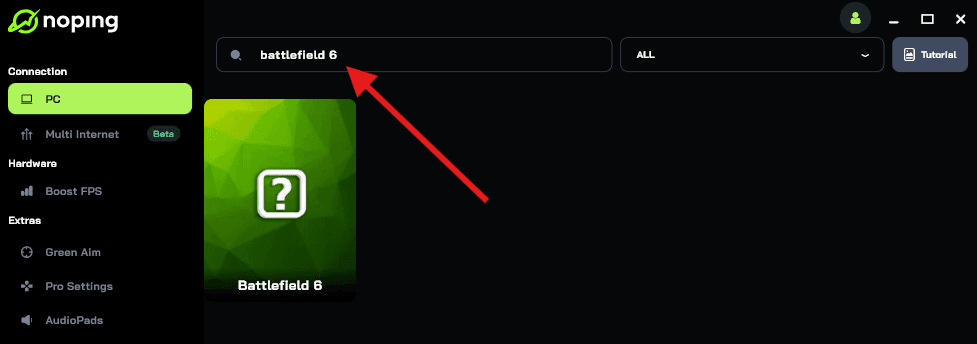
- Once you find Battlefield 6, click on it. Choose your server on the next screen and click on “Optimize Game”.
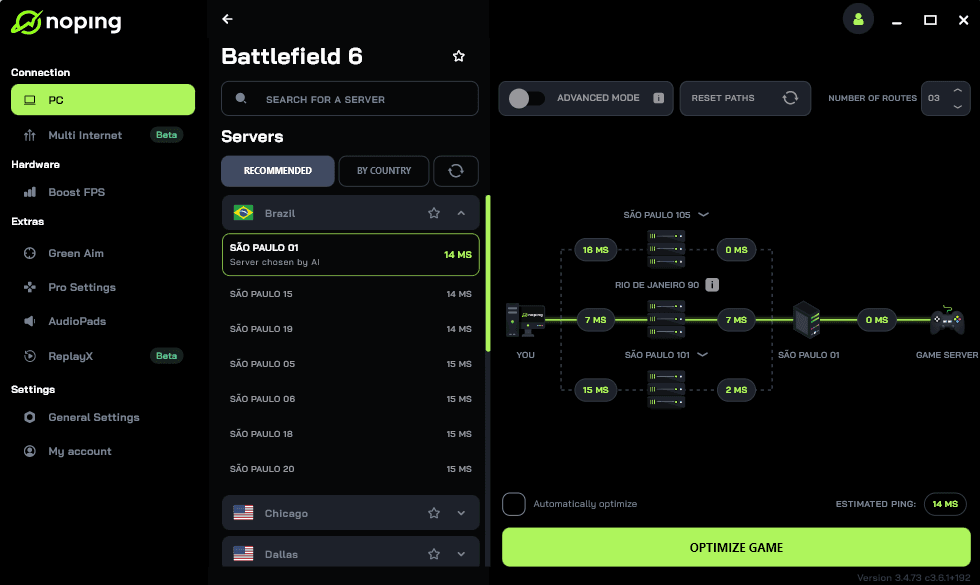
- And that’s it, you can start playing Battlefield 6 with optimized ping!
You can test different servers within NoPing to see which gives you the lowest latency.
What in-game settings should you change immediately?
Beyond the hardware fixes, there are several in-game toggles that interact poorly with the network overlay. Ensuring these are configured correctly can provide a smoother experience.
- Future Frame Rendering: Try toggling this. While it can increase input lag, it often stabilizes frame delivery, which can lower TN.
- NVIDIA Reflex: Set to "On + Boost" to keep the GPU clock high and latency low.
- Network Buffering: Set this to "Default" or "Low." Avoid high settings unless your connection is extremely unstable.
- Overlays: Disable the EA App, Steam, and Discord overlays. These can interfere with the game's ability to maintain a consistent frame pace.
If you have tried these steps and still see high TN values, it is likely a server-side issue that requires a patch from DICE.
However, for most players in 2026, the combination of RAM optimization, FPS capping, and using NoPing remains the most reliable way to stay competitive.
Play Battlefield 6 without lag! Download NoPing now and start your free trial!