


Roblox error code 288 is one of those frustrating interruptions that can kick you out of a high-stakes game just when things are getting intense.
If you have ever been in the middle of a complex obby or a competitive match only to be met with a grey box telling you the server has shut down, you are likely looking for a way to stop it from happening again.
This guide will break down everything you need to know about Error 288, how to handle it, and how to improve your overall Roblox performance.
What is Roblox Error Code 288?
Error code 288 is a server-side disconnection message that indicates the specific game instance you were in has been shut down.
Unlike some errors that point to your local Wi-Fi or a corrupted file on your PC, this one usually means the server itself ceased to exist. When the server closes, every player inside is immediately kicked, often receiving a message that says: "The server has shut down (Error Code: 288)."
Occasionally, it might show up as an "Unknown Error," but the underlying cause remains the same: the environment you were playing in is no longer active on the Roblox cloud.
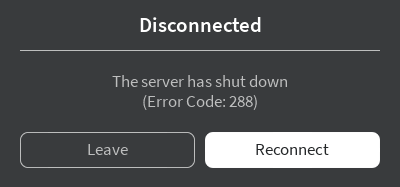
Source: Roblox
Why does this error happen so often?
The primary reasons for Error 288 are manual developer shutdowns, automatic updates, or server-side memory crashes.
When a developer pushes a new patch to their game, they often use a feature called "Shut Down All Servers" to ensure every player is running the latest version. This prevents version mismatches that could break the game.
Another common cause is "Out of Memory" (OOM) errors. If a game has too many complex scripts, thousands of parts, or unoptimized assets, the server might hit its memory limit and crash.
When it crashes, it sends out the 288 signal to all connected clients.
Technical Causes and Scenarios
| Cause | Description | User Impact |
| Developer Updates | The creator closes servers to apply new content or bug fixes. | Forced kick; must rejoin a new server. |
| Server Crashes | The server runs out of RAM or hits a fatal script error. | Sudden disconnect; progress might not save. |
| Soft Shutdowns | A script tries to move players to a new server but fails. | You get stuck in the menu with Error 288. |
| Maintenance | Roblox itself performs maintenance on specific clusters. | Temporary inability to join that specific game. |
Can I fix Error 288 on my end?
No, you cannot directly fix Error 288 because it is a server-side issue, but you can mitigate its impact by joining different servers.
Since the problem originates from the game’s code or the developer's actions, your local settings won't stop a server from shutting down.
However, if you find yourself constantly hitting this error in a specific game, it might be due to an unstable private server or a game that is currently undergoing heavy updates.

Is my internet connection involved in this error?
While Error 288 is server-side, an unstable connection can sometimes trigger "Unknown Errors" that mimic the behavior of a shutdown.
If your ping is spiking or you are experiencing high packet loss, your client might lose synchronization with the server.
When the server doesn't hear from you for a specific interval, it might drop the connection.
This is where NoPing becomes essential. By optimizing the route between your computer and the Roblox servers, you reduce the chances of "ghost" disconnects that feel like server crashes.
Here’s how to use NoPing to fix lag in Roblox:
- Sign-up through the website and download NoPing (you can try it for free)
- Open NoPing and search for Roblox inside the software
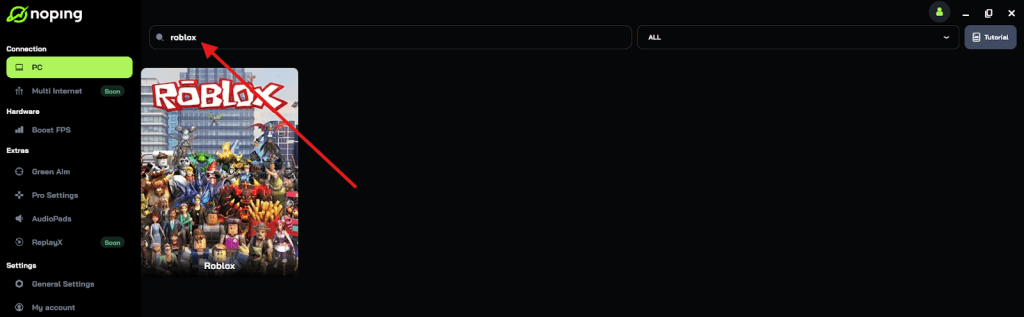
- Once you find Roblox, click on it and, on the next screen, select “Choose automatic” or “Choose manual” and click “Continue”. We recommend choosing automatic, as NoPing’s technology analyzes all routes on a global scale and automatically selects the best option for you.
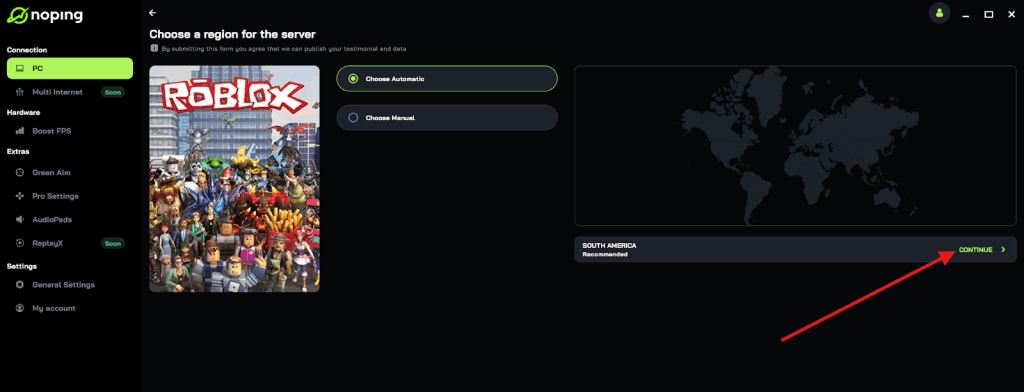
- On the next screen, click on “Optimize Game”.
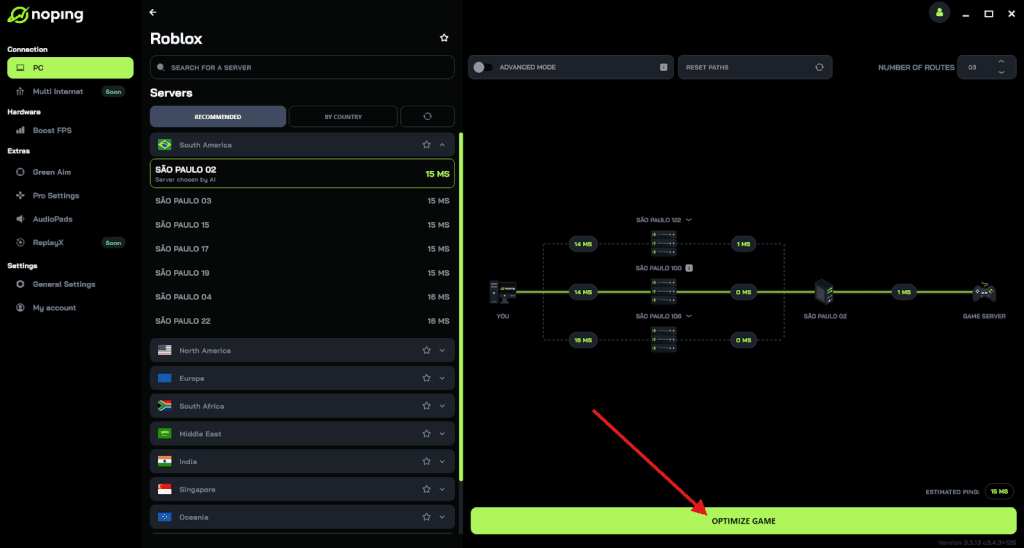
- And that’s it, you can start playing Roblox with optimized ping!
You can test different servers within NoPing to see which gives you the lowest latency.
How to troubleshoot and get back into the game?
If you see the 288 box, follow these steps to get back to playing as quickly as possible:
- Check the Server List: Instead of clicking "Reconnect," go back to the game page and look at the "Servers" tab. Join a different server manually to ensure you aren't trying to rejoin the one that just closed.
- Wait for the Update: If the developer is pushing an update, wait about 5 to 10 minutes. This gives the Roblox system time to spin up new server instances with the updated code.
- Check Roblox Status: Visit the official Roblox Status Page to see if there are widespread issues affecting the entire platform.
- Clear Local Cache: Sometimes old data can cause joining issues. Press Win + R, type %localappdata%\Roblox, and delete the contents of the "logs" and "temp" folders.
- Use NoPing for Stability: If you suspect your network is making these disconnects more frequent, use NoPing to find a more direct route to the game's data center. This minimizes the latency that can lead to synchronization errors.
Should developers be worried about Error 288?
For developers, Error 288 is a sign that the game might be leaking memory or that the "Soft Shutdown" script is failing. If you are a creator and your players are constantly reporting this error, you should check your "Developer Console" (F9) for memory usage.
High instance counts or unoptimized scripts can cause the server to reach its 6GB (or higher) limit and restart. Using BindToClose() properly is also essential to ensure that data is saved before the server disappears.
Dealing with Roblox error code 288 is mostly a game of patience, as it indicates the server itself has ended its session. Whether it is an update or a crash, your best bet is to wait a few minutes and join a fresh server.
To make sure your own connection isn't making things worse, keep your drivers updated and consider using a connection optimizer.
Play Roblox without lag. Download NoPing now and start your free trial!