


When people look up War Thunder system requirements, it’s usually because they’re not sure if their computer can handle the game.
War Thunder is a massive online combat simulator with tanks, planes, and ships all fighting across detailed maps.
The scale is impressive, but it also means your PC needs to keep up.
In this guide, we’ll break down the official system requirements, go over the best settings for weaker machines, and share some tips to reduce lag and get more FPS.
What are the War Thunder System Requirements? Minimum and Recommended
Before you mess with settings, it helps a lot to know what War Thunder needs to run, and what it ideally wants if you want smoother performance or higher visual quality.
Here are the current known specs (minimum vs recommended) as of mid-2025:
| Spec | Minimum | Recommended |
| Operating System | Windows 10 (64-bit) (some sources also list Win 7/8/10) | Windows 10 / 11 (64-bit) |
| CPU | Dual-Core ~2.2 GHz | Intel Core i5 / AMD Ryzen 5 3600 or similar/better |
| RAM | 4 GB | 16 GB |
| GPU (Graphics Card) | DirectX 10.1 capable card, e.g. AMD Radeon 77XX or NVIDIA GeForce GTX 660 (≈1 GB VRAM) | DirectX 11 or higher, e.g. NVIDIA GTX 1060 or AMD RX 570 (≈3 GB VRAM or more) |
| Storage / Disk Space | Varies; as low as ~17-22 GB for minimal install/client | Up to ~95 GB for full install / high resolution assets/textures etc. |
A few notes:
- The minimum is enough to just run the game at lower resolution/lowest settings. Don’t expect smooth 60 FPS all the time, especially in large battles or graphically heavy maps.
- The recommended is more comfortable: better CPU, more RAM, decent GPU. If you have something close to recommended, you’ll likely be okay on medium or higher settings.
Settings to Run War Thunder on Low-End PCs
If your PC is under or just around the minimum specs, you’ll need to tweak a lot of settings. Some sacrifices on visuals will help a lot with performance.
Here are what settings to change, how, and some trade-offs.
- Lower resolution to 1280×720 (or even below)
- Use Fullscreen mode (not windowed or borderless)
- Use a “Low” / “Very Low” graphics preset or start from low and manually tweak up
- Disable or set Shadows to “Low” or “Off”
- Lower or disable Reflections and water detail/quality
- Turn off anti-aliasing
- Reduce vegetation / grass / foliage density
- Lower texture quality to “Low” or “Medium” depending on available VRAM
- Reduce particle/effects detail (explosions, smoke, lighting)
- Decrease draw distance / object detail distance
- Disable VSync, or use “Adaptive VSync” if available
- In GPU driver panel (NVIDIA/AMD): set “Power management / Power mode” to “Prefer maximum performance” for War Thunder
- Make sure GPU drivers are up-to-date
- If possible, disable or reduce features like plant swaying / dynamic vegetation that cause frame drops in dense foliage / forest areas
These tweaks will often let a low-end PC run the game with acceptable frame-rates (though perhaps not with fancy graphics).
For example, if your GPU is underpowered, dropping resolution + turning off shadows + lowering draw distance often gives the biggest return.

How to Reduce Lag and Boost FPS in War Thunder?
Lag in War Thunder can come from two broad sources:
- Frame rate / rendering lag: what the PC is doing locally to draw frames. If CPU/GPU are bottlenecks, you'll get low FPS, stutter.
- Network lag / ping / packet loss / input lag: delays between your input and server response, or delays in communication with the game server.
NoPing is a service designed to help with the two kinds: network lag, ping, packet loss and FPS drops.
NoPing is a tool that reroutes your internet traffic or optimizes the path from your computer to the game servers, in order to reduce latency, packet loss, or lag spikes.
It also has the “Boost FPS” feature. It frees up memory to increase your FPS up to 60%.
How to use the Boost FPS feature:
- Sign-up through the website and download NoPing (you can test it for free).
- When you open the software, click on "Boost FPS" in the left side menu.
- On the next screen, you'll see a range of options to customize the feature (there are over 50 settings). You can enable or disable everything and choose between Windows default or user settings. You can also filter the options using the bar on the right.
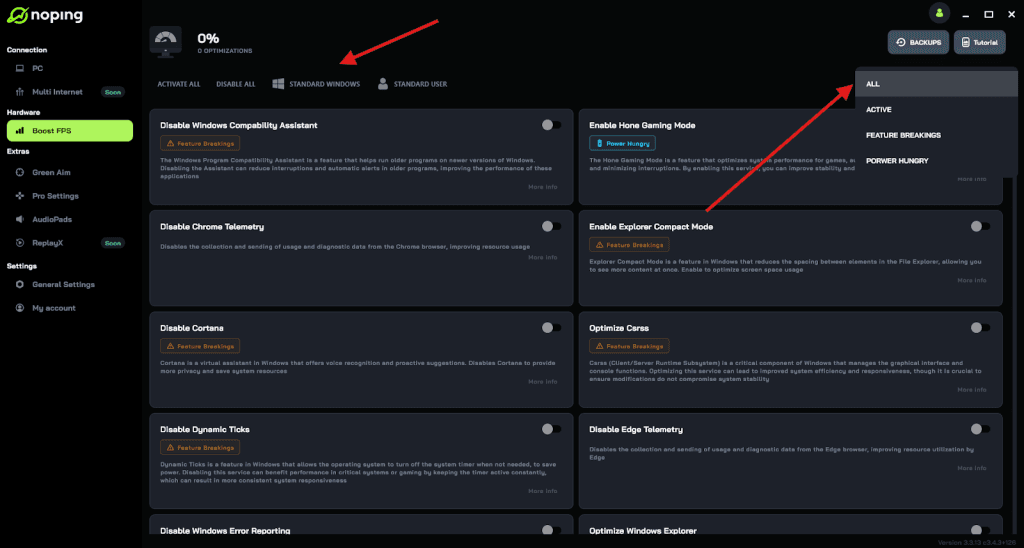
And that's it! Boost FPS is now activated. Just launch your game and enjoy high FPS!
FAQ - War THunder System Requirements
Here are some frequently asked questions that I didn’t fully cover, or that often confuse players.
Q: Will upgrading just RAM help a lot?
A: Yes, often upgrading RAM helps, especially if you have only 4GB or 8GB. War Thunder, particularly in large maps, benefits from having more RAM so the CPU/GPU don’t stutter because of memory swapping. If your PC is low on RAM, that can be a bottleneck.
Q: What about SSD vs HDD. Does it matter?
A: Yes. While storage speed doesn’t directly boost FPS in scenes already in memory, it helps reduce loading times (maps, textures) and can reduce stutter when the game needs to stream in assets.
If your game is on a slow hard drive, you may see pauses or stutters in the beginning of matches or when moving into new areas. An SSD helps.
Q: Is there a difference if I play tanks vs aircraft vs naval in terms of requirements?
A: Yes. Aircraft and naval battles often have bigger draw distances, more objects in view, more effects (water, etc.), so they tend to push your GPU/CPU harder. Ground battles with complex terrain can also be heavy.
If you're struggling, pick battles/modes that are visually simpler.
Q: Does overclocking help / is it safe?
A: Overclocking can give you more performance, but it depends on your hardware (cooling, power supply, thermal limits). If you aren’t comfortable or don’t have good cooling, you can risk overheating or instability.
Only do it if you know your cooling / power setup can handle it.
Q: What about driver settings, BIOS settings or Windows updates. Do they matter?
A: Yes. Keeping your GPU driver updated is essential. Sometimes Windows updates include performance patches.
Also check in your motherboard BIOS that settings like "turbo boost" or “performance mode” are enabled. Sometimes power saving settings in BIOS can limit CPU/GPU performance.
Q: Does it help to play during off-peak hours?
A: Sometimes yes, especially for network lag. If your ISP or route to the game server is congested (many people using net at same time), latency may increase.
Off-peak hours usually have less traffic, possibly more stable connections.
Play War Thunder with reduced ping and optimized FPS! Download NoPing now and start your free trial!