

If you want to change radar target in War Thunder correctly while fighting for your life in the skies, you need to understand how the radar system actually works.
War Thunder can show multiple enemies on your radar at once, and the game will not always pick the target you want automatically.
Learning how to select and switch radar targets quickly is essential for landing your missiles, avoiding wasted shots, and winning dogfights.
In this guide, you will learn how the selection system works, which controls you must bind, how radar modes affect target switching, and how to fix common mistakes that cause the lock to jump to the wrong aircraft.
The basic idea: selected target vs locked target
First, understand two different states the game shows on radar and IRST. There is the selected target, the one your radar/IRST cursor is currently pointed at.
That is shown with vertical bars on either side of the contact. Then there is a lock, which is shown as a solid square or other solid indicator.
When you press the button to lock, the system will try to lock the currently selected target, not some other blip the radar is seeing.
This is why changing the selected target is essential when there are multiple signatures in the same area.

Key controls you need to bind
War Thunder exposes controls specifically to pick and cycle radar/IRST targets. The two most important controls to set are:
- Select Radar/IRST target to lock — this cycles or snaps the radar cursor onto available contacts so you can choose which one will be locked.
- Lock Radar/IRST on target — this attempts to acquire a lock on whatever is currently selected.
Bind both to comfortable keys. Many players use a single key for cycling (so they can step through targets) and another quick key to attempt the lock.
If you do not set a bind for the select/cycle action, the game may pick a default contact and your lock attempt might grab the wrong target.
Also read: What is Ping And How to Lower it?
How to change the selected target in practice
Here is a step-by-step practical flow you can use in a plane:
- Detect contacts with your radar or IRST. Multiple blips may appear.
- Use your Select Radar/IRST target to lock key to snap or cycle the cursor onto a contact. The selected contact will have the two vertical bars or another selection marker.
- Look at the HUD readouts to confirm range and heading for that selected contact.
- When you are happy, press Lock Radar/IRST on target to attempt a lock. If the lock succeeds you will see the solid lock indicator. If it fails, either the target is out of tracking area, it used ECM, or you are in the wrong radar mode.
If more than one contact is close together the radar can get confused and may switch locks unexpectedly.
In crowded situations it can help to switch to gunner view or get a better manual aim if you are in a vehicle with guns rather than missiles.
Radar modes: RWS, TWS, STT and how they affect target changing
Different radar modes behave differently when multiple contacts are present:
- RWS (Range While Search): you can see many contacts and often manually select one for further action.
- TWS (Track While Scan): this can manage multiple tracks and is commonly used to prepare multiple launch shots and allocate tracks for missiles that support it. You can typically cycle through tracks in TWS.
- STT (Single Target Track): focuses on one target for tracking and guiding a missile. You usually want to be sure you have the correct selected target before pushing to STT or firing.
Some weapons and radars require switching the radar mode first to enable cycling or to enable longer range locks.
For example, players report selecting TWS on long-range Phoenix-like setups before cycling targets for engagement.
The community recommends you learn which modes your aircraft’s radar supports and how to toggle them from the Y menu or from assigned keybinds.
Visual indicators to watch
- Selected target marker: usually vertical bars around the blip. That indicates which contact will be locked if you press the lock key.
- Locked target marker: solid square or other filled shape showing a successful lock.
- Radar cone or lockable area: many radars show a darker region where initial locks are possible. Targets outside that sector might be visible but not lockable until they move into the track area.
If you see the selection marker on an allied aircraft or a non-threat, cycle immediately until you land on the correct hostile contact.
Common mistakes and how to avoid them
- No bind for select/cycle: if you never set the "select target" bind the game may default to whatever contact it first picked. Set the bind under Controls > Common or Controls > Aircraft > Radar/IRST depending on the UI version.
- Relying on auto-lock in crowded airspace: when multiple signatures are close you can get unpredictable target switching. Cycle deliberately and confirm before locking.
- Wrong radar mode: some radars will not let you select or lock certain targets unless you are in the correct mode. Learn the modes of your equipped radar and the corresponding key for "Change Radar/IRST mode."
Also read: How to Fix War Thunder Not Launching on Steam
Ground vehicles and SPAAs
The same “select target” concept appears on ground-based radar-equipped vehicles and SPAA.
You can cycle which vehicle or aircraft is the selected contact, and then lock guns or missiles to that contact.
The War Thunder wiki explains that one of the targets inside the tracking area will be chosen as the selected target and can be changed with the select key.
If multiple targets are close together the tracking radar might struggle, and manual gunner aiming could be preferred to avoid friendly fire.

Troubleshooting: when selection or locks are not working
- Make sure your keybinds are active and not conflicting with other controls.
- Check that the radar actually has the contact inside its lockable sector. Some contacts are visible to the search radar but not the tracking radar.
- ECM, chaff, and certain countermeasures will prevent or break locks. If the lock fails repeatedly, the target likely used countermeasures.
- If the radar is switching targets unpredictably, try using a toggle or a different bind scheme. Several players have requested separate "next" and "previous" target binds to make cycling less error-prone.
Recommended bindings and setup
A simple setup to start with:
- Bind Select Radar/IRST target to lock to a comfortable key you can tap quickly.
- Bind Lock Radar/IRST on target to another key.
- Consider binding Change Radar/IRST mode so you can switch between RWS/TWS/STT on the fly.
- If you often fight in crowded skies, consider a "previous target" bind if available so you can step backwards if you overshoot your cycling.
Final tips and mindset
Practice in test flights and less intense battles until these binds feel natural. In the heat of combat you will want target selection and locking to be second nature.
Remember to visually verify selection on your HUD and confirm lock indicators before you commit expensive missiles.
If you play both aircraft and ground SPAA, tailor your key layout to match the different workflows so you do not have to relearn where the important binds are mid-battle.
How to play War Thunder without lag?
When you change radar target in War Thunder during a tense dogfight, any lag spike can cost you the engagement, and that is why many players use NoPing to stabilize their connection.
NoPing optimizes your network route to the game servers, reducing ping, avoiding packet loss, and helping keep gameplay smooth even in intense battles.
Here’s how to use NoPing to fix lag in online games:
- Sign-up through the website and download NoPing (you can test it for free).
- Open NoPing and search for your game inside the software
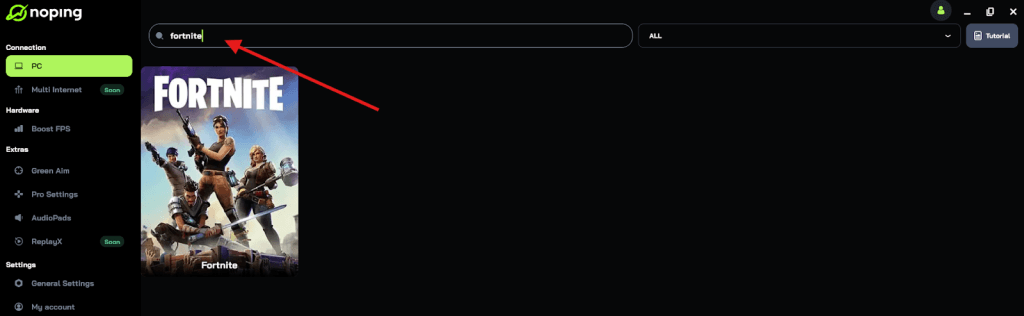
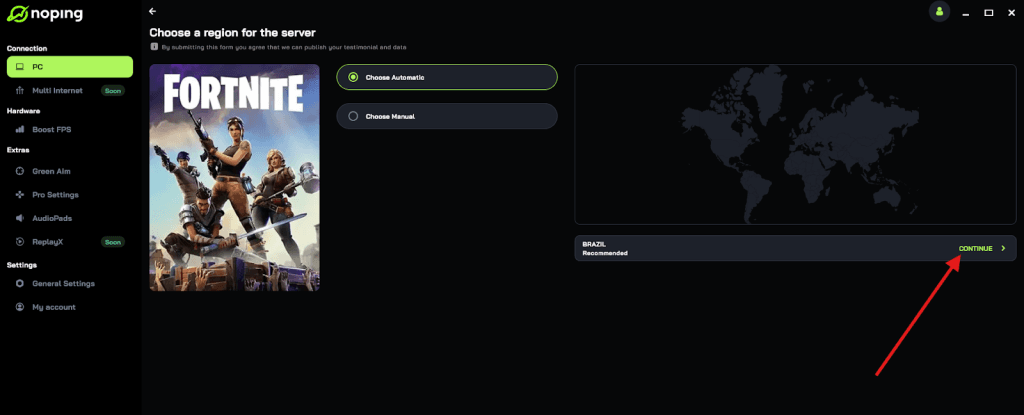
- Once you find it, click on it and, on the next screen, select “Choose automatic” or “Choose manual” and click “Continue”. We recommend choosing automatic, as NoPing’s technology analyzes all routes on a global scale and automatically selects the best option for you.
- On the next screen, click on “Optimize Game”.
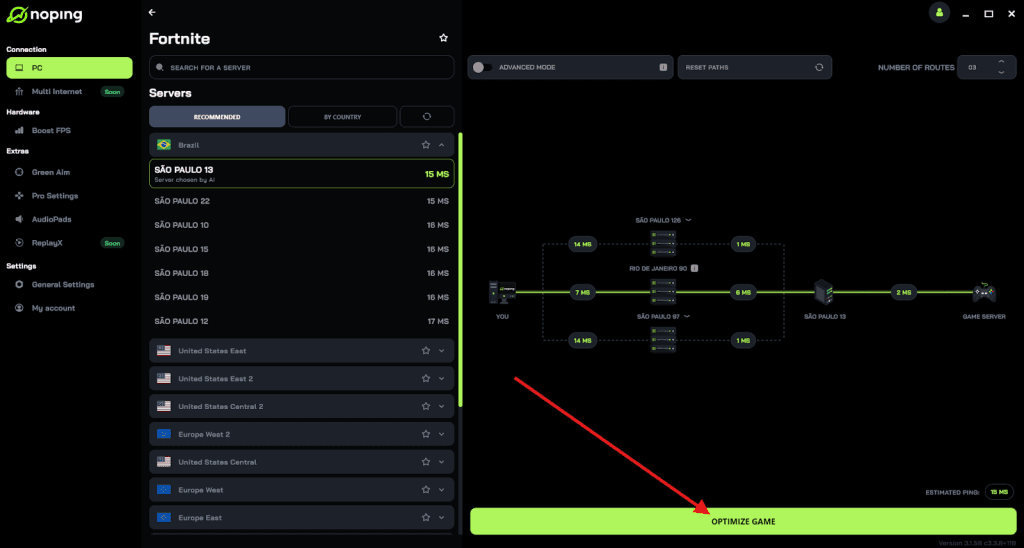
- And that’s it, you can start playing with optimized ping!
You can test different servers within NoPing to see which gives you the lowest latency.
Quick summary
- Set a bind for Select Radar/IRST target to lock and for Lock Radar/IRST on target.
- Cycle the selected target until you see the selection marker on the contact you actually want.
- Verify radar mode and lockable area. Use TWS for multiple tracks where applicable.
- Watch for ECM and clutter. If the radar is confused, consider manual gunner aiming or switching view.
And to always play War Thunder without lag, use NoPing! Download now and start your free trial!