


The Roblox mouse zoom glitch on Mac is a frustrating technical hurdle that disrupts your gameplay, but fortunately, there are several verified methods to eliminate this erratic camera behavior.
Whether your camera is zooming in and out on its own or the sensitivity feels completely broken, the issue usually stems from how macOS handles scroll inputs compared to what the game engine expects.
Step by step process to fix the Roblox mouse zoom glitch on Mac?
The quickest way to resolve this is by following a sequence of system and in-game adjustments.
Most players find that a combination of these steps provides a permanent fix for the camera jumping issues.
- Open System Settings on your Mac and navigate to Trackpad.
- Go to the Scroll and Zoom tab and uncheck the box for "Pinch to zoom."
- Launch Roblox and enter any game session.
- Press the Esc key to open the Roblox menu and go to the Settings tab.
- Find Camera Mode and change it from Default to Classic.
- Adjust the Camera Sensitivity slider to a lower value, such as 0.5 or 0.6.
- If you are using a physical mouse, go back to System Settings, select Mouse, and toggle off Pointer Acceleration.
- Download a utility like LinearMouse to disable inertial scrolling, which is the root cause of the runaway zoom effect.
These steps address the problem from both the hardware input side and the software interpretation side, ensuring that Roblox receives clean, predictable signals from your mouse or trackpad.

Why does the Roblox mouse zoom glitch on Mac happen in the first place?
The core of the problem lies in the architectural difference between macOS and Windows regarding scroll wheel data.
Windows typically sends discrete "ticks" for every notch of a mouse wheel, while macOS uses a system called inertial scrolling to make movements feel fluid and iPhone-like.
When you flick the scroll wheel or a trackpad, macOS generates hundreds of tiny scroll events to simulate momentum.
Roblox was originally optimized for the discrete input style. When it receives the high-frequency data from a Mac, the engine often misinterprets the momentum as a continuous, high-speed zoom command.
This is why your camera might suddenly fly into your character's face or zoom out to the maximum distance even after you have stopped touching the mouse. It is a classic case of a modern OS feature clashing with an older game engine's input logic.
Does the MacBook Trackpad worsen the zoom bug?
Yes, the Trackpad is actually the most common source of this glitch because of the multi-touch gestures built into macOS.
Features like "Smart Zoom" and "Pinch to Zoom" are designed for web browsers and document editors, not for 3D environments where the camera zoom is tied to the scroll function.
When you use two fingers to pan the camera in Roblox, the system might perceive a slight change in the distance between your fingers as a pinch gesture.
Because the Mac prioritizes these gestures at the system level, it sends a high-priority zoom signal to Roblox. By disabling "Pinch to zoom" in your System Settings, you remove this layer of interference, allowing the game to focus only on the actual directional inputs you provide.
Also read: How to Find Roblox Achievements on Xbox?
How can you disable mouse acceleration to stabilize the camera?
Mouse acceleration is a feature that moves the cursor further if you move the mouse faster, which is terrible for muscle memory in gaming and can trigger zoom spikes in Roblox.
On newer versions of macOS like Sonoma or Sequoia, you can find this under System Settings > Mouse > Advanced. Turning off "Pointer acceleration" makes the mouse movement 1:1.
If you are on an older version of macOS that doesn't have this toggle, you can use a Terminal command to achieve the same result. Open the Terminal and enter:
defaults write .GlobalPreferences com.apple.mouse.scaling -1
You will need to restart your Mac or log out for this to take effect. This command removes the software-based curve that macOS applies to your movements, making the scroll wheel and cursor much more stable within the Roblox environment.
Is there a way to stop inertial scrolling specifically for Roblox?
Standard macOS settings do not allow you to turn off inertial scrolling without affecting the entire system, but third-party tools are incredibly effective for this.
Apps like LinearMouse or SteerMouse are essential for Mac gamers because they allow you to customize mouse behavior on a per-app basis or globally.
By using LinearMouse, you can specifically disable "acceleration" and "inertia" for your scrolling.
This ensures that when you stop moving your finger on the mouse or trackpad, the zoom signal stops immediately.
This is the most effective way to fix the "runaway zoom" where the camera keeps moving even after you've let go of the mouse.
Can your internet connection make the zoom glitch feel worse?
While the glitch is primarily a hardware input issue, high latency or jitter can amplify the frustration.
Roblox uses a client-server model to sync your camera position. If you are experiencing packet loss or high jitter, the "stop" command from your mouse might get delayed in transit to the Roblox servers.
This creates a rubberbanding effect for your camera. If your connection is unstable, the server might think you are still zooming because it hasn't received the packet telling it you stopped.
Using NoPing can help stabilize this connection by finding the most direct route to the game servers.
Lower jitter means your inputs are processed in real-time, reducing the chance of the camera getting stuck in a zoom loop.
Here’s how to use NoPing to fix lag in Roblox:
- Sign-up through the website and download NoPing (you can try it for free)
- Open NoPing and search for Roblox inside the software
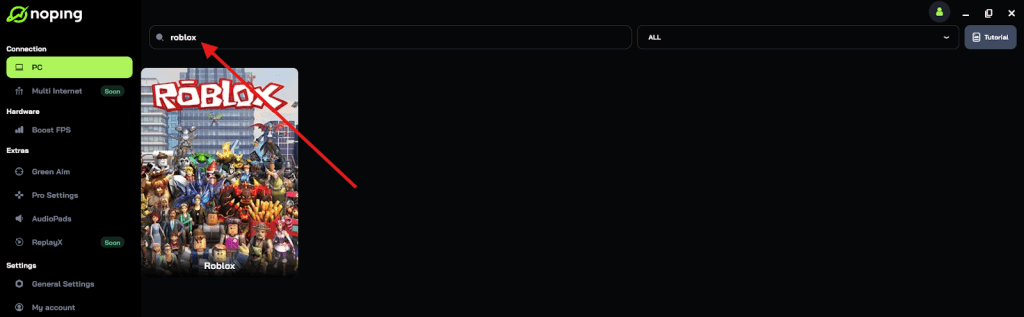
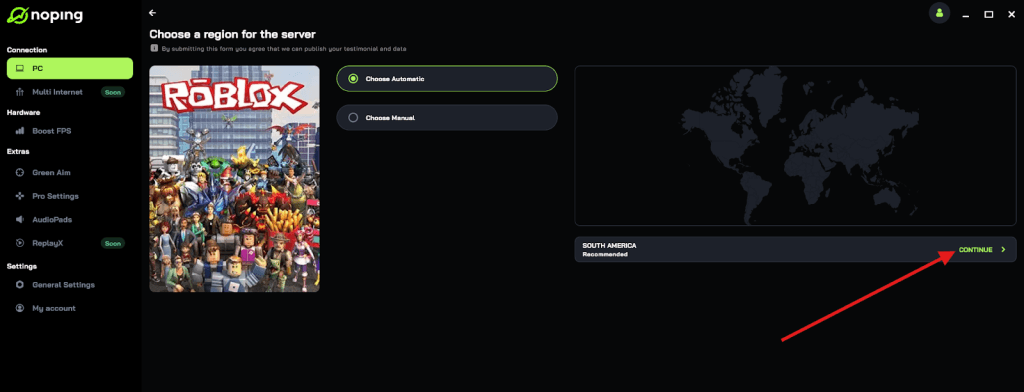
- Once you find Roblox, click on it and, on the next screen, select “Choose automatic” or “Choose manual” and click “Continue”. We recommend choosing automatic, as NoPing’s technology analyzes all routes on a global scale and automatically selects the best option for you.
- On the next screen, click on “Optimize Game”.
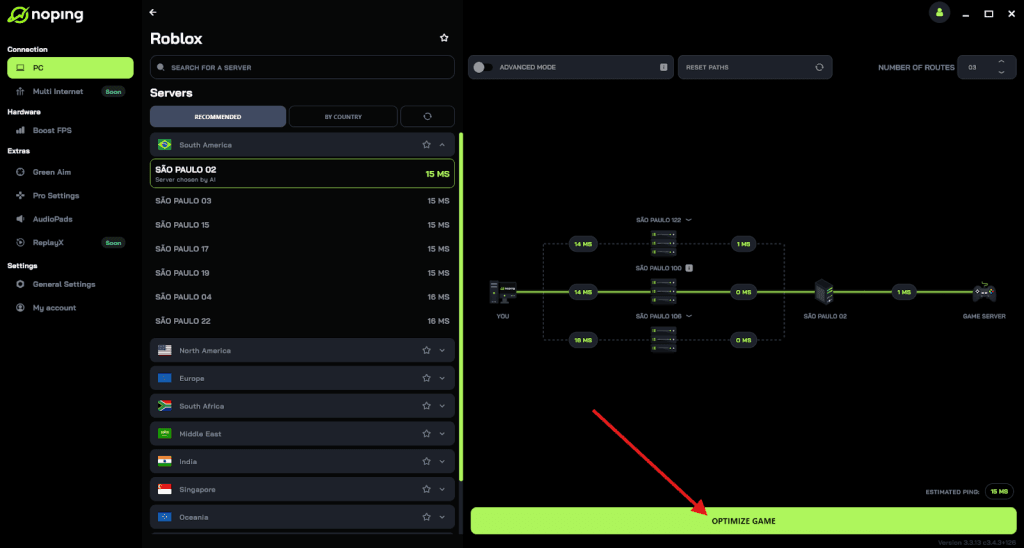
- And that’s it, you can start playing Roblox with optimized ping!
You can test different servers within NoPing to see which gives you the lowest latency.
Does clearing the Roblox cache fix camera persistent bugs?
Clearing the cache is a great troubleshooting step if the zoom glitch persists after you have changed your system settings.
Sometimes, the local configuration files for Roblox become corrupted or store conflicting data regarding your mouse sensitivity.
To clear the cache, close Roblox and open Finder. Press Command+Shift+G and type:
~/Library/Caches
Find the folder named com.roblox.Roblox and move it to the trash. When you restart the game, Roblox will generate fresh configuration files.
This often clears out any "ghost" settings that might be causing the camera to behave erratically despite your system preferences being set correctly.
Should you change the Camera Mode in the Roblox settings?
Yes, changing the Camera Mode is one of the most reliable in-game fixes. The "Default" mode in Roblox often tries to be too smart, switching between different tracking styles depending on what your character is doing.
This sensitivity can cause the Mac's fluid scroll data to trigger massive zoom jumps.
Switching to "Classic" mode forces the camera to follow a rigid, predictable logic. In this mode, the zoom increments are more defined, which helps filter out the "micro-scrolling" noise generated by the Magic Mouse or Trackpad.
Many competitive players on Mac use Classic mode exclusively to ensure their perspective doesn't shift unexpectedly during high-stakes gameplay.
Is the Magic Mouse particularly prone to this glitch?
The Magic Mouse is perhaps the most difficult hardware to use with Roblox because its entire top surface is a touch sensor.
Any slight movement of your finger is interpreted as a scroll. Because there is no physical wheel with notches, the "continuous" data stream is constant.
If you are using a Magic Mouse, the "Smart Zoom" feature in macOS settings must be turned off.
This feature triggers a zoom whenever you double-tap with one finger, which happens often by accident during fast-paced games.
If you can, switching to a traditional gaming mouse with a mechanical scroll wheel will drastically reduce the frequency of the zoom glitch, as these devices send more "Windows-like" discrete signals that Roblox understands better.
How does the Roblox App version impact camera stability?
The version of Roblox you use can actually change how inputs are handled. The version available on the Mac App Store is sandboxed, meaning it has stricter limitations on how it communicates with your hardware.
The version downloaded directly from the Roblox website (the DMG installer) often has better performance and more frequent updates for hardware compatibility.
If you are experiencing the zoom glitch on the App Store version, it is highly recommended to uninstall it and download the standalone client.
The standalone client interacts more directly with the macOS input stack, which can help in reducing the lag between a scroll movement and the game's reaction.
What is the best long-term setup for a Mac Roblox player?
A stable, glitch-free experience on Mac requires a holistic approach to your setup. You should prioritize a wired connection or a highly optimized Wi-Fi signal to keep jitter low, use a mouse with a physical scroll wheel, and keep your macOS "Pinch to zoom" gestures disabled.
By combining these hardware choices with software tweaks like LinearMouse and connection optimization via NoPing, you create an environment where the Roblox engine isn't constantly fighting with macOS.
This allows you to play with the same precision as a Windows user, without the camera zooming into your character's forehead every time you try to look around.
Play Roblox without lag. Download NoPing and start your free trial!