


Black Ops 6 error code 0x7 can show up as a crash or immediate failure to launch, and it’s one of those annoying errors that has multiple causes and multiple community-suggested fixes.
In this guide I’ll walk you through what the code usually means, a practical step-by-step troubleshooting sequence you can follow now, and likely causes so you can avoid repeats.
What is the Black Ops 6 Error Code 0x7?
0x7 is not a single definitive Windows error with one meaning.
In the context of Call of Duty players it’s an in-game/launcher error code that commonly signals the game crashed on startup or failed to initialize.
That crash can be caused by corrupted or missing game files, launcher (Xbox app / Game Pass) problems, incompatible disk settings (for example NTFS compression), conflicts with anti-cheat or input-mapping utilities, or issues with the install path or drive.
Multiple community reports group these causes together because the same symptom (the game failing to launch and reporting 0x7) shows up for all of them.

Source: Reddit
Step-by-Step Guide to Fix Black Ops 6 Error Code 0x7
Below is a practical sequence. Start at step 1 and only move to the next if the previous one didn’t fix it. The order goes from quick checks to deeper repairs.
1. Close everything and reboot
Fully quit the game, your launcher (Xbox app, Steam, Battle.net), any overlays (Discord, NVIDIA GeForce Experience), then restart Windows. A clean reboot resolves transient conflicts frequently.
2. Run the launcher and the game as administrator
Right-click your launcher (Xbox app / Game hub / Battle.net) → Properties → Compatibility → tick “Run this program as an administrator.” Also set the game executable to run as admin. Several guides report permission fixes working for 0x7.
3. Repair or verify game files (via your launcher)
Use the launcher’s “Repair” or “Verify integrity of game files” option. If you’re on the Xbox app, use the app’s Manage → Files → Repair/Reset options. Corrupted game files are a common cause of crashes.
4. Repair or reset the Xbox/Microsoft Store app (Windows)
Windows Settings → Apps → find Xbox or Microsoft Store → Advanced options → Repair. If Repair doesn’t help, try Reset (note Reset clears app data). This fix is specifically recommended where the game was installed via the Xbox app/Game Pass.
5. Check disk settings and free space
Ensure the game is installed on a non-compressed NTFS folder (right-click the game folder → Properties → Advanced → untick “Compress contents to save disk space”) and confirm there is enough free space on that drive. Some players and guides report NTFS compression causes launch crashes.
6. Change installation drive or move the game
If you installed the game on an unusual partition or external drive, try moving or reinstalling to your main system drive (often C:). Moving the installation to a different drive or the system drive resolved 0x7 for many users (especially when using Game Pass/Xbox app).
7. Temporarily remove conflicting software (anti-cheat and input tools)
Uninstall or disable third-party anti-cheat or input mapping tools (examples reported by users include Faceit clients, reWASD, certain macro tools) and, if present, try temporarily disabling Vanguard or other game anti-cheat.
Some community fixes explicitly called out uninstalling or disabling such tools resolved the error. If you remove an anti-cheat component, follow the game/launcher’s recommended reinstall steps to restore it.
8. Unplug unnecessary USB devices
A number of players found that disconnecting extra USB peripherals (special controllers, wheels, HOTAS, keypad devices) prevented the crash on startup. If you have many controllers/adapters attached, unplug them and try starting the game.
9. Update graphics drivers and Windows
Make sure your GPU drivers are up to date and that Windows has current updates. Out-of-date drivers can cause initialization crashes.
10. As a last resort: full reinstall of game and/or reinstall the Xbox app
Uninstall the game, remove leftover game folders, then reinstall. If the problem came from the launcher, uninstall and reinstall the Xbox app or the relevant launcher.
If none of the community fixes or platform repairs work, filing an official support ticket is the next step (see FAQ below).
These steps cover the fixes most players and troubleshooting articles recommend for 0x7. I ordered them to minimize data loss and time: start with repairs, permissions, and small config changes before reinstalling large files.

What Causes the Black Ops 6 Error Code 0x7?
There isn’t one single root cause. 0x7 is a symptom that can be triggered by several categories of problems:
- Corrupted or missing game files — damaged downloads or partial installs, which verification/repair fixes.
- Launcher issues (Xbox app / Microsoft Store / Game Pass) — problems with the launcher’s local caches or install mappings that make the game fail to initialize. Repairing/resetting the launcher often helps.
- Disk configuration problems — compressed folders, nonstandard partitions, or installing on removable/external drives sometimes create compatibility problems. Several players fixed crashes by moving installs to their primary drive.
- Conflicts with third-party software — input mappers, macro tools, and alternate anti-cheat/overlay tools can interfere with the game’s startup checks. Community troubleshooting often calls out uninstalling these tools.
- Permissions and OS environment — insufficient permissions to access files or required services can cause the launcher to fail to start the game properly; running as administrator can help.
Because the same crash shows up for different reasons, the recommended approach is stepwise: verify files, check the launcher, then check hardware/peripherals and third-party software.
How to Play Black Ops 6 Without Lag?
NoPing is a service designed to optimize your route to Call of Duty’s servers. Sometimes, the normal path your internet provider uses isn’t the fastest.
NoPing reroutes your data through a better, more direct path.
Here’s how to use NoPing to fix lag in Call of Duty:
- Sign-up through the website and download NoPing (you can try it for free)
- Open NoPing and search for Call of Duty inside the software
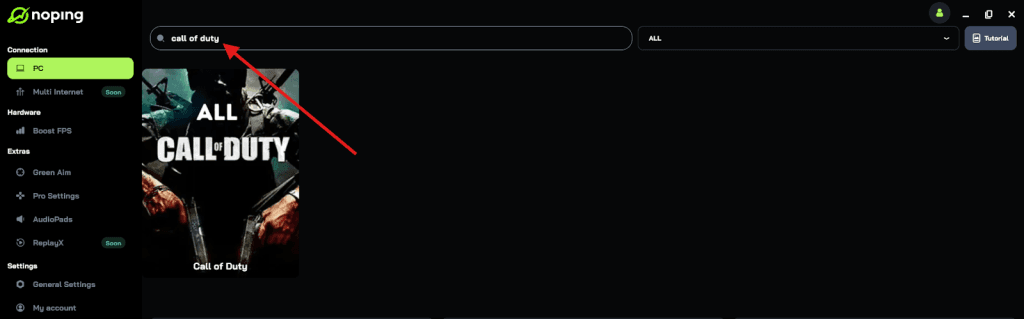
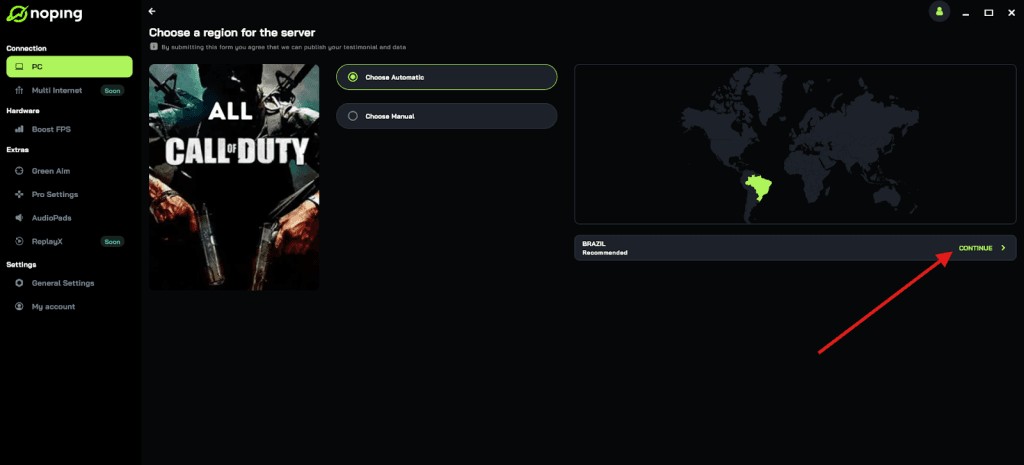
- Once you find Call of Duty, click on it and, on the next screen, select “Choose automatic” or “Choose manual” and click “Continue”. We recommend choosing automatic, as NoPing’s technology analyzes all routes on a global scale and automatically selects the best option for you.
- On the next screen, click on “Optimize Game”.
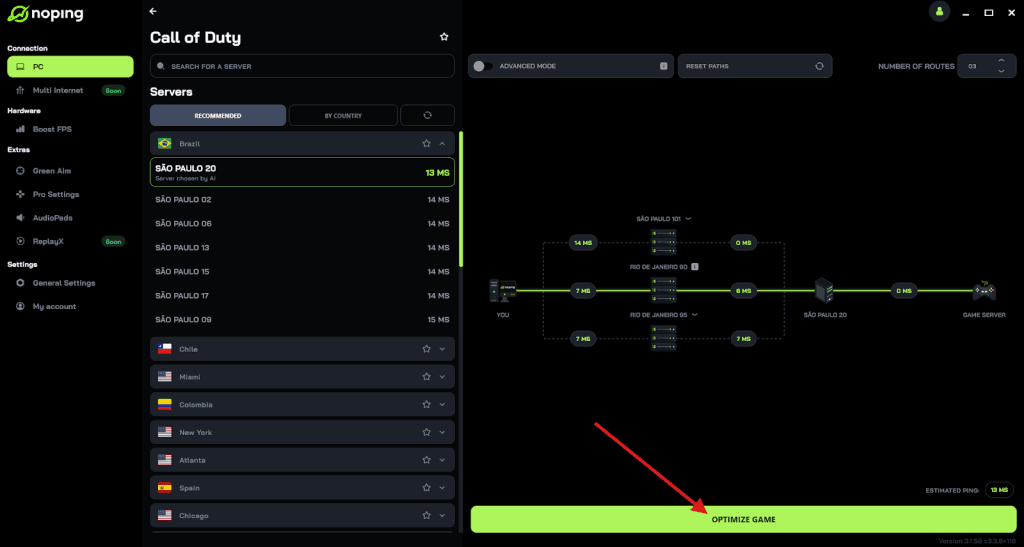
- And that’s it, you can start playing CoD with optimized ping!
You can test different servers within NoPing to see which gives you the lowest latency.
FAQ - Black Ops 6 Error Code 0x7
Q: Is 0x7 specific to Black Ops 6 or seen in other Call of Duty titles?
A: Community reports show variants of 0x7 and similar "game has crashed" errors crop up across modern Call of Duty releases and launchers (Modern Warfare III, other recent releases).
The specific triggers overlap (game files, launcher issues, anti-cheat conflicts) so fixes are often transferable.
Q: Should I disable Vanguard or other anti-cheat permanently?
A: No. Disabling or uninstalling anti-cheat is only a temporary troubleshooting step to identify conflicts. If removing an anti-cheat resolves the crash, follow official instructions to reinstall or repair it afterwards. Always follow publisher guidance because anti-cheat protects multiplayer integrity.
Q: I use Game Pass/Xbox app. Is there anything special I should try?
A: Yes. Repair or Reset the Xbox app via Windows Settings → Apps → Xbox → Advanced options. Also check the Xbox app’s manage/installation path options and try moving the install to a different drive (some users reported success moving the game to their system C: drive).
Q: I tried everything and the game still crashes with 0x7. What now?
A: Submit a bug/technical support ticket to Activision/Call of Duty support and include your OS, exact launcher, a copy of the crash message, what you’ve tried, and relevant logs (if available).
The support teams can escalate unknown bugs. The general guides point to submitting tickets when nothing else works.
Q: Any quick checklist I can run through next time I see 0x7?
A: Quick checklist: reboot → run launcher/game as admin → repair game files → repair Xbox app → move install to different drive → uninstall conflicting tools → disconnect extra USB devices → update drivers → reinstall. That sequence resolves most reported cases.
0x7 is frustrating because it’s a general “the game crashed” signal rather than a single explicit failure mode.
The good news is that community and guide consensus points to a handful of practical fixes that usually get you back into the game: repairing the launcher or game files, checking install drive and NTFS compression, removing third-party conflicts and trying admin permissions.
Play Black Ops 6 with reduced ping and optimized FPS! Download NoPing now and start your free trial!