

Black Ops 6 crashing is one of the most frustrating things that can happen when you’re ready to jump into a match.
Nothing breaks immersion faster than the game freezing or closing without warning, especially when it happens repeatedly.
These crashes can appear during startup, in the middle of a campaign mission, or right as you’re queuing for multiplayer.
In this guide, we’ll go through the best ways to fix crashing issues on PC, explore the common reasons behind them, and help you understand what error codes mean so you can get back to playing.
How to Fix Black Ops 6 Crashing on PC
Try these solutions one by one until the game stabilizes.
1. Update Your Graphics Drivers
Outdated or corrupted GPU drivers are one of the biggest reasons behind crashes. Even if you updated recently, manufacturers release hotfix drivers specifically for new games, and missing them can cause stability problems.
Make sure to download and install the latest driver for your graphics card. During installation, select the option for a clean installation if available. This removes leftover files that might conflict with Black Ops 6.
2. Verify and Repair Game Files
If Black Ops 6 keeps crashing or refuses to launch, there’s a good chance a game file is corrupted. Modern launchers include a file verification feature that scans and replaces damaged files automatically.
Running this process may take a while, but it’s one of the easiest fixes you can try before reinstalling the game.
3. Adjust Graphics Settings
Running the game on maximum settings can push your system too hard, especially if you’re on a mid-range setup. Lower the following options first:
- Textures: High textures use a lot of VRAM.
- Ray Tracing: Beautiful, but heavy on performance.
- Anti-aliasing: Try lowering or disabling it.
- Shadows: One of the most resource-demanding settings.
Start with medium or low settings and then gradually increase until you find a balance between visuals and stability.
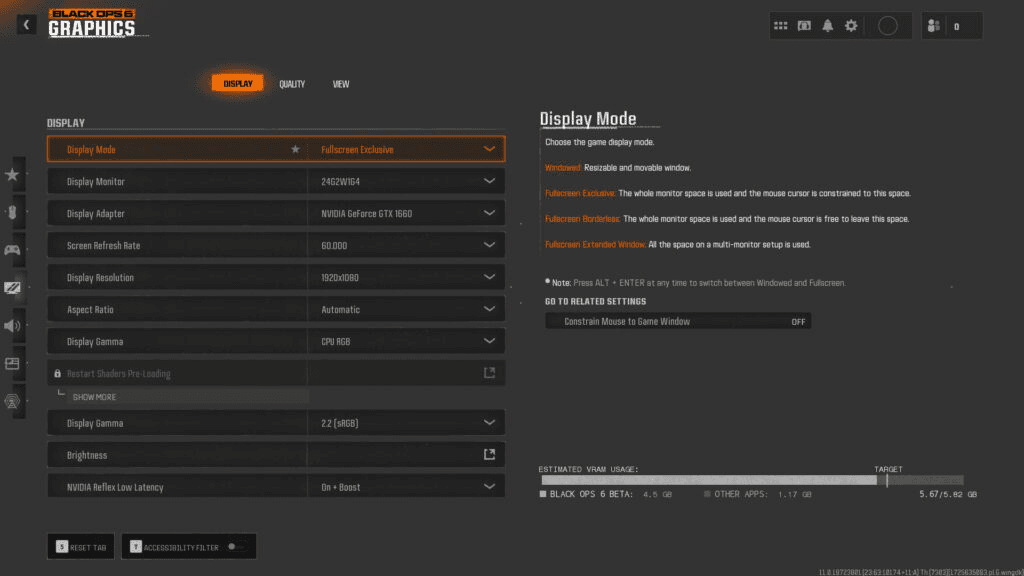
Source: Esportsgg
4. Disable Overlays
Programs like Discord, Steam, and Xbox Game Bar add overlays that can interfere with games.
These features may be convenient for chatting or recording, but they often lead to instability. Turn them off temporarily and check if the crashes stop.
5. Keep Windows Updated
Windows updates are more important than most players think. Many include graphics, DirectX, or security patches that games rely on.
If your operating system is outdated, you might run into crashes no matter how good your hardware is. Make sure you’re running the latest update before troubleshooting further.
6. Close Background Applications
Streaming software, multiple browser tabs, or even RGB customization apps can hog system resources and cause conflicts. Try closing everything non-essential before starting Black Ops 6.
For a more thorough test, you can perform a clean boot, which loads only the most basic drivers and services. If the game runs smoothly in that environment, you’ll know another program is interfering.
7. Watch Out for Overheating
When your CPU or GPU overheats, the system may force the game to crash or even shut down completely. This is a protective measure to prevent hardware damage.
Download a monitoring tool to check temperatures while gaming. Ideally:
- CPUs should stay under 85°C.
- GPUs should stay under 80°C.
If temps are higher, improve airflow in your case, clean dust filters, or lower your graphics settings to reduce workload.
8. Reinstall the Game
If nothing else works, a clean reinstall is sometimes the only solution. Uninstall Black Ops 6, restart your PC, and then install it again.
For best results, install it on an SSD instead of a hard drive. SSDs provide faster data access, which helps prevent loading-related crashes and texture pop-ins.

What Causes Black Ops 6 Crashing Issues?
There isn’t a single cause for crashes, but here are the most common ones:
- Driver conflicts: Outdated or buggy drivers are the number one reason games crash.
- VRAM overload: Using high-resolution textures on a card with low VRAM leads to instability.
- Corrupted files: Even one broken file can cause repeated crashes.
- Software conflicts: Background apps, overlays, and antivirus programs often interfere.
- Overheating: Too much heat causes forced shutdowns or reboots.
- Storage bottlenecks: Running Black Ops 6 on a slow HDD can cause stuttering or crashes during heavy loading.
Black Ops 6 Error Codes to Know
If the game crashes with an error code, it’s usually pointing to the problem. Here are some you might see:
- 0x887A0005 (DirectX error): Often related to GPU driver issues or running out of VRAM. Lowering settings and updating drivers usually helps.
- 0xC0000094: Indicates memory access violations. Running a memory diagnostic and verifying files can fix it.
- 0xFFFFFFE: Common startup crash code. Try disabling overlays or reinstalling.
- Dev Error 6146: Linked to shader cache problems. Clearing or reloading shaders in the game settings may solve it.
Black Ops 6 System Requirements
Checking your system specs is crucial. If your PC doesn’t meet the minimum, no amount of tweaks will make the game stable.
Minimum Requirements
- OS: Windows 10 64-bit
- CPU: Intel Core i5-6600 or AMD Ryzen 5 1400
- RAM: 8 GB
- GPU: NVIDIA GTX 960 or AMD RX 470
- Storage: 102 GB SSD
Recommended Requirements
- OS: Windows 10/11 64-bit
- CPU: Intel i7-6700K or AMD Ryzen 5 1600X
- RAM: 12 GB
- GPU: NVIDIA RTX 3060 or AMD RX 6600XT
- Storage: 102 GB SSD
Ultra / Competitive
- CPU: Intel i7-8700K or AMD Ryzen 7 2700X
- RAM: 16 GB
- GPU: RTX 3080 / RTX 4070 or AMD RX 6800XT
- Storage: 102 GB SSD
If you’re below minimum requirements, you should expect crashes even on the lowest settings.
How to Play Black Ops 6 Without Lag?
NoPing is a service designed to optimize your route to Call of Duty’s servers. Sometimes, the normal path your internet provider uses isn’t the fastest.
NoPing reroutes your data through a better, more direct path.
Here’s how to use NoPing to fix lag in Call of Duty:
- Sign-up through the website and download NoPing (you can try it for free)
- Open NoPing and search for Call of Duty inside the software
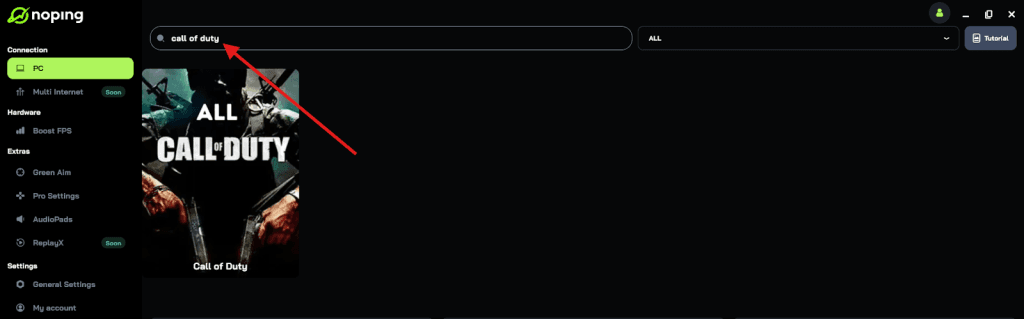
- Once you find Call of Duty, click on it and, on the next screen, select “Choose automatic” or “Choose manual” and click “Continue”. We recommend choosing automatic, as NoPing’s technology analyzes all routes on a global scale and automatically selects the best option for you.
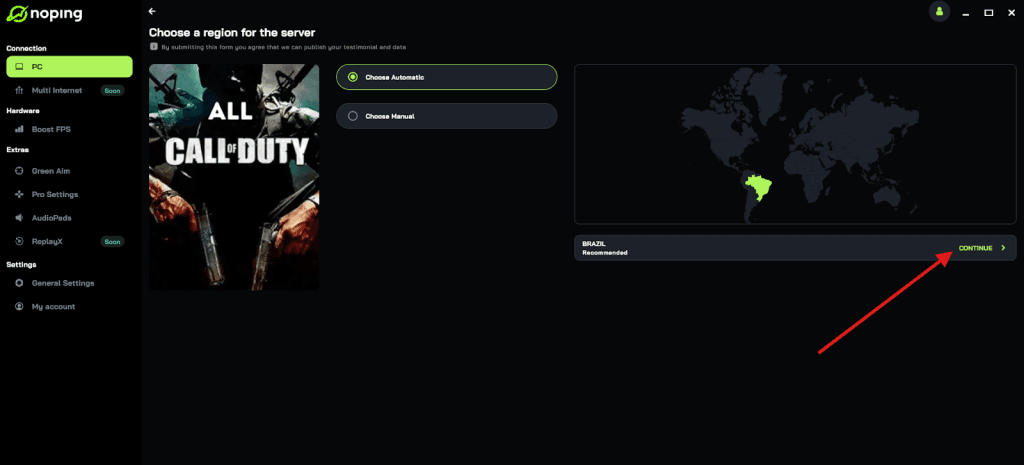
- On the next screen, click on “Optimize Game”.
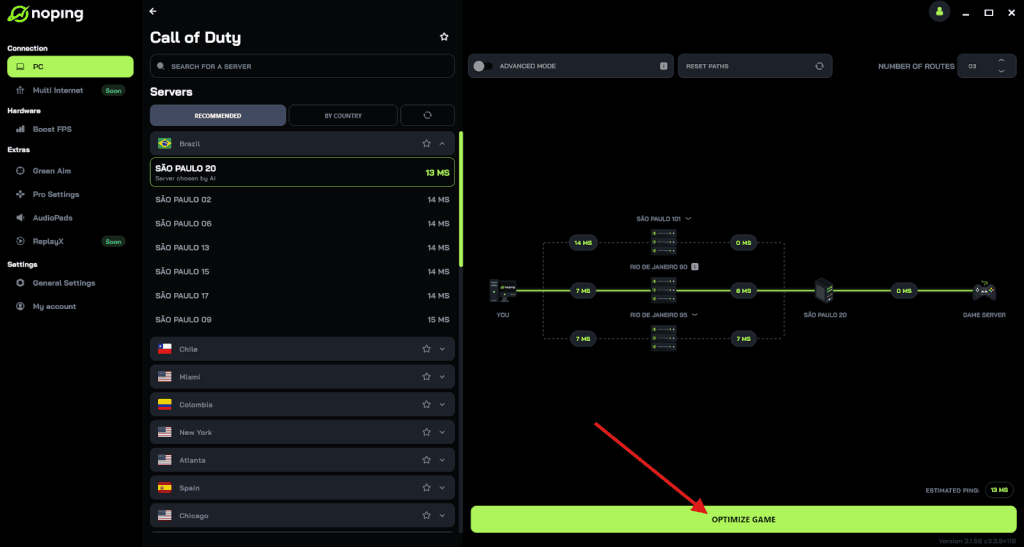
- And that’s it, you can start playing CoD with optimized ping!
You can test different servers within NoPing to see which gives you the lowest latency.
FAQ - Black Ops 6 Crashing
Q: Does Black Ops 6 crash more on older GPUs?
Yes, older graphics cards like the GTX 900 series tend to crash more often with high settings. Lowering textures usually helps.
Q: Can overclocking be the reason?
Definitely. GPU or CPU overclocks that seem stable in other games may crash in Black Ops 6. Try reverting to factory speeds.
Q: Should I disable my antivirus?
Not permanently. Test by disabling it once. If that fixes the issue, add Black Ops 6 as an exception instead of leaving your system unprotected.
Q: Why does my game crash when compiling shaders?
This usually happens if the shader cache is corrupted. Deleting it in settings forces the game to rebuild, which may take time but improves stability.
Q: Can I run Black Ops 6 on a hard drive?
You can, but it’s not ideal. HDDs cause longer load times and sometimes crashes when the game can’t stream textures fast enough. An SSD is strongly recommended.
Crashes in Black Ops 6 can be frustrating, but most are solvable with a bit of troubleshooting. Updating drivers, verifying files, disabling overlays, and monitoring hardware temperatures cover the majority of cases. If you’re still having issues, reinstalling the game on an SSD is often the final fix that gets things working.
As with any major release, patches will continue to roll out. Keeping both your game and system updated is the best way to avoid future crashes and enjoy smoother gameplay.
Play Black Ops 6 without lag right now! Download NoPing and start your free trial!