

Running into dev error 0x59e33872 in Warzone can be incredibly frustrating, especially if it pops up right when you’re about to jump into a match.
Instead of dropping with your squad, you’re kicked back to the desktop or menu with a cryptic error code that doesn’t really explain what went wrong.
This error usually comes down to corrupted files, graphics issues, or settings conflicts, and there are several proven ways to fix it.
In this guide, we’ll break down what causes the problem, the most effective solutions players are using, and how to keep your game running smoothly.
What is Causing dev error 0x59e33872 in Warzone?
There isn’t one single cause that always triggers this exact hex code. From community reports and troubleshooting guides, the common themes are:
- Corrupted or missing game files — after updates or interrupted installs the game can reference files that aren’t right anymore. Many players report scan/repair or reinstallation fixes.
- Graphics/texture streaming problems — Warzone’s texture streaming and cache settings can cause crashes on load if the engine can’t allocate or access textures as expected; changing texture streaming/cache settings has fixed similar dev errors for many.
- Conflicting settings or overlays — third-party overlays, certain custom loadouts, or weird saved settings in the Documents/Players folder can trigger crashes when the game tries to load UI/visual elements. Deleting the user players/settings folder has helped some people.
- Drivers, DirectX, or system-level problems — outdated GPU drivers, missing redistributables, or DirectX issues show up as dev errors and DirectX crashes in threads about similar error codes. Activision’s troubleshooting pages point players to verify/repair, update drivers, and perform a clean boot for PC troubleshooting.
Because this error can be caused by several different subsystems (game files, textures, drivers, saved settings), the best approach is a methodical one: try the low-effort fixes first, then the heavier ones if needed.

Source: Reddit
12 Ways to Fix dev error 0x59e33872 in Warzone
Below is a practical, ordered set of fixes. I’ll mark the ones that are easiest first. Try them in sequence and check the game after each step.
1. Restart the game and your PC/console
Simple but effective. A fresh process can clear temporary resource conflicts and free memory the game needs. Many players test this before anything else.
2. Scan and repair the game files (Battle.net / Steam / Xbox app)
Use the game client’s “verify” or “scan and repair” feature — it will re-download corrupted/missing files. This is the most common fix reported for dev errors.
3. Delete Warzone’s local settings / Players folder
Exit the game, then in Documents\Call of Duty\players (or equivalent) back up and then delete the folder. This forces the game to recreate settings that could be corrupted. Several community threads point to this as a reliable fix for crashes tied to UI/setting load.
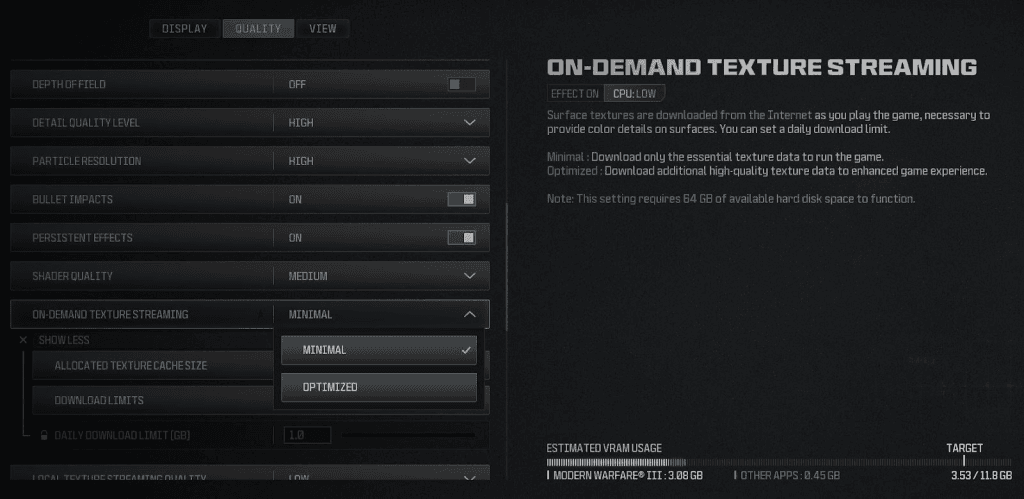
4. Change texture streaming / texture cache size
In-game Graphics → On Demand Texture Streaming → set the allocated texture cache size to a smaller value (or turn it off if applicable). Players have reported this specifically resolving dev errors when the engine fails to stream textures correctly.
Source: Reddit
5. Clear reserved space / game cache (console) or clear local cache (PC)
On consoles, clear reserved storage and perform a full power cycle. On PC, clear any temp or cached game data the client exposes. This can help when partial files are stuck in reserved space.
6. Update or roll back GPU drivers
Make sure you’re on a recommended, stable GPU driver from NVIDIA/AMD (not necessarily the latest beta). If a driver update caused crashes, rolling back can help. Conversely, an outdated driver can also cause crashes, so update if you’re behind.
7. Run the game and launcher as Administrator / set compatibility
On PC, run both the launcher (Battle.net/Steam/Xbox app) and the game executable as administrator. Also try the -d3d11 launch option (forces DirectX 11 in some cases) if people mention specific DirectX crashes.
8. Disable overlays and background apps
Turn off Discord/GeForce/OBS overlays, disable unnecessary background programs, and temporarily disable antivirus/firewall or add the game folder to exclusions. Overlays and security software can inject code or block files and produce dev errors.
9. Check for problematic loadouts, charms, or custom content
For some players, a particular cosmetic, weapon attachment, or custom loadout caused crashes when the game tried to render it. Try removing weapon charms, custom loadouts, or recently equipped items and see if the crash stops.
10. Perform a clean boot / disable overclocking and tuning software
Do a Windows clean boot to isolate third-party software. If you’re overclocking GPU/CPU, set clocks back to stock: overclocks can make the game unstable. Activision PC troubleshooting recommends these steps.
11. Reinstall the game (last-resort)
If nothing else works, a full uninstall + reinstall (including deleting leftover game folders and the players/documents folder) can fix persistent corruption. This is time-consuming but often resolves stubborn dev errors.
12. Report the bug to Activision and submit diagnostics
If the error persists after trying the above, submit a bug report through Activision’s Feedback/Bug Report page and include logs/screenshots. If it’s a game-side bug, Activision needs reports to prioritize a fix.
Quick note: don’t try to change too many things at once. Test after each major step so you know which action actually fixed the problem.

What Other Errors You May Encounter in Warzone?
Warzone throws a variety of “dev error” codes. A few you might see or read about in the same threads as 0x59e33872:
- Dev Error 7222 — often reported when loadouts or attachments conflict across different game modes; community fixes included removing complex zombie/multiplayer classes.
- Dev Error 5573 / DirectX error codes (e.g., 5090, 9800x3d) — usually DirectX/GPU related; deleting the Call of Duty folder in Documents and verifying/reinstalling drivers is commonly suggested.
- Generic “Dev Error 0” or other hex codes — these cover a broad set of issues and often require the same methodical approach: verify files, clear player settings, update drivers, or reinstall.
If you get a different dev error, search for that exact code plus your platform — community threads often surface the platform-specific quirks and fixes quickly.
How to Play Warzone Without Lag?
Warzone is already demanding enough without stutters or connection drops making things worse.
The best way to keep your matches smooth is to use NoPing, a tool designed to optimize the route between your PC and the game’s servers. By cutting down unnecessary stops in your connection path, it helps reduce latency, packet loss, and even jitter.
The result is a much more stable and responsive experience, which can make a big difference in a fast-paced shooter like Warzone.
Here’s how to use NoPing to fix lag in Call of Duty:
- Sign-up through the website and download NoPing (you can try it for free)
- Open NoPing and search for Call of Duty inside the software
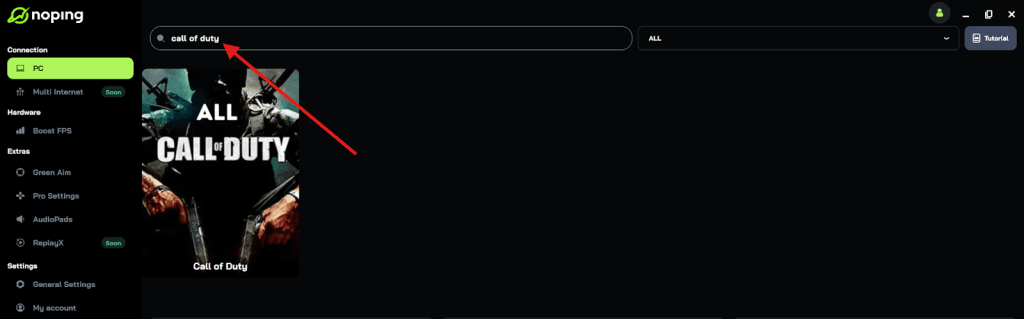
- Once you find Call of Duty, click on it and, on the next screen, select “Choose automatic” or “Choose manual” and click “Continue”. We recommend choosing automatic, as NoPing’s technology analyzes all routes on a global scale and automatically selects the best option for you.
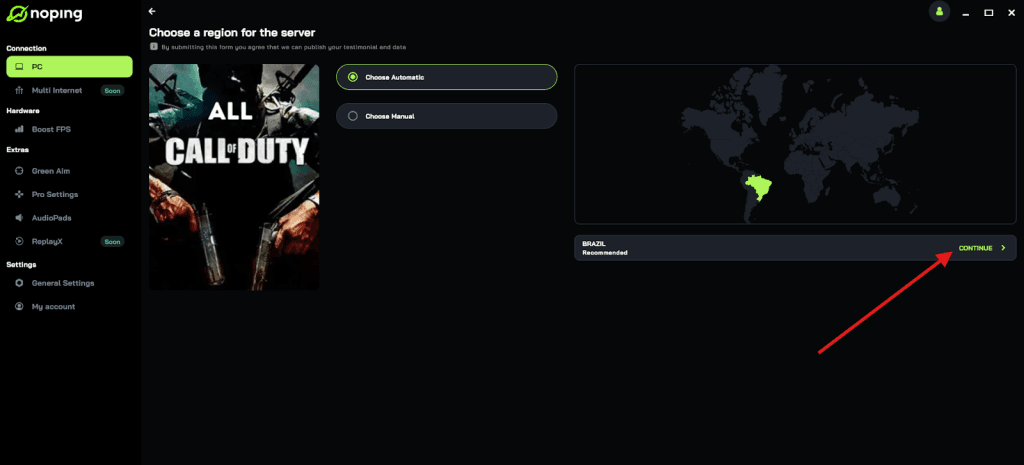
- On the next screen, click on “Optimize Game”.
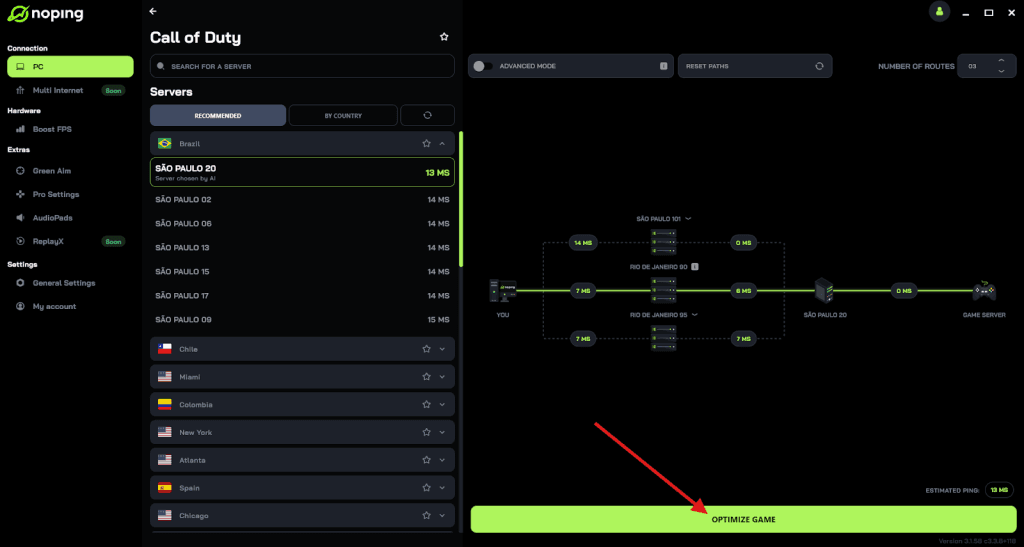
- And that’s it, you can start playing CoD with optimized ping!
You can test different servers within NoPing to see which gives you the lowest latency.
FAQ - dev error 0x59e33872 in Warzone
Q: Will I lose my progression or skins if I delete the Players folder or reinstall?
A: No, player progression and cosmetic ownership are tied to your Activision/console account, not the local Documents folder. Deleting local settings resets preferences but shouldn’t remove purchased items or account progress. If unsure, back up the folder before deleting.
Q: Do consoles get this exact 0x59e33872 error or is it PC-only?
A: Dev errors occur on consoles too. Some fixes differ (clearing reserved storage, power-cycling the console), but the principle is the same: clear corrupted cache, verify game data, or reinstall.
Q: Should I always update to the newest GPU driver?
A: Generally yes for stability and performance, but occasionally a new driver causes problems. If the crash started after a recent driver update, try rolling back. If you’re well behind current drivers, update to the latest stable release from NVIDIA/AMD.
Q: When should I contact Activision Support?
A: After you’ve tried the main troubleshooting steps (verify/repair, delete players folder, update drivers) and the problem persists, file a bug report via Activision’s feedback/bug form with logs and details. They may be able to escalate or confirm a server-side bug.
Q: Is there any risk to my account if I keep getting dev errors?
A: No, dev errors are technical crashes and won’t usually affect account standing. However, frequent disconnects might temporarily affect session stats or SR in some modes; if you suspect penalties, include that concern in your support ticket.
To always play Warzone with top performance, use NoPing! Download now and start your free trial!