

Roblox has evolved into a platform capable of high-end visual fidelity, especially with the 2026 updates to its engine.
While it was once seen as a game for any hardware, modern experiences now feature complex shaders, realistic reflections, and massive draw distances that can stress even decent laptops.
To achieve max settings with a laptop, you need to look beyond the in-game menu and optimize how your laptop handles power and resources.
Can you really push a laptop to max settings in Roblox?
Yes, you can definitely run Roblox at maximum settings on a laptop, provided you have a dedicated graphics card and the right software configurations.
While basic thin-and-light notebooks might struggle with advanced lighting systems like "Future is Bright," most gaming or mid-range creator laptops have the raw power needed for a high-fidelity experience.
The challenge with laptops is not just the components, but how those components are managed.
Laptops often limit their own speed to prevent overheating or save battery life. By manually overriding these limits and ensuring your hardware is running at its full potential, you can enjoy Roblox with every visual feature turned on.

What hardware do you actually need in 2026?
To maintain a stable 60 FPS or higher at level 10 graphics, your laptop should ideally feature a dedicated GPU, such as an NVIDIA RTX 3050 or higher, paired with at least 16GB of RAM.
Integrated graphics (like Intel Iris Xe or AMD Radeon Graphics) can run the game, but they often require lowering the resolution to keep the settings at maximum.
- Processor: Intel Core i5/i7 (11th Gen+) or AMD Ryzen 5/7 (5000 series+).
- Memory: 16GB RAM to handle background tasks and large map assets.
- Storage: SSD is mandatory for fast loading and reduced texture pop-in.
- Display: 1080p resolution is the sweet spot for laptop gaming.
How do you bypass the 60 FPS cap?
Roblox limits its frame rate to 60 FPS by default, which can make high-end hardware feel underutilized.
You can bypass this using Bloxstrap, a third-party bootstrapper that offers deep customization and performance tweaks.
Once you have Bloxstrap installed, use these settings to maximize your visual potential:
- Frame Rate Limit: Set to your monitor's refresh rate (e.g., 144 or 240).
- Preferred Lighting Engine: Force "Future" for the best shadows and reflections.
- Rendering API: Select DirectX 11 for NVIDIA cards or Vulkan for newer AMD hardware.
- Disable Desktop App: This keeps the client lightweight and focused on the game.
Also read: How to Play Roblox on Switch: The Complete Guide
Which Windows settings improve performance the most?
Windows often tries to save energy by using your CPU's integrated graphics instead of your powerful dedicated GPU.
You must manually instruct the operating system to prioritize Roblox for maximum performance.
Follow these steps in your Windows 11 settings:
- Graphics Performance: Go to System > Display > Graphics, find Roblox, and select "High Performance."
- Game Mode: Turn this on to prevent Windows from running background updates or heavy tasks while you play.
- Power Plan: Set your Windows power plan to "Best Performance" (visible in the battery settings).
- Hardware-Accelerated GPU Scheduling: Enable this in the graphics settings to reduce latency and improve frame pacing.
How should you configure your GPU Control Panel?
The NVIDIA or AMD control panels allow you to force higher quality settings that the Roblox menu does not explicitly show.
This can make textures look sharper and edges look smoother without a heavy performance hit.
Inside the NVIDIA Control Panel, under "Manage 3D Settings," apply these changes to the Roblox executable:
- Power Management Mode: Prefer maximum performance.
- Anisotropic Filtering: 16x (makes floor/wall textures look clear at a distance).
- Antialiasing - Transparency: 2x or 4x (Supersample) for cleaner edges on grass and trees.
- Texture Filtering Quality: High Quality.
- Vertical Sync: Off (unless you experience screen tearing).
What are the best in-game graphics configurations?
The in-game menu is your primary control for visual quality. For the best experience on a laptop, you want to use the "Manual" setting to ensure the game does not automatically lower your quality when things get intense.
- Graphics Mode: Manual.
- Graphics Quality: 10 (Max).
- Fullscreen: Enabled (improves performance by giving the game exclusive access to the GPU).
- Camera Mode: Classic or Follow, as higher sensitivity can sometimes cause perceived micro-stuttering.
Why does network stability matter for visual smoothness?
Many players perceive network lag as graphical lag. If your ping is high or your jitter is inconsistent, your character will warp, and objects will move choppily, making the game feel like it is running at a low frame rate even if your FPS counter is high.
This is especially true for Roblox, where physics are often calculated on the server. Using NoPing helps stabilize your connection by finding a more direct route to the game's servers.
By reducing latency and eliminating packet loss, you ensure that the high-quality visuals your laptop is rendering remain in perfect sync with the server.
A stable connection makes the movement of other players and objects look as smooth as the environment.
Here’s how to use NoPing to fix network issues in Roblox:
- Sign-up through the website and download NoPing (you can try it for free)
- Open NoPing and search for Roblox inside the software
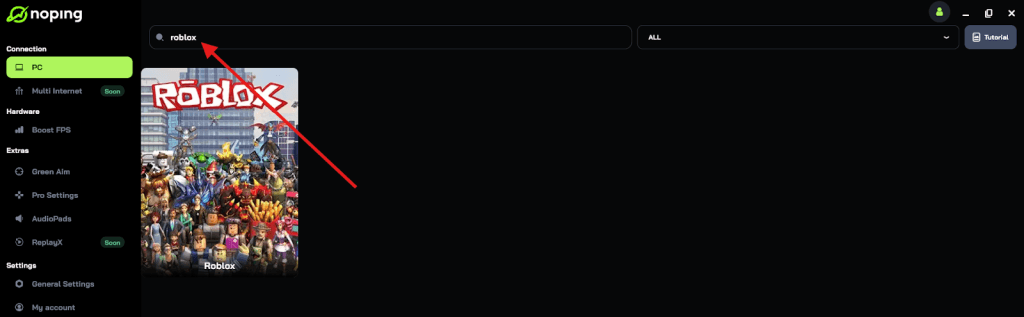
- Once you find Roblox, click on it and, on the next screen, select “Choose automatic” or “Choose manual” and click “Continue”. We recommend choosing automatic, as NoPing’s technology analyzes all routes on a global scale and automatically selects the best option for you.
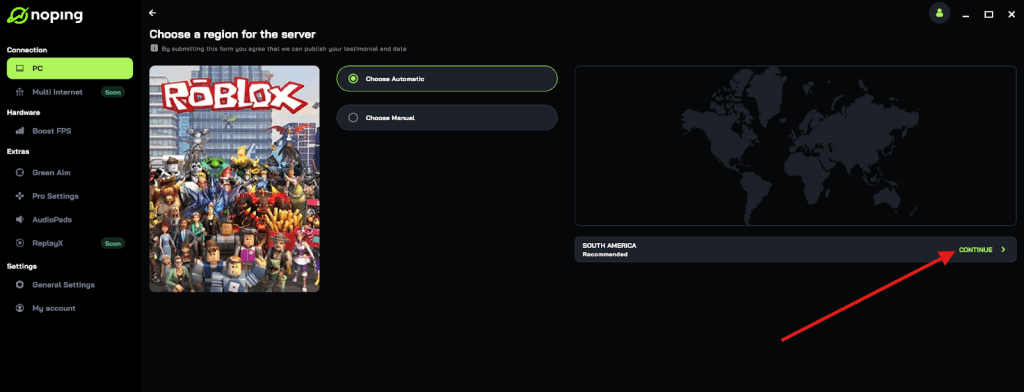
- On the next screen, click on “Optimize Game”.

- And that’s it, you can start playing Roblox with optimized ping!
You can test different servers within NoPing to see which gives you the lowest latency.
How do you prevent your laptop from overheating?
Laptops generate extreme heat when running at max settings.
If your components get too hot, they will automatically slow down (thermal throttling) to protect themselves, causing your FPS to plummet after a few minutes of play.
- Hard Surface: Always play on a desk, never on a bed or carpet.
- Cooling Pad: A powered cooling pad can drop temperatures by 5 degrees or more.
- Fan Speed: Use your laptop’s software (like Armoury Crate or Alienware Command Center) to set fans to "Turbo" or "Max."
- Dusting: Clean your side and bottom vents with compressed air every few months.
Should you stay plugged into power?
Yes, you should always keep your laptop plugged into the charger when playing Roblox at max settings.
Laptops cannot pull enough wattage from the battery to run the GPU and CPU at their maximum boost clocks.
When running on battery, your laptop will likely lock the frame rate to 30 FPS and significantly reduce the power sent to the graphics card.
This will make "max settings" look blurry or choppy. Keep the power brick connected to ensure your hardware has the "juice" it needs to render complex scenes.
How does resolution impact your frame rate?
Resolution is the biggest factor in GPU load. If your laptop has a 4K screen, running Roblox at native 4K with max settings is very difficult for most laptops.
If you notice your FPS is dipping below 60:
- Resolution Scaling: Change your Windows display resolution to 1920x1080 while gaming.
- Roblox Scale: If using Bloxstrap, you can adjust the internal render scaling to 0.8x or 0.9x for a performance boost with minimal visual loss.
- UI Scale: Lowering the UI scale can sometimes help visibility in complex games, though it has little impact on FPS.
Running Roblox at maximum settings on a laptop is a combination of unlocking the frame rate, forcing your dedicated GPU to work, and managing the heat generated by the process.
By following these steps, you can turn a mobile device into a high-performance gaming machine.
Play Roblox without lag! Download NoPing now and start your free trial!