

EA Sports FC 27 input delay should be diagnosed, not guessed. Verify the current product and service availability on official EA channels, then separate network response from local rendering. Ping measures round-trip time, jitter measures its variation, and packet loss means missing data. FPS describes frame production on the device. Similar symptoms can therefore require different fixes.
Version boundary: this page covers EA Sports FC 27 only. Use the published EA FC 26 ping and stability guide for the prior edition; its product-specific claims remain separate.
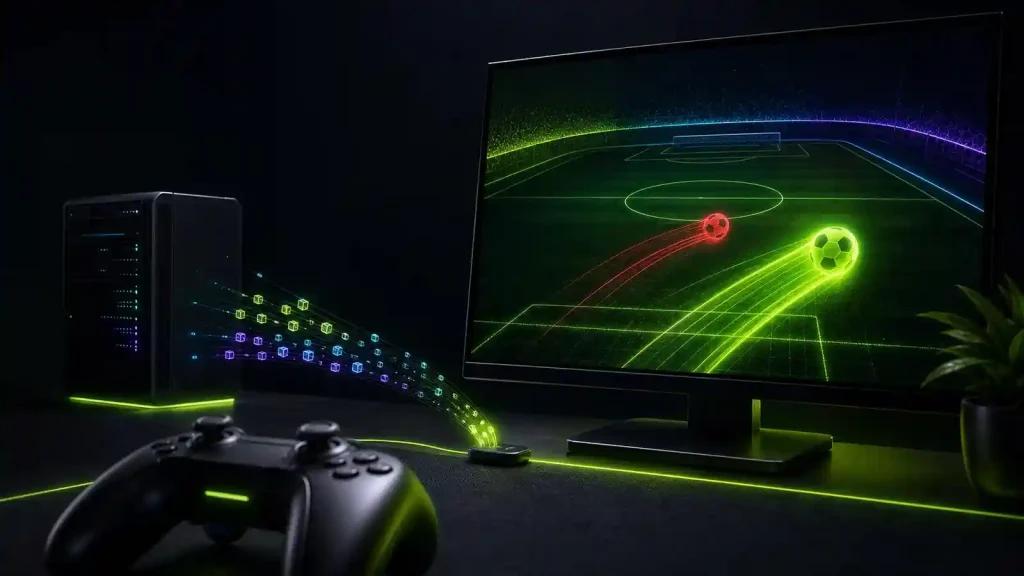
Figure 1. Football game input timeline separating command delay from frame rate
Diagnose EA Sports FC 27 input delay safely
Treat FC 27 as a separate version scope, not a rewrite of the FC 26 owner. Keep every claim tied to the current edition and to facts confirmed by EA. If its service is degraded, local software cannot restore it; test later.
When services are available, choose one online mode at a similar hour. Record available connection indicators, device, connection type, region, and symptoms. Choppy motion with stable network metrics can be local frame pacing or hardware load.
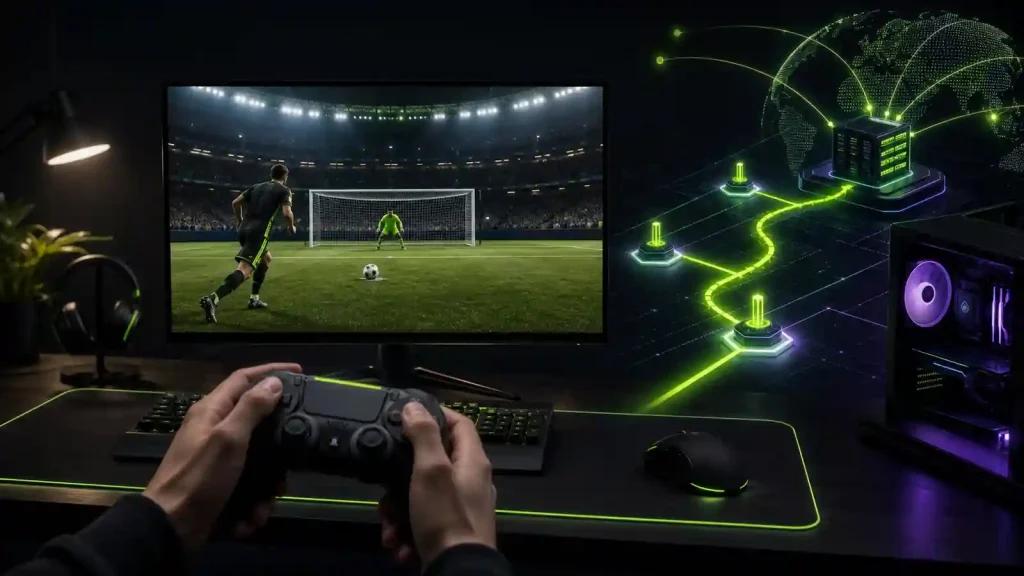
Figure 2. EA Sports FC connection diagnosis using ping jitter and packet loss
Isolate the likely cause
Use Ethernet and pause downloads, cloud sync, streaming, and calls. If delay appears only on Wi-Fi, inspect signal and contention. If several devices slow down, investigate the line or ISP. If one match destination fails while the local network is stable, inspect the path.
Do not call every missed command packet loss. Compare multiple matches and offline play: delay that remains offline is not caused by the remote route. Check controller transport, display mode, and frame-rate stability first.
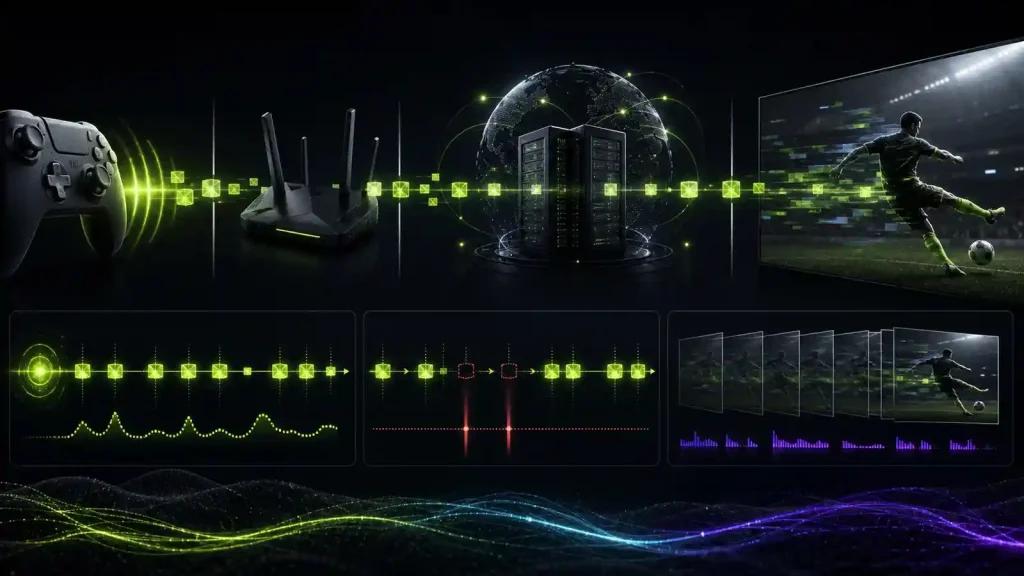
Figure 3. Wired match test prepared with background traffic paused
Match-day checklist
- Confirm the title, platform, mode, and EA service are currently available.
- Reboot network equipment once and use Ethernet where practical.
- Pause background traffic and avoid simultaneous large uploads.
- Record at least three comparable matches rather than one result.
- Compare online and offline input response to separate network from device delay.
- Use connection monitoring to document route behavior.
When an alternate route may help
An optimizer may help if EA services are healthy, offline input is responsive, Ethernet is stable, and the external path repeatedly adds latency, jitter, or loss. It does not fix EA capacity, matchmaking distance, controller issues, or low FPS.
Frequently asked questions
Is input delay the same as high ping?
No. High ping is one contributor. Rendering, controller transport, display processing, server load, and game simulation can also delay visible response.
Does a faster download plan guarantee better matches?
No. Once capacity is sufficient, route quality, jitter, packet loss, and local contention may matter more than peak download speed.
Can an optimizer fix low FPS?
No. On the supported PC version, FPS is produced locally. Network optimization does not upgrade the processor, graphics hardware, thermal state, or game settings.
On PC, establish a written baseline, test NoPing in alternating comparable matches, and keep it only when the data shows a consistent improvement. Stop the test if stability worsens or the issue is clearly outside the route.