

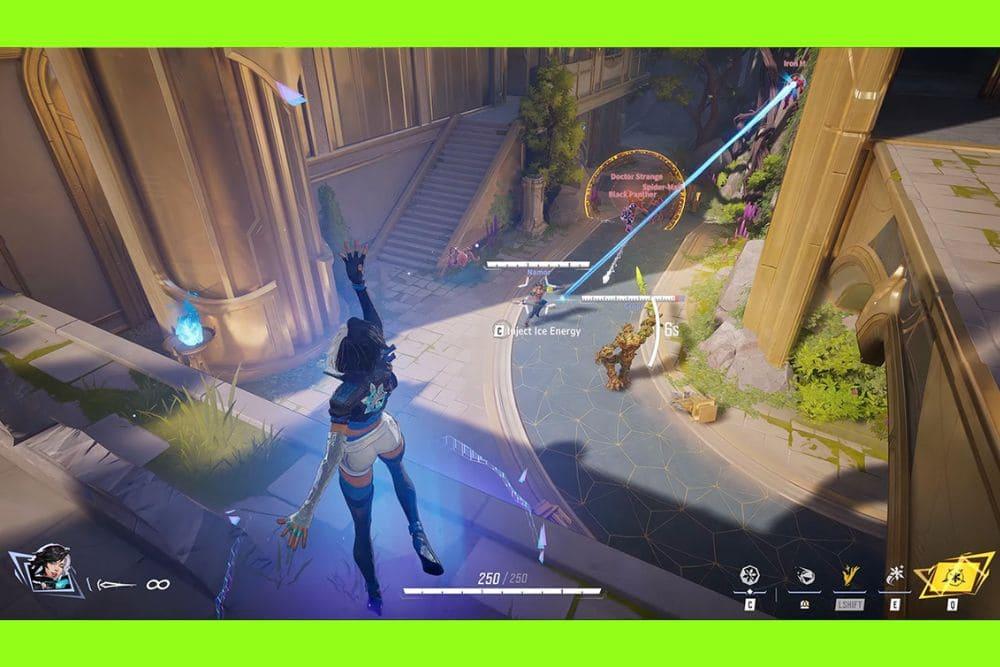
Marvel Rivals out of video memory error is one of those crashes that shows up at the worst time: before a match, during the menu, or while loading a match.
It’s usually frustrating, but most of the time it isn’t a hardware death sentence, it’s something you can troubleshoot.
Below we’ll explain what the error means, the main proven fixes people are using, other error codes you might see, and how to play with less lag.
What is the Marvel Rivals Out of Video Memory Error?
This error message typically reads something like: “Out of video memory trying to allocate a rendering resource. Make sure your video card has the minimum required memory, try lowering the resolution and/or closing other applications that are running. Exiting…”
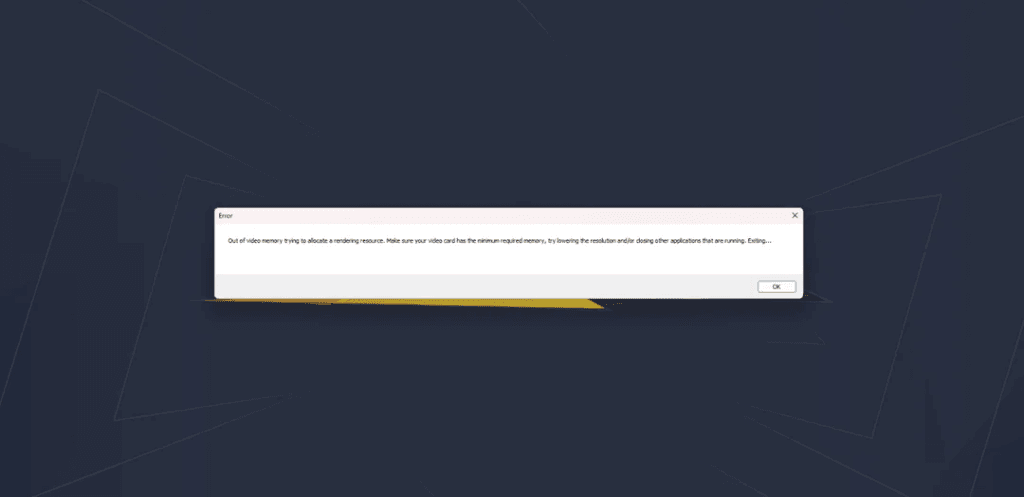
Source: Reddit
It means the game (or Unreal Engine beneath it) tried to reserve more GPU memory (VRAM) than was available or usable at that moment, so it failed and closed.
The reason can be genuinely low VRAM, a driver bug, shader/compile issues, conflicts with background apps, or Windows/virtual memory/pagefile settings.
The official Steam system requirements for Marvel Rivals list modern GPUs and a relatively high memory floor, so check those first to confirm your hardware meets the minimums.
10 Ways to Fix Marvel Rivals Out of Video Memory Error
Below are the most common, practical fixes. I list them as steps you can try in order; you don’t need to do all of them if an earlier step solves it.
Check minimum requirements and VRAM
Confirm your GPU meets the game’s minimum (and ideally recommended) specs. If your card has less dedicated VRAM than the game expects, you’ll run into issues. The Steam store page and other spec sites show the official GPU and memory guidance.

Update GPU drivers
Update to the latest drivers from NVIDIA/AMD/Intel. Driver updates often include fixes for memory allocation and Unreal Engine compatibility. After updating, reboot and try again. Driver issues are a common cause of out-of-memory crashes.
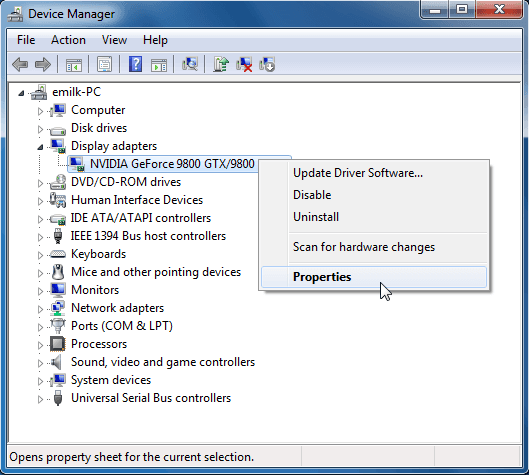
Source: Algodoo
Run in Windows 8 compatibility + let shaders compile (workaround)
A widely reported workaround specifically for Marvel Rivals is to run the game in Windows 8 compatibility mode temporarily, allow shaders to fully compile, then disable compatibility and restart the game. Several players and community posts report this fixes the error during startup/shader compilation. If you try this, apply compatibility, launch, wait through shader compile until the menus are stable, then revert compatibility to your normal setting.
Lower in-game graphics settings and resolution
Temporarily set texture quality, resolution, and other graphics options to low. Lowering texture resolution reduces VRAM demand and often prevents the allocation failure. If the game launches after this, you can slowly raise settings to find a stable balance.

Source: Game Rant
Close background apps and overlays
Close resource-heavy programs (Discord overlay, video recorders, browsers with many tabs, streaming software). Overlays and recording tools can take GPU resources or complicate memory allocation. Also try disabling Steam/Discord overlays before launching.

Source: Business Insider
Increase Windows virtual memory (pagefile)
If your system RAM is low or the OS is struggling with memory swaps, increasing the pagefile (virtual memory) can help the OS manage allocations and might prevent some “out of video memory” errors that are actually caused by low system memory headroom. Set pagefile to system-managed or explicitly increase it on your boot drive.
Verify game files / reinstall shaders
Use Steam’s “Verify integrity of game files” or the launcher equivalent to force a refresh of corrupted files. Some players reported that re-downloading or forcing shader recompilation helped. If the game has a shader cache folder, removing it so the game re-compiles fresh can help (only if you know what you’re removing).
BIOS/UEFI and chipset updates
Some users reported that updating motherboard BIOS or chipset drivers fixed persistent allocation crashes. This is lower probability but worth trying if other fixes fail, and only using official updates from the vendor.
Try a different GPU driver branch (rollback or beta)
If a recent driver update started the crashes, try rolling back to a previous stable version. Conversely, if you’re on an old driver, a beta/latest driver might contain a needed bugfix. Make sure to use DDU (Display Driver Uninstaller) for clean driver swaps if persistent issues remain.
Check hardware health / temps and test VRAM
Overheating GPUs or failing memory can cause allocation errors. Monitor GPU temps under load and run a GPU stress/diagnostic tool if you suspect hardware issues. If you get similar errors in other games, consider testing the GPU on another system or contacting support.
Important note: if your GPU truly has less dedicated VRAM than the game requires (e.g., an old integrated GPU with very limited VRAM), the permanent solution is hardware upgrade.
What Are Other Error Codes in Marvel Rivals?
Here’s a breakdown of some of the other error codes players have encountered in Marvel Rivals, along with what they typically mean and how to fix them—based on community reports and reputable sources:
Error Code 211
A frequent issue among Steam users, Error Code 211 usually appears when the game fails to launch after login.
Possible causes & fixes:
- Restart Steam completely: Some players resolved the issue simply by closing Steam via Task Manager and relaunching it before starting Marvel Rivals again.
“Same thing happened to me… my fix was just enabling Marvel Rivals to go through my firewall.” - Check server status and connections, reset your internet or switch to 2.4 GHz Wi-Fi if using wireless.
- Allow Marvel Rivals and Steam through your firewall, and disable any "server blockers" or region filters that might interfere.
- Try using a different launcher: Some users successfully bypassed the error by downloading the game through the Epic Games Store instead of Steam.
Error Code 220
Primarily network-related, Error Code 220 tends to crop up during login or matchmaking.
Troubleshooting steps:
- Often caused by firewall interference or incorrect region/server selection. Disabling firewalls or server blockers often helps.
- Players reported success by running network diagnostics and switching to a server geographically closer to them.
- It’s also possible that generic connection issues or server-side delays are to blame, so checking official status pages or waiting it out could help.
Error Code 21
Mostly an Xbox-specific error, but occasionally seen elsewhere.
Common fixes include:
- Try resetting your console or router, and verify server status and game updates.
- Changing DNS settings to Google’s (8.8.8.8 and 8.8.4.4) has resolved the issue for some Xbox users.
- Use NoPing to connect via a different region or setting up a hotspot from another device.
Error Code 10
A catch-all for networking or platform-specific connectivity issues.
Fix suggestions:
- Restart the game and launcher, and ensure your client is fully updated.
- If the issue persists, it's likely on the server end—many players report that waiting briefly often resolves the error.
Error Code 4
Rare and somewhat vague.
What to try:
- Similar to code 10, it generally points to connectivity issues. If you're on PlayStation, try restarting or resetting your connection.
- Turning your Wi-Fi off and on again has reportedly worked for some users.
Error Code 258
Often seen during login in cases of high server traffic.
Quick workaround:
- Repeatedly attempting to login usually resolves it eventually—shows up during server congestion.
How to Play Marvel Rivals Without Lag?
Short answer: NoPing.
NoPing is a gaming routing/optimization service designed to reduce ping, packet loss and routing-related lag by finding better routes between your PC and game servers and offering connection tools.
If you’re experiencing network lag, using NoPing plus the usual steps can significantly smooth multiplayer responsiveness.
Here’s how to use NoPing to fix network issues in Marvel Rivals:
- Sign-up through the website and download NoPing (you can try it for free)
- Open NoPing and search for Marvel Rivals inside the software

- Once you find Marvel Rivals, click on it. Choose your server on the next screen and click on “Optimize Game”.

- And that’s it, you can start playing Marvel Rivals with optimized ping!
You can test different servers within NoPing to see which gives you the lowest latency.
FAQ - Marvel Rivals Out of Memory Error
Q: Will increasing system RAM fix the out-of-video-memory error?
A: Increasing system RAM can help overall system headroom and reduce paging pressure, which indirectly helps stability, but it does not increase GPU VRAM. If the game is failing because it truly needs more GPU VRAM, more system RAM alone won’t solve it. However, if your system RAM is very low (close to the minimum), adding RAM is still a good move.
Q: Is the error unique to Marvel Rivals or Unreal Engine games?
A: The specific wording is common across many Unreal Engine titles because Unreal reports the allocation failure. So the same fixes (drivers, shader compile, pagefile, lowering textures) apply across multiple EA/UE games.
Q: Can I increase VRAM through Windows or BIOS?
A: On desktops, dedicated GPUs have fixed VRAM and you can’t change it via software. Some laptops with integrated GPUs let you tweak shared memory in BIOS, but the real fix for insufficient dedicated VRAM is a GPU upgrade. Be cautious with BIOS tweaks and follow manufacturer guidance.
Q: The game crashes with a blue screen (BSOD) and an out-of-memory message. What now?
A: BSODs are more serious; check Windows Event Viewer and crash codes, test with different drivers, run memory tests, and consider hardware diagnostics. If BSODs persist across multiple games, contact hardware vendor support.
The Marvel Rivals out of video memory error can feel like a brick wall, but in most cases it comes down to drivers, shaders, graphics settings, or background apps hogging resources.
Following the fixes step by step usually gets the game running smoothly again, and if your hardware simply doesn’t meet the VRAM requirements, at least you’ll know for sure what’s holding you back.
To always play Marvel Rivals without lag, use NoPing! Download now and start your free trial!