


“Marvel Rivals mouse acceleration” is one of those settings that many competitive or precision-focused players love to tweak, because it affects how your aiming and in-game responsiveness feel.
If you play Marvel Rivals on PC, you may notice that at some point after launch there was pushback about how the game handled mouse acceleration and smoothing.
This article will help you understand what it is, how to toggle it on or off (including via game settings or config files), why people often don’t like it, and other ways to get your setup more comfortable for aiming.
What is Mouse Acceleration?
Mouse acceleration is a feature in many games (and in operating systems) that modifies how much movement your cursor or the in-game camera makes based not just on how far you move your mouse, but how fast. In practice:
- If mouse acceleration is on, moving your mouse a short distance slowly might move your view a little, but moving it quickly over the same distance might move your view far more. Speed influences sensitivity in a dynamic way.
- If mouse acceleration is off, the mapping between physical mouse movement and in-game aim or cursor movement is linear and constant. Distance moved with the mouse maps more directly to how far your view or crosshair moves, regardless of speed.
The “mouse smoothing” setting often gets paired with acceleration. Smoothing tries to reduce jitter or extremely tiny inputs or noise so that movement looks smooth, but can introduce input lag or reduce the “sharpness” of mouse feedback for some players.
In Marvel Rivals, both of these (mouse acceleration and smoothing) can affect your aim consistency, muscle memory, flick shots etc.

How to Toggle On/Off Mouse Acceleration in Marvel Rivals
Here are the ways to manage mouse acceleration / smoothing in Marvel Rivals, based on the latest patches and community findings.
Note: some methods changed over time, so depending on your game version, everything may not look identically the same.
In-Game / Official Settings (Patch 20250110 onward)
A patch (version 20250110) added options to toggle mouse acceleration and mouse smoothing in the PC version via the game's settings.
Here’s how to do it:
- Launch Marvel Rivals on PC.
- Press Esc to open the in-game menu.
- Go to Settings.
- Find the Keyboard tab.
- Under that, switch to the Combat sub-tab.
- Scroll down until you see the Mouse header. There should be toggles for Mouse Acceleration and Mouse Smoothing.
- Flip the switches to On or Off depending on your preference. If you want raw input / no acceleration, turn them Off.
By default (after that patch), both mouse acceleration and smoothing are off in Marvel Rivals. So if you're new or haven’t changed them, likely you’re already using raw input.

Source: Reddit
Config File / Editing via Windows Files (Earlier / Alternative Work-arounds)
Before the patch or for people who want more control, community guides describe editing the game’s user settings file to force mouse acceleration off or disable smoothing.
But with the patch having added in-game toggles, some of that may be deprecated or less reliable. Always back up files before editing.
Here’s how that method generally works:
- Go to your Windows user folder:
C:\Users\<your-username>\AppData\Local\Marvel\Saved\Config\Windows (or similar, depending on install / OS setup). - Find GameUserSettings.ini (or sometimes .ini file or “UserSettings” depending) and open it with Notepad or another text editor.
- Locate the input or mouse-related section, or add if missing, lines such as:
[/Script/Engine.InputSettings]
bEnableMouseSmoothing=False
bViewAccelerationEnabled=False
- This turns off both acceleration and smoothing.
- Save the file. Then launch Marvel Rivals again. Check in-game if the toggles reflect the desired state. Sometimes the game version will override or not respect manual edits.
Note: Some players report that after certain updates, editing config files no longer has an effect, or the developers have locked out or degraded non-official methods. So rely on in-game settings where possible.

Why People Usually Don’t Like Mouse Acceleration
Even though mouse acceleration can be tweaked to personal preference, many players prefer to keep it off. Here’s why:
Lack of consistency
With acceleration, small differences in mouse speed (sometimes unintentional) cause big differences in how your aim behaves.
This makes aiming predictable less often, especially in high-pressure moments.
Muscle memory is harder to build
If the movement isn’t linear, it’s harder to train your hand to move certain distances for certain in-game turning amounts. You might flick one way and overshoot because you moved the mouse too fast.
Aim / precision suffers
For some characters or situations (sniping, precise shooting), raw movement tends to perform better because you get the same response every time.
Input lag / feel
Smoothing (often paired with acceleration) can introduce lag or make aiming feel “floaty” or delayed, because the game tries to average or reduce jitter.
Some players dislike that softness or lack of crispness.
Competitive fairness / standard
Many shooters (FPS / hero shooters) default to acceleration off, so players coming from those games expect similar behavior. If Marvel Rivals had acceleration on by default earlier (reports said yes), that surprised many players.
All that said: some players do like acceleration or smoothing in certain cases (if they like fast sweeping turns, or their mouse DPI is very low or very high, or their setup makes raw input noisy). It’s a personal trade-off.
More Settings to Enhance Your Gameplay
Beyond mouse acceleration and smoothing, there are other settings you can tweak in Marvel Rivals (and outside of it) to help aiming comfort, consistency, and overall gameplay feel.
- Mouse Sensitivity / DPI: Tweak your mouse’s built-in DPI settings (if supported) and in-game sensitivity so that you get a good balance, not so high that small hand movements swing wildly, and not so low that you have to move too much. Try to find a range that allows for both fast turns and precise aim.
- Raw Input / Windows Pointer Settings: Make sure Windows (or your OS) doesn’t have “Enhance Pointer Precision” or similar acceleration-type features turned on, since those can add unwanted acceleration outside the game.
- Update Drivers: If your mouse driver (or firmware) has updates, install them. Some mice allow configuring polling rate etc., which can reduce lag or make movement more reliable.
- Frame Rate / V-Sync / Latency: Higher, steady framerates reduce input lag and variability. Turning off V-Sync or using low-latency modes (if your GPU supports them) can make movements feel more responsive.
- Practice & Calibration: Go into practice / training mode (if the game offers it) or unranked matches and experiment with your settings. Give each tweak some time so you can adapt — small changes in sensitivity or acceleration feel may require several matches to judge.
- Hardware Setup: Using a good mouse pad, ensuring your mouse sensor is clean, your surface is stable, no obstacles or wires dragging, etc., all help with consistency.
How to Play Marvel Rivals Without Lag?
NoPing is a service designed to optimize your route to Marvel Rivals’ servers. Sometimes, the normal path your internet provider uses isn’t the fastest.
NoPing reroutes your data through a better, more direct path.
Here’s how to use NoPing to fix lag in Marvel Rivals:
- Sign-up through the website and download NoPing (you can try it for free)
- Open NoPing and search for Marvel Rivals inside the software
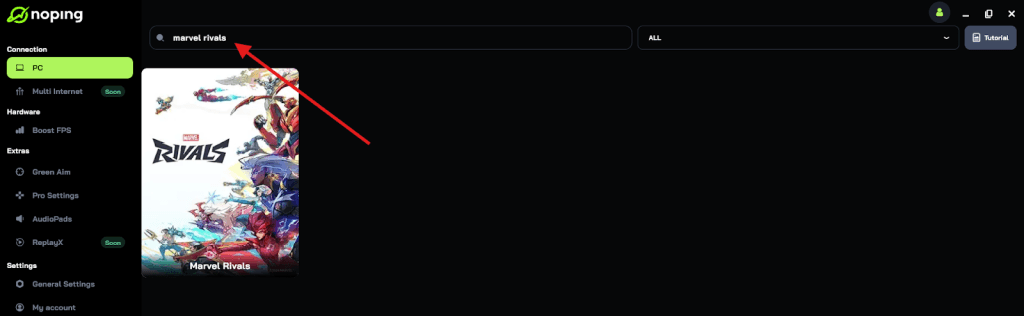
- Once you find Marvel Rivals, click on it. Choose your server on the next screen and click on “Optimize Game”.

- And that’s it, you can start playing Marvel Rivals with optimized ping!
You can test different servers within NoPing to see which gives you the lowest latency.
FAQ - Marvel Rivals mouse acceleration
Here are some frequently asked questions that aren’t fully addressed above.
Q: Is using the config-file method (editing .ini) safe? Could it trigger bans or violate game rules?
A: From what sources have, using the config file to disable mouse acceleration does not appear to be bannable.
Players report using it without issues. But developers have not clearly stated whether manual edits are officially supported or allowed. If the game version or patch locks or overrides such edits, the config lines may not work.
Q: Is mouse acceleration on by default?
A: It depends on version. Before patch 20250110, many players said acceleration was enabled (or that there was no formal toggle off) or smoothing was causing behavior similar to acceleration. After the patch, the default for mouse acceleration and smoothing is off.
Q: Does turning on mouse smoothing only reduce jerkiness, or does it add delay?
A: Smoothing tries to “average out” or interpolate small, jittery inputs to make motion look smoother. But yes, that averaging or filtering can introduce a bit of lag or reduce the immediacy of very small or quick movements.
For players who value precision, this can feel worse than the jitter it tries to correct. It’s a trade-off. (This is a general input principle; Marvel Rivals seems to behave similarly per community feedback.)
Q: If I disable in-game mouse acceleration but still feel like it's on, what could be wrong?
A few possibilities:
- Your Windows or OS pointer setting “Enhance Pointer Precision” or equivalent is still on, adding system-level acceleration.
- Your mouse driver software has its own acceleration / filtering or software smoothing.
- The game version you have might have bugs or default overrides.
- You might have edited the .ini or config file, but the game is resetting or not reading it (because of patch changes, permissions, etc.).
Q: Does disabling mouse acceleration improve aim for everyone?
No, it depends. For players who are used to acceleration, disabling it may feel “sluggish” or like they now need to move the mouse more.
Also, your hardware (mouse sensor, DPI, polling rate) plays a role. If your mouse or system is already noisy or low performance, turning off smoothing/acceleration might expose jitter or micro-shake you didn’t notice before. Many recommend experimenting rather than making big jumps.
Q: Do console or controller versions of Marvel Rivals have mouse acceleration settings?
As far as the sources show, the explicit mouse acceleration / smoothing toggles are discussed in relation to PC versions. Consoles/controllers operate under different input systems; the options may differ or not exist in the same way. I didn't find reliable information about toggling mouse acceleration or smoothing on the console versions.
Play Marvel Rivals with reduced ping and improved FPS! Download NoPing now and start your free trial!