


Running into Warzone not working on PC is frustrating, especially when you’re ready to jump into a match and the game just won’t cooperate.
Sometimes it won’t launch, other times it crashes mid-game, or you get stuck with endless error codes. The causes can vary a lot, from small local issues like outdated drivers to bigger problems such as Activision’s servers being down.
In this article, we’ll walk through the most common reasons Warzone fails to run, how to fix them step by step, and what to check if the problem isn’t on your side.
Why is Warzone Not Working? Common Causes
Warzone problems usually come from one (or a mix) of these buckets:
- Local software or hardware issues: outdated GPU drivers, corrupt game files, incompatible DirectX settings, background apps, or overheating.
- Network problems: unstable ISP routing, NAT/firewall restrictions, or packet loss that prevents stable matchmaking.
- Server-side outages or maintenance at Activision: sometimes matchmaking and login services are degraded.
- Game-specific bugs that show as “dev errors” or specific numeric error codes. Community reports often show workarounds, but official fixes may take time.

Source: Reddit
How to Fix Warzone Not Working on PC?
Try them in order — the first ones are quick checks, the later ones are deeper.
Restart the game and launcher
Simple but effective: close Warzone, quit Battle.net or Steam, then relaunch both as administrator. This clears transient launcher issues and forces a fresh connection.
Check Activision server status
Before tinkering with your PC, check Activision’s Online Services or the official support/X account to see if matchmaking/login services are down. If servers are down, you’ll save time by waiting for the official fix.
Verify and repair game files
Corrupted or missing files cause crashes and dev errors. Use “Scan and Repair” in Battle.net or “Verify integrity” on Steam to let the client restore broken files. This is a frequent fix for mysterious crashes and error codes.
Update GPU drivers and Windows
Outdated GPU drivers are a leading cause of crashes, poor performance, and graphics errors. Update drivers from NVIDIA/AMD/Intel and keep Windows current. Reboot after updates.
Switch to DirectX 11 (if you get DirectX-related crashes)
Some crashes are tied to DirectX versions. For players seeing DirectX errors, forcing Warzone to run with DirectX 11 can stabilize the game: add the -DD11 launch argument in your Battle.net game options (or the equivalent on Steam).
Run as administrator and disable overlays
Run the game and launcher as administrator and disable overlays (Discord, GeForce Experience, Xbox Game Bar, Steam overlay). Overlays can conflict with anti-cheat or video drivers and cause crashes or input issues.
Close background apps and free up resources
Background apps (especially streaming, recording, or heavy browser tabs) use CPU, GPU, and disk I/O. Close unnecessary programs and try again. If CPU/GPU temps are high, check cooling and reduce in-game graphics until you eliminate thermal throttling.
Check disk space and install location
Ensure your install drive has enough free space and that Warzone is on an SSD or a healthy drive. Corrupted disk sectors or low space can produce file corruption and long load times.
Reset local configuration files and custom loadouts (for certain error codes)
Community reports show that clearing local configs or deleting custom loadouts has resolved specific error codes (for example, some Ranked-related errors). Back up important configs before removing them.
Reinstall the game (last resort)
If nothing else works, a clean reinstall can remove deep corruptions. Uninstall, delete leftover folders in the game directory and AppData, then reinstall. This is time-consuming but often solves persistent dev errors.

How to Check if Warzone Servers are Down?
- Visit Activision’s Online Services page — it’s the authoritative source for current outages.
- Check Activision Support on X (Twitter) for updates from @ATVIAssist.
- Use third-party outage trackers (DownForEveryoneOrJustMe) and gaming news outlets for broader context. These sites detect patterns of disconnects reported globally.
If servers are down, the only real fix is waiting for Activision to resolve the issue. Official channels usually post ETA-like updates when the outage is large.
How to Improve Your Performance in Warzone?
If lag, high ping, rubberbanding, or packet loss are your problems, routing and path stability matter a lot. One practical tool many players use is NoPing, which optimizes network routes between you and the game servers.
What NoPing does: it finds better paths between your PC and the game servers by routing through optimized nodes, reduces packet loss and jitter, and offers features like “Boost FPS” to free system resources. If you experience high ping or unstable routes to Warzone servers, NoPing can make a noticeable difference.
Here’s how to use NoPing to improve performance in Call of Duty:
- Sign-up through the website and download NoPing (you can try it for free)
- Open NoPing and search for Call of Duty inside the software
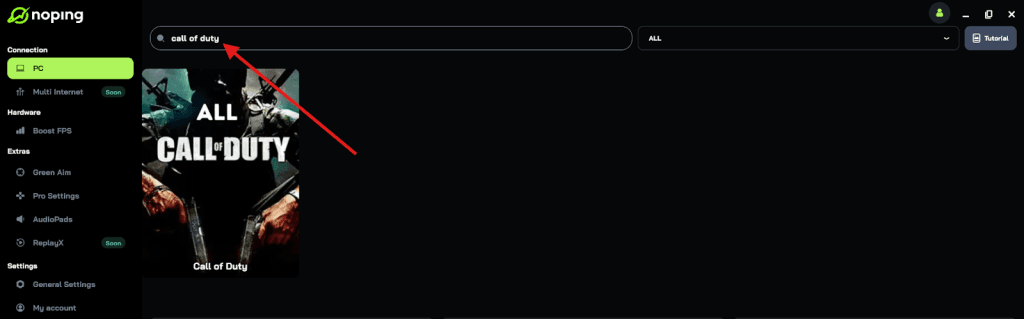
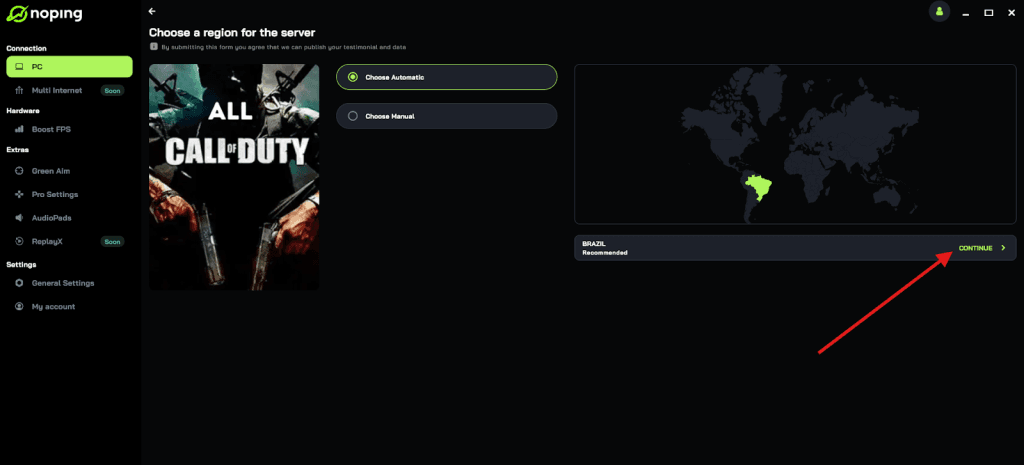
- Once you find Call of Duty, click on it and, on the next screen, select “Choose automatic” or “Choose manual” and click “Continue”. We recommend choosing automatic, as NoPing’s technology analyzes all routes on a global scale and automatically selects the best option for you.
- On the next screen, click on “Optimize Game”.
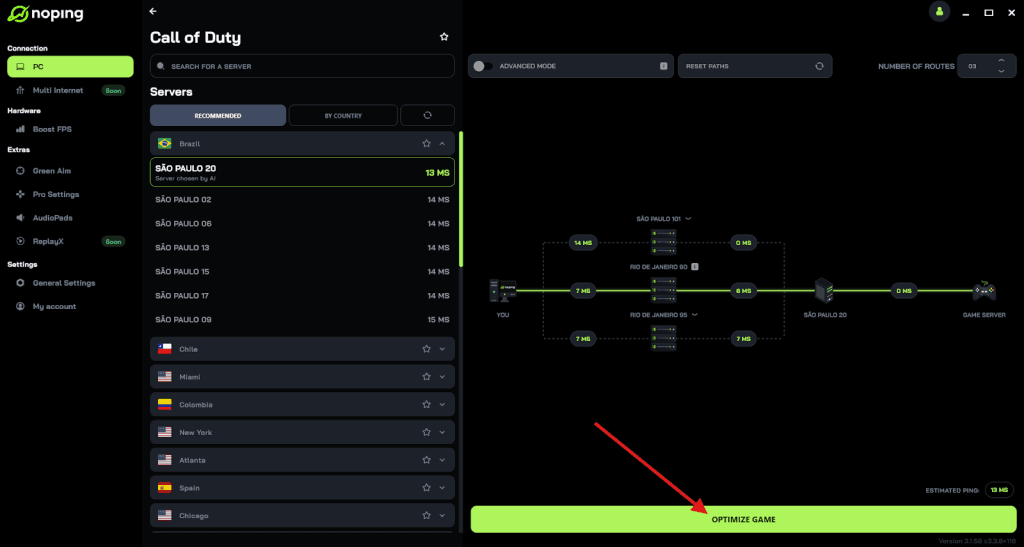
- And that’s it, you can start playing CoD with optimized ping!
You can test different servers within NoPing to see which gives you the lowest latency.
Warzone Error Codes to Keep in Mind
Below are a few commonly seen errrors and quick notes:
- Dev Error (generic) — often tied to corrupted files, drivers, or DirectX. Try verify/repair, update drivers, or switch to DirectX 11.
- Error Code 2030 / Ranked errors — community fixes include repairing files and resetting local configs or loadouts. If the issue persists, check official channels for Ranked-specific notices.
- Connection / matchmaking errors — check Activision Online Services and your NAT/firewall. Use wired Ethernet and test with other online services to isolate the problem.
If you see a specific numeric code not listed here, search for that code on Activision Support, community forums, and recent posts. Many errors are transient and have temporary community workarounds while an official patch is pending.
Quick troubleshooting checklist
- Restart PC, launcher, and router.
- Verify/repair game files.
- Update GPU drivers and Windows.
- Try DirectX 11 launch argument if you get DirectX errors.
- Check Activision Online Services for outages.
FAQ - Warzone not Working
Q: Will reinstalling always fix dev errors?
A: Not always, but clean reinstalls remove file corruption that other fixes can’t. Try verification/repair and driver updates first because reinstall takes time.
Q: Can antivirus or firewall block Warzone?
A: Yes. Add the game and anti-cheat executables to your AV/firewall exceptions, and if possible, temporarily disable third-party antivirus for a test run. Also ensure your router/firewall isn’t blocking necessary ports.
Q: How can I check packet loss or jitter during a match?
A: Use in-game netgraph (if available), or external tools like ping and traceroute. Many routing optimizers and ISPs provide diagnostic tools. If you see packet loss between you and the server, it’s a strong sign routing is the issue.
Q: My friends can play but I can't: is it my ISP?
A: Very likely. Differences between players on the same game session usually come down to local network setups or ISP-level routing.
Start with the quickest checks: server status, verify/repair files, update drivers, and a wired connection. If those don’t fix it, try DirectX 11 and reset local configs.
And to always have reduced ping and optimized FPS to play Warzone, use NoPing! Download now and start your free trial!