

Roblox error code 280 shows up when you try to join a game and Roblox thinks your client is out of date.
It is a pretty common disconnect message, and the good news is that in most cases you can fix it yourself without waiting on support.
This guide walks through what the error means, the step by step fixes for PC, mobile, and console, what usually causes it, other Roblox error codes to watch for, and a compact FAQ with a few extra tips.
What is Roblox Error Code 280?
Roblox Error Code 280 is an error produced by the Roblox client when it detects a mismatch between the client version on your device and what the Roblox servers expect.
In practice this often appears when the client failed to auto-update or when corrupted local files or settings prevent the client from updating itself.
The official Roblox Help Center lists Error Code 280 as indicating an out of date client and recommends updating or reinstalling Roblox as the primary remedy.
How to Fix Roblox Error Code 280
Below are progressively more involved fixes. Try them in order and stop once the problem is resolved.
Quick checks (do these first)
- Close Roblox and restart the device. A reboot clears many transient issues.
- Make sure your internet connection is stable. If you are on Wi Fi try switching to a wired connection or toggling Wi Fi off and on.
- Check for system updates. On Windows, macOS, iOS or Android, make sure your device OS is up to date. Some Roblox updates rely on OS compatibility.
These basic steps are often enough to let Roblox auto-update and reconnect.
Update Roblox
- Windows / macOS: Open your browser and go to roblox.com, sign in and try to join any experience. Roblox usually triggers an automatic update on launch. If the client updater fails, you will need to reinstall (steps below).
- iOS / Android: Open the App Store or Google Play Store, search Roblox and tap Update if available. If no update button appears but the error persists, try the reinstall steps below.
Force close and clear cache (mobile)
On mobile, force close the app, then clear app cache (Android) or force-close and reopen (iOS).
If clearing cache is available in your settings, do it, then reopen Roblox and try again.
Clear Roblox cache and leftover files (Windows)
- Uninstall Roblox from Settings > Apps.
- Open File Explorer and go to %LocalAppData% and delete the Roblox folder if it remains. Many users report that reinstalling without removing leftover cache can leave the old problem intact.
- Restart your PC.
- Install Roblox again from roblox.com and try to join a game.
Reinstall on Mac, mobile, and consoles
Completely uninstall Roblox, restart the device, and reinstall from the official store or roblox.com.
For consoles follow the standard uninstall process for your platform then reinstall.
Check date and time settings
If your device clock is wrong, secure connections and certificate checks can fail, which may stop updates or cause the client to misbehave.
Set date and time to automatic on Windows, macOS, iOS, and Android, then restart Roblox.
Disable interfering software temporarily
Antivirus, strict firewall rules and proxy settings can block Roblox from contacting update servers or downloading files.
Try temporarily disabling third party antivirus and see if Roblox updates. If that fixes the error, add Roblox to your antivirus or firewall exceptions.
Network troubleshooting
If nothing above works, try:
- Restart your router and modem.
- Flush DNS and renew IP (Windows command prompt: ipconfig /flushdns, ipconfig /renew).
- Try a different network if available, like mobile hotspot, to confirm whether your home network is the problem.
Contact Roblox support
If you have tried all the above and still get error code 280 on every device, file a ticket with Roblox Support and include the exact error text, platform, recent steps you tried, and screenshots.
DevForum responses from Roblox staff indicate support may advise reinstall or investigate a client-side failure on their end if many users report the same issue.
What Causes Roblox Error Code 280?
Short answer, the client thinks it is out of date. More specifically:
- The Roblox client failed to auto-update and now is incompatible with the server.
- Corrupted local files or cache that prevent successful updates or make the client report an invalid version.
- Network or system settings blocking the updater, including firewalls, proxies, antivirus and incorrect date time.
- Rarely, Roblox servers or a targeted outage may cause update checks to fail. In those cases Roblox service notices or multiple user reports will indicate a wider outage, and waiting briefly while monitoring Roblox status is reasonable.
Other Roblox Error Codes
While you are troubleshooting 280, you may see other common codes:
- Error 266: connection timed out. Usually network related.
- Error 277: lost connection to game server. Again network or server side.
- Error 279: failed to connect to the game. Often blocked ports or firewall.
The Roblox Error Codes page lists many codes and suggested starting points for each. If your problem is not 280, check that page and follow the article for the specific code.
How to play Roblox without lag?
NoPing is a service designed to optimize your route to Roblox’s servers. Sometimes, the normal path your internet provider uses isn’t the fastest.
NoPing reroutes your data through a better, more direct path.
Here’s how to use NoPing to fix lag in Roblox:
- Sign-up through the website and download NoPing (you can try it for free)
- Open NoPing and search for Roblox inside the software
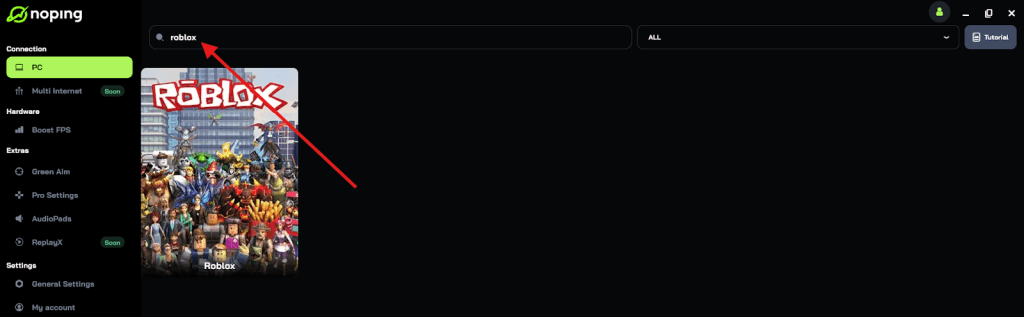
- Once you find Roblox, click on it and, on the next screen, select “Choose automatic” or “Choose manual” and click “Continue”. We recommend choosing automatic, as NoPing’s technology analyzes all routes on a global scale and automatically selects the best option for you.
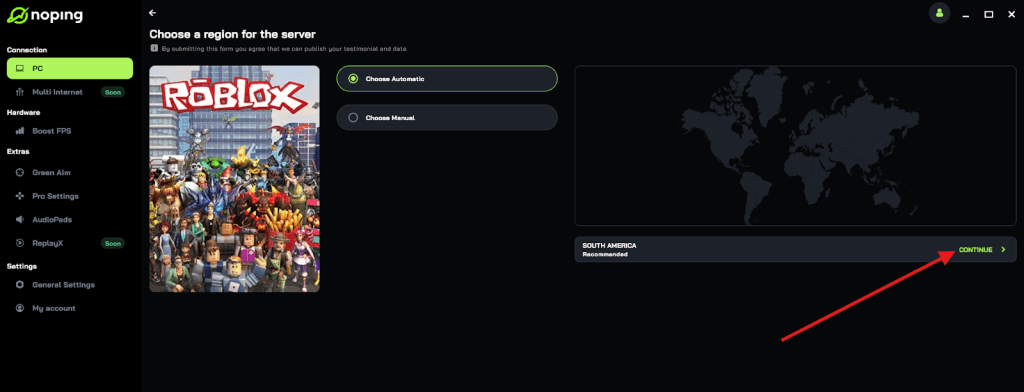
- On the next screen, click on “Optimize Game”.
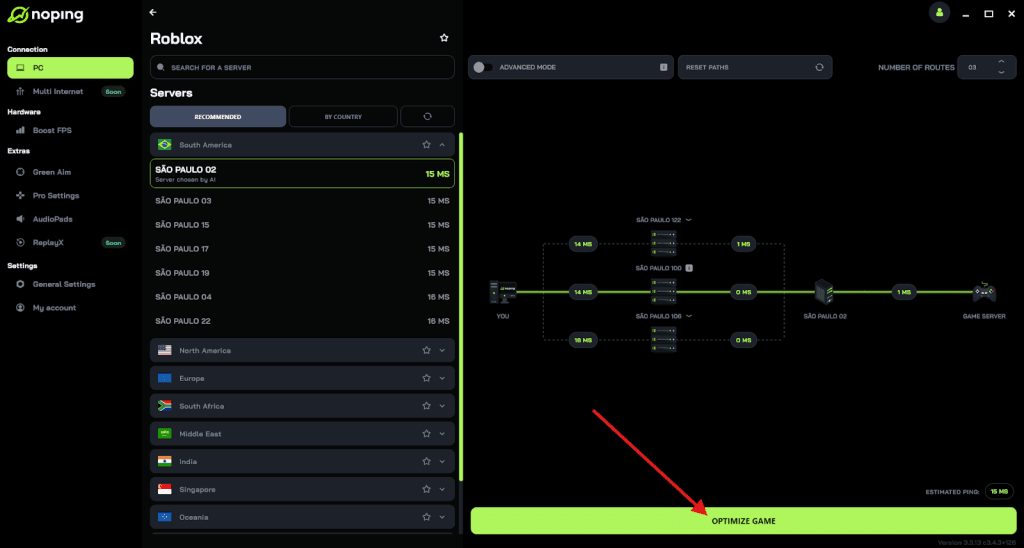
- And that’s it, you can start playing Roblox with optimized ping!
You can test different servers within NoPing to see which gives you the lowest latency.
FAQ - Roblox Error Code 280
Q: Will Error Code 280 delete my Roblox account or game data?
A: No. Error Code 280 is a client update or connection issue. Your account and its cloud-saved data are stored on Roblox servers. The error prevents you from connecting but does not delete account content.
Q: Is Error Code 280 only a PC problem?
A: No. Error Code 280 can appear on PC, Mac, mobile devices, and consoles. The root cause is the same: the client is not the expected version or it cannot update. Roblox support articles include platform specific steps for Windows, macOS, iOS, Android, Amazon Fire and ChromeOS.
Q: I reinstalled but still get 280. What now?
A: Make sure you deleted leftover Roblox folders and cache before reinstalling. On Windows, remove the %LocalAppData%\Roblox folder after uninstall and restart the PC. Also check date and time, disable interfering software, and try a different network.
Q: How long does it take Roblox to fix an outage that causes 280?
A: If the cause is a widespread Roblox update server issue, Roblox engineers work to resolve it promptly. Time to resolution varies. Check Roblox status pages and social channels for official information and community reports, and try reconnecting periodically.
Roblox Error Code 280 is frustrating because it stops play, but it is usually fixable with a methodical approach: restart, check for updates, clear cache, reinstall cleanly, and verify network and security settings.
If everything on your side checks out and multiple users report the same problem, it may be a server-side issue and Roblox will need to resolve it.
And to play Roblox with reduced ping and optimized FPS, use NoPing! Download now and start your free trial!