

Dealing with your PC crashing when starting Battlefield 6 is easily the most annoying technical issue gamers are facing this season.
You are all set to jump into the action, squad up with your friends, and grind for that new weapon skin, but the game simply refuses to cooperate. Instead of loading into the lobby, you are left staring at your desktop wallpaper or a vague error code.
This is a specific set of conflicts involving drivers, security settings, and game files that are completely stopping the launch process.
Let’s see how to fix it!
Is your PC actually meeting the new hardware requirements?
Yes, it likely is, but you need to check specific security settings in your BIOS that Battlefield 6 now demands.
The game is surprisingly optimized for mid-tier hardware, but the crash at launch is often not about raw power. It is about security protocols.
Battlefield 6 utilizes a newer version of EA Anti-Cheat that strictly requires TPM 2.0 and Secure Boot to be enabled.
If these are disabled in your BIOS, the game will simply close instantly upon launch to prevent what it thinks is an "insecure" environment.
You need to restart your computer and enter your BIOS settings (usually by pressing Del or F2 during boot). Look for a "Security" or "Boot" tab.
You must ensure "Secure Boot" is set to "Enabled" and that your TPM (Trusted Platform Module) version is 2.0. For AMD users, this might be listed as fTPM; for Intel users, it is often called PTT.
If you played Battlefield 2042, you might have gotten away with legacy settings, but Battlefield 6 is far stricter.
Once you change these settings, save and exit. This single step resolves the "silent crash" for nearly 40% of users.

Source: Videocardz
Why is the EA Anti-Cheat service flagging your system?
It is likely conflicting with Windows "Exploit Protection" settings or other background overlays.
This is a specific issue that surfaced prominently with the October launch. The anti-cheat service sees certain Windows memory protections as interference. The fix is a bit technical but very effective.
You need to tell Windows to stop "protecting" the Battlefield executable so aggressively.
Click your Start button and type "Exploit Protection" to open that system setting. Go to "Program Settings" and click "Add program to customize".
You want to choose "Add by program name" or find the executable path. You need to add bf6.exe (located in your installation folder) and also the EAAntiCheat.GameService.exe.
Once added, scroll through the options like "Control Flow Guard" and "Data Execution Prevention".
The community fix that works best is to check "Override system settings" for these and turn them OFF specifically for these files.
It sounds counterintuitive to turn off protection, but these Windows layers often strangle the game's ability to access the memory it needs, leading to an instant crash.

Are your graphics drivers causing the "Device Removed" error?
Yes, outdated or corrupt drivers are the number one cause of the infamous DirectX errors.
If you are seeing an error box that says DXGI_ERROR_DEVICE_REMOVED or DirectX function detected a fatal error, your GPU driver just crashed and recovered, taking the game down with it.
Battlefield 6 pushes the Frostbite engine to its limits, and it does not play nice with older drivers.
Do not just click "Update" in GeForce Experience or Adrenalin software. That is often not enough.
You should perform a clean installation. I highly recommend downloading a tool called DDU (Display Driver Uninstaller).
Download the latest driver for your card from the manufacturer's website first.
Then, disconnect your internet (to stop Windows from auto-installing a generic driver), run DDU in Safe Mode to wipe every trace of the old driver, and then install the new one you downloaded.
This clears out old shader caches and registry keys that might be conflicting with the new game files.
Could corrupted game files be the culprit?
Absolutely, especially after the recent 55 GB patches.
With game sizes ballooning and updates like the Winter Offensive dropping massive amounts of data, it is very common for a single texture file or script to get corrupted during the download.
When the game tries to load that specific asset during the startup sequence, it panics and crashes.
If you are on Steam, right-click Battlefield 6 in your library, select Properties, go to "Installed Files", and click "Verify integrity of game files".
It will take a few minutes to scan the massive install folder. If it finds any mismatched files, it will redownload just those specific chunks. On the EA App, the process is similar: click the three dots on the game tile and select "Repair".
Do not skip this step. It is the digital equivalent of turning it off and on again, and it fixes a surprising number of "random" crashes.
Is Windows "Game Mode" helping or hurting?
Surprisingly, it might be hurting performance on some setups, causing hangs on the splash screen.
Windows Game Mode is designed to prioritize games, but with Battlefield 6, some users have reported it causes conflicts with the scheduler, especially on CPUs with high core counts like the newer Ryzens or Intel Core i9s.
Try toggling this setting. Go to Windows Settings, select Gaming, and turn "Game Mode" off. While you are there, look for "Graphics Settings" and find "Hardware-accelerated GPU scheduling".
If you have a high-end 40-series card, this should be on, but for many older cards, turning this OFF has stabilized the launch process. It reduces the complexity of how the GPU talks to the CPU during that initial heavy load of the shader compilation.
How can clearing the cache solve startup freezes?
It removes temporary files that may contain old or conflicting configuration data.
Battlefield 6 builds a cache of shaders (pre-calculated lighting and texture data) to make the game run smoother.
However, if you updated your graphics driver or the game received a patch, that old cache is now invalid. The game tries to use it, fails, and crashes.
You need to manually delete this. Go to your Documents folder and look for the "Battlefield 6" folder.
Inside, you will see a folder named cache or twinkles (yes, Frostbite has funny naming conventions sometimes).
You can safely delete the contents of these folders. Do not worry; the game will regenerate fresh, correct shaders the next time you launch it.
You might experience a bit of stuttering for the first five minutes of gameplay while it rebuilds, but it will get you past the crash.
Are overlays fighting for control of your screen?
Yes, too many overlays trying to hook into the game process simultaneously will cause a crash.
You probably have the Steam overlay, the EA App overlay, Discord overlay, maybe even GeForce Experience or NVIDIA App overlay all trying to display on top of Battlefield 6.
The game's anti-cheat and the graphics engine can get confused by this "hooking" war, resulting in a black screen.
Disable them one by one to find the culprit. Start with the Discord overlay, as it is a frequent offender. Go to Discord User Settings, select Game Overlay, and toggle it off. Then try the EA App overlay (in the application settings under 'Application').
The goal is to run the game as "naked" as possible. If the game launches successfully without them, you can try re-enabling them one by one to see which one breaks it.
Is your power supply handling the transient spikes?
If your PC shuts down completely or reboots, your PSU might be tripping its protection.
Battlefield 6 startup is incredibly demanding on both the CPU and GPU simultaneously. As the main menu loads, your system power draw can spike aggressively.
If you are using an older power supply or one that is barely meeting the wattage requirements, this spike can trigger the OCP (Over Current Protection).
This is not a software crash; this is a hardware safety measure. If this happens, you are likely hearing a click from your PC tower before it goes dark.
There is no software fix for this other than undervolting your GPU temporarily to reduce the load or upgrading your power supply unit.
You can try capping your frame rate in the NVIDIA Control Panel or AMD software before launching the game.
Limiting the FPS to 60 globally for the game menu can prevent the GPU from running wild and drawing maximum power during the loading screens.
Also read: How to Use the Rangefinder in Battlefield 6
Why does the game hang if your internet connection is unstable?
Because the game performs a handshake with the master servers before it even loads the main menu.
This is where things get tricky. We often think of crashes as purely hardware issues, but Battlefield 6 is a live-service game.
It needs to authenticate your account and download your profile data immediately. If your packet loss is high or your connection jitters during this handshake, the game can hang indefinitely or time out, which looks exactly like a crash.
This is where NoPing becomes a vital tool in your troubleshooting arsenal. Sometimes the route your ISP takes to the EA servers is congested or unstable. NoPing optimizes this route, finding a cleaner, more stable path for your data.
By reducing packet loss and jitter, you ensure that the initial authentication handshake happens smoothly.
Here’s how to use NoPing to fix network issues in Battlefield 6:
- Sign-up through the website and download NoPing (you can try it for free)
- Open NoPing and search for Battlefield 6 inside the software
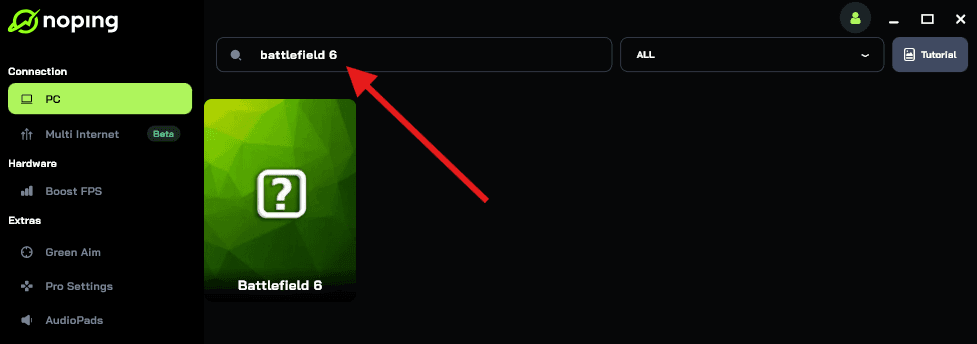
- Once you find Battlefield 6, click on it. Choose your server on the next screen and click on “Optimize Game”.
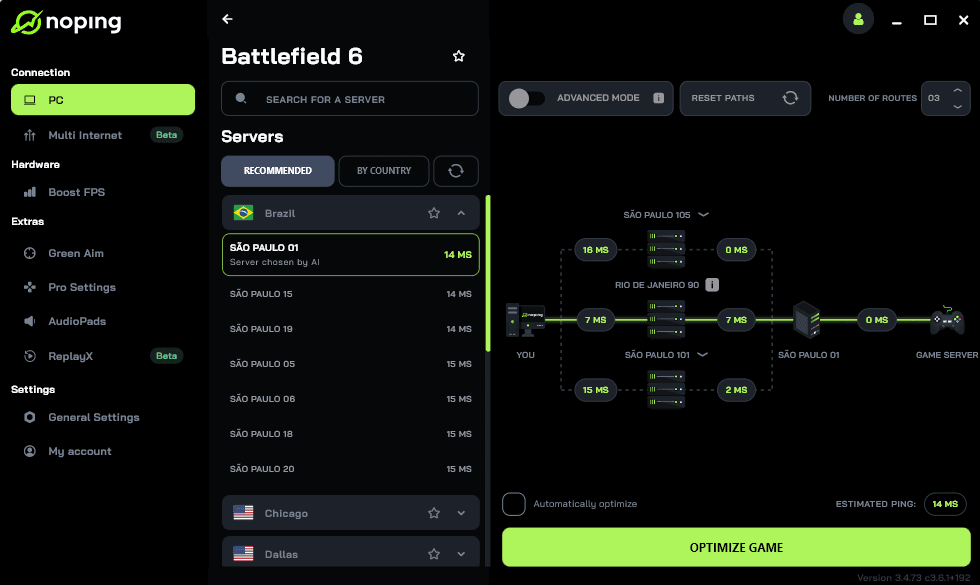
- And that’s it, you can start playing Battlefield 6 with optimized ping!
You can test different servers within NoPing to see which gives you the lowest latency.
Are you using XMP profiles on unstable RAM?
Yes, Battlefield 6 is notoriously sensitive to memory instability.
You might play other games for hours without issue, but the heavy data streaming in this game will expose even the slightest instability in your RAM overclock (XMP or EXPO).
If you are getting "Memory Management" blue screens or crashes to desktop without errors, this is the likely suspect.
Go into your BIOS and temporarily disable XMP (Extreme Memory Profile). This will run your RAM at its default, slower JEDEC speed.
Yes, you lose a tiny bit of performance, but if the game launches and runs stable, you know your RAM was the issue.
You can then try to re-enable XMP but perhaps bump the voltage slightly (if you are comfortable with overclocking) or run a slightly lower frequency. Stability is king here.
Is your Virtual Memory set correctly?
If you have disabled the page file, the game will run out of memory and crash.
Some optimization guides tell you to disable the Windows Page File if you have a lot of RAM. Do not do this for Battlefield 6. The engine expects to be able to offload unused assets to your drive. If the Page File is disabled or set too small, the game will crash the moment your physical RAM fills up.
Search for "Advanced System Settings" in Windows, go to the "Advanced" tab, click "Performance" settings, and then the "Advanced" tab again. Under Virtual Memory, click Change.
Ensure that "Automatically manage paging file size for all drives" is checked. Let Windows handle it. It knows when the game needs more breathing room.
What should you do if none of this works?
You need to look at the Windows Event Viewer for the specific error code.
Sometimes you are flying blind. The Event Viewer is the "black box" of your PC. Right-click the Start button, select Event Viewer, and go to Windows Logs > Application. Look for a red "Error" icon at the time of the crash.
Clicking on it will give you details. If it mentions ntdll.dll, it is usually a system corruption issue (run sfc /scannow in command prompt).
If it mentions the graphics driver file (like nvlddmkm.sys), it is definitely a GPU driver issue. If it mentions 0xC0000005, that is an access violation, which often points back to the overlays or the Exploit Protection issue we discussed earlier.
Having this code allows you to search for a much more specific solution.
How do you keep the game stable once it is running?
Maintenance and connection optimization are key.
Once you have solved the startup crash, you want to keep it that way. Keep your drivers updated, but maybe wait a few days after a new driver launch to see if others report issues. Keep your background processes clean.
And do not forget the impact of network stability on game performance. A "crash" isn't always to the desktop; sometimes a "crash" is a lag spike so bad it disconnects you from the server in the middle of a killstreak. That is just as painful.
Using NoPing ensures that once your hardware is behaving, your connection does not let you down. It works by lowering your ping and, more importantly, eliminating the packet loss that causes those disconnects.
You have done the hard work of fixing the PC; let NoPing handle the highway to the server.
Getting Battlefield 6 running can feel like a battle in itself, but these steps cover the vast majority of issues players are facing right now. Take them one by one, be patient, and I will see you on the objective.
Download NoPing now and play Battlefield 6 with top performance!